Samsung Galaxy S26 Wi-Fi Not Working? 8 Fixes That Work
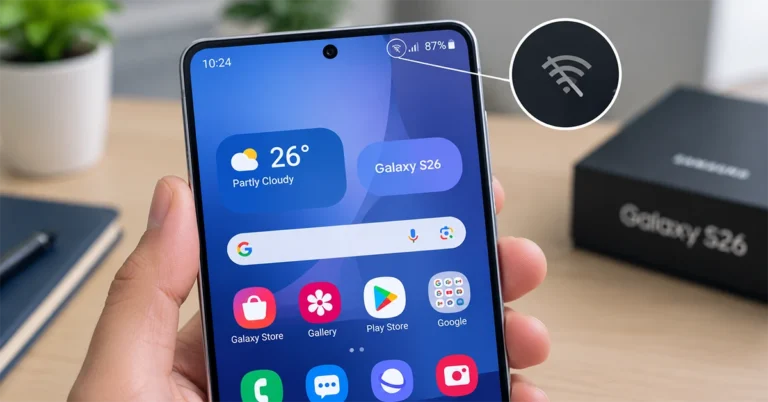
Samsung Galaxy S26 displaying a disconnected Wi-Fi icon, illustrating a Wi-Fi connection problem.

If your Samsung Galaxy S26 Wi-Fi is not working, restart your phone and router, reconnect to the network, and check whether other devices can access the internet. If the problem continues, update your phone, reset Wi-Fi and Bluetooth settings, or test Wi-Fi in Safe Mode. These nine fixes can help resolve common connection problems without a factory reset. Why is my Samsung Galaxy S26 Wi-Fi not working? Your Galaxy S26 may fail to connect to … Read more
Samsung Galaxy S26 Battery Draining Fast? 12 Fixes That Work

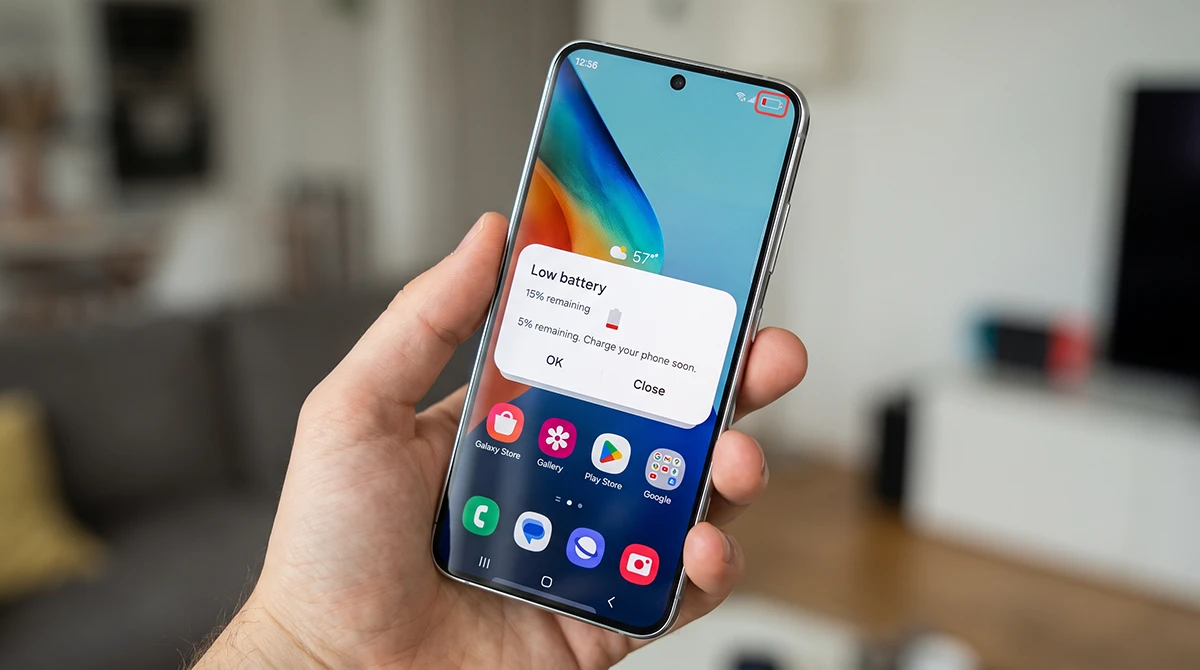
Samsung Galaxy S26 Low Battery Alert

If your Samsung Galaxy S26 battery is draining fast, check which apps consume the most power, restrict unnecessary background activity, and adjust your display settings first. Weak 5G signals, high screen brightness, recent software updates, and initial setup processes can also shorten battery life. Try the fixes below before resetting your phone or requesting a repair. If you just bought your Galaxy S26, give the phone a few days to finish syncing data and optimizing … Read more

How to Fix Galaxy S26 Bluetooth Pairing Problems: 10 Working Solutions

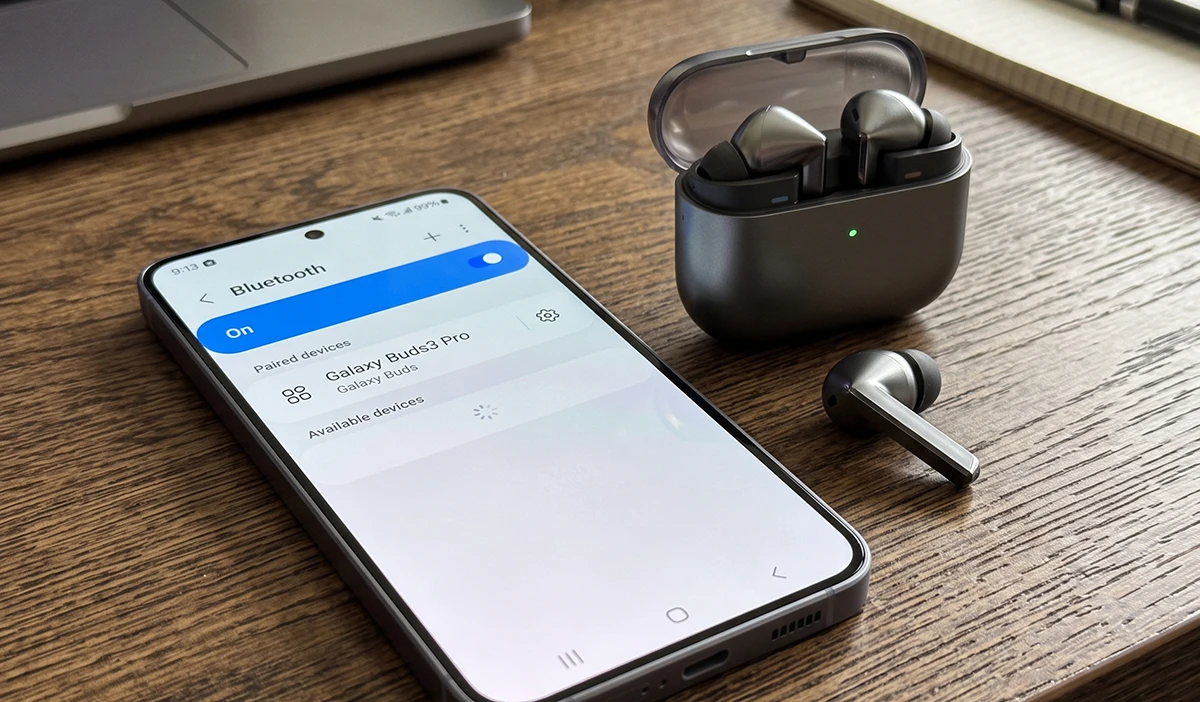
Samsung Galaxy S26 smartphone displaying Bluetooth settings with wireless earbuds nearby

If your Galaxy S26 won’t pair with Bluetooth headphones, earbuds, a speaker, smartwatch, or car system, the fastest fixes are to put the accessory in pairing mode, toggle Bluetooth off and on, and remove any stale saved connection before pairing again. Most cases are caused by the accessory not being discoverable, already being connected to another device, outdated software, or corrupted Bluetooth settings. This guide walks you through the most effective Galaxy S26 Bluetooth troubleshooting … Read more

How to Block Spam Calls on Samsung Galaxy S26: 5 Methods That Actually Work

block spam calls galaxy s26

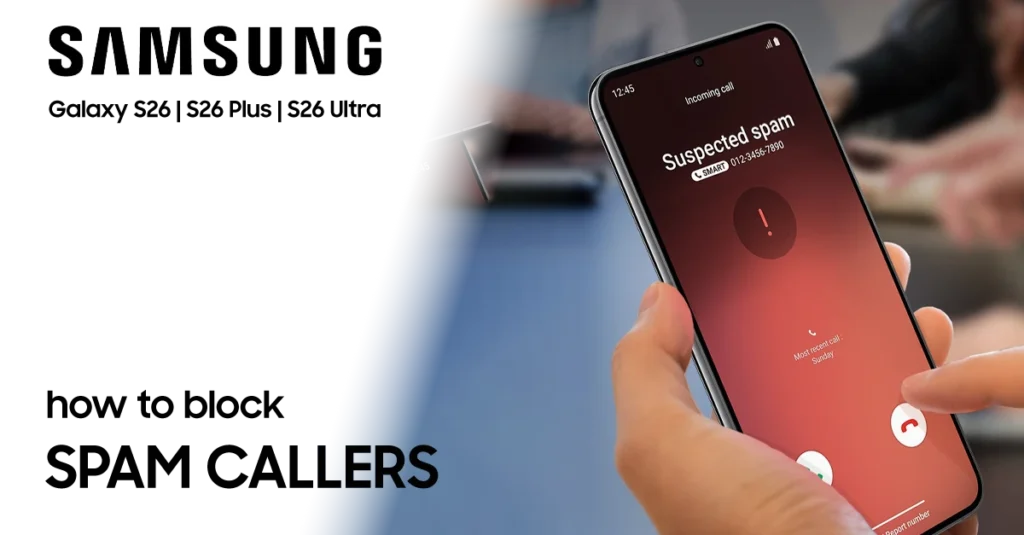
Spam and scam calls can be more than annoying—they can interrupt your day, expose you to fraud, and make you avoid answering your phone. On the Samsung Galaxy S26, you can reduce these calls using built-in tools such as Caller ID and spam protection, Smart Call, and Call screening. This guide shows you how to block spam calls on your Galaxy S26 in a few minutes. You can block all identified spam and scam calls, … Read more

How to Configure Side Button on Galaxy S26: Quick Customization Guide

configure side button on galaxy s26

You can configure the Side button on your Samsung Galaxy S26 in Settings > Advanced features > Side button. Set a double press to launch the camera, flashlight, an app, or another shortcut, and set a long press to open Gemini, another digital assistant, or the power-off menu. The Side button is more than a power key: a short press wakes or locks the screen, while double press and long press can be customized for … Read more

How to Turn On and Use Google Find Hub on Galaxy S26: A Complete Guide

use google find hub on galaxy s26

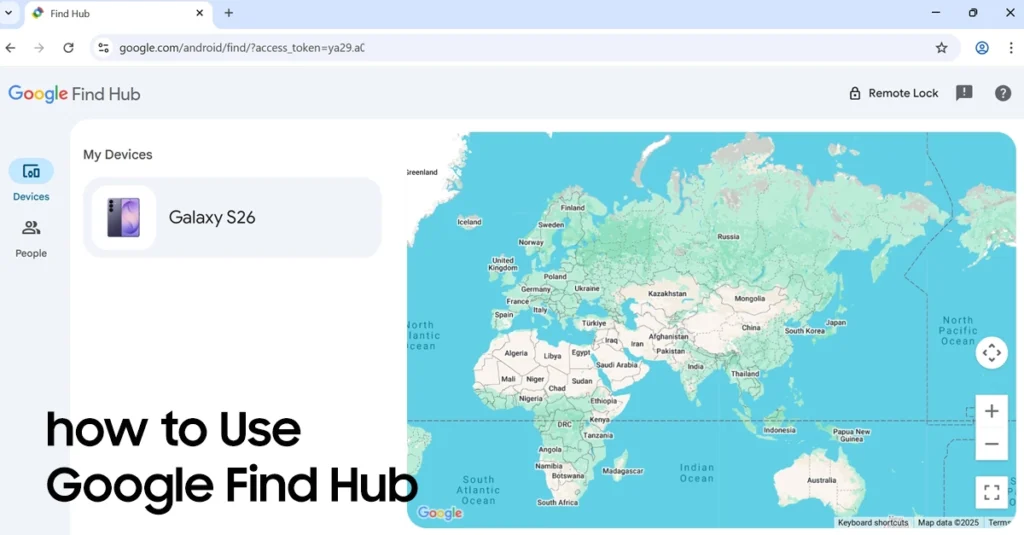
Google Find Hub is the fastest way to locate, lock, or erase a lost Galaxy S26, and you can turn it on in a few minutes from your phone’s settings. If your Galaxy S26 goes missing, this built-in Google service lets you see its location, make it ring, secure it remotely, or wipe its data to protect your personal information. To use it, make sure your Galaxy S26 is signed in to a Google Account, … Read more

How to Enable USB Debugging on Your Samsung Galaxy S26

enable usb debugging on galaxy s26

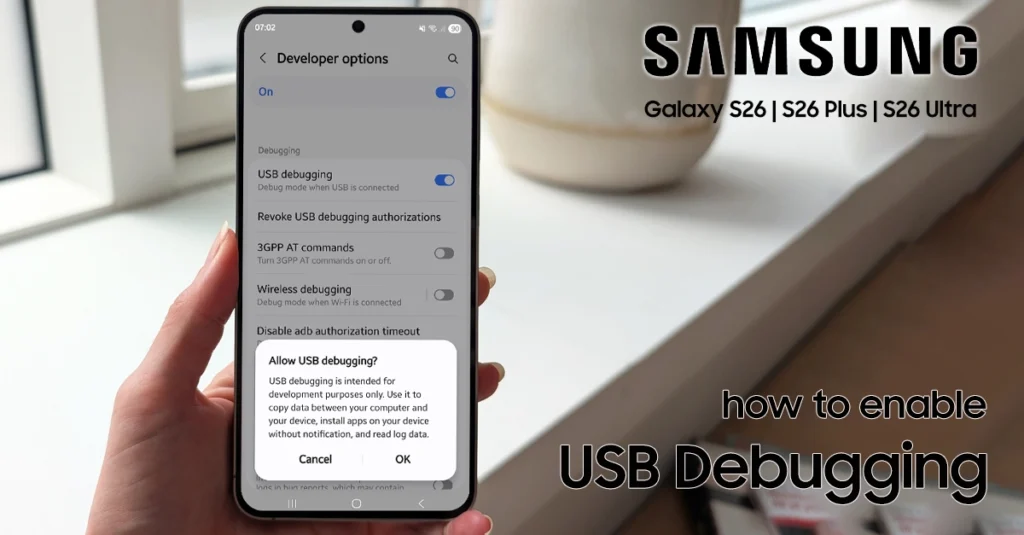
To enable USB debugging on your Samsung Galaxy S26, open Settings, go to About phone > Software information, tap Build number seven times to unlock Developer options, then turn on USB debugging under Developer options. This setting lets your phone communicate with a computer for tasks such as app testing, file transfers, log access, and advanced troubleshooting. USB debugging is primarily intended for developers and advanced users. When enabled, it allows tools such as Android Studio or ADB to send commands to … Read more

How to Activate Developer Mode on Samsung Galaxy S26: A Beginner’s Guide

activate developer mode on galaxy s26

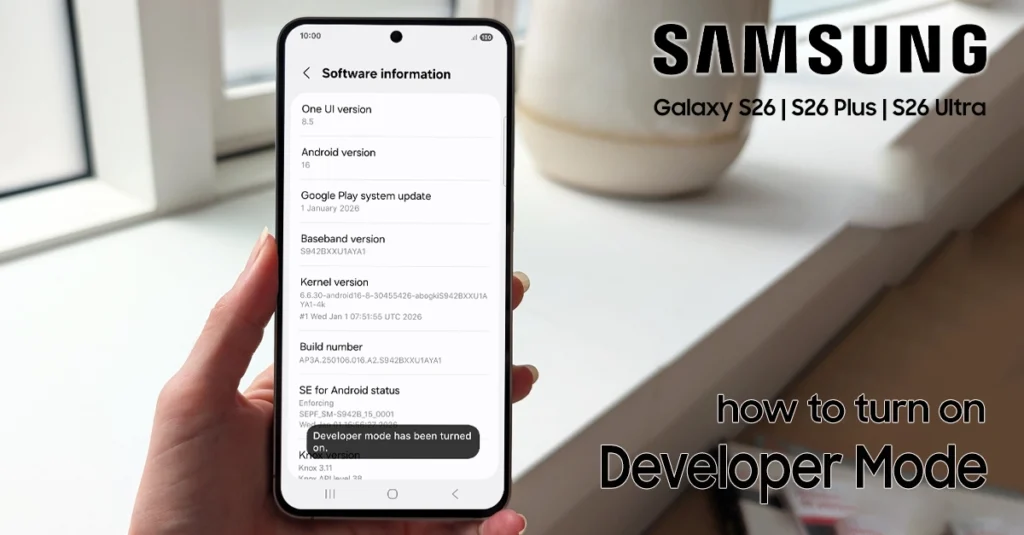
To activate Developer mode on your Samsung Galaxy S26, open Settings, go to About phone > Software information, then tap Build number seven times. After confirming with your screen lock, Developer options will appear at the bottom of the main Settings menu. Developer mode unlocks advanced tools such as USB debugging, animation-scale controls, and other settings used for testing, troubleshooting, and customizing your phone. Samsung hides this menu by default because some options can affect … Read more

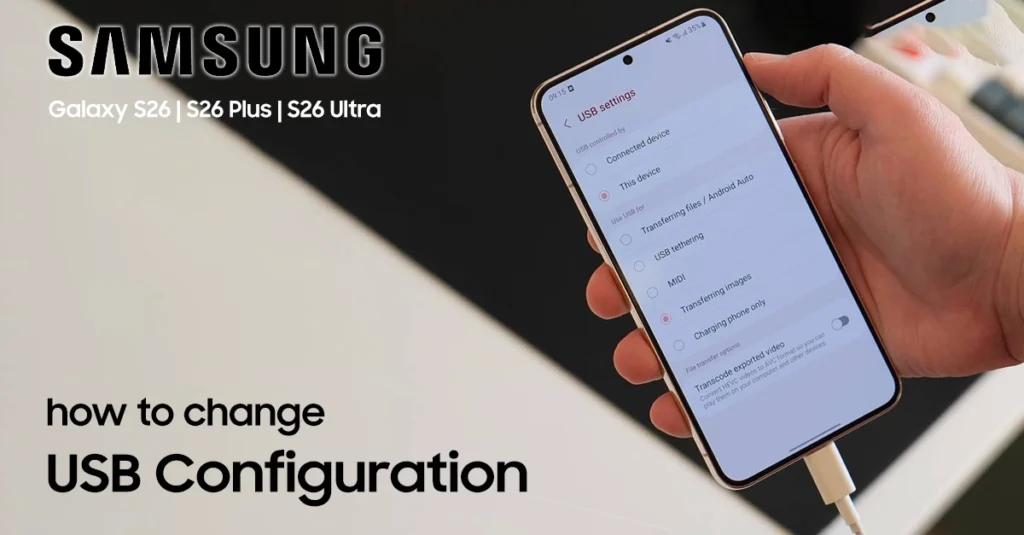
How to Change Default USB Configuration on Your Samsung Galaxy S26

change default usb configuration on galaxy s26

If your Samsung Galaxy S26 won’t transfer files to a computer or only charges when connected via USB, changing the default USB configuration may solve the problem. This setting lets you choose how your phone connects to other devices, including file transfer, photo transfer, USB tethering, MIDI, and charging only. To change it, enable Developer Options by tapping Build number seven times, then open Settings > Developer options > Default USB configuration and select your … Read more