Is your Samsung Galaxy S26 having connection problems? Whether your phone keeps disconnecting from Wi-Fi, Bluetooth devices will not pair, mobile data stops working, or the network signal disappears, several troubleshooting steps can help restore connectivity.
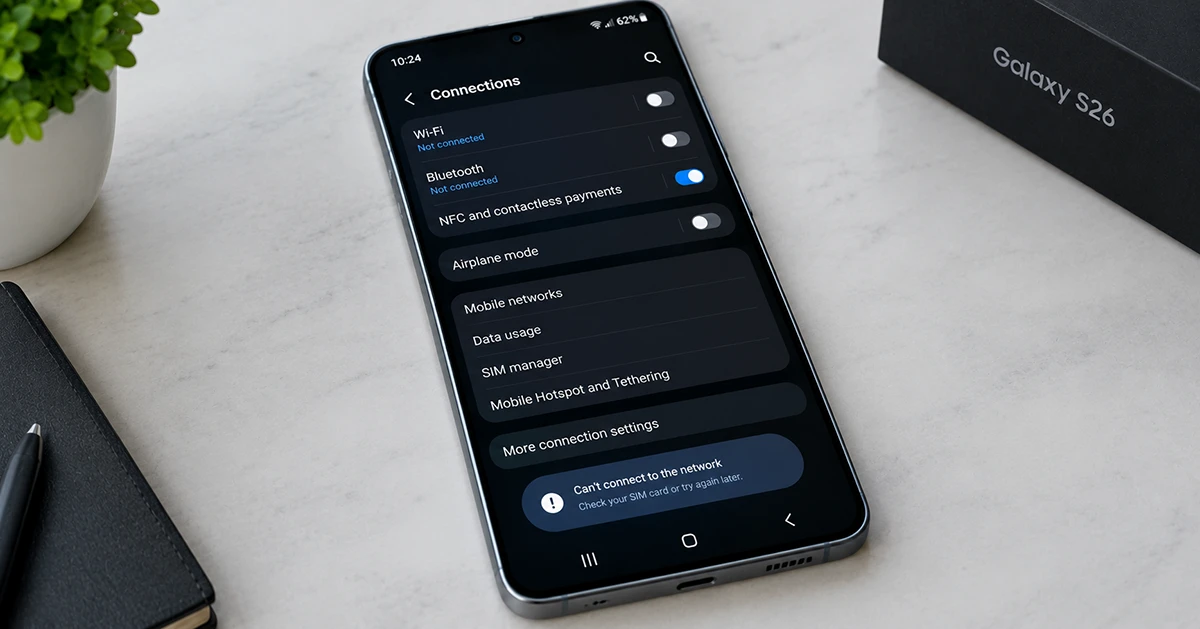
Start by restarting your phone, toggling Airplane mode, checking your network settings, and installing available software updates. If the problem continues, troubleshoot the affected connection individually or reset the relevant network settings.
This guide explains how to fix common Galaxy S26 connection problems without immediately resorting to a factory reset.
1. Restart Your Galaxy S26 and Toggle Airplane Mode
Temporary software glitches can prevent your Galaxy S26 from connecting properly to Wi-Fi, mobile networks, or Bluetooth devices.
Try these quick fixes first:
- Restart your Galaxy S26 from the power menu.
- Open Quick Settings and turn on Airplane mode.
- Wait approximately 10 seconds.
- Turn Airplane mode off and allow your phone to reconnect.
- Test the connection again.
If you are experiencing problems with mobile data, check whether your cellular signal returns after reconnecting. For Wi-Fi problems, confirm that your phone reconnects to the correct network.
2. Fix Galaxy S26 Wi-Fi Connection Problems
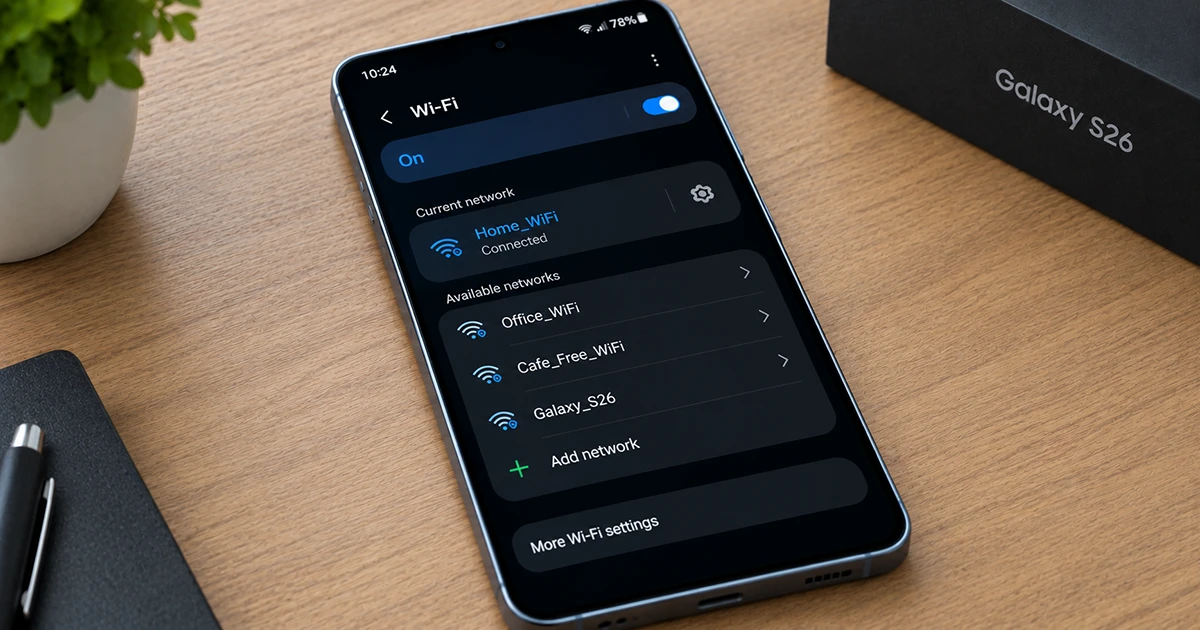
If your Galaxy S26 cannot connect to Wi-Fi, repeatedly disconnects, or shows a connected status without internet access, the problem may involve your phone, router, or internet service.
Follow these steps:
- Open Settings > Connections > Wi-Fi and make sure Wi-Fi is enabled.
- Move closer to the router to improve signal strength.
- Restart your router by following its manufacturer’s instructions.
- Try connecting another device to the same Wi-Fi network.
- If other devices work, forget the affected network on your Galaxy S26 and reconnect using the correct password.
To forget a network, open the Wi-Fi settings, select the connected network or its settings icon, and choose Forget. The exact controls may vary by software version.
If Wi-Fi connects but internet access remains unavailable, check whether your router has an internet connection. You can also test your phone on another trusted Wi-Fi network to determine whether the problem is specific to your home network.
3. Fix Galaxy S26 Mobile Data and Signal Issues
When mobile data stops working, calls drop, or your Galaxy S26 displays no service, start by checking cellular coverage and your SIM or eSIM connection.
Try the following:
- Make sure Airplane mode is off and Mobile data is enabled.
- Move to an area with better cellular reception.
- Check whether your mobile plan is active and has available data.
- Restart your phone and check for carrier or software updates.
- If you use a physical SIM, check that it is properly seated. For an eSIM, verify that the correct mobile plan is enabled.
If your phone shows no signal in multiple locations, contact your carrier to check for outages, account restrictions, SIM problems, or network provisioning issues.
Important: Do not change APN settings unless your carrier recommends it. Incorrect settings can prevent mobile data from working.
4. Fix Galaxy S26 Bluetooth Not Connecting
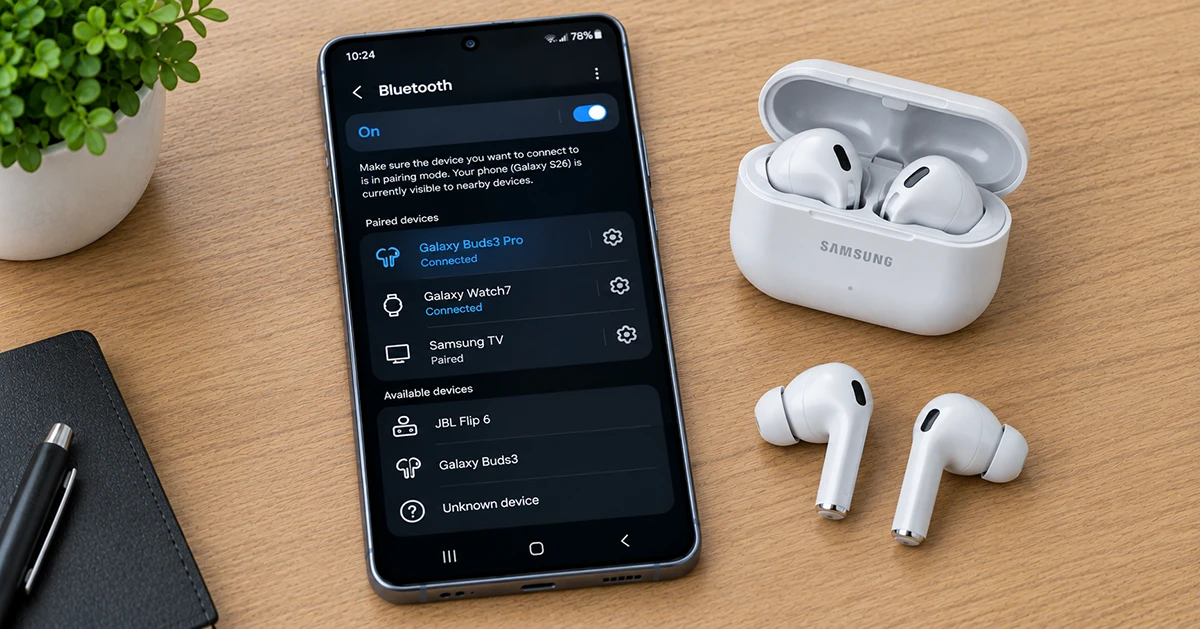
Bluetooth problems can affect wireless earbuds, smartwatches, speakers, car audio systems, and other accessories.
To troubleshoot Bluetooth:
- Open Settings > Connections > Bluetooth and enable Bluetooth.
- Make sure the accessory is charged and in pairing mode.
- Move the accessory closer to your Galaxy S26.
- Restart both devices.
- If the accessory still will not connect, open its Bluetooth settings on your phone, select the settings icon, and tap Unpair or Forget.
- Pair the devices again.
Check whether the accessory is already connected to another phone, tablet, or computer. Some accessories limit simultaneous connections.
For Samsung earbuds or watches, ensure that the appropriate companion app and device firmware are up to date. If Bluetooth repeatedly disconnects from multiple accessories, consider resetting your phone’s Bluetooth and Wi-Fi settings.
5. Troubleshoot Android Auto and Other Device Connections
If your Galaxy S26 will not connect to Android Auto, a car infotainment system, or another accessory, determine whether the issue affects wired or wireless connections.
For Android Auto, try these steps:
- Restart your phone and the car’s infotainment system.
- If using a cable, try a compatible USB data cable and another supported USB port.
- If using wireless Android Auto, verify that Bluetooth and Wi-Fi are enabled.
- Check for Android Auto, Google Play services, and system updates.
- If the problem started after transferring data to your new phone, check Android Auto’s app settings and consider clearing its cache.
Test a wired connection first when your vehicle supports it. If wired Android Auto works but wireless connectivity fails, focus on wireless pairing and compatibility settings.
Other accessories may require their own applications or manufacturer-specific setup instructions.
6. Update Your Galaxy S26 Software
Outdated system software or accessory firmware can sometimes contribute to connection failures.
To check for a phone update:
- Open Settings.
- Tap Software update.
- Select Download and install.
- Follow the on-screen instructions if an update is available.
Also update relevant applications through the Google Play Store or Galaxy Store. If your Bluetooth accessory or router has available firmware updates, check the manufacturer’s instructions.
If the connection problem began immediately after a software update, note the software version and when the issue started. Check Samsung’s official support channels for relevant fixes rather than assuming the update is necessarily responsible.
7. Reset Network Settings on Your Galaxy S26
If Wi-Fi, Bluetooth, or mobile connectivity still fails after the previous steps, resetting the affected network settings may help.
Open Settings > General management > Reset.
Depending on the problem, select one of these options:
- Reset Wi-Fi and Bluetooth settings: Use this for persistent Wi-Fi or Bluetooth problems.
- Reset mobile network settings: Use this for cellular connectivity problems.
Review the confirmation screen and follow the instructions.
Before resetting: A Wi-Fi and Bluetooth reset removes saved Wi-Fi connections and Bluetooth pairings. You will need to reconnect to your networks and pair accessories again. A mobile network reset can also remove certain saved network configurations, including custom APN settings.
This procedure does not erase your photos, messages, or installed apps. However, read the selected reset option carefully to confirm what will be changed.
8. Check Whether an App Is Causing Connection Problems
If connectivity issues started after installing an app or VPN, a downloaded application may be interfering with your network.
Consider temporarily disabling a VPN or reviewing recently installed network-management, security, or filtering applications.
You can also test the phone in Safe mode, which temporarily disables downloaded apps. To enter Safe mode, open the power menu, touch and hold Power off, and select Safe mode if that option appears.
Test the affected connection. If it works normally in Safe mode, a downloaded app may be responsible. Restart the phone to exit Safe mode, then review recently installed applications.
9. Contact Samsung Support or Your Carrier
If your Galaxy S26 continues to lose its connection after these steps, professional assistance may be necessary.
Contact your carrier for persistent mobile signal, calling, SIM, or mobile data problems. Contact Samsung Support if Wi-Fi and Bluetooth repeatedly fail across different networks and accessories, or if you suspect a hardware problem.
Before requesting service, record the error message, software version, affected connection type, and steps you have already tried. Samsung Members diagnostics may also help identify device-related issues.
Avoid performing a factory reset as an early troubleshooting step. It erases personal data and should be considered only after less disruptive options have failed and your important data is backed up.
Frequently Asked Questions
Why does my Galaxy S26 keep disconnecting from Wi-Fi?
Possible causes include weak signal strength, router problems, saved network configuration issues, or software glitches. Restart your router and phone, forget and reconnect to the network, and test another Wi-Fi connection.
Why is Bluetooth not working on my Galaxy S26?
The accessory may not be in pairing mode, may be connected to another device, or may need a firmware update. Restart both devices and pair them again. If multiple accessories fail, consider resetting Wi-Fi and Bluetooth settings.
Will resetting network settings delete my data?
A network reset does not normally erase personal files or installed apps, but it can remove saved Wi-Fi passwords, Bluetooth pairings, and certain network configurations. Review the reset confirmation before proceeding.
What should I do if none of these fixes work?
Install available updates, test other networks and accessories, and contact your carrier or Samsung Support depending on the affected connection. Back up your data before considering a factory reset.
Final Thoughts
Most Galaxy S26 connection problems can be investigated by restarting the phone, checking network coverage, reconnecting affected devices, and installing available updates. If these fixes fail, resetting the relevant network settings is a reasonable next step.
Identify whether the problem affects Wi-Fi, Bluetooth, mobile data, or multiple connection types before making more significant changes. This makes troubleshooting more efficient and helps you determine whether the phone, router, accessory, or carrier needs further attention.
Official references: Samsung Bluetooth troubleshooting, Google Android connectivity help, and Galaxy S26 network reset instructions.