The Galaxy S26 Now Brief helps you stay informed by bringing personalized updates, reminders, weather information, health insights, and other useful details into one convenient daily briefing. Powered by Samsung Galaxy AI, the feature organizes relevant information based on your preferences and connected services. With One UI 9, compatible Galaxy S26 devices also gain customizable Now Brief cards, giving you more control over the information displayed throughout the day.
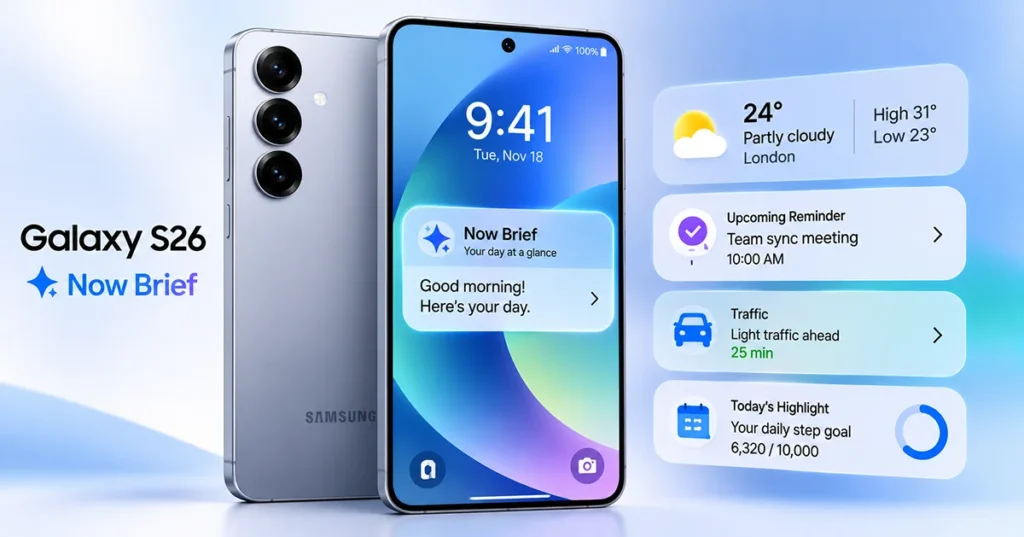
Whether you want to check your morning schedule, review daily activity, or see important updates without opening multiple apps, Now Brief makes everyday information easier to access. Here is how to set up, use, and customize it on your Samsung Galaxy S26.
What Is Galaxy S26 Now Brief?
Now Brief is a Galaxy AI feature that provides personalized summaries of useful information throughout the day. Instead of checking several applications individually, you can review selected information through organized briefing cards.
Depending on your settings, supported applications, and region, Now Brief can display:
- Weather forecasts and relevant travel information.
- Calendar events, schedules, and reminders.
- Health and wellness information.
- News headlines and updates.
- Music and podcast information.
- SmartThings and smart home updates.
- Phone settings and other personalized information.
Now Brief can provide different summaries throughout the day, including morning, afternoon, and evening briefings. The available information and timing depend on your preferences, device usage, and connected services.
On the Galaxy S26, Samsung has also expanded the experience through One UI 9, introducing generative and editable cards that let users personalize the information displayed in their daily briefings.
How to Set Up Now Brief on Samsung Galaxy S26
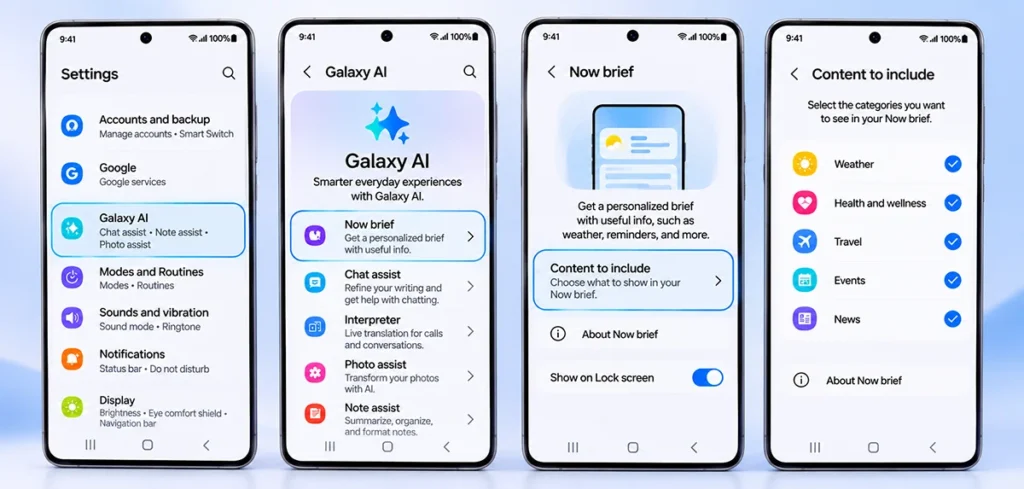
You can activate and personalize Now Brief through the Galaxy AI settings menu. Follow these steps:
- Open Settings on your Galaxy S26.
- Tap Galaxy AI.
- Select Now brief.
- Open Content to include.
- Select the information categories you want to receive, such as weather, health and wellness, travel, events, or news.
- Return to the previous screen to save your selections.
- Review additional options, including audio briefings and personal data settings, if available.
After completing the setup, your Galaxy S26 can generate personalized briefings based on the selected information.
Some content requires an internet connection, compatible applications, or additional permissions. A Samsung Account is also required for the Now Brief service.
How to Access Now Brief on Samsung S26
Samsung provides several ways to open Now Brief, making it convenient to check your daily updates.
1. Access Now Brief from the Lock screen
You can open Now Brief through the Now Bar on your Lock screen when the feature is available.
- Wake your Galaxy S26 screen.
- Locate the Now Brief item in the Now Bar.
- Tap it to open your briefing.
- Review the available information.
Depending on your Lock screen settings, you may be able to expand the briefing without unlocking your phone.
2. Use the Now Brief Home screen widget
A Home screen widget provides another convenient way to access your daily information.
- Touch and hold an empty area on your Home screen.
- Tap Widgets.
- Find Now brief.
- Select the available widget.
- Tap Add.
- Position the widget where you want it.
You can now check supported briefing information directly from your Home screen.
3. Open Now Brief from the Edge panel
If Edge panels are enabled, you can also access Now Brief through this feature.
- Swipe the Edge panel handle toward the center of the screen.
- Find and select Now brief.
- Review your available daily updates.
If the Edge panel is unavailable, check Settings > Display > Edge panels.
How to Customize Samsung Galaxy S26 Now Brief
Personalization is one of the most useful parts of Now Brief. You can select the information categories that matter to you and reduce unnecessary updates.
Open Settings > Galaxy AI > Now brief > Content to include.
From there, review the available categories and enable or disable the information you want.
For example:
| Category | Information you may receive |
|---|---|
| Weather | Forecasts and weather updates |
| Health and wellness | Activity, sleep, and wellness insights |
| Events and tasks | Upcoming appointments and reminders |
| Travel | Travel-related information |
| News | Selected news headlines |
| Smart home | Compatible SmartThings updates |
| Music and podcasts | Relevant media information |
The available categories depend on your device software, region, and supported applications.
Create Custom Now Brief Cards with One UI 9
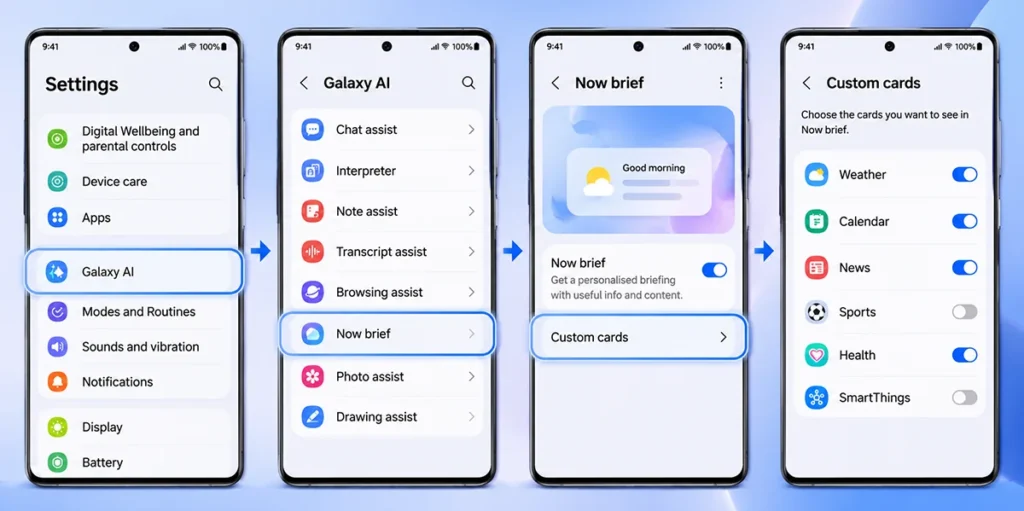
One UI 9 introduces generative and editable Now Brief cards, allowing users to create more personalized information panels.
To create a custom card:
- Open Settings.
- Select Galaxy AI.
- Tap Now brief.
- Choose Custom cards.
- Review and accept the required data processing agreement, if prompted.
- Tap the Add (+) icon.
- Choose a supported subject, such as Weather, Health, or Videos.
- Select the information you want to display.
- Set when the card should appear.
- Generate the card and review its preview.
- Tap Done to save it.
Samsung’s custom-card implementation supports up to three cards at a time. Daily generation and editing limits may also apply.
For example, you could create a weather card that combines forecast details and sunrise information, or a health card that highlights activity and sleep information.
Important: Custom-card availability depends on software rollout, supported device models, region, and application compatibility. Make sure your Galaxy S26 is updated to a version that supports this functionality.
Galaxy S26 Now Brief vs. Now Bar: What’s the Difference?
Now Brief and Now Bar are related Galaxy features, but they serve different purposes.
| Feature | Now Brief | Now Bar |
|---|---|---|
| Main purpose | Personalized daily summaries | Quick access to live activities |
| Information | Weather, reminders, health, and more | Media, Maps, sports, and activities |
| Main location | Widget, Lock screen, Edge panel | Lock screen and notification areas |
| User experience | Review personalized information | Monitor ongoing activities |
| Customization | Content categories and custom cards | Supported live activity categories |
In simple terms, Now Brief summarizes useful information, while Now Bar provides convenient access to ongoing activities and selected updates.
Both features complement each other and help make the Galaxy S26 more convenient to use.
Is Galaxy S26 Now Brief Safe for Personal Data?
Now Brief uses selected personal information and connected services to generate relevant content. Depending on your configuration, this may include schedule information, health insights, preferences, and other supported data.
Samsung provides personal data management options within Now Brief settings. You should review these settings to understand which information is used for personalized insights.
For better control:
- Review the selected content categories.
- Check permissions granted to connected applications.
- Review the available personal data management options.
- Disable information categories you do not need.
- Keep your phone software updated.
Remember that personalized AI results are not guaranteed to be completely accurate. Check important appointments, travel details, and other time-sensitive information in their original applications.
How to Fix Now Brief Not Working on Galaxy S26
If Now Brief does not display information or fails to update, try these troubleshooting steps.
1. Update your phone: Open Settings > Software update and install available updates.
2. Check your Samsung Account: Make sure you are signed in with the account required by the service.
3. Review content settings: Open Settings > Galaxy AI > Now brief and check whether the relevant categories are enabled.
4. Check internet connectivity: Some briefing content requires an active internet connection.
5. Review application permissions: Confirm that compatible applications have the permissions needed to provide relevant information.
6. Restart your phone: A restart can resolve temporary software problems.
7. Check regional availability: Some Now Brief features and content categories may not be available in every country or language.
If the problem continues, consult Samsung Support for device-specific assistance.
Frequently Asked Questions
Yes. The Galaxy S26 series supports Samsung’s Now Brief experience, which provides personalized information through Galaxy AI.
Yes. You can access Now Brief through the Now Bar on supported Lock screen configurations. You can also use its Home screen widget or the Edge panel.
Yes. You can select the information categories you want to receive. Compatible devices running One UI 9 also support custom cards for additional personalization.
Yes. Samsung requires a Samsung Account for the Now Brief service. Some content may also require an internet connection or compatible applications.
No. Now Brief provides personalized daily summaries, while Now Bar offers quick access to live activities and selected information.
Final Thoughts
Galaxy S26 Now Brief makes it easier to review important daily information without switching between multiple applications. You can personalize its content, access briefings from different areas of your phone, and take advantage of One UI 9 custom cards when supported.
For the best experience, select only the information categories you need, review your personal data settings, and keep your Galaxy S26 software updated. These simple adjustments can make Now Brief a more useful part of your everyday Galaxy AI experience.
External Reference:
- Samsung – Set up the Now Brief and Now Bar.
