If your Samsung Galaxy S26 charging stops at 80%, check Battery Protection first. Your phone may have a maximum charging limit enabled to help preserve battery health. Open Settings > Battery > Battery protection and review the selected mode and charging limit. If Maximum protection is set to 80%, your phone is behaving as intended rather than experiencing a charging fault.
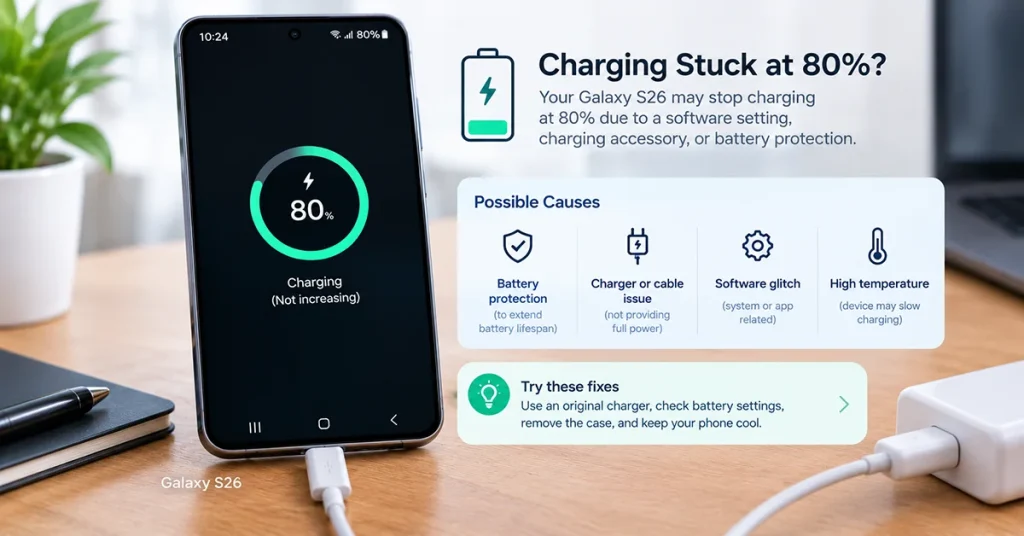
If you want your Galaxy S26 to charge to 100%, change the protection mode or raise the charging limit. If Battery Protection is not responsible, overheating, a faulty cable, a charger problem, or a software issue could explain why charging stops early.
Follow these seven fixes in order to identify the cause and get your Galaxy S26 charging normally again.
Why Does the Galaxy S26 Stop Charging at 80%?
The most common explanation is Battery Protection, a Samsung feature that limits charging to reduce battery stress. Keeping a lithium-ion battery at a high charge level for extended periods can accelerate long-term capacity loss.
Other possible causes include:
- Maximum Battery Protection set to an 80% limit.
- Adaptive or sleep-time protection temporarily pausing charging.
- Excessive heat during charging.
- A damaged USB-C cable, incompatible charger, or dirty charging port.
- A temporary software issue or a hardware fault.
Samsung explains that battery-protection behavior and available settings can vary by device and software version. See Samsung’s official battery protection guide for more information.
1. Check Battery Protection Settings
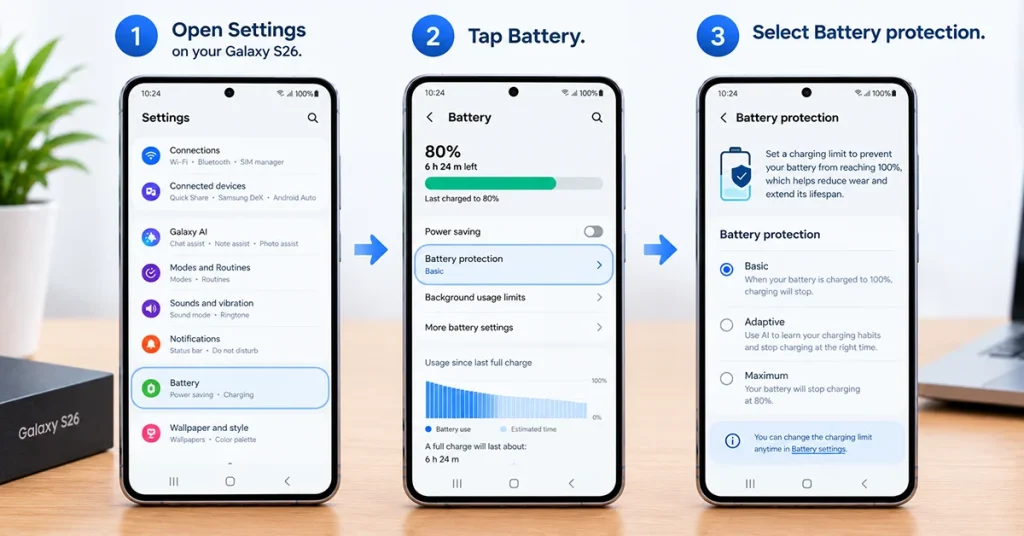
Start here if your Galaxy S26 consistently stops charging at exactly 80%. A configured charging limit is more likely than a hardware fault when the phone charges normally up to a specific percentage and then stops.
How to check Battery Protection
- Open Settings on your Galaxy S26.
- Tap Battery.
- Select Battery protection.
- Check whether the feature is enabled and which mode is selected.
- If Maximum mode is active with an 80% limit, select a higher limit or choose another available mode.
- Reconnect your charger and check whether charging continues.
Depending on your software version, Maximum mode may offer charging limits such as 80%, 85%, 90%, or 95%.
If your Galaxy S26 uses different menu labels, search for “Battery protection” in Settings.
Important: You do not need to disable battery protection completely to charge beyond 80%. Raising the limit or selecting a mode that allows full charging may be enough.
2. Change Maximum or Adaptive Protection
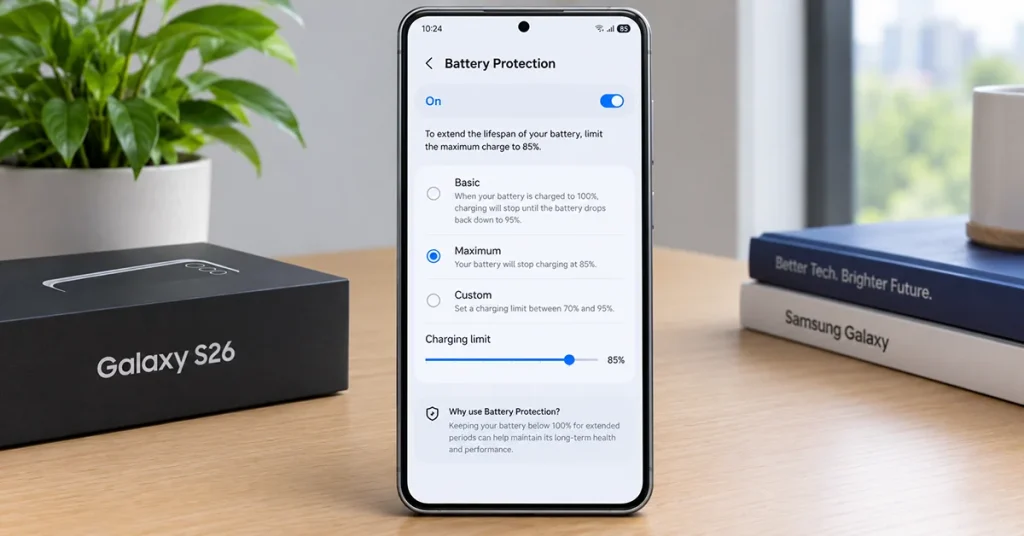
Your Galaxy S26 may stop at 80% because of the selected protection mode, even when the phone and charger work correctly.
Samsung’s battery-protection settings generally include the following behaviors, although the exact options depend on the device and software version.
| Mode | Charging behavior | Best for |
|---|---|---|
| Basic | Charges to 100%, then resumes charging after the level drops to around 95% | Everyday use with full capacity |
| Adaptive | May limit charging during sleep and complete charging before your expected wake-up time | Overnight charging |
| Maximum | Stops at the selected charging limit | Reducing time spent at a high charge level |
If you want a full battery before leaving home, select Basic or another mode that permits charging to 100%, if available.
If you prefer Adaptive protection, give the phone time to follow its charging schedule. Its behavior depends on how well it learns your sleep routine.
Maximum protection is useful when you do not need a full charge every day. An 80% limit is not a charging malfunction.
3. Let Your Galaxy S26 Cool Down
If Battery Protection is not limiting the charge, excessive temperature may be interfering with charging.
Your phone can become warm when you use demanding apps, play games, record video, use navigation, or charge while the screen remains active. A hot environment or thick case can also contribute.
Try these steps:
- Disconnect the charger if the phone feels unusually hot.
- Close demanding apps and stop gaming or recording video.
- Remove the case if it traps heat.
- Move the phone away from direct sunlight.
- Let it cool naturally before charging again.
Avoid placing your phone in a refrigerator or using ice or other rapid-cooling methods. Sudden temperature changes can cause condensation and damage the device.
Once the phone returns to a normal temperature, reconnect the charger and check whether the battery percentage rises beyond 80%.
4. Check the Charger and USB-C Cable
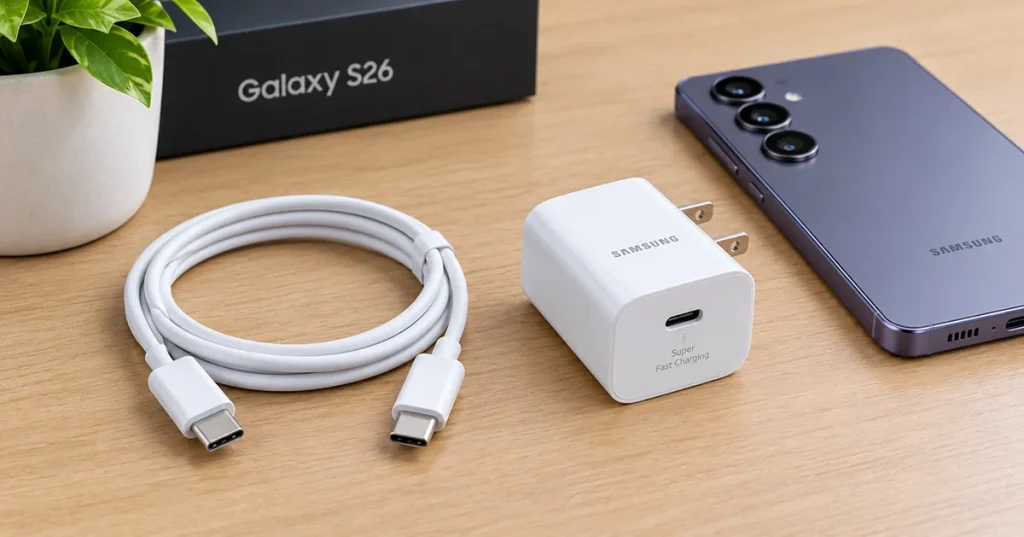
A damaged cable or unreliable power adapter can interrupt charging. This is less likely to explain a perfectly consistent 80% cutoff than an enabled charging limit, but it is worth checking if the percentage fluctuates or charging repeatedly disconnects.
Follow these steps:
- Disconnect the USB-C cable from your phone and charger.
- Inspect the cable and connectors for damage.
- Check the charging port for visible debris or moisture.
- Try a compatible, known-good charger and USB-C cable.
- Connect the charger directly to a working wall outlet.
- Leave the phone connected for a short period and monitor the battery percentage.
Do not insert metal objects into the USB-C port or force the cable into place. If you see moisture warnings, follow the phone’s instructions before reconnecting a cable.
For additional guidance, consult Samsung’s phone charging troubleshooting guide.
5. Install Available Software Updates
If the problem started after a software update or the phone repeatedly stops charging at an unexpected percentage, check for updates.
- Open Settings.
- Tap Software update.
- Select Download and install, if available.
- Follow the on-screen instructions.
- Restart the phone if required and test charging again.
Updates may include system fixes or improvements to device behavior. However, installing an update is not guaranteed to fix a charging problem.
If the issue began immediately after an update, check Samsung’s support resources for known issues affecting your device and software version.
6. Run Samsung Members Diagnostics
If your Galaxy S26 still refuses to charge beyond 80% after you check protection settings, temperature, accessories, and software, run a diagnostic test.
- Open the Samsung Members app.
- Find the Support or diagnostics section.
- Open the available phone diagnostics.
- Run the battery and charging tests offered on your device.
- Follow any recommended troubleshooting steps.
Menu labels can vary by Samsung Members version and region.
If the diagnostic test reports a problem, or charging stops at different percentages with multiple known-good chargers, contact Samsung Support or an authorized service center.
Do not attempt to open the phone or replace its internal battery yourself.
Quick Troubleshooting Table
Use this table to identify the next step based on what your Galaxy S26 is doing.
| Symptom | Likely explanation | What to do |
|---|---|---|
| Stops at exactly 80% every time | Maximum Battery Protection limit | Check Battery protection settings |
| Stops at 80% overnight but reaches 100% later | Adaptive or sleep-time protection | Check the selected mode and charging schedule |
| Stops charging when the phone gets hot | Temperature-related charging control | Disconnect and let the phone cool |
| Charging repeatedly disconnects | Cable, adapter, port, or connection problem | Test a known-good charger and cable |
| Problem started after an update | Possible software issue | Restart and check for updates |
| Stops at varying percentages with different chargers | Possible software or hardware fault | Run diagnostics and contact support |
Frequently Asked Questions
No. An 80% charging limit can help reduce battery stress over time. You may have less battery available during the day, but there is no need to force the phone to 100% for everyday use if 80% meets your needs.
Open Settings > Battery > Battery protection. Review the selected mode and limit, then choose an available option that permits charging to 100%. The exact controls depend on your software version.
With a maximum charging limit enabled, the phone may briefly drop below the selected threshold as it uses power. Samsung notes that charging may resume after the battery level falls slightly below the configured limit. This behavior does not necessarily indicate a fault.
Not immediately. Check Battery Protection, temperature, charging accessories, and software first. Consider professional diagnostics if the phone continues to stop unexpectedly, displays battery warnings, or fails to charge with known-good accessories.
Final Thoughts
When your Galaxy S26 charging stops at 80%, check Battery Protection before trying more complicated fixes. Maximum mode may be enforcing an intentional charging limit, while Adaptive protection may pause charging temporarily during sleep.
If neither setting explains the problem, let the phone cool down, test a compatible charger and cable, restart the device, and run Samsung Members diagnostics. Seek professional support if charging remains unreliable after these checks.
