If your Galaxy S26 won’t pair with Bluetooth headphones, earbuds, a speaker, smartwatch, or car system, the fastest fixes are to put the accessory in pairing mode, toggle Bluetooth off and on, and remove any stale saved connection before pairing again. Most cases are caused by the accessory not being discoverable, already being connected to another device, outdated software, or corrupted Bluetooth settings.
This guide walks you through the most effective Galaxy S26 Bluetooth troubleshooting steps in order—from quick checks like restarting both devices and keeping them within range, to resetting Wi‑Fi and Bluetooth settings if the problem persists. Samsung recommends confirming that Bluetooth is enabled, placing the accessory in pairing mode, and keeping the devices close together before scanning and selecting the device from the available-devices list.
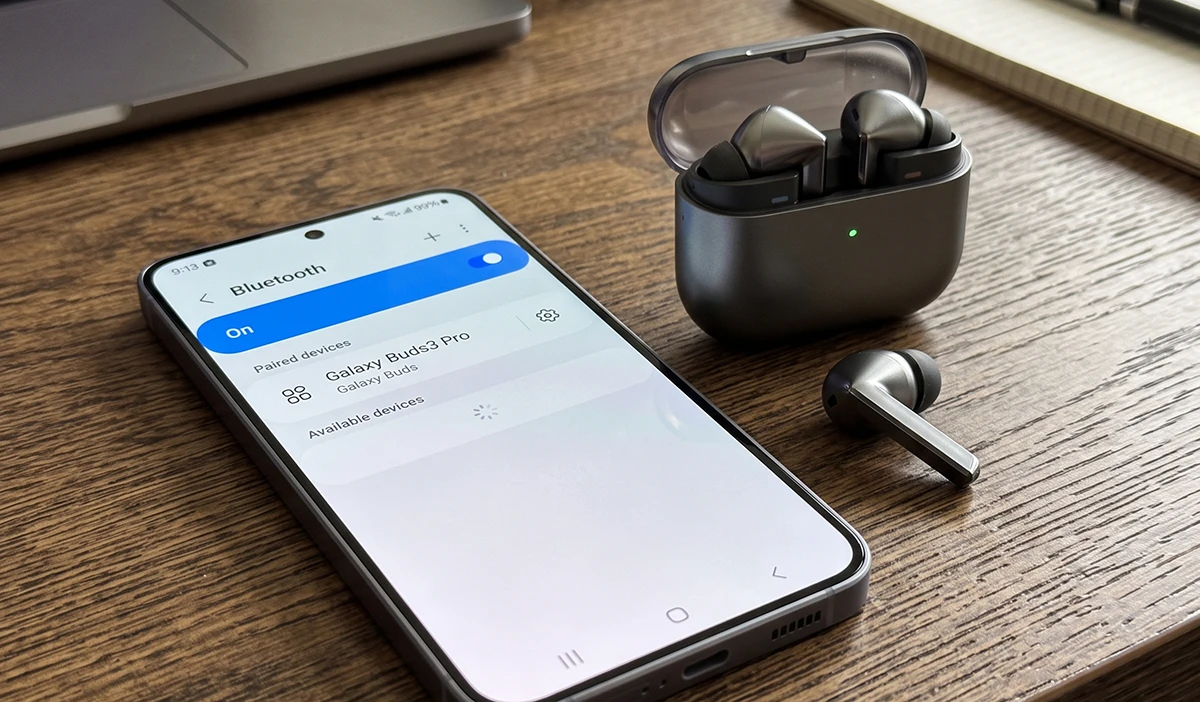
You’ll also learn how to resolve common symptoms, including a device that never appears in the Bluetooth list, pairing that fails at the confirmation screen, or a previously connected accessory that will not reconnect. If another Bluetooth device pairs successfully with your Galaxy S26, the issue is likely with the original accessory rather than the phone.
Samsung Galaxy S26 Bluetooth Pairing Problems and Quick Fixes
Below are the fixes in the order you should try them — easiest and most effective first.
Quick Fixes Checklist (Try These First)
Before diving into settings, run through this 60-second checklist:
- Charge both devices to at least 20% — low battery can block pairing.
- Move within 3 feet of each other to rule out range/interference.
- Confirm the other device is in pairing mode (usually a flashing light).
- Disconnect it from other devices — Bluetooth accessories often pair to only one source at a time.
- Remove thick or metal phone cases that can interfere with the signal.
- Try pairing with a different Bluetooth device to isolate whether the problem is the S26 or the accessory.
How to Troubleshoot Galaxy S26 Bluetooth Pairing Problems
Still stuck? Work through the fixes below.
Fix 1: Toggle Bluetooth and Restart Both Devices
The classic fix works more often than you’d expect.
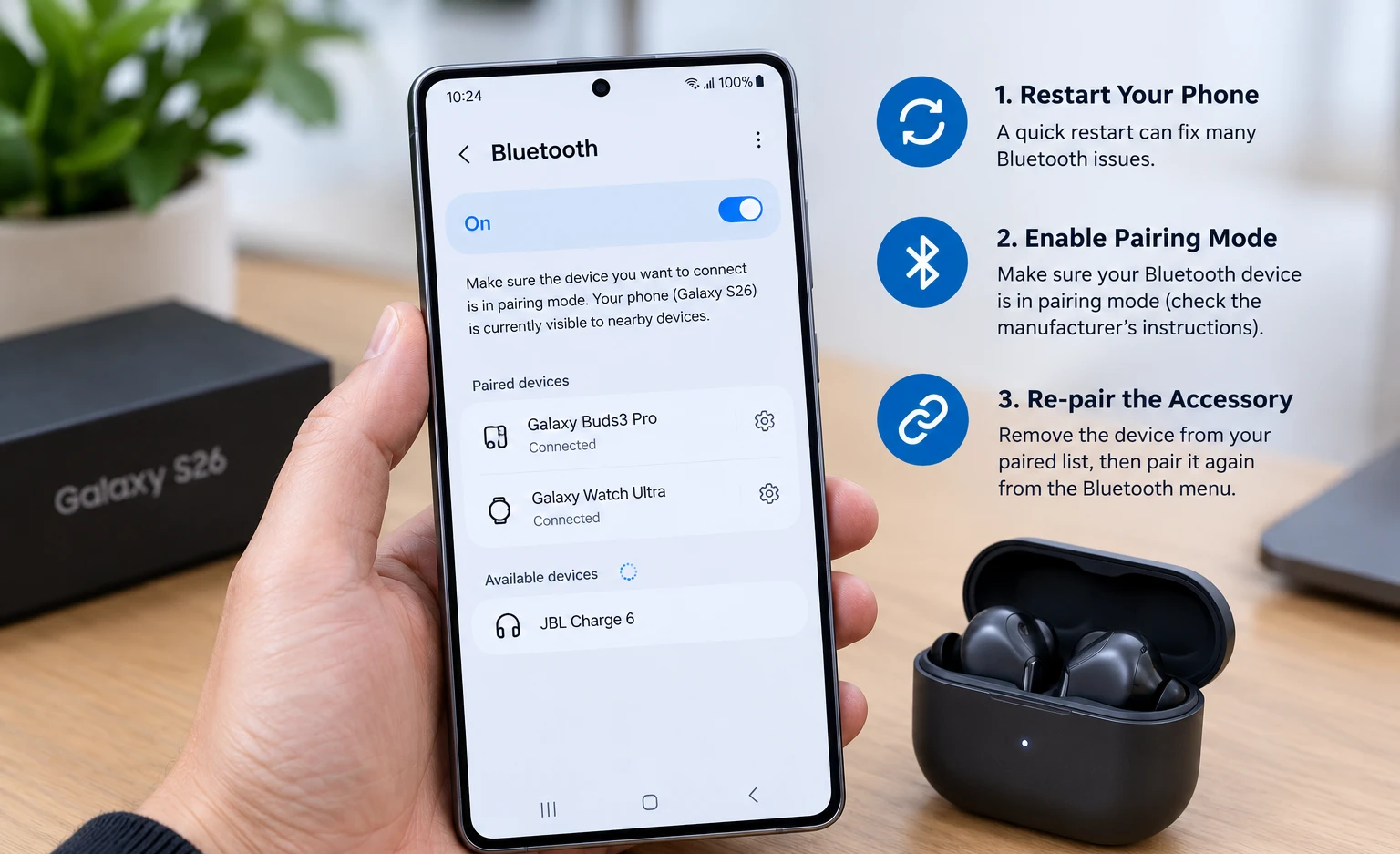
- Swipe down with two fingers to open Quick settings and tap the Bluetooth icon to turn it off.
- Wait 10 seconds, then turn it back on.
- Restart your Galaxy S26: press and hold Side key + Volume Down for ~10 seconds until the Samsung logo appears.
- Restart the Bluetooth device as well, then attempt pairing again.
Fix 2: Forget and Re-Pair the Device
Your S26 may be holding a corrupted pairing profile. Deleting it forces a clean connection.
- Go to Settings → Connections → Bluetooth.
- Tap the gear icon next to the problematic device.
- Select Unpair (or Forget).
- Put the accessory back into pairing mode.
- Tap Scan on your S26 and select the device to pair from scratch.
Fix 3: Clear the Bluetooth Cache
Temporary Bluetooth files can become corrupted — especially right after a One UI update.
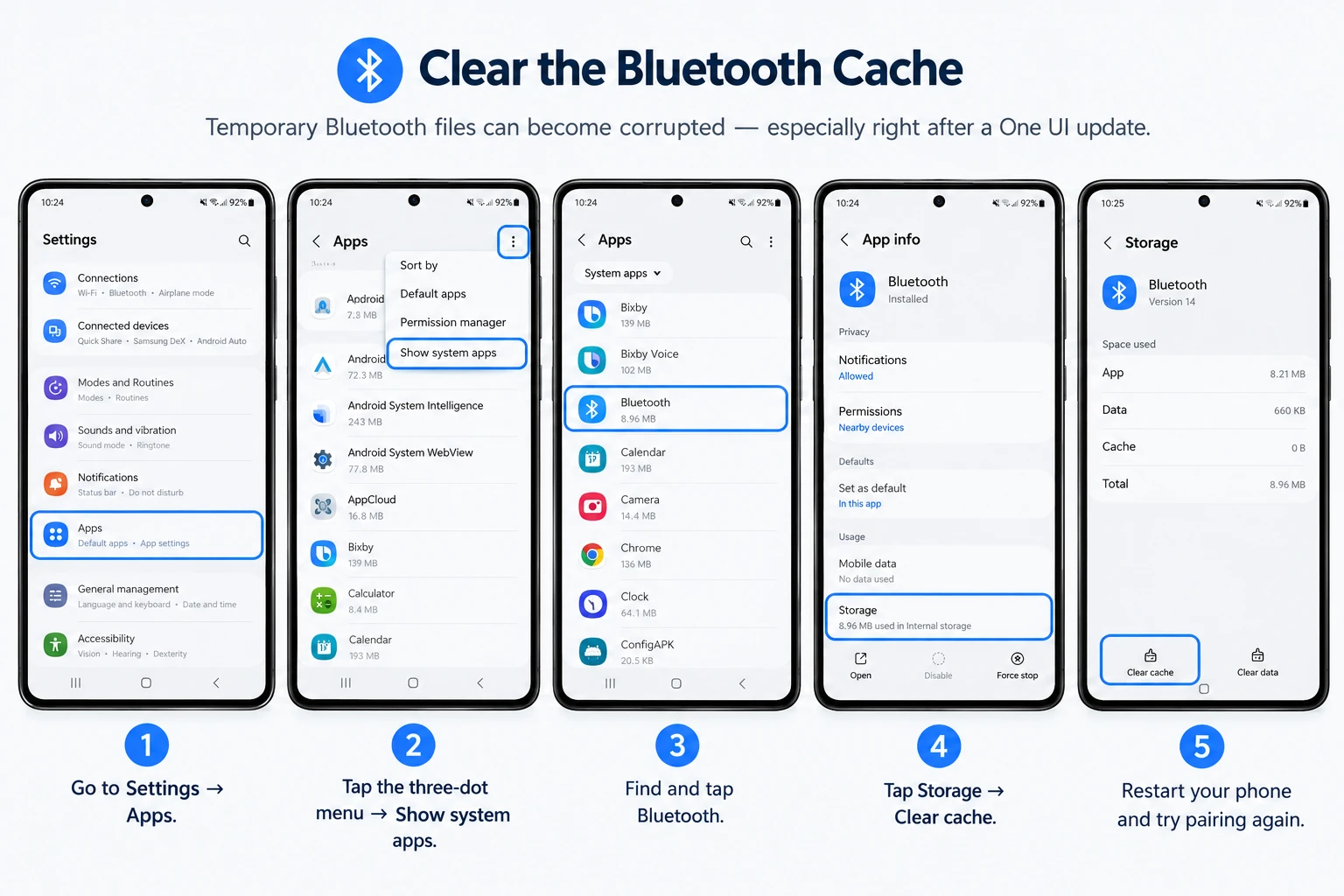
- Go to Settings → Apps.
- Tap the three-dot menu → Show system apps.
- Find and tap Bluetooth.
- Tap Storage → Clear cache.
- Restart your phone and try pairing again.
Note: On newer One UI versions, clear the cache via recovery mode instead: power off, connect a USB-C cable to a PC (or USB-C headphones), then hold Volume Up + Side key until the recovery menu appears → Wipe cache partition → Reboot. Samsung’s own community recommends this approach when the in-app cache option is unavailable.
Fix 4: Update Your S26’s Software
Because the Galaxy S26 ships with One UI 8.5, early firmware bugs affecting Bluetooth are common — and Samsung patches them quickly.
- Go to Settings → Software update → Download and install.
- Install any available update and restart.
- Also check the accessory manufacturer’s app (e.g., Galaxy Wearable, Sony Headphones, JBL) for firmware updates.
Check for updates weekly during your first few months of ownership. Samsung’s official guide similarly lists updating accessory firmware as an overlooked fix, especially for car stereos.
Fix 5: Reset Network Settings
This resets all wireless settings (Wi-Fi, mobile data, Bluetooth) back to defaults without deleting your photos or apps. You’ll need to re-enter Wi-Fi passwords.
- Go to Settings → General management → Reset.
- Tap Reset network settings → Reset settings.
- Enter your PIN if prompted, then reboot and re-pair your device.
Fix 6: Boot Into Safe Mode
A misbehaving third-party app can interfere with Bluetooth. Safe Mode disables all downloaded apps temporarily.
- Press and hold the Side key until the power menu appears.
- Tap and hold Power off until the Safe Mode prompt appears.
- Tap Safe Mode and wait for the reboot.
If Bluetooth pairs perfectly in Safe Mode, a recently installed app is the culprit. Restart normally and uninstall recent apps one by one.
Fix 7: Clear Bluetooth App Data
A stronger reset than clearing the cache — this wipes all remembered Bluetooth devices.
- Go to Settings → Apps → Show system apps → Bluetooth → Storage.
- Tap Clear data, then restart your phone.
- Re-pair your devices from scratch.
Fix 8: Fix Car Bluetooth Pairing Problems
Car infotainment systems are notoriously finicky with new phones. The clean-slate method works best:
- Delete the S26 from your car’s paired-phone list (check your car’s manual).
- Forget the car on your S26 (Settings → Connections → Bluetooth → gear icon → Unpair).
- With both cleared, start your car’s engine, initiate pairing from the car’s screen first, then confirm on your phone.
- If your car still won’t appear, check for a head-unit firmware update from the dealer or manufacturer.
Fix 9: Factory Reset (Last Resort)
If Bluetooth is completely dead after everything above, a factory reset is the final software fix.
- Back up everything using Samsung Cloud, Smart Switch, or a computer.
- Go to Settings → General management → Reset → Factory data reset.
- Follow the prompts and reset.
- Set up the phone as new — don’t restore a backup immediately — and test Bluetooth first.
Samsung warns to keep the phone plugged in during a reset and back up encrypted SD cards beforehand.
Fix 10: Contact Samsung Support (If Hardware Is the Cause)
If Bluetooth fails even after a factory reset, you may have a hardware defect. Visit a Samsung walk-in service center or schedule a repair online — the Galaxy S26 is under warranty, and this repair is free.
Galaxy S26 Bluetooth Problems at a Glance
| Symptom | Most Likely Fix |
|---|---|
| Device doesn’t appear in scan list | Fix 2 (Forget & re-pair), Fix 4 (Update) |
| Pairs but disconnects randomly | Fix 3 (Clear cache), Fix 5 (Reset network) |
| Car connection drops | Fix 8 (Clean-slate car pairing) |
| Failed after a One UI update | Fix 4 (Software update), Fix 3 |
| No Bluetooth devices work at all | Fix 6 (Safe Mode) → Fix 9 (Factory reset) |
| Headphones connect but no sound | Check the media audio profile; forget & re-pair |
Frequently Asked Questions
Why won’t my Galaxy S26 pair with my headphones? The most common causes are a stale pairing profile, the headphones already connected to another device, or outdated firmware. Forget the device and update both your phone and the headphones’ firmware first.
Will resetting network settings delete my photos? No. It only resets Wi-Fi networks, Bluetooth pairings, and mobile data settings. Your apps, photos, and files stay untouched.
How do I clear the Bluetooth cache on the Galaxy S26? Go to Settings → Apps → three-dot menu → Show system apps → Bluetooth → Storage → Clear cache. If unavailable, wipe the cache partition from recovery mode instead.
What if Bluetooth works on one device but not another? The problem is with that specific accessory — not your S26. Update its firmware or reset it per the manufacturer’s instructions.
The Bottom Line
Bluetooth pairing problems on the Galaxy S26 are usually easy to fix once you restart both devices, put the accessory into pairing mode, and remove any old connection. For stubborn issues, forgetting the device and resetting Wi-Fi and Bluetooth settings will clear corrupted pairing data without deleting your personal files.
If your Galaxy S26 still will not pair after trying all 10 solutions, install the latest software update and contact Samsung support, as the issue may require service.