If WhatsApp notifications are not showing on your Samsung Galaxy S26, check the app’s notification permissions, battery restrictions, and background data settings first. These settings can prevent message alerts from appearing until you open WhatsApp manually. Restarting your phone, checking Do Not Disturb, and updating the app can also help restore notifications.
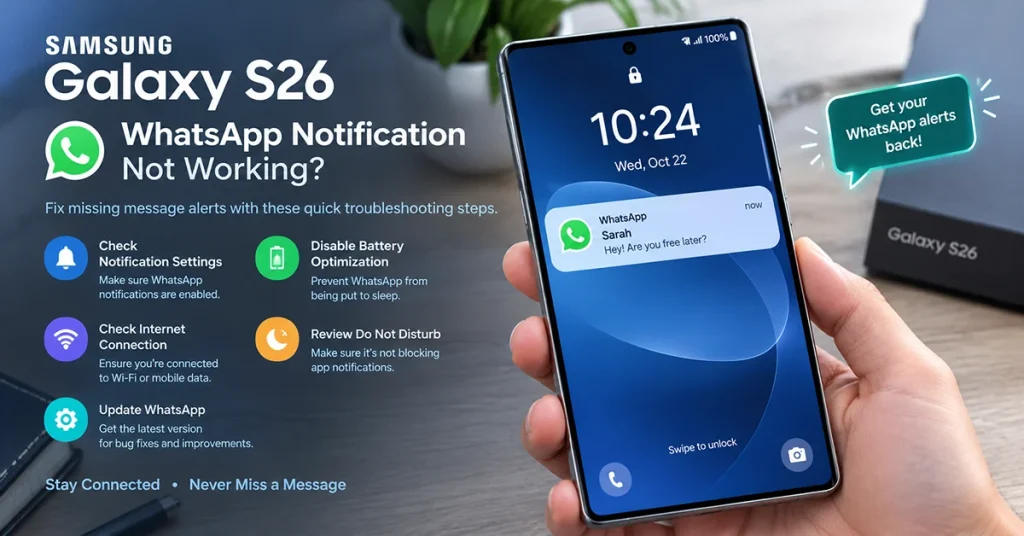
Follow the fixes below in order to troubleshoot missing WhatsApp notifications, delayed messages, lock screen alerts, and notification sounds on your Galaxy S26.
Why Are WhatsApp Notifications Not Showing on Galaxy S26?
WhatsApp notifications may stop appearing because notification permissions are disabled, Samsung’s battery management restricts background activity, or Data Saver limits background internet access. Other possible causes include Do Not Disturb, incorrect notification categories, outdated software, or a temporary app issue.
If messages appear only when you open WhatsApp, focus on background activity and data access first. If messages arrive but there is no sound or banner, check notification categories and sound settings instead.
1. Enable WhatsApp Notifications in Settings
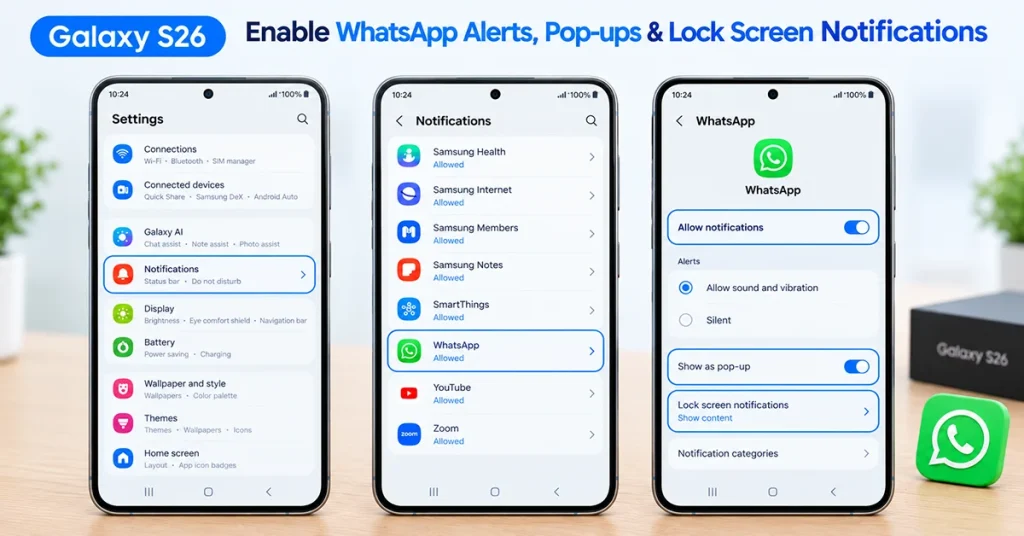
Start by making sure your Galaxy S26 allows WhatsApp to send notifications.
- Open Settings on your phone.
- Tap Notifications.
- Select App notifications.
- Find and tap WhatsApp.
- Turn on Allow notifications.
- Enable the available lock screen, pop-up, sound, and vibration options you want.
You can also open Settings > Apps > WhatsApp > Notifications if that route is available on your software version.
Send a test message to check whether notifications appear. If they do not, continue to the next fix.
2. Remove WhatsApp From Sleeping Apps
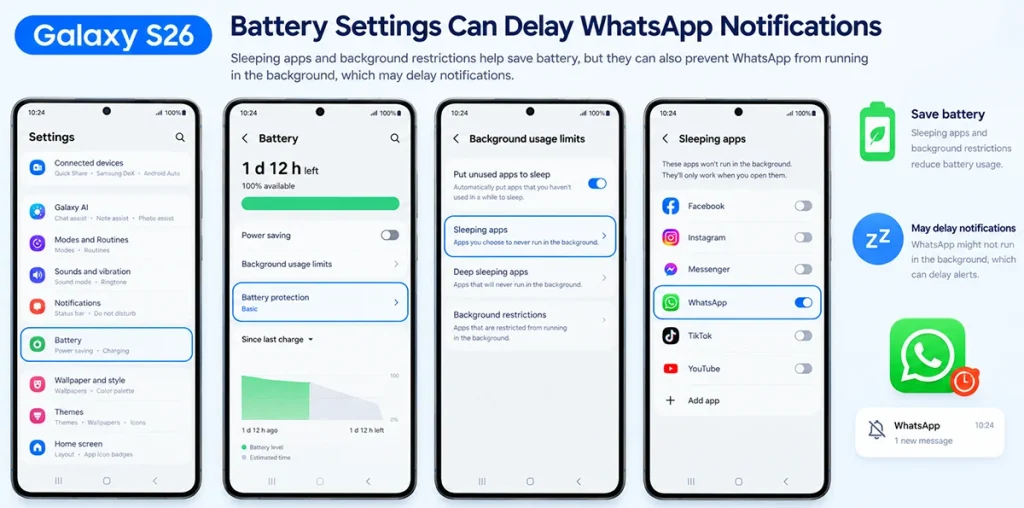
Samsung’s background usage limits can restrict apps to conserve battery power. If WhatsApp is listed under Sleeping apps or Deep sleeping apps, its notifications may be delayed or unavailable while the app is closed.
To fix this:
- Open Settings.
- Tap Battery or Battery and device care > Battery, depending on your software version.
- Select Background usage limits.
- Open Sleeping apps and Deep sleeping apps.
- Remove WhatsApp from either list if it appears there.
- Open Never sleeping apps, tap the add button, and select WhatsApp if available.
Keeping WhatsApp out of sleeping lists allows it to maintain background activity more reliably. It may use slightly more battery, so reserve this setting for apps that need timely alerts.
3. Allow WhatsApp to Run in the Background
If WhatsApp messages appear only after opening the app, review its battery usage settings.
- Open Settings > Apps > WhatsApp.
- Tap Battery.
- If your Galaxy S26 offers battery usage options, select Unrestricted rather than a restrictive setting.
- Return to WhatsApp and test notifications again.
The exact options may vary with your Android and One UI version. Allowing unrestricted background activity can improve notification delivery, although it may increase battery consumption.
4. Enable Background Data for WhatsApp
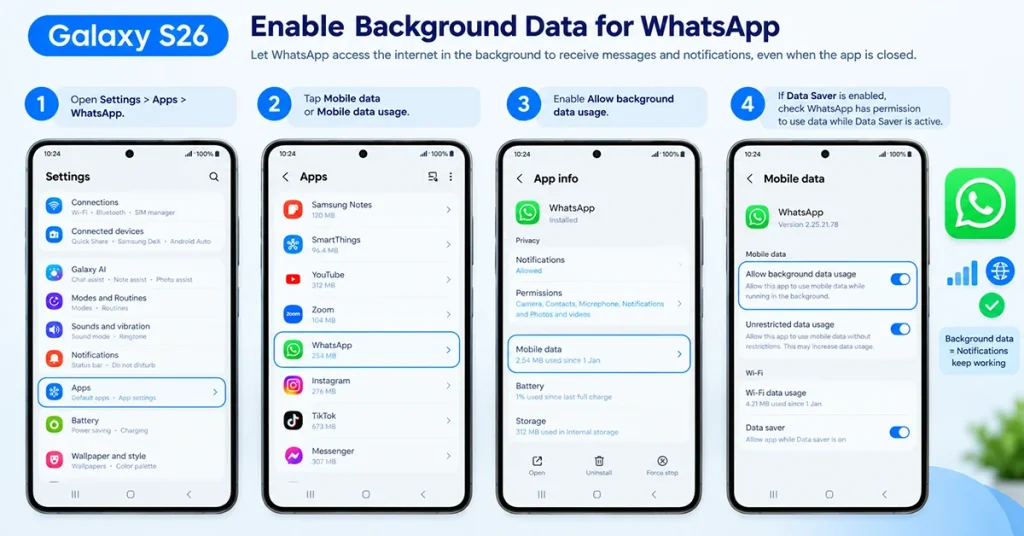
WhatsApp needs network access to receive messages and deliver notifications while running in the background.
- Open Settings > Apps > WhatsApp.
- Tap Mobile data or Mobile data usage.
- Enable Allow background data usage.
- If Data Saver is enabled, check whether WhatsApp has permission to use data while Data Saver is active.
Next, open Settings > Connections > Data usage > Data Saver, where available, and temporarily turn Data Saver off to test notifications.
Switch between Wi-Fi and mobile data to determine whether the problem occurs on one connection or both.
5. Turn Off Do Not Disturb and Power Saving
Do Not Disturb can silence alerts, while Power saving may limit background activity. Both settings are worth checking if WhatsApp notifications suddenly stop appearing.
- Swipe down from the top of the screen to open Quick Settings.
- Turn off Do not disturb.
- Turn off Power saving temporarily.
- Check whether any Modes or Routines are automatically enabling these features.
- Send yourself a test message.
If notifications return, review your schedules and automation settings to identify which feature was blocking them.
6. Check WhatsApp Notification Categories and Sounds
If messages arrive but WhatsApp notifications have no sound, vibration, or pop-up, check individual notification categories.
- Open Settings > Notifications > Advanced settings.
- Enable Manage notification categories for each app, if this option appears.
- Return to Settings > Apps > WhatsApp > Notifications.
- Open Notification categories.
- Check message and group notification categories, enabling the appropriate alerts and selecting an audible sound when needed.
Also check WhatsApp’s own Settings > Notifications menu. Confirm that message and group notification tones are configured correctly.
If notifications appear silently, increase the notification volume under Settings > Sounds and vibration > Volume.
7. Restart Your Galaxy S26 and Clear WhatsApp Cache
A temporary software issue may interfere with notification delivery. Restarting your phone can refresh its background services.
If the problem persists, clear WhatsApp’s temporary cache:
- Open Settings > Apps > WhatsApp.
- Tap Storage.
- Select Clear cache.
- Restart your phone and test notifications again.
Important: Choose Clear cache, not Clear data. Clearing data can remove local app data or require you to set up WhatsApp again. Back up your chats before attempting any more disruptive troubleshooting.
8. Update WhatsApp and Your Phone Software
An outdated app or system version may contain bugs that affect notification delivery.
To update WhatsApp, open the Google Play Store, search for WhatsApp, and tap Update if available.
To update your Galaxy S26:
- Open Settings.
- Tap Software update.
- Select Download and install.
- Follow the instructions if an update is available.
After updating, restart the phone and test notifications with WhatsApp closed.
9. Reset App Preferences or Contact Support
If none of the previous fixes works, consider resetting app preferences. Depending on your software version, this option may be available under Settings > Apps > the three-dot menu > Reset app preferences.
This does not normally delete your personal files, but it can restore disabled apps, permissions, and default app settings. Review any changes afterward.
If WhatsApp notifications remain broken, contact WhatsApp support through the app’s Settings > Help > Contact Us section. Include your Galaxy S26 model, software version, and a description of when notifications fail.
Quick Troubleshooting Table
| Problem | Likely cause | What to try |
|---|---|---|
| Notifications do not appear | Disabled permissions | Enable WhatsApp notifications |
| Messages appear only after opening WhatsApp | Background restrictions | Remove WhatsApp from sleeping lists |
| Notifications arrive late | Battery optimization or network limits | Allow background activity and data |
| No sound or vibration | Incorrect notification categories | Check sounds, volume, and vibration |
| No lock screen alerts | Lock screen notification settings | Allow WhatsApp alerts on the lock screen |
| Notifications fail on mobile data | Data Saver restrictions | Allow background data |
| Problem persists after changing settings | Temporary software or app issue | Restart, clear cache, and update |
Final Thoughts
When WhatsApp notifications are not showing on your Galaxy S26, start with notification permissions, Sleeping apps, background battery usage, and background data. These checks address common reasons for missing or delayed alerts without requiring a factory reset.
If notifications still fail, check Do Not Disturb, notification categories, app updates, and system software. Test WhatsApp after each change to identify the setting responsible for the problem.
