Backing up your Samsung Galaxy S26 protects your photos, videos, contacts, messages, and important settings if your phone gets lost, damaged, or needs a factory reset. You can back up your Galaxy S26 using Google One, Samsung Cloud, or Samsung Smart Switch on a PC or Mac.
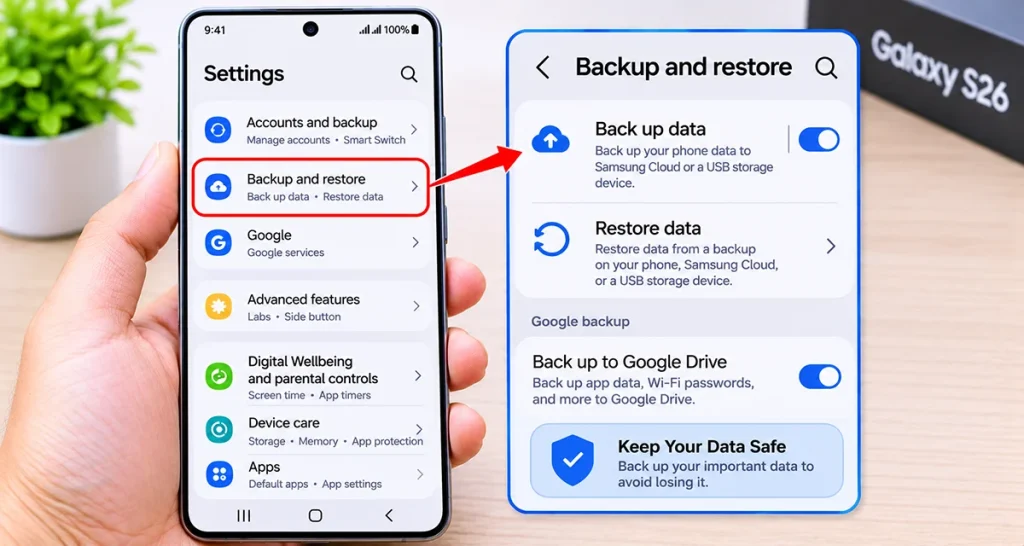
For the best protection, use Google One for essential phone data, Samsung Cloud for supported Samsung data, and Google Photos or OneDrive for your pictures and videos. You can also create a local backup using Smart Switch without relying entirely on cloud storage.
This guide explains how to back up your Galaxy S26 step by step and restore your information when needed.
How to Back Up Galaxy S26 Using Google One
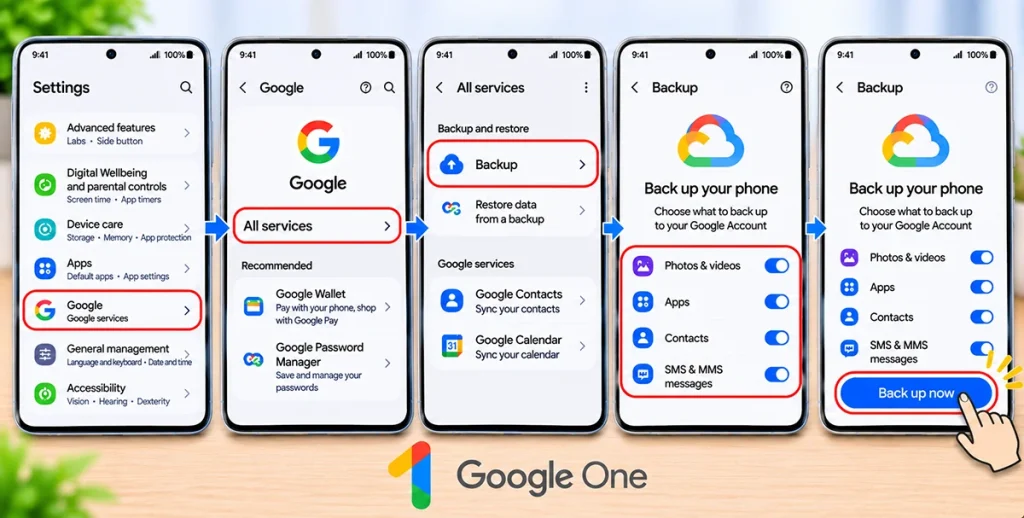
Google One is one of the easiest ways to back up your Galaxy S26. It can save supported app data, call history, contacts, device settings, SMS messages, and other information to your Google Account.
Follow these steps:
- Open Settings on your Galaxy S26.
- Scroll down and tap Google.
- Select All services.
- Find the Backup option under Backup and restore.
- Review the available backup categories.
- Turn on the backup options you want to protect.
- Tap Back up now to start a manual backup.
Depending on your software version, you may also find the backup option under Settings > Accounts and backup.
Keep your phone connected to Wi-Fi while the backup runs. Large backups may take longer, and Google may need time to finish processing your information.
You can check the backup status from the same settings screen. Make sure the correct Google Account is selected before starting.
How to Back Up Galaxy S26 With Samsung Cloud
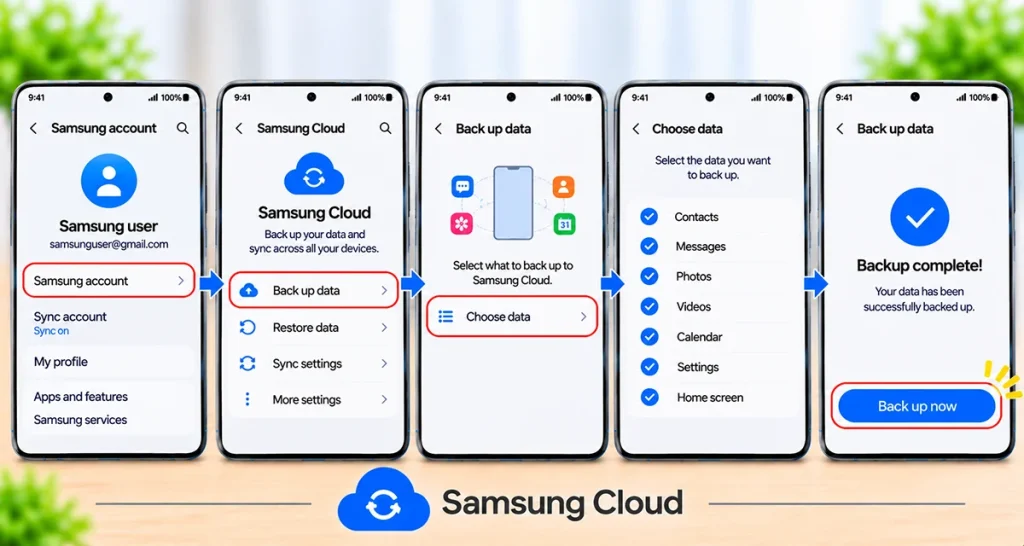
Samsung Cloud provides another way to protect supported information on your Galaxy S26. It can back up selected Samsung data, including compatible settings, messages, call logs, and other information.
Here’s how to use it:
- Open Settings.
- Tap your Samsung account name at the top.
- Select Samsung Cloud.
- Tap Back up data.
- Choose the information you want to save.
- Tap Back up now.
- Wait until the backup finishes.
You can select the available data categories individually, depending on your device and account.
To enable automatic backup, open the Samsung Cloud backup settings and check whether automatic backup is available. Availability and supported features can vary by country, carrier, and account.
Samsung Cloud is particularly useful for restoring supported Samsung settings and information when setting up another compatible Galaxy phone.
Back Up Galaxy S26 to a PC or Mac Using Smart Switch
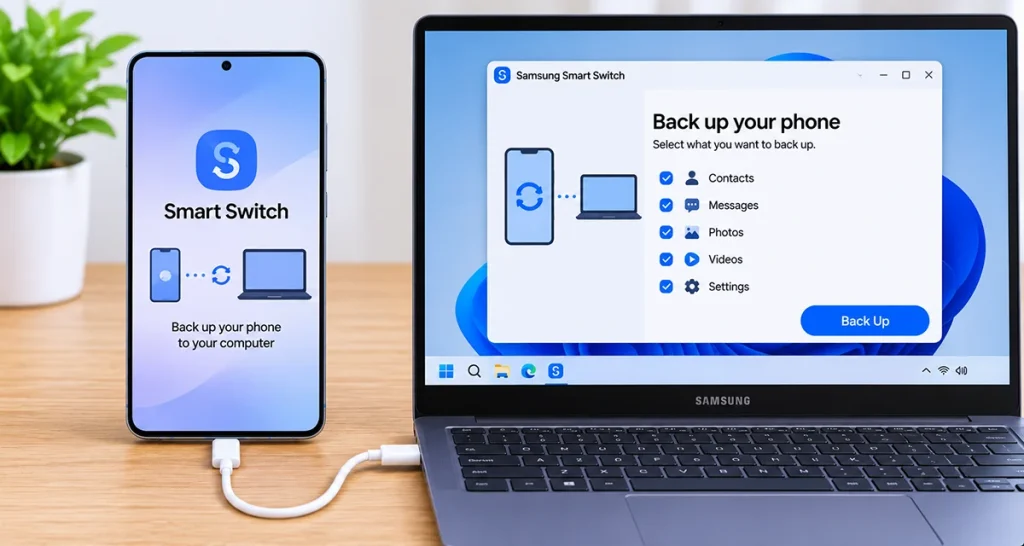
If you prefer keeping a local copy of your information, Samsung Smart Switch lets you back up your Galaxy S26 to a Windows PC or Mac.
This method is useful when you have limited cloud storage or want another backup outside your Google and Samsung accounts.
Follow these steps:
- Download and install Samsung Smart Switch on your computer.
- Open Smart Switch.
- Connect your Galaxy S26 to the computer using a compatible USB cable.
- Unlock your phone and allow the connection if prompted.
- Select Backup in the Smart Switch computer application.
- Review the available data categories.
- Select the information you want to save.
- Click Backup to begin.
- Wait until Smart Switch confirms the process is complete.
Keep your phone connected throughout the process. Avoid disconnecting the USB cable while the backup is running.
Smart Switch can save supported contacts, messages, call logs, photos, videos, and other information. However, some protected app data, account information, and content may not transfer.
How to Back Up Galaxy S26 Photos and Videos
Photos and videos often take up more storage than other phone data. Backing them up separately helps protect your memories even if your phone becomes unusable.
You can use Google Photos or Microsoft OneDrive.
Option 1: Back Up With Google Photos
- Open the Google Photos app.
- Sign in to your Google Account.
- Tap your profile picture.
- Select Photos settings.
- Tap Backup.
- Turn on the Backup option.
- Choose your preferred upload quality and review your storage usage.
Google Photos will upload supported pictures and videos to your account.
Check the backup status in the app to confirm that your latest photos have uploaded successfully.
Option 2: Back Up With OneDrive
Samsung Gallery can also sync photos and videos with Microsoft OneDrive, where the feature is supported.
- Open the Gallery app.
- Tap the menu icon.
- Open Settings.
- Select Sync with OneDrive.
- Sign in to your Microsoft account.
- Follow the instructions to enable syncing.
Make sure you have enough OneDrive storage available. Also, remember that syncing and independent backups are not identical: deleting a synced item can affect its availability across connected devices.
Use Temporary Cloud Backup on Galaxy S26
Samsung also provides a Temporary Cloud Backup feature on supported Galaxy devices.
This option is useful before a factory reset, repair, or device replacement. It allows you to upload supported data to Samsung Cloud temporarily and restore it later.
To access it:
- Open Settings.
- Tap General management.
- Select Reset.
- Tap Temporary cloud backup.
- Follow the instructions to back up your information.
- Wait for the upload to finish.
Samsung’s temporary backup service can provide unlimited backup storage for eligible data for up to 30 days, subject to the service’s availability and conditions.
Remember to restore your backup within the available retention period.
How to Restore Your Galaxy S26 From a Backup
If you reset your phone or purchase another Galaxy device, you can restore your saved information.
Restore from Google One:
- Start setting up your Galaxy S26.
- Connect to Wi-Fi.
- Sign in using the Google Account associated with your backup.
- Follow the setup instructions.
- Select the available backup when prompted.
- Choose the information you want to restore.
Google backup restoration is generally offered during device setup. You cannot necessarily restore every category directly from the Settings menu.
Restore from Samsung Cloud:
- Open Settings.
- Tap your Samsung account name.
- Select Samsung Cloud.
- Tap Restore data.
- Choose the available device backup.
- Select the information you want to restore.
- Tap Restore and wait for the process to finish.
For a local Smart Switch backup, connect your Galaxy S26 to the computer containing your saved backup, open Smart Switch, and select Restore.
Galaxy S26 Backup Methods Compared
| Backup method | What it protects | Best use |
|---|---|---|
| Google One | Supported apps, settings, contacts, messages and call history | Everyday backup |
| Samsung Cloud | Supported Samsung data and settings | Galaxy restoration |
| Smart Switch | Supported phone data and files | Local PC or Mac backup |
| Google Photos | Photos and videos | Protecting pictures |
| OneDrive | Synced photos and files | Additional cloud storage |
| Temporary Cloud Backup | Supported device data | Before resetting or repairing |
Frequently Asked Questions
Yes. You can enable automatic backup through Google One and supported Samsung Cloud services. Some services require Wi-Fi, charging, and an idle phone before completing scheduled backups.
Use Google One, Samsung Cloud, and Smart Switch together for broader coverage. No single backup method guarantees that every app, account, and protected file will be saved.
Yes. You can use Smart Switch with a USB connection to back up supported data to a computer. Some cloud services also support mobile data, depending on your settings.
Samsung Cloud’s available backup categories vary. For photo and video protection, use Google Photos or supported Gallery synchronization with OneDrive.
Google backups are associated with your Google Account, while Samsung backups are associated with your Samsung account. Smart Switch backups are stored on the computer where you created them.
WhatsApp has its own backup feature. Open WhatsApp > Settings > Chats > Chat backup and configure a Google Account backup. Check the latest backup date before changing phones or resetting your device.
Final Thoughts
Backing up your Galaxy S26 regularly is one of the easiest ways to prevent permanent data loss. Google One provides convenient protection for supported phone data, Samsung Cloud helps preserve compatible Galaxy information, and Smart Switch creates a local backup on your computer.
For stronger protection, enable automatic backups and separately upload your photos and videos to Google Photos or OneDrive. Always verify that your latest backup has completed before performing a factory reset or switching phones.
Sources: The article’s procedures and feature descriptions are based on these references:
- Samsung – Back up and restore data or files on your Galaxy phone.
- Samsung – Transfer data to your new Galaxy S26.
- Google – Back up or restore data on your Android device.

1 thought on “How to Back Up Galaxy S26 (Samsung Cloud, Google Drive, Smart Switch)”