Switching to a Samsung Galaxy S26 does not mean losing your WhatsApp chats, photos, videos, or voice notes. The safest way to transfer WhatsApp data to your Galaxy S26 is to use WhatsApp’s built-in Transfer chats feature or restore from a Google Drive backup—depending on whether you are moving from Android or iPhone.
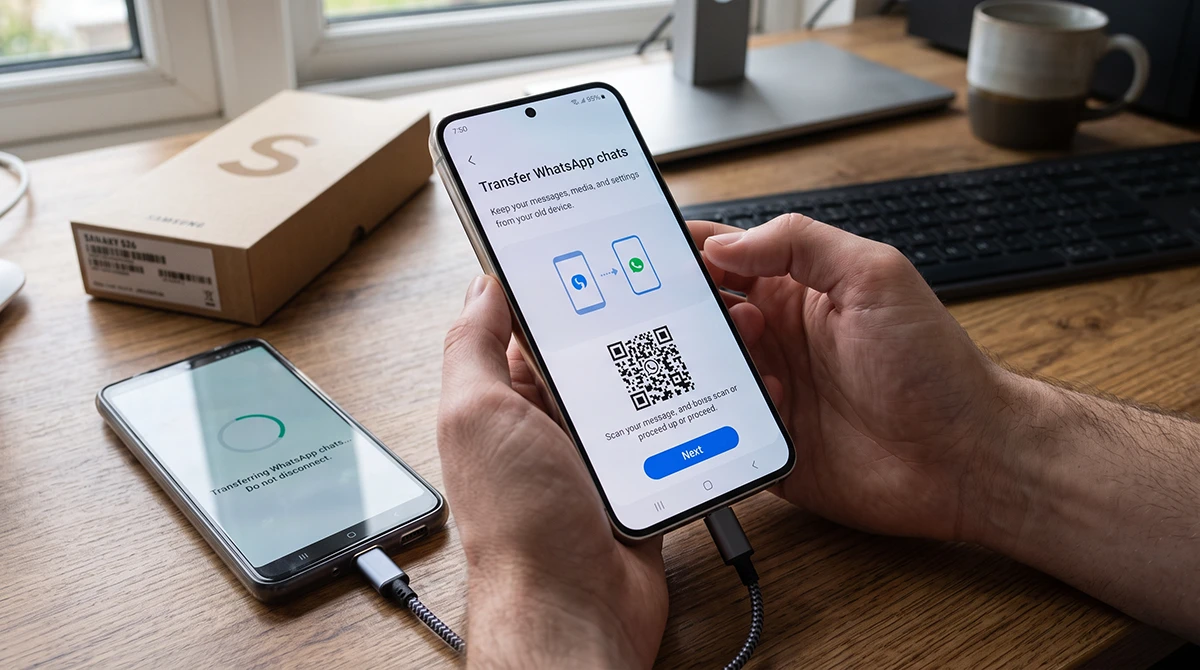
Samsung Smart Switch is excellent for moving contacts, photos, messages, apps, and other phone data, but it does not reliably transfer WhatsApp chat history on Android-to-Android transfers. For WhatsApp specifically, prepare the transfer before you sign in to WhatsApp on the new phone.
Before You Transfer WhatsApp to Galaxy S26
Complete these checks first to avoid a failed restore:
- Keep your old phone charged, or connect both phones to power.
- Connect both phones to Wi-Fi; WhatsApp’s direct transfer does not require both devices to be on the same network, but both need Wi-Fi enabled.
- Make sure your old phone has enough free storage for the WhatsApp backup or transfer.
- Update WhatsApp on your old phone to the latest version.
- Use the same phone number on your Galaxy S26.
- Do not open, verify, or log in to WhatsApp on the Galaxy S26 before starting the transfer. WhatsApp chat migration must occur before activation on the new device.
Method 1: Transfer WhatsApp Directly from Android to Galaxy S26
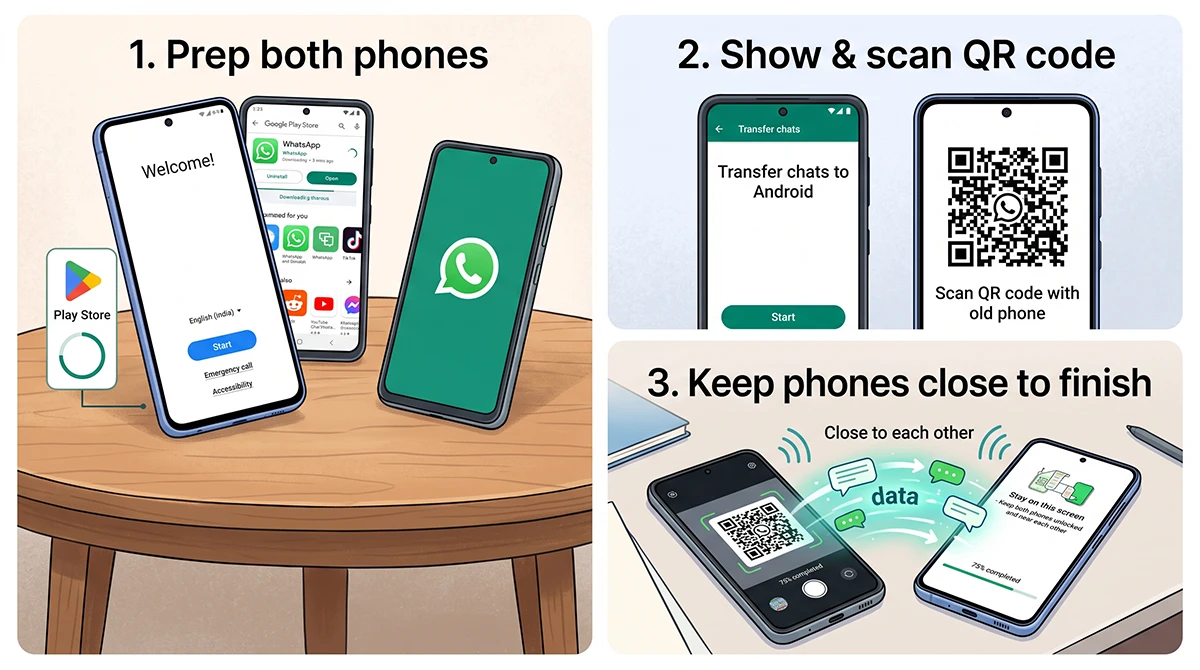
This is usually the fastest option if your old phone is also Android. WhatsApp transfers chats locally over a nearby Wi-Fi connection using a QR code.
- Turn on your Galaxy S26 and complete the initial setup, but do not open WhatsApp yet.
- Install WhatsApp from the Google Play Store on the Galaxy S26.
- Open WhatsApp on the S26, tap Agree and continue, then verify the same phone number used on your old phone.
- When you see Restore or transfer chats, choose Transfer from old phone.
- Tap Continue and then Start.
- On your old Android phone, open WhatsApp and go to More options > Settings > Chats > Transfer chats > Start.
- Accept the permissions requested by WhatsApp.
- Use the old phone’s camera to scan the QR code shown on the Galaxy S26.
- Tap Accept on the Galaxy S26 to link it to your old phone.
- Keep both phones unlocked, close to each other, and on WhatsApp while the progress bar completes.
- When the transfer finishes, tap Next on the Galaxy S26.
WhatsApp pauses messaging during the transfer, and you can cancel it if needed.
Method 2: Restore WhatsApp from Google Drive Backup
Use this method if you no longer have your old Android phone, prefer a cloud backup, or want an extra safety copy before switching.
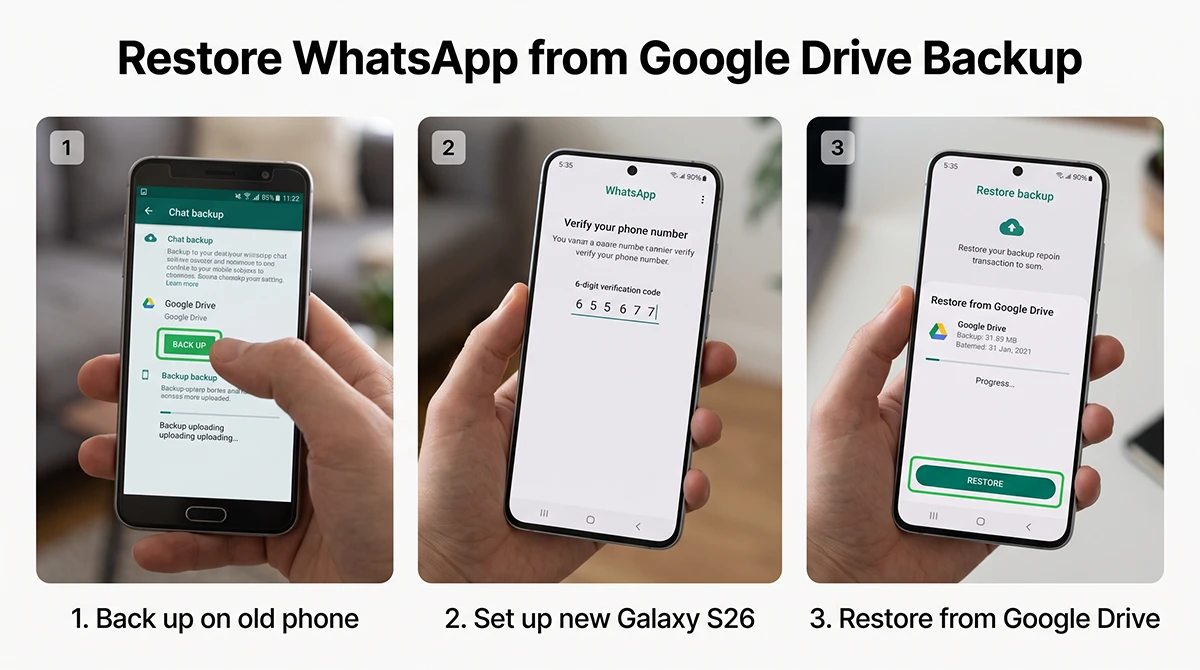
Back up WhatsApp on your old Android phone
- Open WhatsApp on your old phone.
- Tap the three-dot menu, then go to Settings > Chats > Chat backup.
- Select the Google Account where you want to save the backup.
- Tap Back Up.
- Wait for the backup to finish before turning off or resetting the old phone.
Restore WhatsApp on your Galaxy S26
- Install WhatsApp from the Play Store on your Galaxy S26.
- Open WhatsApp and verify the same phone number.
- When prompted, tap Restore from backup.
- Choose the most recent Google Drive backup.
- Wait for WhatsApp to restore your chats, then tap Next.
Google’s official guidance confirms that Android users can restore WhatsApp data either through a local Wi-Fi transfer or from a Google Account backup.
Method 3: Transfer WhatsApp from iPhone to Galaxy S26
If you are moving from an iPhone, use Samsung Smart Switch during the Galaxy S26 setup process. Samsung specifically lists the Galaxy S26 series in its iPhone-to-Galaxy migration instructions.
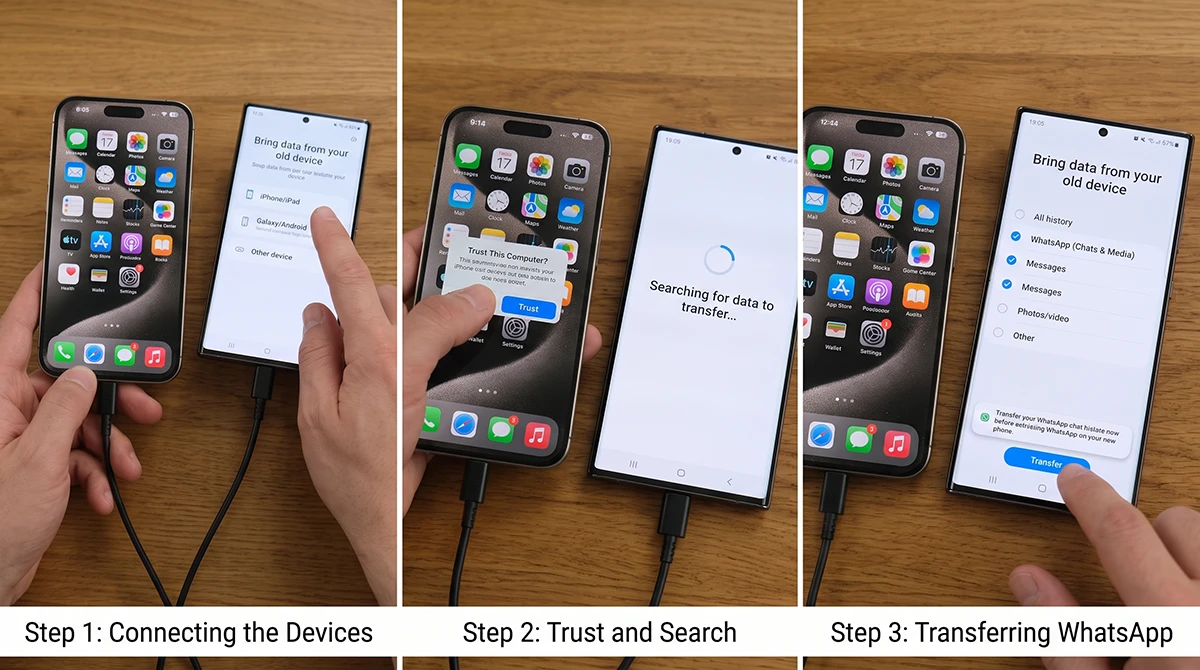
- Turn on your Galaxy S26 and follow the setup wizard until you reach the data-transfer screen.
- Open Settings > Accounts and backup > Bring data from old device.
- Tap Receive data.
- Select iPhone/iPad as the source.
- Connect the iPhone to the Galaxy S26 using a USB-C to Lightning cable.
- Tap Trust on the iPhone when prompted.
- Tap Next on the Galaxy S26.
- Choose Data from iPhone apps and confirm the data you want to move.
- Follow the on-screen instructions to complete the migration.
For WhatsApp chat history, make sure you begin this process before activating WhatsApp on the Galaxy S26. Samsung notes that chat history cannot be transferred after the WhatsApp account has already been activated on the new device.
Does Smart Switch Transfer WhatsApp Chats?
Usually, no—not on an Android-to-Android transfer.
Samsung says Smart Switch can transfer many types of data, but encrypted or protected app data, including WhatsApp chats, is not transferred. Samsung also states that Smart Switch may transfer the WhatsApp app itself, while chats and media require a WhatsApp backup and restore process.
| Transfer scenario | Best method | What transfers |
|---|---|---|
| Old Android phone to Galaxy S26 | WhatsApp Transfer chats | Chats, media, and WhatsApp history via QR-code transfer. |
| Old Android phone unavailable | Google Drive backup restore | Chats and media saved in your Google Account backup. |
| iPhone to Galaxy S26 | Smart Switch during setup | WhatsApp data through the iPhone-to-Galaxy migration flow. |
| General phone data | Smart Switch | Contacts, photos, messages, apps, calendar, and files. |
Troubleshooting WhatsApp Transfer on Galaxy S26
Transferring WhatsApp to your Samsung Galaxy S26 should be simple, but the process can sometimes freeze, fail, or throw errors. Let’s fix this so you don’t lose any of your data.
Before troubleshooting, verify the absolute basics:
WhatsApp is not showing the restore option
This usually happens when WhatsApp was already opened and verified on the Galaxy S26. Uninstall WhatsApp, restart the phone, reinstall it, and repeat the setup while choosing Transfer from old phone or Restore from backup.
The QR code will not scan
- Clean both phone cameras.
- Increase screen brightness.
- Keep the phones close together.
- Make sure both devices have Wi-Fi enabled and adequate battery charge.
- Restart WhatsApp on both devices and try again.
Google Drive backup is not appearing
Confirm that the Galaxy S26 is signed into the same Google Account used for the WhatsApp backup. Also check that the backup was completed successfully on the old phone before you reset or sold it.
The transfer is stuck
Keep both phones unlocked, connected to power, and on the WhatsApp screen. Do not close WhatsApp or lock either device while the progress bar is active.
FAQs
Can I transfer WhatsApp data to Galaxy S26 without Smart Switch?
- Yes. For Android-to-Android transfers, WhatsApp’s built-in Transfer chats feature is the preferred method. For a cloud-based option, back up WhatsApp to Google Drive and restore it on the S26.
Can I transfer WhatsApp from iPhone to Galaxy S26?
- Yes. Use Samsung Smart Switch during the Galaxy S26 setup process and connect the iPhone with a USB-C to Lightning cable.
Will my WhatsApp media transfer too?
- Yes, if the backup or direct transfer completes successfully. WhatsApp chat transfer and Google Drive restore include chat history and supported media, subject to available storage and WhatsApp’s backup settings.
What should I do before selling my old phone?
- After confirming that your chats appear on the Galaxy S26, create a fresh WhatsApp backup, then sign out or remove WhatsApp from the old phone if needed. Only reset or sell the old device after verifying the transfer.
Final Checklist
- Back up WhatsApp before switching phones.
- Do not activate WhatsApp on the Galaxy S26 too early.
- Use WhatsApp’s direct transfer for Android-to-Android moves.
- Use Google Drive restore if the old Android phone is unavailable.
- Use Smart Switch for iPhone-to-Galaxy S26 migration.
- Verify chats and media before erasing the old phone.
Following this process ensures your WhatsApp conversations move safely to your new Galaxy S26 without relying on Smart Switch alone.
My older phone had a different issue with the transfer process. Sometimes the backup file size prevents the transfer from completing successfully.