To use Now Nudge on Galaxy S26, open Settings > Galaxy AI > Now Nudge, switch the toggle on, and make sure Samsung Keyboard is your default keyboard. Once it’s active, suggestions appear as an icon in a bar above the keyboard, labeled with the action it proposes, such as “Add event” or “Share photo.”
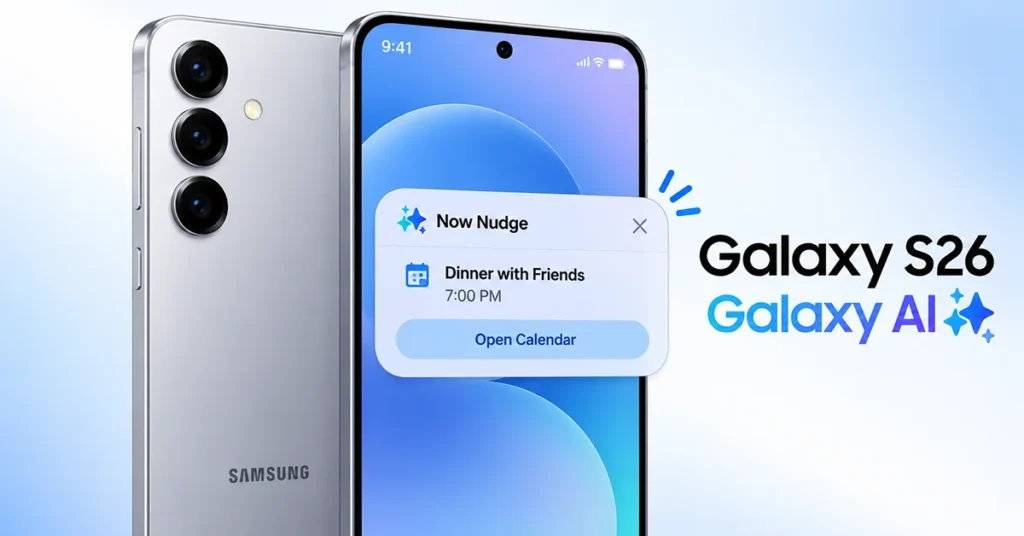
What Is Now Nudge on Galaxy S26?
Now Nudge is a context-aware Galaxy AI feature designed to help Galaxy S26 users take action without manually switching between multiple apps.
Instead of requiring you to search for information or enter details yourself, Now Nudge recognizes relevant context on your screen and displays useful recommendations when appropriate.
For example, when someone sends a meeting date and time through a messaging app, Now Nudge may suggest adding the appointment to your calendar. If a friend shares a location, it can recommend opening that location in a maps application.
The feature can also suggest contact information and photos based on the context of your activity.
Now Nudge is available on the Galaxy S26 series, with availability on other compatible Galaxy devices depending on software version and regional support.
How to Enable Now Nudge on Galaxy S26
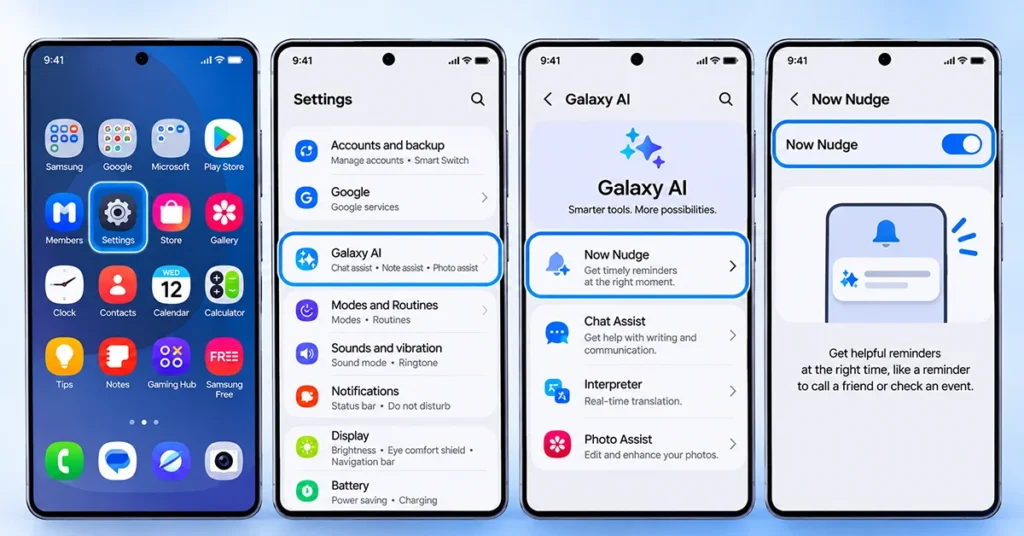
Before using Now Nudge, make sure your Galaxy S26 has the latest available software.
Follow these steps to activate the feature:
- Open the Settings app on your Galaxy S26.
- Tap Galaxy AI.
- Select Now Nudge.
- Turn on the Now Nudge switch.
Once activated, your phone can display relevant suggestions when it recognizes useful information on the screen.
You do not need to open Now Nudge manually every time. Its recommendations appear contextually when supported situations are detected.
Tip: If you cannot find Now Nudge, check your software version, device compatibility, and regional availability.
How to Use Now Nudge on Galaxy S26
After enabling the feature, you can use its suggestions in several everyday situations. The available actions depend on the content displayed, supported applications, and software configuration.
1. Add Calendar Events From Messages
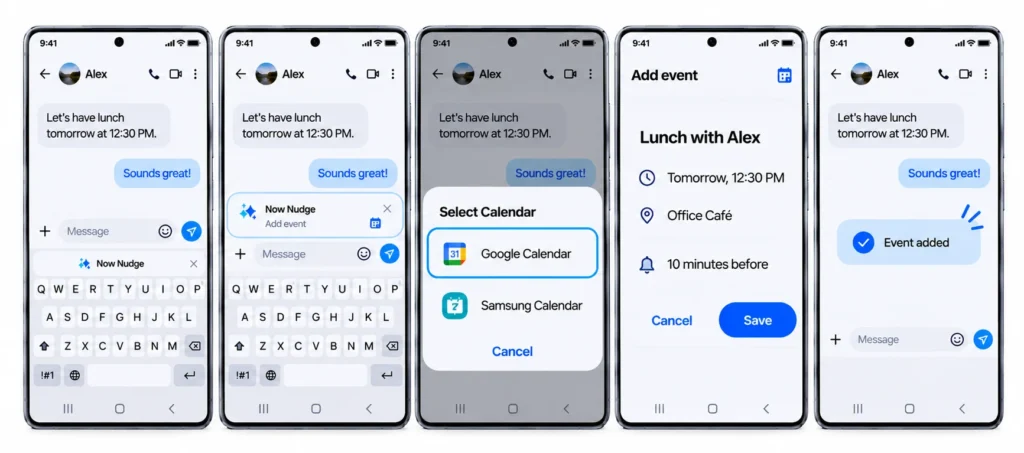
Now Nudge can help you save appointments without manually entering every detail.
For example, imagine someone sends you a message about meeting on Friday at 10 AM.
Follow these steps:
- Open the conversation containing the date and time.
- Look for a Now Nudge recommendation above the keyboard.
- Tap the suggested Add event action.
- Select your preferred Calendar application if prompted.
- Review the event information.
- Tap Save to add the appointment.
This feature can reduce the time required to transfer meeting details from a conversation to your calendar.
2. Find Shared Locations
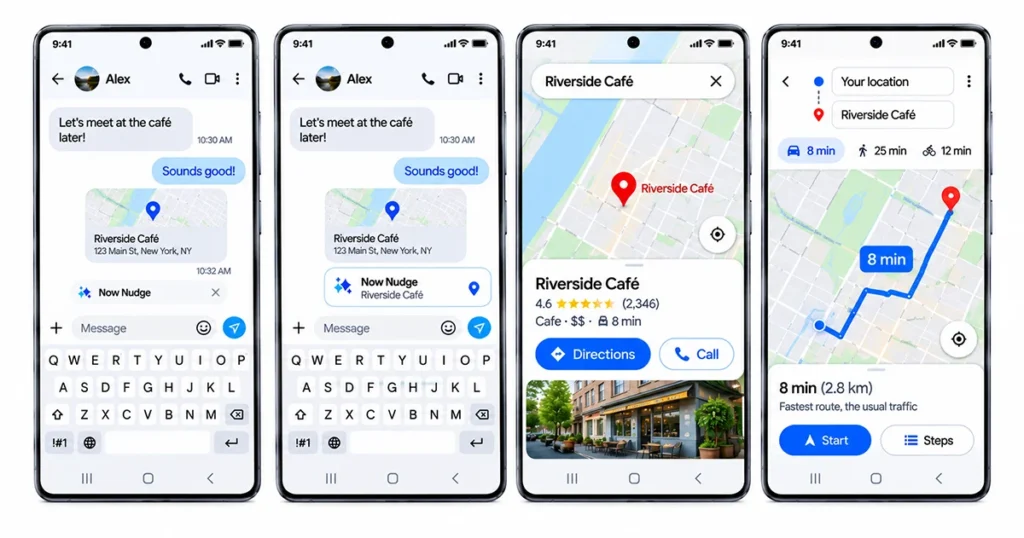
You can also use Now Nudge to open locations mentioned in messages.
For example, if someone shares a restaurant address or meeting location, Now Nudge may recognize the location and recommend opening it in a maps application.
To use this feature:
- Open the message containing the shared location.
- Check whether Now Nudge displays a location recommendation.
- Tap the suggested location.
- Open the relevant maps application.
- Review the location details and directions.
You can then continue navigating using your preferred maps service.
3. Share Photos More Easily
Now Nudge can recommend photos that may be relevant to your current conversation.
For example, when discussing a recent trip with a friend, it may suggest sharing related pictures from your Gallery.
To share photos:
- Open the conversation where you want to send pictures.
- Look for the recommended photo-sharing action.
- Tap the Share photos suggestion.
- Select the pictures you want to send.
- Review your selection and complete the sharing process.
Always review the selected photos and recipient before sending them.
4. Access Contact Information and Other Details
Now Nudge can also recognize useful information, such as phone numbers, schedules, and reminders.
Depending on the situation, it may suggest viewing a contact number, checking an upcoming event, or opening relevant reminder information.
These recommendations help you access useful details without searching through several different applications.
How to Set Up Personal Data Intelligence
Personal Data Intelligence makes Now Nudge more personalized by allowing you to register information that can be used for relevant suggestions.
For example, you can store your name, phone number, email address, passport information, pets, and interests.
To configure it:
- Open Settings.
- Tap Galaxy AI.
- Select Now Nudge.
- Tap Personal Data Intelligence.
- Turn on the feature.
- Select Manage personal data.
- Add or review the information you want to store.
When filling out supported forms, Now Nudge may suggest saved details such as your name, phone number, or email address.
Only enter information you are comfortable storing on your device. You should also review your saved information periodically and remove details you no longer need.
Now Nudge Features and Their Uses
The following table summarizes some of the main ways you can use Now Nudge on Galaxy S26.
| Feature | How it helps | Example |
|---|---|---|
| Calendar suggestions | Helps save appointments | Add a meeting from a message |
| Location suggestions | Opens relevant locations | Find a restaurant shared by a friend |
| Photo sharing | Recommends relevant pictures | Share travel photos |
| Contact information | Helps retrieve phone numbers | Find a number mentioned in a conversation |
| Personal Data Intelligence | Suggests saved personal information | Enter your email into a supported form |
| Schedule and reminder suggestions | Helps access relevant information | Check an upcoming appointment |
Is Now Nudge Safe to Use?
Samsung provides privacy controls for Personal Data Intelligence. According to the manual, information processed for this feature stays on your device unless you consent to share it with Samsung or its partners to improve recommendations.
However, you should still review the information you register and understand the permissions you grant.
For better privacy management:
- Only save personal information that is necessary.
- Review the Manage personal data section regularly.
- Check the permissions granted to relevant applications.
- Avoid entering sensitive information unless you understand how it is handled.
- Review Samsung’s privacy policy and Galaxy AI terms.
Remember that AI-generated suggestions are not guaranteed to be accurate. Always check important dates, locations, contact details, and other information before taking action.
Why Is Now Nudge Not Working on Galaxy S26?
If Now Nudge does not appear when you expect it to, several settings or compatibility issues may be responsible.
Try these troubleshooting steps:
1. Check whether Now Nudge is enabled.
Go to Settings > Galaxy AI > Now Nudge and make sure the feature is turned on.
2. Check Auto Suggestion.
Samsung identifies Auto Suggestion as a required setting for Now Nudge. Make sure it is enabled.
3. Review location permissions.
If you want location-related suggestions, check that the relevant Location permission is allowed.
4. Update your software.
Install available system updates and update supported applications through their respective app stores.
5. Check language compatibility.
Samsung lists supported languages including English, Spanish, French, German, Chinese, Japanese, Korean, Thai, and Vietnamese, among others.
6. Try another supported situation.
Now Nudge does not display suggestions continuously. It appears when supported content and circumstances are recognized.
Frequently Asked Questions
Yes. Now Nudge is a Galaxy AI feature available on the Samsung Galaxy S26 series.
Open Settings > Galaxy AI > Now Nudge, then activate the switch.
Yes. After activation, it can automatically recommend relevant actions when it recognizes supported content on your screen.
Yes. When a supported message contains appointment information, Now Nudge may recommend adding the event to your calendar. Review the details before saving.
Yes. It can suggest relevant photos based on the context of supported conversations. You can review and select pictures before sharing them.
Final Thoughts
Now Nudge makes the Galaxy S26 more context-aware by suggesting useful actions based on information displayed on your screen. From adding appointments and finding locations to sharing photos and accessing saved personal details, the feature can simplify everyday smartphone tasks.
To get started, go to Settings > Galaxy AI > Now Nudge, enable the feature, and configure Personal Data Intelligence if you want personalized suggestions. Remember to review your privacy settings and verify important information before accepting AI recommendations.
Reference:
- Samsung support – How to use Now nudge.
- Samsung Community tutorial – Now nudge walkthrough.

1 thought on “Use Now Nudge on Galaxy S26: How to Enable and Use Galaxy AI”