If your Samsung Galaxy S26 battery is draining fast, check which apps consume the most power, restrict unnecessary background activity, and adjust your display settings first. Weak 5G signals, high screen brightness, recent software updates, and initial setup processes can also shorten battery life. Try the fixes below before resetting your phone or requesting a repair.
If you just bought your Galaxy S26, give the phone a few days to finish syncing data and optimizing apps. If the battery continues to drain unusually quickly, use these troubleshooting steps to identify the cause.
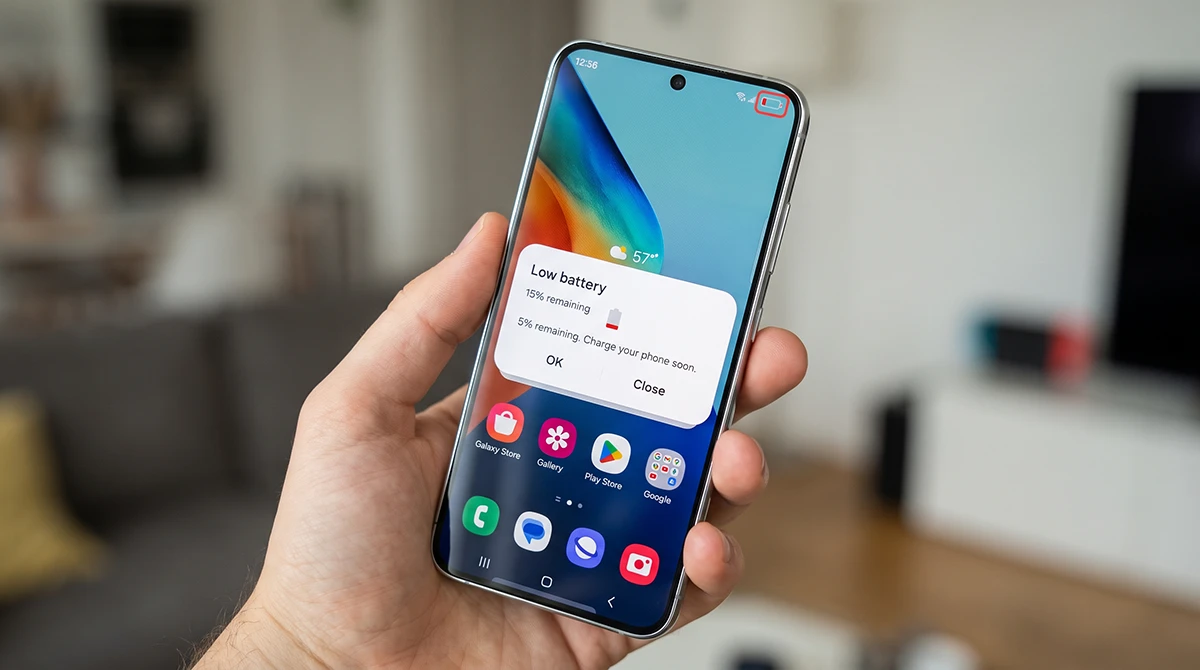
Why Is Your Galaxy S26 Battery Draining Fast?
Several factors can cause your Galaxy S26 to lose battery power faster than expected:
- Background apps: Social media, navigation, streaming, and messaging apps may continue using power when you’re not actively using them.
- High screen brightness: A bright display and long screen timeout increase energy consumption.
- Weak cellular signals: Your phone may use more power to maintain a connection in areas with poor reception.
- 5G connectivity: Searching for or maintaining a weak 5G connection can increase power consumption.
- Frequent location access: Apps that regularly access GPS can consume additional battery power.
The best solution depends on what’s consuming power. Start by checking your battery statistics instead of changing every setting at once.
How to Fix Galaxy S26 Battery Draining Fast
To fix Galaxy S26 battery drain, reduce screen brightness, restrict background apps, enable Power Saving, update software, and check battery usage.
1. Check Battery Usage by App
Identify the apps consuming the most battery before making other changes.
- Open Settings.
- Tap Battery.
- Review the battery usage graph and app usage details.
- Look for apps consuming unusually high amounts of power relative to how much you use them.
- Update, restrict, or uninstall an app if its battery usage appears abnormal.
Pay attention to apps that consume significant power even when you barely open them. Background activity may explain why your Galaxy S26 loses battery while sitting idle.
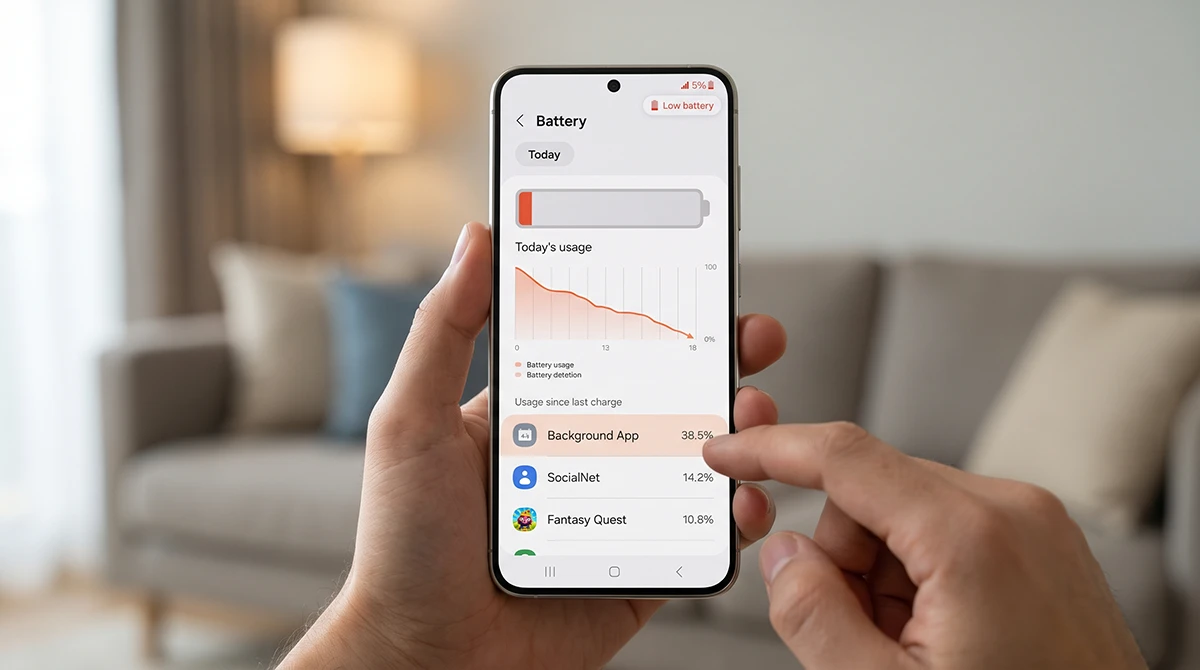
Remember that high battery usage doesn’t automatically indicate a problem. Video streaming, gaming, camera recording, and navigation naturally consume more power than lightweight tasks.
2. Put Unused Apps to Sleep
Apps that frequently run in the background can reduce battery life. Samsung provides background usage limits to restrict apps you rarely use.
- Open Settings.
- Tap Battery.
- Select Background usage limits.
- Enable Put unused apps to sleep if available.
- Review the Sleeping apps and Deep sleeping apps lists.
Use Deep sleeping apps for applications that don’t need to perform background tasks. These apps generally won’t run in the background and will work when you open them.
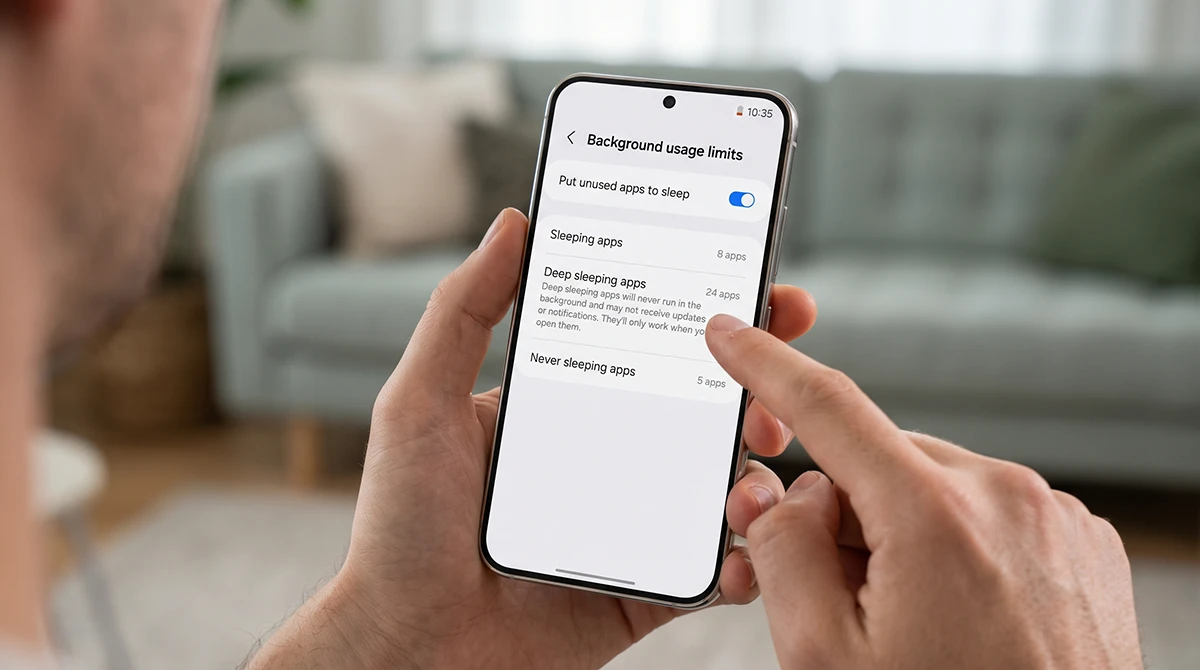
Avoid placing essential messaging apps, email clients, alarms, or other time-sensitive services into deep sleep if you depend on their notifications.
3. Reduce Screen Brightness and Adjust Display Settings
The display can consume substantial power, especially when you use your phone frequently throughout the day.
Try these adjustments:
- Open Settings > Display.
- Lower the screen brightness or enable Adaptive brightness.
- Choose a shorter Screen timeout.
- Enable Dark mode if you prefer it.
- If available, open Motion smoothness and select Standard for a lower refresh rate.
You can also review Settings > Lock screen and AOD to adjust Always On Display. Select a less power-intensive display option or disable the feature if you don’t need it.
You don’t have to disable every display feature. Start with brightness and screen timeout, then check whether battery life improves.
4. Turn On Power Saving Mode
Power saving mode helps extend battery life by restricting selected features and background activity.
To enable it:
- Open Settings.
- Tap Battery.
- Turn on Power saving.
Depending on your software version, Power saving may limit background data, reduce performance, or change display behavior.
Use this mode when your battery is running low or you need your phone to last longer before the next charge. You can also enable it temporarily while investigating unusual battery drain.
5. Check Whether 5G or Weak Signal Is Draining Your Battery
Your Galaxy S26 may consume more power when it struggles to maintain a reliable cellular connection. This can happen in underground parking areas, rural locations, buildings with thick walls, or places with weak 5G coverage.
Try the following:
- Check whether the signal indicator frequently shows weak reception.
- Connect to reliable Wi-Fi when available.
- If your carrier and software support it, open Settings > Connections > Mobile networks.
- Select a supported LTE/4G network mode temporarily, if available.
Don’t permanently disable 5G without checking your needs. The best network setting depends on your carrier, location, and connection quality.
6. Check for Battery Drain After a Software Update
Did your Galaxy S26 start losing battery faster immediately after installing an update? The timing may help identify the cause.
After an update, your phone may need time to optimize apps, synchronize accounts, and complete other background tasks.
Try these steps:
- Give the phone time to finish its background work.
- Restart it if you haven’t done so since the update.
- Install any available app updates.
- Open Settings > Battery and inspect the usage graph.
- Identify apps with unusually high battery consumption.
If the problem persists, check for another software update or a known issue reported by Samsung. Avoid repeatedly factory-resetting your phone in the hope of fixing a problem that may require a software patch.
7. Test Your Galaxy S26 in Safe Mode
Safe mode temporarily disables downloaded apps, helping you determine whether a third-party application causes excessive battery drain.
To enter Safe mode:
- Open the power menu using the Quick panel.
- Touch and hold Power off.
- Tap Safe mode when the option appears.
- Use your phone for a while under comparable conditions.
- Restart normally to exit Safe mode.
If the battery lasts noticeably longer in Safe mode, a downloaded app may be responsible. Think about apps you installed or updated shortly before the problem began.
Uninstall suspicious or recently installed apps one at a time, then check battery usage again.
Keep in mind that Safe mode changes how your phone operates, so the comparison is useful for diagnosis rather than a perfect measurement of normal battery life.
Why Does a New Galaxy S26 Battery Drain Quickly?
A new Galaxy S26 may consume more battery than expected during its first few days. Initial setup can involve restoring backups, downloading apps, syncing photos, configuring accounts, and optimizing software.
To help the battery settle into normal use:
- Keep apps and software updated.
- Allow backup restoration and synchronization to finish.
- Avoid prolonged gaming or demanding tasks while the phone is already hot.
- Check which apps consume the most battery.
- Use Power saving mode when necessary.
Battery life varies with screen brightness, signal strength, temperature, app usage, and other settings. If the drain remains severe after setup finishes, investigate it rather than assuming it’s normal.
How to Stop Galaxy S26 Battery Drain Overnight
If your Galaxy S26 loses a large amount of charge overnight, first determine whether an app, weak cellular signal, or background process is responsible.
Try this checklist:
- Review overnight battery usage in Settings > Battery.
- Put unnecessary background apps to sleep.
- Connect to reliable Wi-Fi if available.
- Disable features you don’t use overnight, where appropriate.
- Restart the phone if the drain began suddenly.
- Compare the battery level over another night under similar conditions.
- Avoid relying on a universal percentage threshold to diagnose a problem. Overnight battery consumption varies with signal quality, synchronization, notifications, and connected devices.
When Should You Contact Samsung Support?
Contact Samsung Support or an authorized service center if:
- Battery drain remains severe after you’ve tried the troubleshooting steps.
- The phone repeatedly shuts down despite showing remaining charge.
- The battery diagnostic reports a problem.
- The phone becomes unusually hot during light use.
- The battery appears swollen or physically damaged.
Back up your important data before repair or advanced troubleshooting. A factory reset should be a last resort because it erases personal data and may not resolve an underlying hardware or software issue.
Frequently Asked Questions
Why is my Galaxy S26 battery draining so fast?
Common causes include background apps, high screen brightness, weak cellular signals, heavy usage, and temporary activity after setup or a software update. Check battery usage by app to narrow down the cause.
How do I improve battery life on my Samsung Galaxy S26?
Reduce brightness, shorten screen timeout, put unused apps to sleep, enable Power saving mode when needed, and keep your apps updated.
Why does my Galaxy S26 lose battery overnight?
Background synchronization, apps running in the background, and poor cellular reception can contribute to overnight drain. Check the battery usage graph and compare results over similar nights.
Does 5G drain the Galaxy S26 battery faster?
It can, particularly when 5G coverage is weak or the phone repeatedly switches between network conditions. Compare battery usage with a supported LTE/4G mode in the same location.
How do I know if my Galaxy S26 battery is faulty?
Persistent excessive drain, unexpected shutdowns, abnormal heating, or a failed battery diagnostic may indicate a hardware problem. Contact Samsung Support for an assessment.
2 thoughts on “Samsung Galaxy S26 Battery Draining Fast? 12 Fixes That Work”