A Samsung Galaxy S26 random reboot is usually caused by Samsung’s automatic maintenance settings, a problematic third-party app, a recent software update, low storage, or—less commonly—a battery or hardware fault. Start by disabling Auto restart, updating the phone, and testing it in Safe Mode; these steps resolve most unexpected restarts without deleting your data.
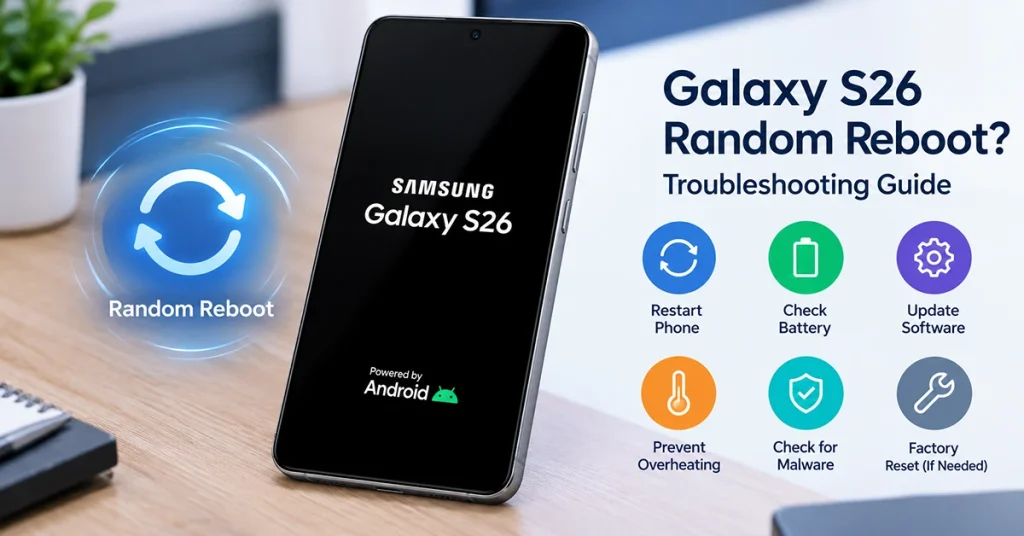
If your Galaxy S26 restarts only while idle, the cause may be a scheduled maintenance feature. If it reboots during calls, gaming, charging, or normal use, an app, overheating, accessory, or hardware issue is more likely.
Why Is My Galaxy S26 Randomly Restarting?
Your Galaxy S26 may reboot unexpectedly for several reasons. An enabled automatic restart setting can explain restarts that happen at predictable times. Recently installed apps, software bugs, insufficient storage, overheating, or a damaged power button can cause less predictable behavior.
A phone that restarts continuously during startup may have a more serious software or hardware problem.
Common causes include:
- Auto restart: Device care settings trigger a restart automatically.
- Problematic apps: An incompatible or unstable app interferes with system operations.
- Software bugs: An outdated or faulty software version causes crashes.
- Low storage: Limited free space can contribute to performance problems.
- Power or hardware issues: A faulty button, battery, or internal component interrupts normal operation.
Identifying when the reboot happens can help you choose the right fix.
How to Fix Galaxy S26 Random Reboot
Try these six solutions in order. Menu names may vary depending on your Galaxy S26’s One UI version, carrier, and region.
1. Turn Off Automatic Restart
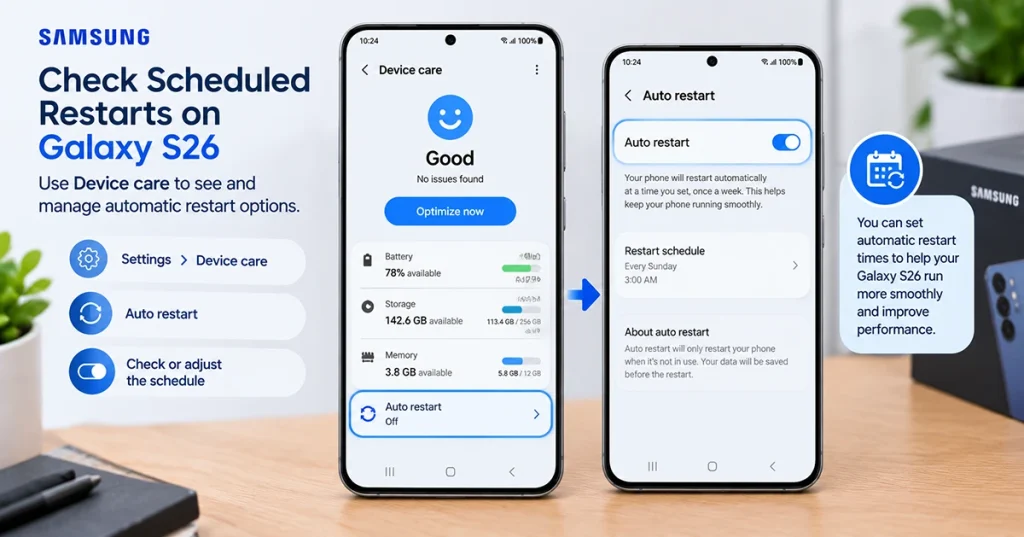
If your Galaxy S26 restarts while idle or overnight, check its automatic restart settings first.
Samsung Galaxy devices may include automatic restart options under Device care. These features can restart a phone when needed or according to a schedule.
Follow these steps:
- Open Settings.
- Tap Device care.
- Select Auto optimisation.
- Tap Auto restart, if available.
- Turn off Restart when needed and Restart on schedule.
On some software versions, the settings may appear under a slightly different menu. Search Settings for “Auto restart” or “Auto optimisation” if you cannot find them.
Use your phone normally after changing these options. If the random reboots stop, an automatic restart setting may have been responsible.
2. Install the Latest Software Update
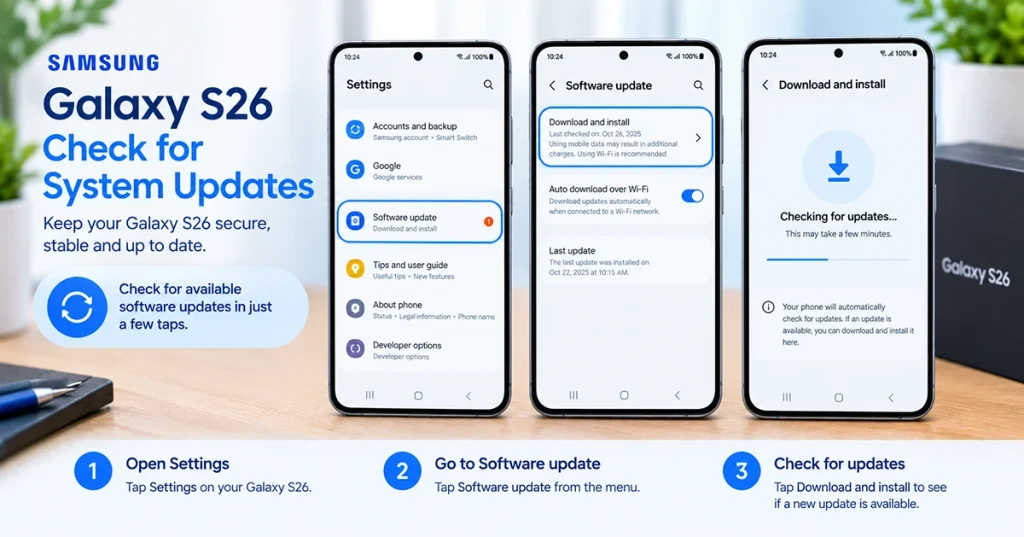
A software bug can cause unexpected restarts, especially if the problem began after an update or during a period of system instability.
Check for an available update:
- Open Settings.
- Select Software update.
- Tap Download and install.
- Install any available update by following the on-screen instructions.
Keep your battery sufficiently charged and use a reliable Wi-Fi connection before installing an update. Back up important files if possible.
If the random reboot began immediately after a software update, check for a newer update that may address the issue. Avoid installing unofficial firmware or attempting to downgrade the operating system unless you understand the risks.
Remember that a restart during a legitimate software installation is normal. Repeated restarts during everyday use are a different issue.
3. Boot Your Galaxy S26 Into Safe Mode
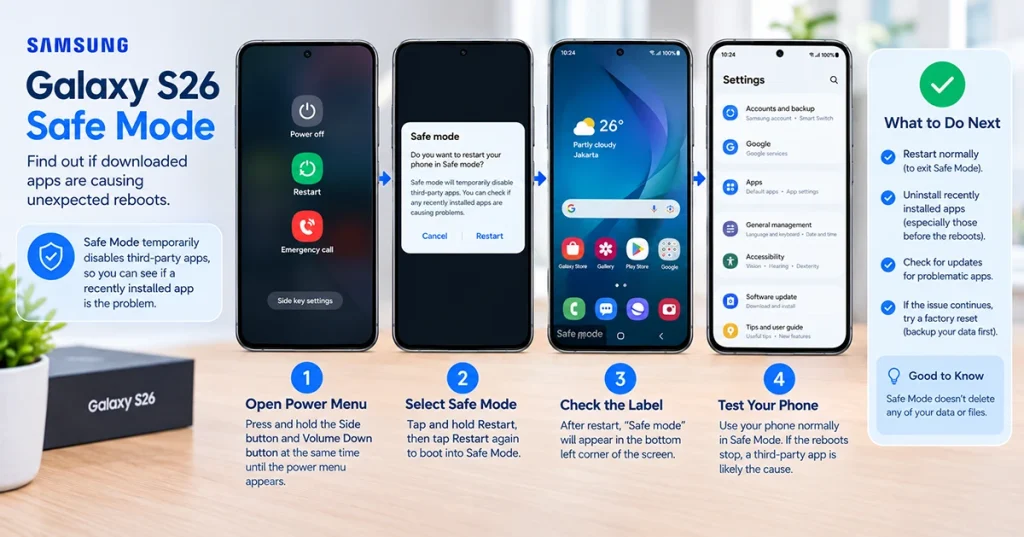
Safe Mode temporarily disables downloaded apps, making it one of the most useful ways to diagnose a Galaxy S26 random reboot.
Follow these steps:
- Open the power menu by pressing the Side button and Volume Down together.
- Touch and hold the Power off icon on the screen.
- When the Safe mode option appears, tap it.
- Wait for the phone to restart.
- Look for the Safe mode label on the screen.
Use your phone normally for a while and see whether it restarts again.
If the problem disappears in Safe Mode, a downloaded app may be responsible. If your phone continues rebooting, the cause may lie elsewhere, such as the operating system or hardware.
To exit Safe Mode, restart the phone normally.
4. Uninstall Recently Installed Apps
If Safe Mode stops the random restarts, review the apps you installed or updated shortly before the issue began.
Start with apps that run continuously in the background, manage device performance, modify system behavior, or come from unfamiliar developers.
To remove a suspicious app:
- Open Settings.
- Tap Apps.
- Select the app you want to investigate.
- Tap Uninstall.
- Restart your phone normally and test it again.
Remove one app at a time so you can identify the likely cause. If the problem returns after installing a particular app, leave that app uninstalled and check for a newer, compatible version.
Avoid uninstalling essential system components. If the phone still restarts after removing suspicious apps, proceed to the next step.
5. Free Up Storage Space
Very limited storage can contribute to slow performance, app crashes, and other system problems. Although low storage does not automatically mean it is causing the reboots, checking available space is worthwhile.
Here’s what to do:
- Open Settings.
- Tap Device care.
- Select Storage.
- Review large files, duplicate downloads, and apps you no longer use.
- Delete unnecessary files or move important media to another storage location.
Make sure you keep enough free space for temporary files and future updates.
You can also check the Battery section in Device care for unusual app activity that coincides with the restarts.
Test your Galaxy S26 again after freeing space. If the rebooting continues, investigate possible physical causes.
6. Check the Power Button, Temperature, and Accessories
A case that presses against the Side button may trigger unintended actions. A damaged button or internal power component can also cause repeated shutdowns and restarts.
Try these checks:
- Remove your phone case and any accessories that may press against the buttons.
- Check whether the Side button moves and clicks normally.
- Disconnect external accessories and test the phone without them.
- Let the phone cool naturally if it feels unusually hot.
- Check whether the restarts occur mainly while charging or using demanding apps.
Use a compatible charger and cable. If the phone becomes excessively hot, stop charging it and let it cool in a safe place away from direct sunlight.
If the Side button feels stuck or the phone restarts after a drop, liquid exposure, or impact, contact Samsung support rather than attempting a hardware repair yourself.
Galaxy S26 Random Reboot: Quick Troubleshooting Table
| Problem | Recommended fix |
|---|---|
| Restarts at night or while idle | Check Auto restart settings |
| Restarts after installing an app | Test in Safe Mode and uninstall suspicious apps |
| Started after a software update | Check for another available update |
| Freezes before restarting | Force restart the phone |
| Performance is poor and storage is nearly full | Free up storage space |
| Restarts when the case is fitted | Remove the case and check the buttons |
| Restarts repeatedly during startup | Investigate a boot loop and seek support if necessary |
| Continues after a factory reset | Contact Samsung for hardware or software diagnostics |
What to Do If Your Galaxy S26 Is Stuck in a Boot Loop
A boot loop occurs when your Galaxy S26 repeatedly displays the Samsung logo or begins starting up but never reaches the lock screen.
First, disconnect accessories and check whether a button is stuck. If the phone can reach the power menu, try Safe Mode. If it starts successfully, remove recently installed apps and check for software updates.
If the device never reaches the home screen, repeatedly restarts during startup, or becomes unresponsive, avoid repeatedly forcing it to reboot. A boot loop can indicate corrupted software or a hardware fault.
Contact an authorized Samsung service center if the basic troubleshooting steps do not work, especially if the phone has suffered physical damage or liquid exposure.
Frequently Asked Questions
Possible causes include automatic restart settings, unstable apps, software bugs, limited storage, overheating, or hardware problems. Check automatic restart settings first, then test the phone in Safe Mode.
No. Safe Mode temporarily disables downloaded apps while leaving your personal files intact. It helps determine whether a downloaded app may be causing the problem.
The issue may relate to a software bug, an incompatible app, or a process that has not completed correctly. Check for another update, test in Safe Mode, and remove problematic apps if necessary.
Only consider a factory reset after trying less destructive fixes. Back up your data first because the reset erases personal information stored on the phone.
Final Thoughts
A Galaxy S26 random reboot does not necessarily mean your phone is damaged. Start by disabling automatic restart settings, force-restarting the device, and checking for software updates. Use Safe Mode to investigate app conflicts, then check storage, buttons, and temperature.
If your Galaxy S26 continues restarting in Safe Mode or after a factory reset, contact Samsung support for further diagnostics. This approach helps you rule out common software causes before considering more serious repairs.
