New to your Samsung Galaxy S26 and can’t figure out how to turn it off? You’re not alone, many owners search for quick ways to power down, restart, or handle glitches. This guide covers all methods, from button combos to voice commands, optimized for Galaxy S26 running One UI 8.5. Save battery, fix freezes, or just shut down safely with these friendly steps.
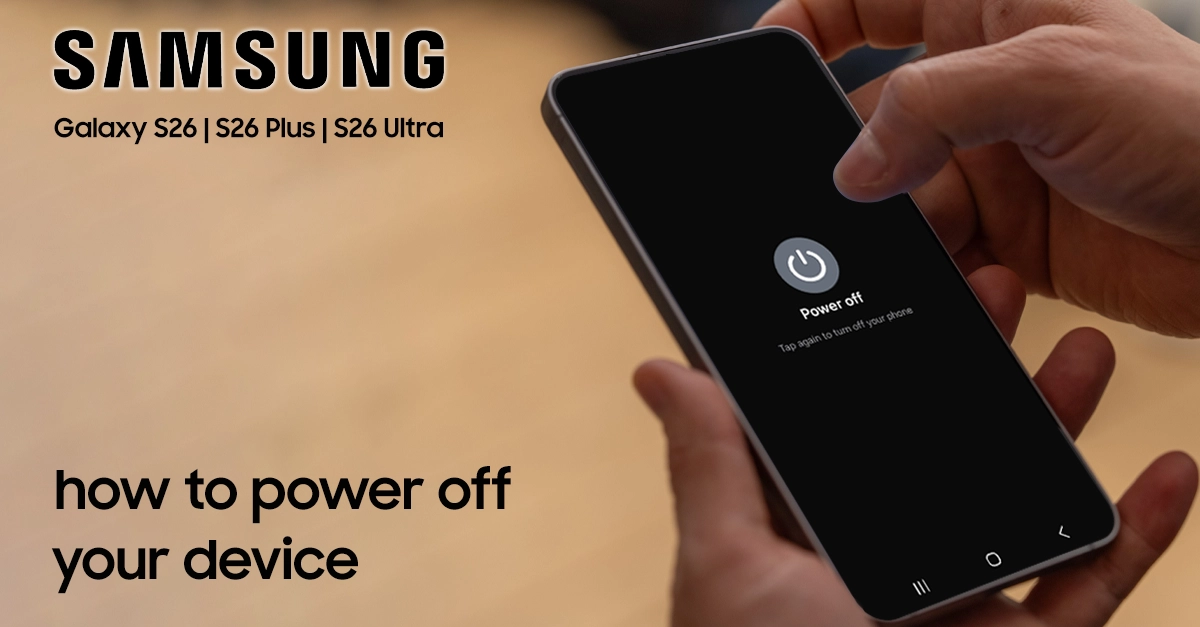
Standard Way to Turn Off Galaxy S26
Press and hold the Side (Power) button and Volume Down button together for a few seconds. Your Galaxy S26 screen flashes, vibrates, and shows the power menu—tap “Power off.”

The side button sits on the right edge above the volume rocker. This works on all Galaxy S26 models, including Ultra variants, even after software updates.
If the power menu pops up too fast from accidental presses, Samsung added safeguards in One UI—no worries about pocket dials.
Using Quick Settings to Power Off Your Galaxy S26
Swipe down twice from the top screen for full Quick Settings, then tap the Power icon (looks like a circle with a line). Select “Power off.”
This hands-free method shines if your buttons feel sticky or unresponsive. Customize the panel in Settings > Notifications > Quick panel for faster access.
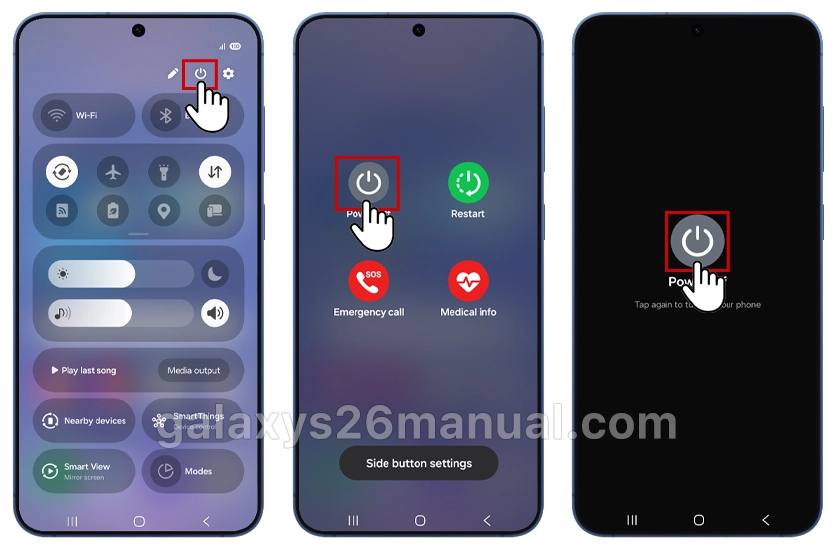
Pro tip: Drag the Power icon to your main Quick Settings row for one-swipe shutdowns on Galaxy S26.
Ask Bixby to Turn Off Your Phone
Samsung’s voice assistant can power down your device hands-free. This is perfect if your phone is on a desk or car mount and you can’t reach the buttons.

Step-by-Step Instructions:
- Make sure Bixby Voice is set up on your Galaxy S26.
- Press and hold the Side button to summon Bixby, or say “Hi Bixby” if voice wake-up is enabled.
- Say: “Turn off the phone” or “Power off.”
- Bixby will ask you to confirm. Say “Yes” or tap the confirmation on screen.
Important: You cannot use Bixby to turn your phone back on. After a shutdown, you’ll need to press and hold the Side button manually to restart the device.
Force Restart When Your Galaxy S26 Is Frozen
If your Galaxy S26 is frozen, unresponsive, or won’t turn off normally, you need a force restart. This is different from a normal shutdown — it forces the device to reboot without using the touchscreen.
Step-by-Step Instructions:
- Press and hold the Volume Down button and the Side button simultaneously.
- Keep holding both buttons for 10 seconds or more.
- The screen will go black as the device shuts down.
- Release the buttons once you see the Samsung logo appear.
- Your Galaxy S26 will automatically restart.
Note: A force restart does not erase any data. It simply forces the operating system to reboot, clearing temporary glitches and frozen apps.
Remap the Side Button to Act Like a Power Button
Don’t like holding two buttons just to see the power menu? You can remap the Galaxy S26 Side button so a long-press opens the Power off menu instead of Bixby. This makes turning off your phone feel like the “old days.”
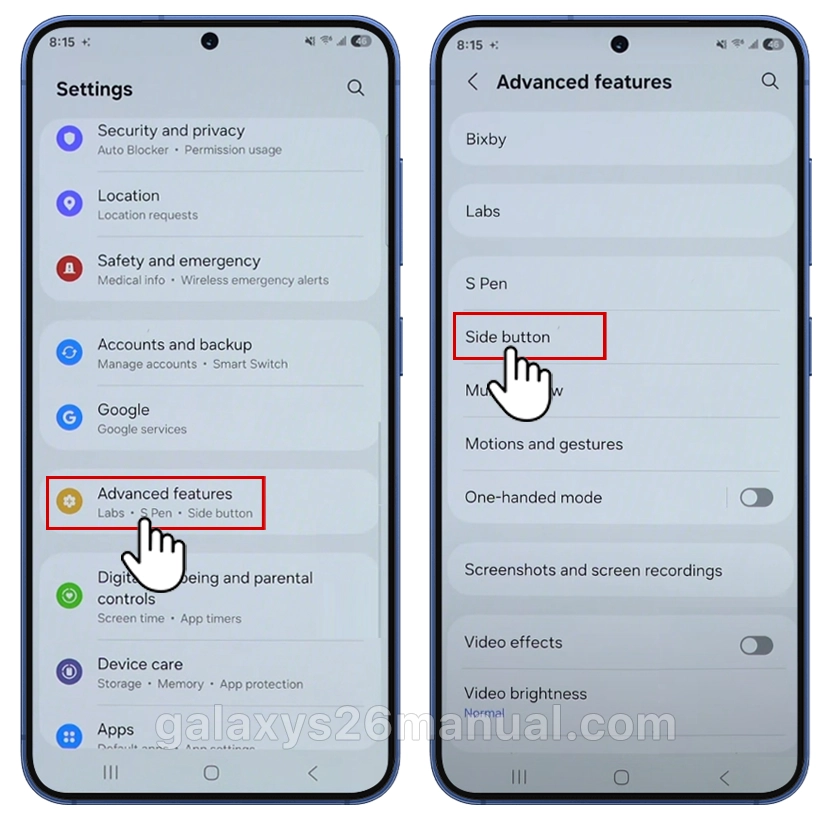
Step-by-Step Instructions:
- Open Settings.
- Tap Advanced features.
- Tap Side button.
- Under Press and hold (or Long press, depending on your software version), select Power off menu.
- Exit Settings.
Now, when you press and hold the Side button, the Power menu appears immediately — no Volume Down button required.
How to Turn Your Galaxy S26 Back On
Regardless of which shutdown method you used, turning your phone back on is the same:
- Press and hold the Side button for a few seconds.
- Release when you feel a vibration and see the Samsung logo.
- If the battery was completely drained, plug in a charger and wait a few minutes before trying to power on. A fully depleted battery may not show any signs of charging for several minutes.
Advanced Tips for Galaxy S26 Owners
Schedule auto-power off in Settings > Battery, but manual is king for quick tips. Developers can remap via the Good Lock app from the Galaxy Store for custom gestures.
Common issues: After the One UI 8.5 update, some report a delayed power menu—clear the cache partition via recovery mode (power off first, then hold Volume Up + Side).
| Method | Steps | Best For | Time |
|---|---|---|---|
| Button Combo | Side + Vol Down > Power off | Everyday use | 2 sec |
| Quick Settings | Swipe down x2 > Power icon | Button issues | 3 sec |
| Voice | “Hey Bixby, power off” | Hands-free | Instant |
| Force Restart | Side + Vol Down (20s) | Frozen screen | 20 sec |
Troubleshooting Common Turn-Off Problems
Button not responding? Check Settings > Advanced Features > Side button accessibility—toggle if needed. Stuck in a loop? Safe mode: Hold Vol Down during reboot.
For seniors or beginners, enable Easy mode in Settings for bigger icons, including power options.
If nothing works, do a factory reset via Settings > General management—but back up first via Samsung Cloud.
Why Turning Off Matters on Galaxy S26
Regular shutdowns clear RAM, save battery (up to 10% overnight), and fix minor bugs without apps. With Galaxy S26’s Snapdragon 8 Gen 4, quick restarts boost AI features like Circle to Search. Owners report smoother performance post-daily power cycles.
In summary, turning off your Galaxy S26 is simple with buttons, swipes, or voice—pick your favorite from these quick tips. Master this, and you’re set for all S26 basics. Build your Galaxy know-how one step at a time!
Learning to turn off your Samsung Galaxy S26 takes a small adjustment if you’re coming from an older Galaxy phone, but once you know the Side button combinations and Quick Settings shortcut, it becomes second nature. Bookmark this guide so you always have the force restart steps handy — they’re a lifesaver when your phone freezes at the worst possible moment.
Have questions about your Galaxy S26? Drop a comment below or check out our other Samsung Galaxy S26 tips and tutorials.
2 thoughts on “How to Turn Off Galaxy S26: Quick and Easy Step-by-Step Guide”