Missing important voicemails can be frustrating—especially when your Galaxy S26 is supposed to keep you connected seamlessly. Whether you are dealing with silent notifications, a crashed Visual Voicemail app, or the all-new Direct Voicemail feature refusing to cooperate, you are not alone. This friendly guide will help you to fix voicemail not working on Galaxy S26.
Methods to Fix Voicemail Not Working on Galaxy S26
If your voicemail isn’t working on the Galaxy S26, start by checking basic settings before moving to more advanced fixes. Here are the proven troubleshooting steps:
1. Verify Voicemail Number Configuration
Incorrect voicemail settings are a common cause.
- Open the Phone app.
- Tap the three-dot menu (top-right) > Settings.
- Select Voicemail > Voicemail number.
- Confirm the number matches your carrier’s access number (e.g., *86 for Verizon, 1 or 901 for other carriers).

2. Restart Your Galaxy S26
A simple restart often resolves temporary software glitches affecting voicemail.
- Press and hold the Power button.
- Tap Restart, then confirm by tapping Restart again.
- Wait for your device to fully reboot.
This refreshes your network settings and clears minor app conflicts that may be blocking voicemail access.
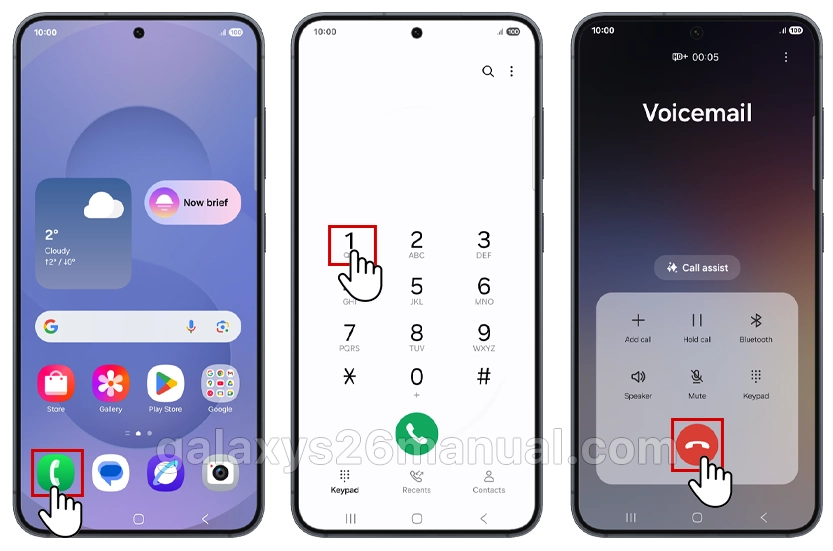
3. Verify Voicemail Setup
If voicemail was never properly configured, it won’t work.
- Open the Phone app.
- Tap the dialpad icon at the bottom.
- Press and hold the 1 key to auto-dial voicemail.
- Follow the voice prompts to create a password (4-7 digits) and record a greeting.
Important: Avoid using simple passwords like 0000 or 1234 for security reasons.
4. Force Stop and Clear Voicemail App Data
Corrupted app data is a common cause of voicemail failure. This solution has helped many Galaxy S users.
- Go to Settings > Apps > Visual Voicemail (or Voicemail).
- Tap Force stop to close the app completely.
- Tap Storage > Clear cache, then Clear data.
- Return to your home screen and reopen the Visual Voicemail app.
- Allow the app to complete its setup and grant necessary permissions.
This process removes corrupted files and forces the app to reinitialize with fresh settings.
5. Configure Mobile Data Settings for Voicemail
The Galaxy S26 may prioritize Wi-Fi over mobile data, causing voicemail sync issues.
- Go to Settings > Connections > Data usage.
- Tap Allowed networks for apps.
- Scroll down and find Visual Voicemail.
- Change the setting from “Wi-Fi and mobile data” to “Mobile data preferred” or “Prefer mobile network only“.
Voicemail services often require carrier network authentication, which may fail over Wi-Fi connections.
6. Reset Network Settings
If voicemail still isn’t working, reset your network configuration.
- Go to Settings > General management > Reset.
- Tap Reset mobile network settings.
- Confirm the reset.
Note: This will erase saved Wi-Fi passwords and Bluetooth pairings, but won’t delete personal files or apps. You’ll need to reconnect to Wi-Fi networks afterward.
7. Update Software and Carrier Settings
Outdated software can cause voicemail compatibility issues.
- Go to Settings > Software update > Download and install.
- Install any available One UI 8.5 updates for your Galaxy S26.
Additionally, update carrier settings:
- Go to Settings > Connections > Mobile networks.
- Tap Carrier apps update to refresh your network configuration.
8. Disable Battery Optimization for Phone App
Aggressive battery saving can interrupt voicemail services.
- Go to Settings > Apps > Phone.
- Tap Battery > select Unrestricted.
This ensures the Phone app can run in the background and receive voicemail notifications properly.
When to Contact Your Carrier
If none of these solutions fix voicemail not working on Galaxy S26, contact your carrier directly. They can:
- Reset your voicemail password remotely.
- Verify voicemail service is active on your account.
- Check for network outages in your area.
- Provide carrier-specific setup instructions.
- Common carrier voicemail numbers:
- Verizon: *86
- AT&T: 1
- T-Mobile: 1 or 805
Conclusion
Voicemail issues on the Galaxy S26 are typically resolved through app troubleshooting, network resets, or proper configuration. Start with simple fixes like restarting your device and clearing app cache. If problems persist, configure mobile data preferences and reset network settings. These step-by-step solutions should restore your voicemail functionality quickly.
Remember: Keep your Galaxy S26 updated to One UI 8.5 for optimal voicemail performance and access to the latest Direct Voicemail features.
Awesome – worked!
TY