Missing important calls because you’re in meetings or dealing with connectivity issues? Learning how to forward calls to voicemail on Galaxy S26 gives you complete control over incoming communications. This feature routes callers directly to your voicemail without endless ringing, preserving battery life and reducing distractions.
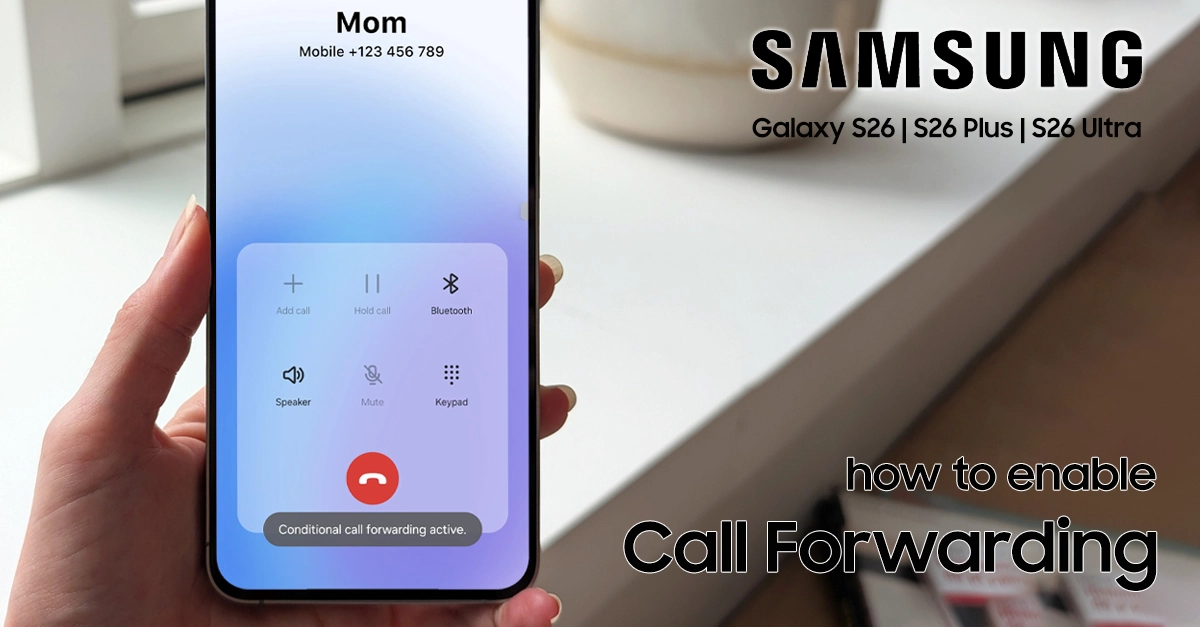
Whether you need temporary silence during focused work or want to manage spam calls efficiently, Samsung’s One UI 8.5 offers multiple methods to handle call forwarding. This guide walks you through every option step-by-step, so you can configure settings quickly and get back to your day.
Why Forward Calls to Voicemail on Galaxy S26?
Forwarding calls to voicemail serves practical purposes beyond simple convenience. Understanding these benefits helps you decide when and how to use this feature.
- Preserve battery efficiency: Silencing rings and vibrations saves power on the S26’s 5000mAh battery, especially during long workdays.
- Block spam without permanent blocking: Send telemarketers and unknown numbers straight to voicemail without adding them to your block list.
- Maintain focus during important tasks: Route calls away when you’re driving, in meetings, or completing deep work.
- Flexible routing options: Choose always-forward, busy-only, or no-answer scenarios based on your specific needs.
Step-by-step to Forward Calls to Voicemail on Galaxy S26
There are a few different ways to send calls straight to voicemail — pick the one that suits you best!
Method 1: Using the Phone App for Call Forwarding
This native method handles most forwarding scenarios through Samsung’s built-in settings.
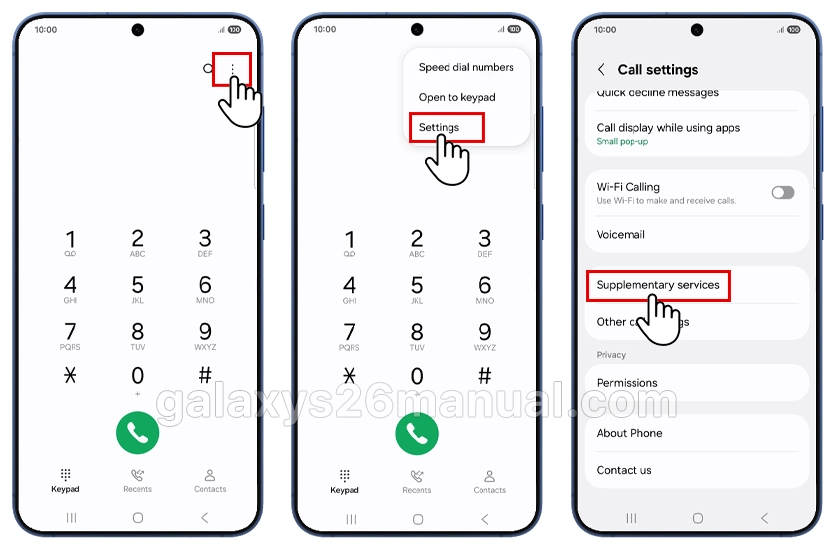
- Step 1: Open the Phone app from your home screen or app drawer.
- Step 2: Tap the three-dot menu (More) in the top-right corner.
- Step 3: Select Settings > Supplementary services > Call forwarding.
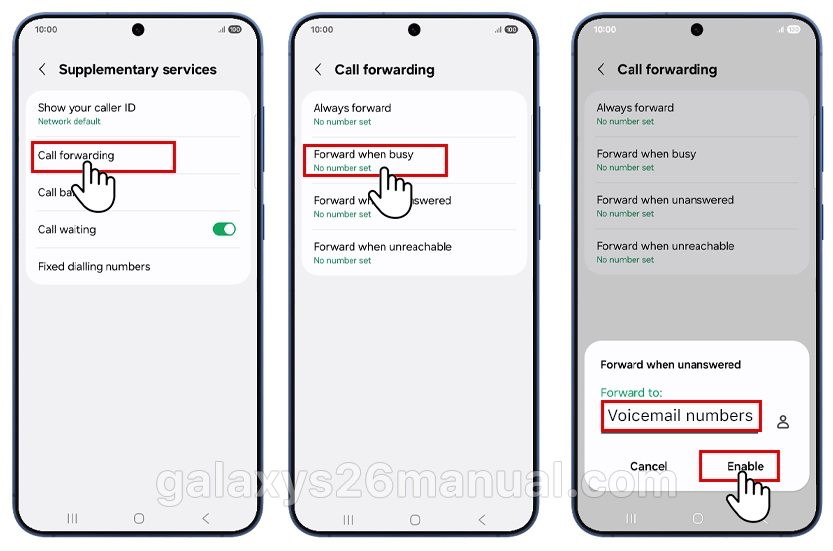
- Step 4: Choose Voice call (select Video call if needed for video forwarding).
- Step 5: Select your forwarding type:
- Always forward: Every call goes immediately to voicemail
- Forward when busy: Activates when you’re on another call
- Forward when unanswered: Triggers after 15-30 seconds of no pickup
- Forward when unreachable: Works when signal is lost or phone is off
- Step 6: Enter your carrier’s voicemail number (dial *#21# to verify current settings if needed).
- Step 7: Tap Enable or Turn on, then test with a call from another phone.
To disable: Return to the same menu and tap Disable.
Method 2: Using Direct Voicemail (One UI 8.5)
The Galaxy S26 introduces Direct Voicemail, a streamlined feature for hands-free call management.
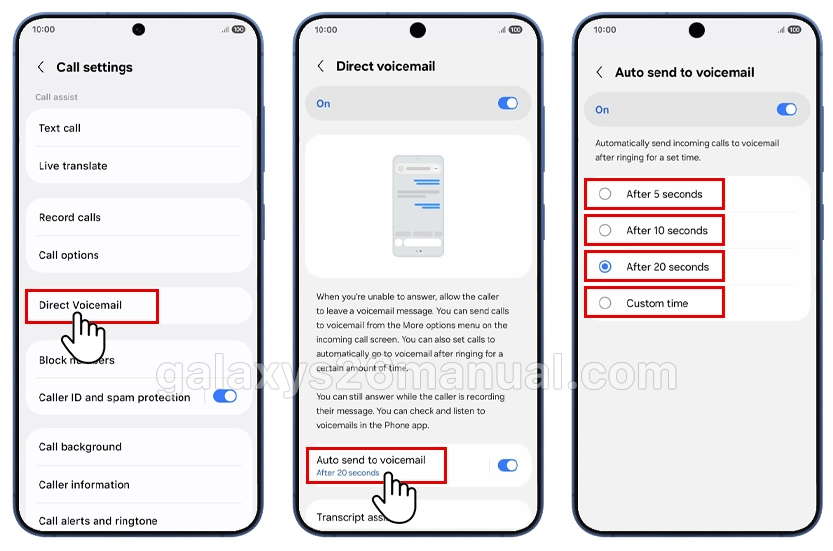
- Step 1: Open the Phone app and tap the three-dot menu.
- Step 2: Go to Settings > Direct Voicemail.
- Step 3: Toggle Direct Voicemail to On.
- Step 4: Customize auto-forward timing. Select from preset options (5, 10, or 20 seconds) or set a custom delay.
- Step 5: For manual control during incoming calls, swipe up on the screen and tap the voicemail icon to send the caller directly to recording.
Pro tip: Combine Direct Voicemail with Galaxy AI to receive transcribed voicemail summaries in your notifications without opening the app.
Method 3: Do Not Disturb with Voicemail Routing
Do Not Disturb (DND) silences calls while still allowing voicemail pickup after brief ringing.
- Step 1: Swipe down from the top to open Quick Settings.
- Step 2: Tap the Do Not Disturb icon (crescent moon) to enable.
- Step 3: Navigate to Settings > Notifications > Do Not Disturb > Calls and messages.
- Step 4: Configure exceptions. Allow favorite contacts or repeated callers to ring through if desired.
- Step 5: Set duration for DND activation.
Note: DND sends calls to voicemail after a brief timeout rather than immediate forwarding. For instant routing, combine with Method 1 or 2.
Troubleshooting Common Issues
Even straightforward setups encounter problems. Here’s how to resolve them.
- Calls still ring through: Verify you entered the correct voicemail number. Contact your carrier to confirm the forwarding code for your plan.
- Forwarding options grayed out: Ensure your SIM card is active and you have cellular service. Restart the Phone app or reboot your device.
- Dual-SIM confusion: The S26 manages each SIM separately. Check that you’re configuring call forwarding for the correct line.
- Settings not saving: Update to the latest One UI version via Settings > Software update > Download and install.
- Can’t find Direct Voicemail: This feature requires One UI 8.5+. Check your version in Settings > About phone > Software information.
Carrier-Specific Voicemail Numbers
| Carrier | Voicemail Number |
|---|---|
| AT&T (US) | *86 or +1[your number] |
| T-Mobile (US) | *86 or 123 |
| Verizon (US) | *86 |
| Vodafone (AU) | +61414121121 |
| Three (UK) | 123 |
Contact your carrier directly if your provider isn’t listed.
Mastering how to forward calls to voicemail on Galaxy S26 empowers you to manage communications efficiently without sacrificing accessibility. The Phone app’s call forwarding offers granular control, Direct Voicemail provides modern convenience, and Do Not Disturb handles temporary silencing needs.
Start with the method matching your immediate need, then explore combining approaches for comprehensive call management. For persistent issues, Samsung’s official support site provides additional troubleshooting resources.
1 thought on “How to Forwarding Calls to Voicemail on Samsung Galaxy S26”