If your Samsung Galaxy S26 is not charging after an update, restart your phone, check your USB-C cable and charger, inspect the charging port for moisture, and install any available follow-up software update. If the phone charges slowly or repeatedly disconnects, check the charging settings, clear the USB Settings cache if available, and test wireless charging to narrow down the cause.
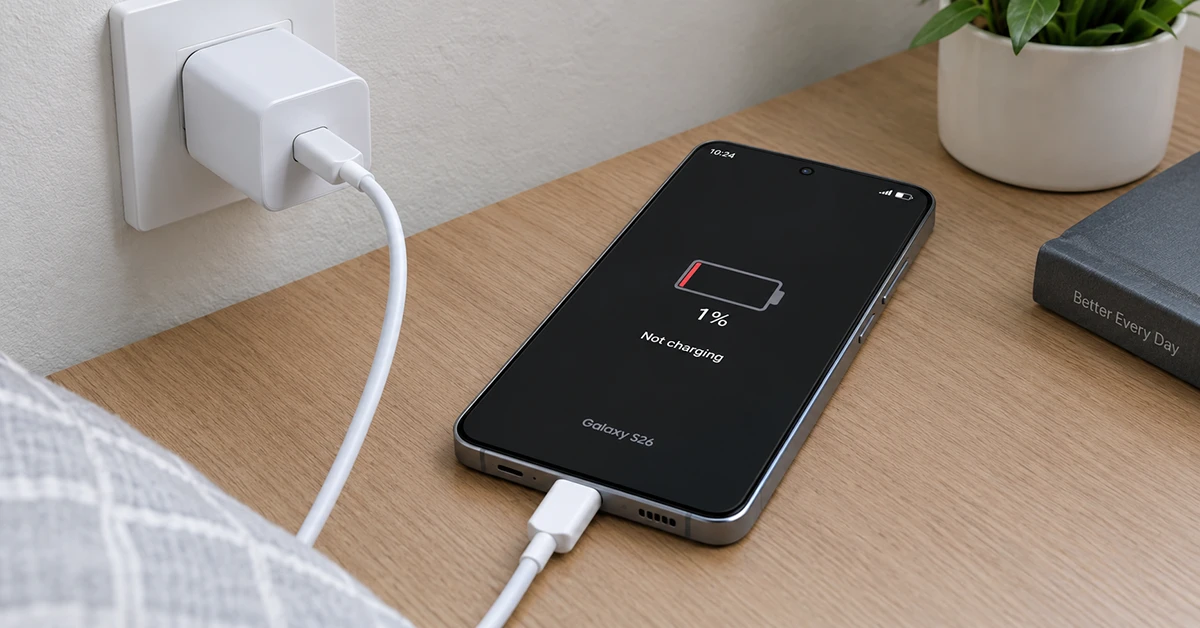
A software update can coincide with charging problems, including reports of reduced fast-charging performance on Galaxy S26-series devices. However, a faulty cable, incompatible power adapter, overheating, battery protection settings, or a physical charging-port problem can produce similar symptoms. Try the following fixes in order before considering a factory reset or repair.
Why Is Your Galaxy S26 Not Charging After an Update?
Your Galaxy S26 may stop charging or charge slowly for several reasons:
- Software glitches: A temporary system or USB connection error may affect charging after an update.
- Incompatible charger or cable: A damaged cable or power adapter that does not support the phone’s charging requirements may prevent normal charging speeds.
- USB-C port problems: Moisture, debris, or a poor connection can interrupt charging.
- Overheating: The phone may reduce charging speed or temporarily stop charging when its temperature rises.
- Battery protection: Charging limits can prevent the battery from reaching 100%.
- Background activity: Apps and system processes may consume power faster than a weak charger supplies it.
- Hardware faults: A damaged charging port, battery, or charging component may require professional service.
If the problem began immediately after a software update, start with a restart and check for another update. Do not assume that the update is the cause until you have ruled out accessories and other common problems.
10 Ways to Fix Samsung Galaxy S26 Not Charging After an Update
If your Samsung Galaxy S26 stops charging, charges slowly, or repeatedly disconnects after a software update, the problem may be related to a temporary software glitch, charging settings, a faulty cable, or an issue with the USB-C port. Before assuming the battery is damaged, try a few safe troubleshooting steps.
This guide explains 10 ways to fix a Samsung Galaxy S26 that is not charging after an update, starting with the simplest solutions and progressing to more advanced troubleshooting.
1. Restart Your Galaxy S26
A restart is one of the easiest ways to address temporary software glitches that may interfere with charging.
- Disconnect the charging cable.
- Open the power menu using the Quick Settings panel or the available power-button shortcut.
- Tap Restart.
- Wait for the phone to boot completely.
- Connect a compatible charger and check whether charging resumes.
If the screen is frozen, press and hold the Side button and Volume Down button together until the phone restarts. The exact behavior may vary by software version.
Allow the phone a few minutes to charge if its battery is completely depleted. A deeply discharged phone may not display a charging indicator immediately.
2. Check the USB-C Cable and Charger
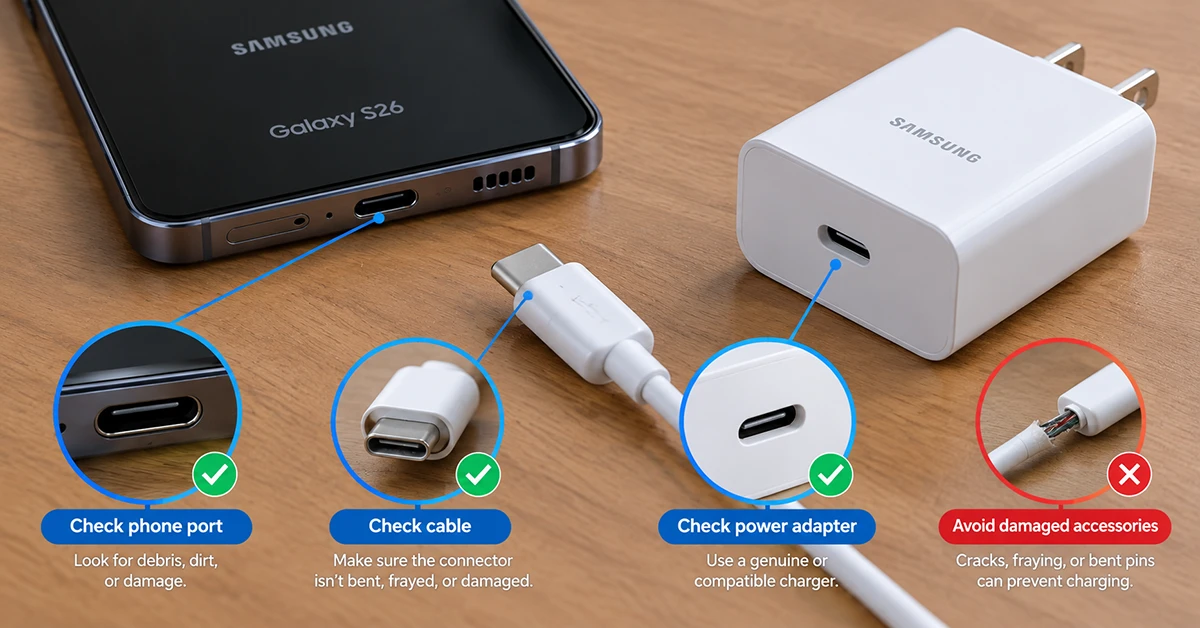
A charging accessory can appear functional while delivering insufficient power or causing intermittent connections.
Follow these steps:
- Unplug the cable from both the phone and the power adapter.
- Inspect the cable for fraying, bent connectors, or other damage.
- Try a different, known-good USB-C cable.
- Test another compatible wall adapter and electrical outlet.
- Connect the phone directly to the wall adapter rather than a computer, hub, or unreliable USB port.
For compatible Super Fast Charging, use a suitable USB-C Power Delivery charger that supports the required PPS charging profile. Check the charger’s specifications and Samsung’s recommendations for your exact model.
If another charger fixes the problem, the original accessory may be incompatible or defective. Avoid assuming that every USB-C charger supports the same charging speed.
3. Check the Charging Port for Moisture or Debris
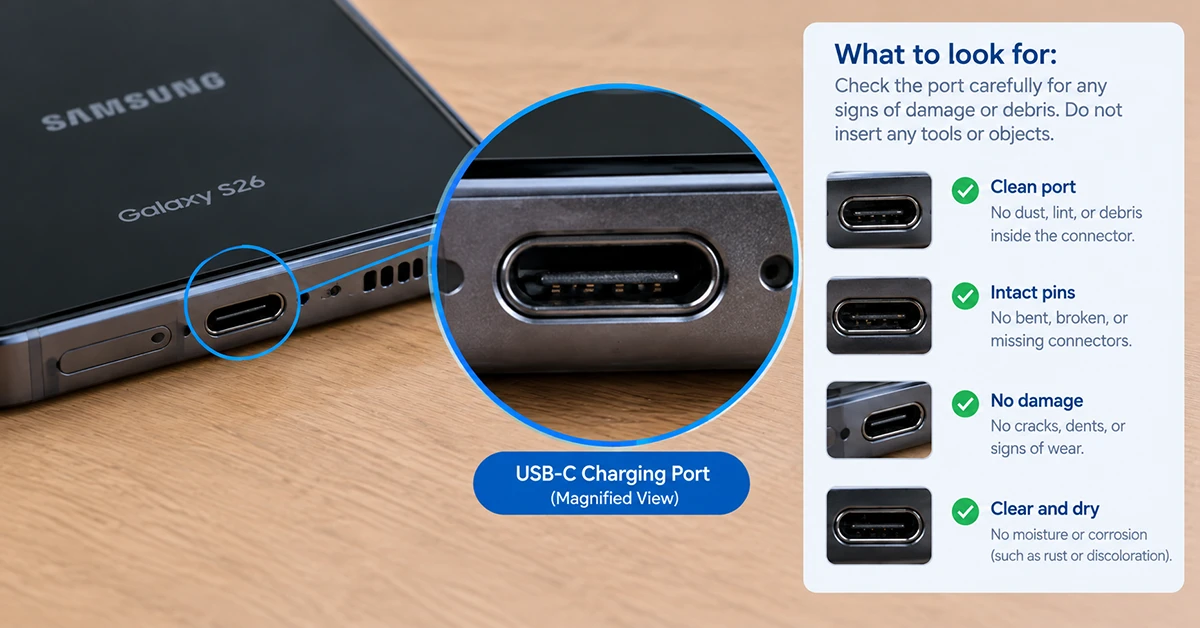
If your Galaxy S26 displays a moisture warning or repeatedly disconnects when plugged in, check the USB-C port.
- Disconnect the charger immediately if a moisture warning appears.
- Inspect the port under good lighting without inserting anything into it.
- Let the phone and port dry naturally in a well-ventilated area.
- Reconnect the charger only when the port is dry and the warning has cleared.
Do not use metal objects, cotton swabs pushed into the connector, compressed air, or external heat to clean or dry the port. Do not override a moisture warning simply to resume charging.
If the warning persists despite the phone being dry, or the connector feels loose, arrange a professional inspection.
4. Let Your Phone Cool Down
A phone that becomes hot during installation, gaming, navigation, or heavy background activity may reduce charging speed to protect its components.
To check for overheating:
- Disconnect the charger if the phone is unusually hot.
- Close demanding apps and stop intensive activities.
- Remove a thick case if it is trapping heat.
- Place the phone in a cool, shaded, well-ventilated location.
- Wait until it returns to a normal temperature before charging again.
Avoid refrigerators, freezers, direct air blasts, or other extreme cooling methods because they can cause condensation or damage.
If charging resumes after the phone cools, temperature was likely contributing to the problem. Repeated overheating during ordinary charging deserves further investigation.
5. Check Charging Settings and Battery Protection
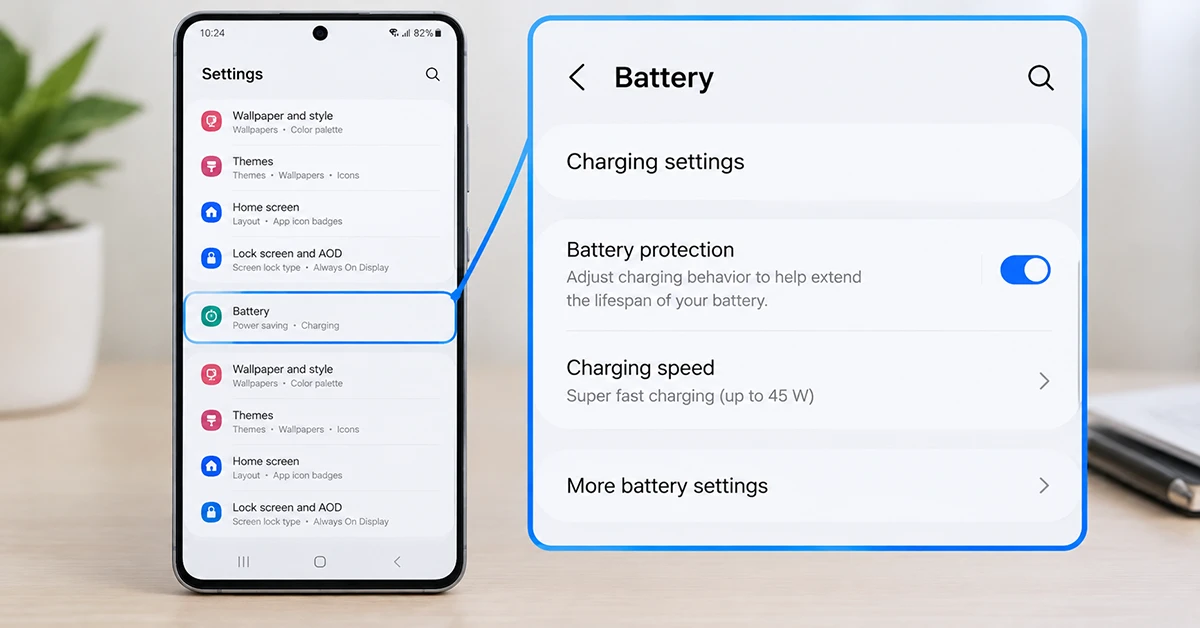
Your Galaxy S26 may be charging normally but stopping at a selected battery limit, or fast charging may be disabled.
- Open Settings.
- Tap Battery.
- Look for Charging settings and Battery protection.
- Check whether Fast charging is enabled, if that option is available.
- Review the battery protection mode and its charging limit.
Menu labels may differ by software version and region. Change the settings only if they explain the behavior you are experiencing.
If the battery consistently stops at a configured limit, that alone does not indicate a charging fault. Battery protection features are designed to limit charging under selected conditions.
6. Clear the USB Settings Cache
If the phone recognizes the charger but charging keeps stopping or fast charging repeatedly fails, clearing the USB Settings cache may be worth trying. This is a troubleshooting step, not a confirmed universal fix for post-update charging bugs.
- Open Settings > Apps.
- Tap the filter or sorting control and enable Show system apps, if available.
- Find USB Settings.
- Open Storage.
- Tap Clear cache, if the option is available.
- Restart the phone and test charging again.
Do not select Clear data unless you understand the consequences. System-app options can vary by software version, and some devices may not expose USB Settings in this way.
If clearing the cache helps only temporarily, the underlying problem may remain. Continue with the software checks below rather than repeating the procedure indefinitely.
7. Check for Another Software Update
Samsung may release subsequent updates that address software bugs, improve compatibility, or resolve known device issues.
- Connect to a stable Wi-Fi network.
- Open Settings > Software update.
- Tap Download and install or the equivalent update-check option.
- Install an available update according to the on-screen instructions.
- Restart the phone and test charging again.
If the phone cannot charge reliably, make sure it has enough battery for the update before starting. Do not interrupt an update in progress.
You can also check your carrier’s official Galaxy S26 update page for release information. If the issue started after a particular update, record the software version and report the symptoms to Samsung Support.
Avoid installing unofficial firmware or attempting an unsupported downgrade to fix charging behavior.
8. Test Wireless Charging
If your Galaxy S26 model supports wireless charging, testing it can help determine whether the problem is specific to the wired connection.
- Disconnect the USB-C cable.
- Remove the phone case and any accessories that could interfere with charging.
- Place the phone on a compatible wireless charger.
- Align the phone with the charging coil.
- Wait for the charging indicator and check whether the battery percentage increases.
If wireless charging works but wired charging does not, inspect the USB-C cable, power adapter, port, and wired charging connection.
If neither method works, the issue may involve the battery, software, temperature, or another internal component. Wireless charging is a diagnostic comparison, not proof that the USB-C port is defective.
9. Test Charging in Safe Mode
Third-party apps can occasionally interfere with device behavior. Safe Mode temporarily disables downloaded apps, allowing you to test whether one might be contributing to the issue.
- Open the power menu.
- Touch and hold Power off until the Safe Mode option appears, if supported.
- Tap Safe mode.
- Connect a compatible charger and observe the charging behavior.
- Restart normally to leave Safe Mode.
If charging improves in Safe Mode, review recently installed or updated apps. Remove suspicious apps one at a time and test again.
If the problem continues in Safe Mode, a third-party app is less likely to be the cause. Safe Mode cannot rule out every software or hardware issue.
10. Run Samsung Members Diagnostics
Samsung Members may provide diagnostics for supported battery and charging components.
- Open the Samsung Members app.
- Navigate to Support or the diagnostics section.
- Find the available battery or cable-charging tests.
- Run the relevant tests and follow the instructions.
- Save any results or error messages.
The exact tests available depend on the phone, region, and app version. If diagnostics identify a problem, or the phone still fails to charge with a known-good compatible charger, contact Samsung Support or an authorized service center.
What to Do If Your Galaxy S26 Still Won’t Charge
If none of the fixes works, use the symptoms to decide what to try next.
| Symptom | Recommended next step |
|---|---|
| Phone does not respond to any charger | Leave it connected to a known-good compatible charger for a short period, then try a force restart. Seek service if it remains unresponsive. |
| Battery percentage decreases while plugged in | Stop demanding activities and test a compatible wall adapter and cable. |
| Fast charging stopped after an update | Check charging settings, test another compatible cable and adapter, and check for follow-up updates. |
| Moisture warning remains visible | Disconnect the cable and allow the port to dry naturally. Request service if the warning persists. |
| Wireless charging works but USB-C does not | Focus on the cable, adapter, port, and wired charging connection. |
| Battery stops at 80% or another limit | Review Battery protection settings before assuming a fault. |
| Phone becomes unusually hot | Stop charging and let it cool. Seek assistance if overheating recurs. |
Important: If the phone is swollen, smells unusual, produces smoke, or becomes dangerously hot, disconnect power if it is safe to do so, stop using it, and seek professional assistance. Do not attempt to open the device or replace the battery yourself.
A factory reset should be a last resort, not the first response to a charging problem. It erases personal data and may not resolve a faulty charger, port, or battery. If Samsung Support recommends a reset, back up important data first and confirm that you can access your accounts afterward.
Frequently Asked Questions
Why is my Samsung Galaxy S26 not charging after an update?
A temporary software issue, incompatible charger, damaged cable, overheating, battery protection setting, or charging-port problem could explain the symptoms. Restart the phone, test a known-good compatible charger, and check for another software update.
Why is my Galaxy S26 charging so slowly after an update?
Slow charging can result from a weak or incompatible adapter, a damaged cable, high device temperature, battery protection, or a software issue. Test a suitable USB-C PD/PPS charger, enable Fast charging if available, and check for follow-up updates.
How do I fix Galaxy S26 fast charging not working?
Check the Fast charging setting, use a compatible adapter and cable, inspect the port for moisture or damage, and restart the phone. If the issue began after an update, clear the USB Settings cache if the option is available and test again.
Can a Samsung update damage the charging port?
A software update does not physically damage a charging port. However, an update may coincide with charging or accessory-compatibility problems. Physical damage, debris, moisture, and worn connectors should be investigated separately.
Should I factory reset my Galaxy S26 if it won’t charge?
No. Try restarting the phone, checking charging accessories and settings, and installing available updates first. Consider a factory reset only after backing up your data and discussing persistent software-related symptoms with Samsung Support.
What if my Galaxy S26 shows a moisture warning but the port is dry?
Disconnect the cable and allow the port to dry naturally. Do not insert objects into the port or bypass the warning. If it persists, seek professional support to check for residue, damage, or a sensor-related issue.
Final Thoughts
When a Samsung Galaxy S26 stops charging after an update, start with a restart, a compatible charger and cable, and a careful check of the USB-C port. Next, review charging settings, clear the USB Settings cache if available, and check for follow-up software updates.
If wireless charging works but wired charging does not, focus on the wired connection. If the phone fails to charge with known-good accessories or repeatedly displays warnings, contact Samsung Support rather than risking data loss with an unnecessary factory reset.
2 thoughts on “Samsung Galaxy S26 Not Charging After Update? 10 Ways to Fix It”