Having a top-notch smartphone means dealing with complex software. Sometimes, your device might slow down or have weird issues that can’t be fixed by just restarting. In these cases, a factory reset Galaxy S26 is needed to get it running smoothly again.
This action erases all your personal data and brings the system back to its original state. It’s also what you do if you’re selling your phone or giving it to someone else. By using this complete guide to factory reset Galaxy S26, you make sure all private info is gone before it changes hands.
Before doing a full reset, you might want to try smaller fixes first. For example, you can reset your keyboard settings if you’re having trouble with typing. Knowing how to factory reset Galaxy S26 right helps keep your device in top shape and your digital life running smoothly.
Essential Preparations Before You Begin
Getting ready for a factory reset on your Galaxy S26 is key. It helps avoid stress and keeps your digital world safe. Having a clear plan is crucial for a smooth reset.
Backing Up Your Personal Data
First, make sure your photos, contacts, and documents are safe. Use cloud services or back up to a computer. Double-check that your files are synced before starting.
Ensuring Sufficient Battery Life
Running out of power during the reset can harm your phone’s software. Make sure your battery is at least 50% full. Or, keep it plugged in during the whole reset.
Understanding the Risks of Data Loss
A factory reset erases all data on your phone. This guide reminds you that this action can’t be undone. If you start the reset, you can’t get back deleted files unless you have a backup.
How to Factory Reset Galaxy S26 via Settings Menu
Resetting your Galaxy S26 through the settings menu is the safest way. It uses the device’s built-in tools to erase your data. This method ensures everything is deleted properly.
Navigating to the Reset Options
First, open the Settings app on your phone. Look for the General Management section and tap it. This will show you different system options, including the reset menu.
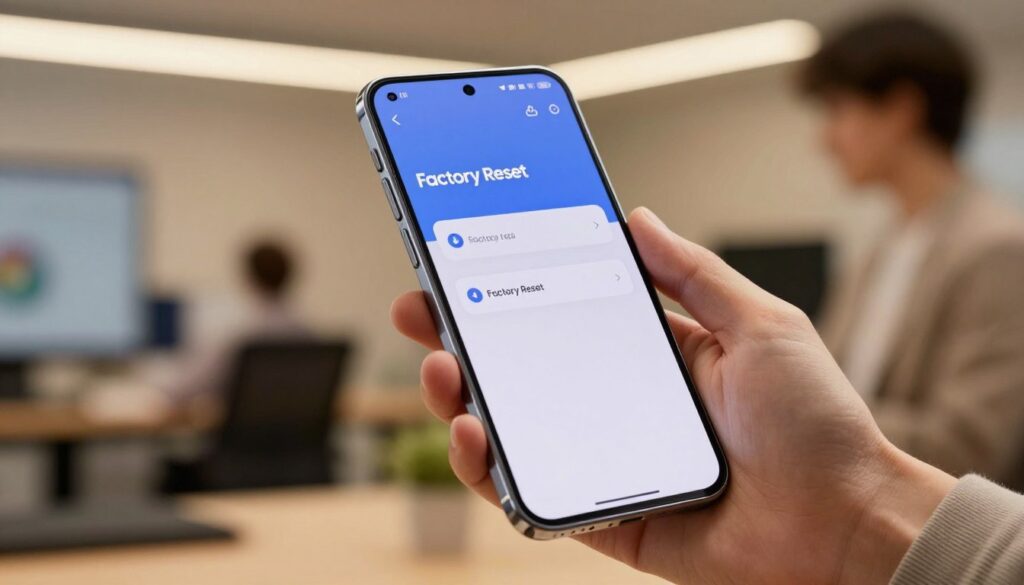
Choose the Factory data reset option to start the full wipe. These steps are easy to follow, guiding you through each step until you confirm.
Confirming the Factory Data Reset
After picking the reset option, you’ll see a list of data to be erased. Make sure you’ve saved all important files. Then, tap the Reset button at the bottom to start the wipe.
Managing Device Security Credentials
Before the reset, you need to prove you’re the owner. The device will ask for your PIN, pattern, or password. This step prevents others from resetting your phone. After entering the correct info, your phone will restart and reset itself.
Performing a Hard Reset Using Physical Buttons
Knowing how to use the buttons is key for Galaxy S26 users. It helps when your screen won’t respond or you can’t get into your device. This guide will show you how to reset your phone back to its original state.
Entering Recovery Mode Safely
First, make sure your phone is turned off. If it won’t shut down, plug it into a computer with a USB-C cable. Hold down the Volume Up and Power buttons at the same time until you see the Samsung logo.
When the logo starts flashing, let go of the buttons right away. Your phone will then enter the Android Recovery Mode. This mode lets you reset your phone to its factory settings without using the operating system.
Navigating the Recovery Menu
The recovery menu doesn’t have a touchscreen. You’ll need to use the buttons on your phone’s side. Use the Volume Up and Volume Down keys to move through the menu and choose what you want to do.
Be careful not to pick the wrong option. Highlight what you want with the volume keys, then press the Power button to confirm. This is how you do a factory reset on any Galaxy S26.
Executing the Wipe Data and Factory Reset Command
In the menu, use the volume keys to find “Wipe data/factory reset.” Press the Power button to choose it and move to the next screen. You’ll need to confirm your choice to avoid losing data.
Choose “Factory data reset” to start the reset. After it’s done, pick “Reboot system now” to restart your phone. This final step makes sure your reset is complete and your phone is ready for a new start.
Managing Google and Samsung Accounts Before Wiping
Before you start, make sure your digital info is safe. When you factory reset your galaxy s26, remove your linked accounts. This stops Factory Reset Protection (FRP) from locking your phone. FRP is meant to protect your data but can slow you down if not removed first.
Removing Your Google Account to Avoid Factory Reset Protection
To remove your Google account, go to the Settings menu. Choose “Accounts and backup” and then “Manage accounts.” Find your Google account and tap “Remove account” to confirm.
Signing Out of Your Samsung Account
Then, sign out of your Samsung account. Go back to Settings and tap on your Samsung account at the top. Scroll down and hit “Sign out” at the bottom.
You might need to enter your Samsung account password. After you enter it correctly, your device will disconnect from Samsung. This is key for a galaxy s26 hard reset tutorial to make sure the phone is ready for someone new.
Verifying Account Removal Status
Before wiping everything, check if all accounts are gone. Go back to “Manage accounts” in your settings. If the list is empty, you’ve done it right and your device is ready for a reset.
Troubleshooting Common Reset Issues
Even with careful planning, you might still face unexpected problems when resetting your device. A detailed Galaxy S26 factory reset guide usually helps, but sometimes software issues pop up. Knowing how to fix these problems quickly will help you get back in control of your phone.
What to Do If the Device Remains Frozen
If your phone gets stuck on the boot logo for too long, it might have a temporary software glitch. Try a forced restart to clear the memory. Hold down the power and volume down buttons together for about ten seconds.
The device should vibrate and start rebooting. This action stops the freeze without losing your work. If the screen still won’t respond, make sure your battery is charged enough before trying again.
Resolving Authentication Errors During Setup
You might see authentication errors if your device can’t verify your login during setup. This usually happens if your internet connection is weak or your security settings don’t match. Make sure you’re connected to a stable Wi-Fi network before you enter your login details.
If the problem keeps happening, check that you’re using the main Google account synced to your phone. Using the right login details is key to avoiding Factory Reset Protection. If you’ve recently changed your password, wait at least 24 hours before trying to log in again.
Handling Persistent Software Glitches After Reset
Even after following the galaxy s26 factory data reset instructions, some minor bugs might stay. If your device acts strangely, check for any system updates in the settings menu. Manufacturers often release updates to fix issues after a reset.
Try clearing the system cache partition through the recovery menu if your device feels slow. This removes temporary files that might be causing problems. If issues persist, contact official support for help.
Restoring Your Data After a Factory Reset
After a factory reset on your Samsung Galaxy S26, you’ll want to get your digital life back. The reset clears your phone’s storage, but your backed-up data is safe. Follow these steps to quickly get back to your daily routine.
Using Samsung Cloud and Smart Switch
Samsung offers tools to make moving your data easy. Smart Switch is great for getting your contacts, messages, and media back. You can connect your phone to a computer or use wireless transfer to restore your backup.
Restoring Google Drive Backups
Google Drive is another good option for cloud-based data recovery. When you set up your phone, sign in with your Google account. This will bring back your synced settings and files.
Reinstalling Essential Applications
After getting your data back, you’ll need to reinstall your favorite apps. Go to the Google Play Store’s “Manage apps & device” section. Here, you can find and download your previously installed apps. This way, your phone will be back to normal with little effort.
Conclusion
Understanding system management tools is key to better smartphone performance. Now, you know how to factory reset your Samsung Galaxy S26 when it’s slow or buggy.
Keeping your device in top shape is crucial. These expert tips help you keep your data safe while updating your phone. A factory reset can fix problems that regular restarts can’t.
Remember to back up your data before making big changes. You can make your phone run better with these steps. Share your success with others to help them enjoy a faster phone too.
1 thought on “How to Factory Reset Galaxy S26 and Back to Default Settings”