If Google Wallet is not working on your Galaxy S26, start by turning on NFC, setting Google Wallet as your default contactless payment app, and updating Google Play Services. These three fixes resolve most Galaxy S26 tap-to-pay and card-setup problems.
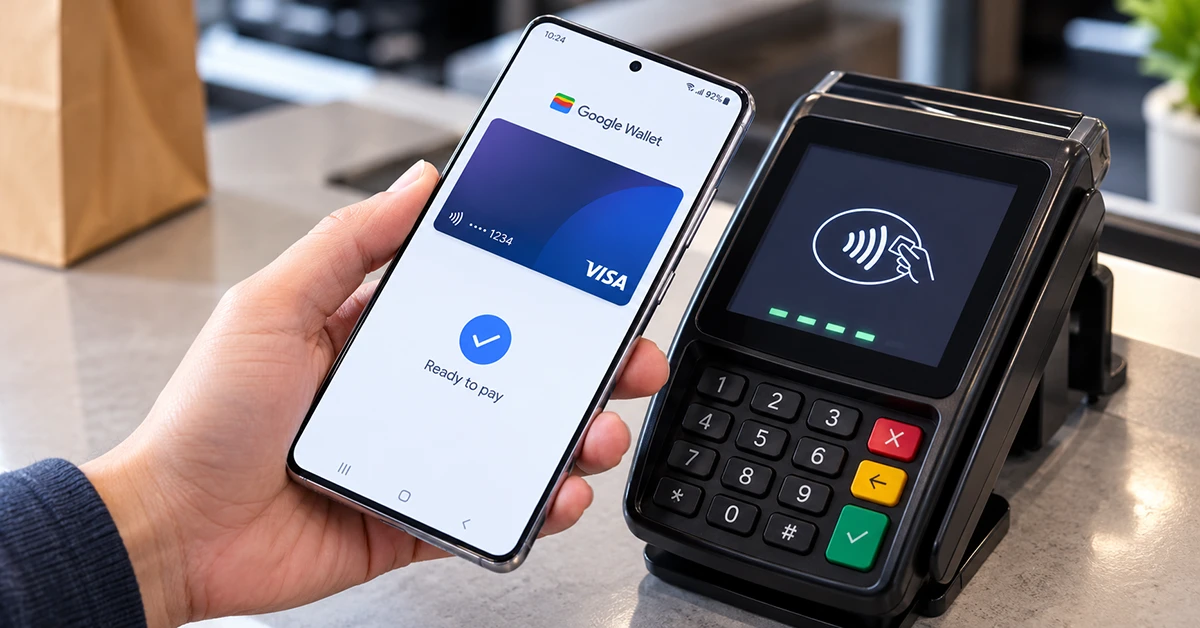
This guide covers the fastest fixes first, then walks through card issues, security errors, and advanced troubleshooting.
Quick fixes to try first
Try these in order. After each step, reopen Google Wallet and test a small contactless payment.
- Unlock your phone before tapping. Google Wallet requires the screen to be unlocked, not merely awake.
- Turn on NFC. Go to Settings > Connections > NFC and contactless payments and enable NFC.
- Set Google Wallet as the default payment app. In the same NFC menu, open Contactless payments and choose Google Wallet.
- Restart your Galaxy S26. A restart refreshes NFC, Wallet, and Google Play Services connections.
- Update Google Play Services. Open Settings > Google > All services > System services, then install any available Google Play Services or Play System update. Galaxy S26 owners report that this re-certifies Wallet for tap-to-pay.
Why Google Wallet stops working on Galaxy S26
Google Wallet relies on several things working together: NFC hardware, a verified device, Google Play Services, a supported card, a screen lock, and the terminal itself. If any one of these fails, the app may open normally but refuse to add a card or complete a payment.
On the Galaxy S26, the most common causes are:
- NFC turned off after a software update or settings change.
- Samsung Wallet set as the default contactless payment app instead of Google Wallet.
- Google Play Services needing an update or re-certification.
- A bank blocking the card until the new device is authorized.
- A temporary Wallet cache or data issue.
- A security requirement error caused by an uncertified system state.
Fix tap-to-pay on Galaxy S26
1. Enable NFC and contactless payments
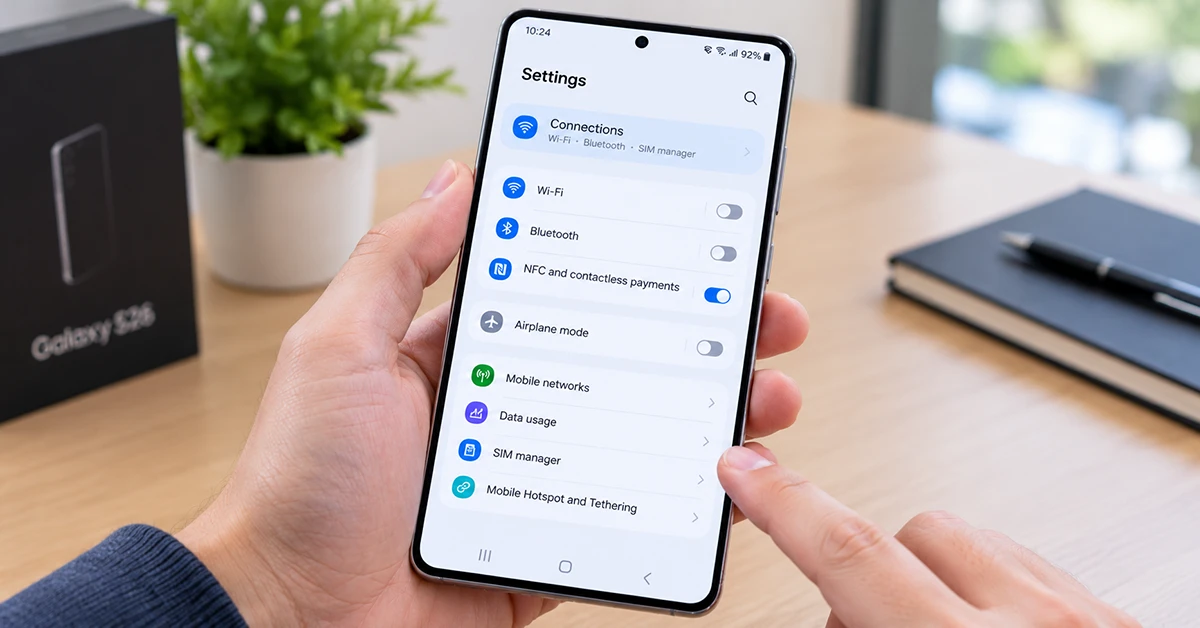
NFC is required for Google Wallet tap-to-pay. Without it, the phone cannot communicate with a payment terminal.
- Open Settings.
- Tap Connections.
- Tap NFC and contactless payments.
- Turn on NFC.
- Tap Contactless payments.
- Select Google Wallet as the payment default.
Then hold the back of the phone near the terminal for a few seconds. The NFC antenna may be near the top or middle of the device, so changing the phone’s position can help.
2. Check Google Wallet payment setup
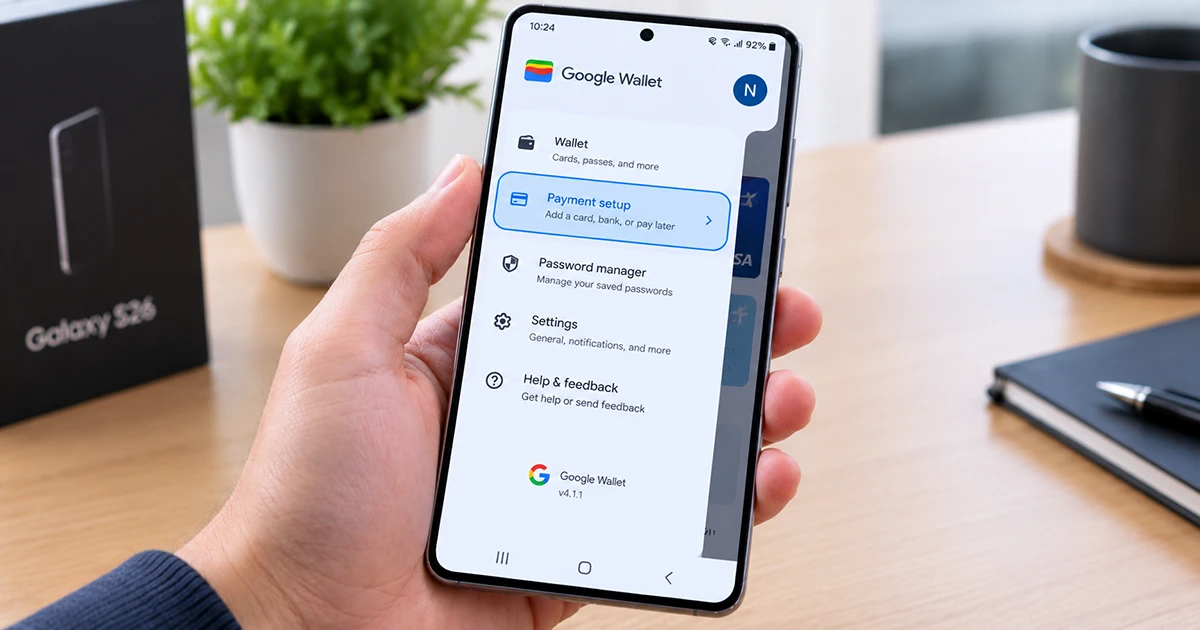
If you can open Wallet but cannot pay, verify that the app considers your device ready.
- Open Google Wallet.
- Tap your profile picture or initial.
- Select Payment setup.
- Complete any pending verification, card, or security steps.
Google’s guidance specifically recommends checking payment setup, adding a card, enabling a screen lock, and confirming device certification.
3. Add the card through your bank app
If a card will not add, remove it from Wallet and add it again through your bank’s official app rather than entering the details manually.
- Open your banking app.
- Find the card management section.
- Choose Add to Google Pay, Add to Google Wallet, or a similarly worded option.
- Follow the bank’s verification steps.
- Return to Google Wallet and confirm the card appears.
This can avoid tokenization or verification problems, especially after switching phones. Users have also reported success after removing cards from both their old and new Wallet apps before re-adding them.support.google
Fix “device does not meet security requirements”
This error usually means Google Wallet cannot verify that the Galaxy S26 meets its security and certification requirements. It is often related to Google Play Services, Play System updates, or the device’s software state.community.
Update Google Play Services
- Open Settings.
- Tap Google.
- Go to All services.
- Tap System services.
- Look for Google Play services or a Play System update.
- Install any available update.
- Restart the phone.
- Open Google Wallet and try adding your card again.
Galaxy S26 users report that updating Google Play Services through this menu can re-certify the device for Google Wallet.community.
Clear Wallet and Play Services cache
If updates do not help, clear temporary app data.
- Go to Settings > Apps.
- Tap Google Wallet.
- Tap Storage.
- Select Clear cache and Clear data.
- Return to Apps and open Google Play services.
- Tap Storage, then Clear cache.
- Restart the Galaxy S26.
- Open Google Wallet and try again.
Google’s support guidance recommends clearing Wallet cache/data and Play Services cache before reinstalling the app.
Reinstall Google Wallet
If the app still fails, reinstall it.
- Uninstall Google Wallet.
- Restart the Galaxy S26.
- Open the Google Play Store.
- Reinstall Google Wallet.
- Sign in and add your card again.
Some Galaxy S26 owners fixed a “rooted or unsupported software” style error by uninstalling Wallet, rebooting, and downloading it again from Play Store.community.
Fix card declined or payment failed
If Google Wallet opens but the terminal rejects payment, the issue may be outside the phone.
- Confirm the card is not expired, frozen, or blocked by your bank.
- Contact your bank and ask them to authorize Google Wallet on the new Galaxy S26.
- Remove the card from Wallet, restart the phone, and add it again.
- Try another terminal if possible.
- Make sure you are using the correct default card.
One Galaxy S26 Ultra user found that the bank’s fraud department had blocked the new device; after the bank re-authorized it, Google Wallet worked immediately.
Check for Samsung and Android updates
Outdated system software can interfere with Wallet certification and NFC behavior.
- Open Settings.
- Tap Software update.
- Tap Download and install.
- Install any available Samsung or Android update.
- Restart the phone.
Google also recommends keeping Android System WebView and Google Play Services fully updated when Wallet stops working.
When to contact support
Contact Samsung support if Google Wallet still shows a device certification, security requirement, or rooted-software error after updating Play Services, clearing cache, and reinstalling the app. Google Community guidance for a recent Samsung Android update issue also directs users to Samsung support in that situation.support.google
Contact your bank if the problem is limited to one card, if the card was newly added, or if the bank says the device needs fraud verification.