Are you having trouble keeping up with missed calls? It’s crucial to have a good system for handling incoming audio alerts. This is important for both work and personal life. Without the right setup, you might miss out on important calls. This guide for the Samsung Galaxy S26 will help you manage your device better.
This guide is designed to make the process easy. By following it, you’ll make sure every caller can reach you when you’re not available.
Setting up voice messages on your Galaxy S26 helps you stay organized. We’ll show you how to activate your account and start getting notifications right away.
Preparing Your Galaxy S26 for Voicemail Configuration
Getting your Galaxy S26 ready for voicemail setup is crucial. A quick check of your device settings can save a lot of time. It makes the whole process smoother.
Make sure your phone is set up right to avoid common problems. These issues happen when your device can’t connect to the carrier’s server. Being prepared helps your setup go smoothly without any hiccups.

Verifying Network Connectivity and Signal Strength
First, check your cellular signal strength at the top of your screen. A weak or unstable connection can stop the setup wizard from connecting to the carrier’s network.
If you’re in a spot with bad reception, try moving to a better area. Also, make sure your mobile data is on. It’s usually needed for the first connection with the voicemail server.
Ensuring Your Carrier Supports Voicemail Services
Not all mobile plans come with voicemail by default. You should talk to your service provider or check your account online. This confirms if your plan supports voicemail services.
If you keep running into errors, you might need to troubleshoot your voicemail settings. This ensures your account is set up right. Checking these details early saves you from frustration and keeps your messaging system working well.
How to Set Up Voice Message on Galaxy S26 via the Phone App
Learning how to set up voicemail on your Galaxy S26 starts in the Phone app. This app is made to help you set it up fast and easy. Just follow these steps to make sure you can get messages when you can’t answer the phone.
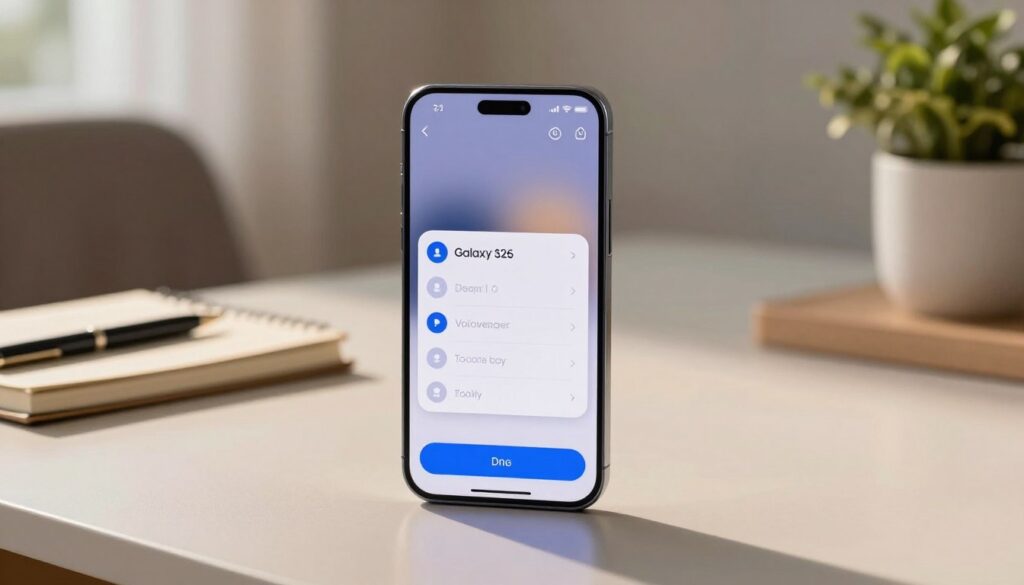
Accessing the Voicemail Setup Wizard
First, open the Phone app from your home screen or app drawer. Tap the three-dot menu icon in the top right corner for more options. Choose “Settings” and then “Voicemail” to start the setup wizard.
When you pick this option, your phone connects to your carrier’s server. This is how you set up voice messages on your Galaxy S26. Just follow the instructions on your screen to move forward.
Establishing Your Initial Voicemail Password
Security is key when setting up voice messages on your Galaxy S26. You’ll need to create a unique PIN to keep your mailbox safe. Pick a PIN that’s easy for you but hard for others to guess.
Don’t use simple numbers or your birth year for your PIN. After setting your PIN, you’ll be asked to type it again to confirm. This step keeps your account safe and only accessible to you.
Recording Your Personal Voicemail Greeting
Next, you’ll record a custom greeting. This makes your voicemail feel personal and professional. When someone calls you and you can’t answer, they’ll hear this message.
Find a quiet spot to record your greeting clearly. Press the record button and speak your message. Then, listen to it to check the quality. Once you’re happy with it, save your changes to complete the setup.
Configuring Visual Voicemail for Enhanced Management
Want to make your communication easier? Learning how to activate voicemail on your galaxy s26 is a smart start. Visual voicemail shows your messages in a neat list. This way, you can quickly see which calls are most urgent without listening to every message.
Activating the Visual Voicemail Feature
To start, open your phone settings or the carrier app. Most people find it easy to turn on voicemail by just flipping a switch in the voicemail menu. Once it’s on, you can play back messages right away.
Navigating the Visual Voicemail Interface
The interface makes it easy to manage your voicemails. Tap on a message to play, pause, or jump to a part. To clear your inbox, pick the messages you don’t need and hit delete. You can also save important ones to your device for later.
Syncing Voicemail with Your Samsung Account
Linking your voicemail to your Samsung account has big benefits. It keeps your message data the same on all your devices. This makes your life easier, as your preferences and saved messages are always there when you log in.
Customizing Your Voicemail Greeting and Security Settings
Controlling your voicemail greeting and security settings keeps your communication private and professional. With the right galaxy s26 voicemail configuration, you can make a good impression on callers. Plus, you keep your data safe from unwanted access.
Recording Professional and Personal Greetings
Your voicemail greeting is often the first thing callers hear when you’re not around. It’s smart to have a professional message for work contacts and a casual one for family and friends.
To record these, go to your phone app settings and find the voicemail menu. If you need to forward calls to voicemail on Galaxy, a clear, updated greeting helps callers know how to reach you.
Updating Your Voicemail PIN for Account Security
Keeping your mobile experience secure is key. You should change your voicemail PIN often to stop others from getting into your private messages.
Don’t use common PINs like 1234 or your birth year. A strong, unique PIN is your first line of defense for your galaxy s26 voicemail configuration. It keeps your account safe.
Managing Storage Limits for Saved Messages
A full mailbox can block new messages. It’s important to check your saved voicemails and delete old ones.
Most carriers have limits on how many messages you can store. By watching your storage, you make sure your mailbox is always ready for new calls.
Troubleshooting Common Galaxy S26 Voicemail Setup Issues
Even the most advanced devices can run into problems during setup. You might follow a galaxy s26 voicemail setup tutorial but still face issues like connection errors or delayed alerts. Luckily, you can fix most of these problems on your own without calling customer support.
Resolving Connection Errors During Setup
First, check if your mobile data or Wi-Fi is on. A weak signal can stop your phone from connecting to the carrier server. Try turning Airplane Mode on and off to restart the network connection.
If the problem continues, restart your phone to remove temporary bugs. Make sure your software is up to date. Outdated firmware can cause problems with carrier services. A quick reboot often fixes the issue.
Fixing Issues with Voicemail Notification Delays
Delayed notifications might be due to data restrictions or battery settings. Go to your app settings to make sure voicemail can run in the background. Turning off battery optimization for this app can help it send alerts on time.
Also, check your notification settings in the app. Clearing the phone app’s cache can help with synchronization issues. This keeps your device ready for messages.
Resetting Voicemail Settings Through Carrier Codes
If regular troubleshooting doesn’t work, you might need to reset voicemail settings. Most carriers have MMI codes you can dial to reset your service. These codes talk directly to the network to update your account.
Visit your carrier’s website to find the right reset code for your plan. Dial the code and press call, and the network will confirm. This clears any stuck settings and brings your voicemail back to default.
Managing Voicemail Notifications and Alerts
Customizing your voicemail alerts helps you focus on important messages. By adjusting how your Galaxy S26 tells you about new messages, you stay efficient. These settings let you control the flow of info, avoiding constant distractions.
Customizing Notification Sounds for New Messages
You can pick a special sound for voicemail alerts. Go to your phone settings and find the sound options in the voicemail or phone app. Choose a unique tone so you know right away when you have a new message.
Configuring Lock Screen Voicemail Previews
Lock screen previews let you see who called without unlocking your phone. You can turn these on or off in your notification settings. This way, you choose if you want to see who called quickly.
Disabling Unwanted Voicemail Alerts
If you like a quieter phone, you can turn off voicemail alerts. Just flip the notification switch off in your system settings. This is great if you check messages at set times, not every time you get a call.
Best Practices for Configuring Voicemail on Galaxy S26
Keeping your Galaxy S26 ready for communication is key. Even after setting up voicemail, it’s important to keep it updated. These habits will help you stay organized and keep your data safe.
Maintaining Regular Backups of Important Messages
Important messages can’t be lost. Save key audio files to a safe place like the cloud or your computer. This way, you won’t lose vital client info or memories by accident.
Optimizing Voicemail Storage Efficiency
It’s crucial to manage your storage space well. Carriers have limits on how many messages you can keep. Check your inbox often and delete old messages to avoid missing calls.
Securing Your Voicemail Against Unauthorized Access
Your privacy matters a lot today. Change your PIN often and avoid simple passwords. A strong, unique password keeps your messages private.
Conclusion
Setting up your mobile messaging system is key to never missing a call. This guide on the samsung galaxy s26 voicemail helps you set up a reliable system on your device.
You now know how to manage your voicemail greetings, update security codes, and organize your messages. Keeping your settings up to date keeps your digital space organized and efficient.
Using the best practices for voicemail on your galaxy s26 protects your data. Regular checks on your storage and passwords prevent common issues. Your smartphone is a powerful tool for work and personal life. Take time to check your notification settings to match your daily needs.
If you face network problems, contact your service provider. Being proactive with your device ensures a smooth experience with every call.