If photos on your Galaxy S26 look cropped or shifted compared to what you saw in the viewfinder, you’re not imagining it — Samsung confirmed this as an official bug, and a software fix is already rolling out. Update your phone first; if the issue persists, five quick settings fixes below will resolve almost every remaining case.
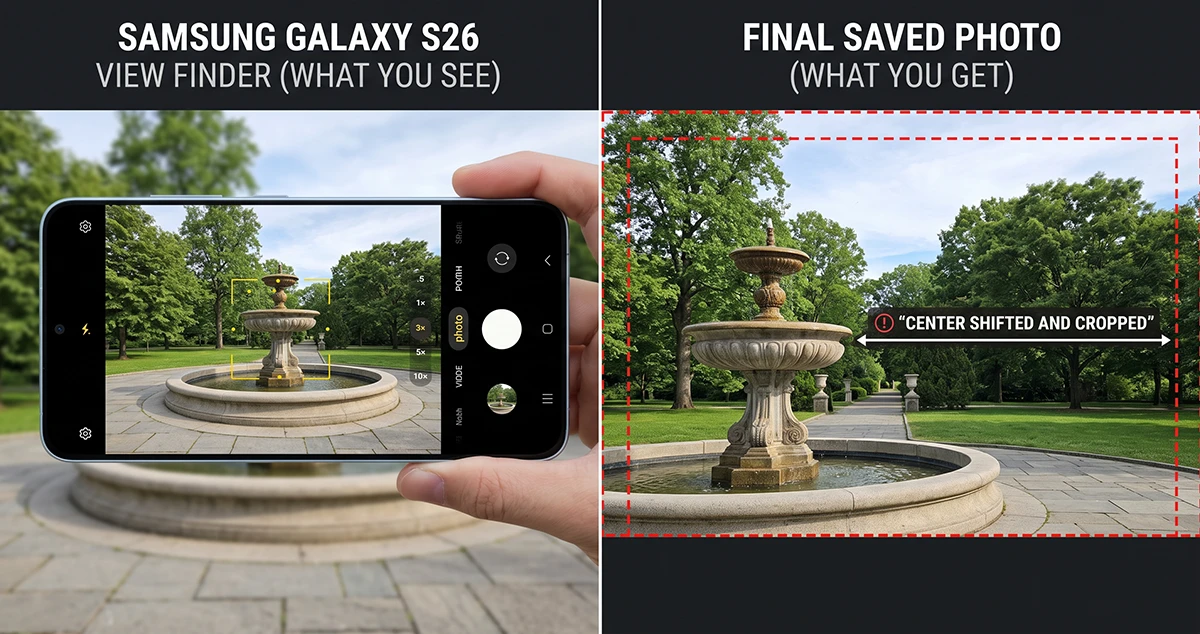
Quick Answer: Update Your Software First.
Go to Settings > Software update > Download and install. Samsung has already shipped a patch that resolves the camera-centering issue for most Galaxy S26 Ultra users — this should be your very first step before trying anything else.
What’s Causing the Camera to Be Off-Center
The issue shows up specifically when shooting close-up or macro subjects with 24MP resolution and Focus Enhancer enabled, often combined with 2x zoom. The photo you actually capture ends up cropped from the right or bottom edge compared to what the viewfinder showed.
Samsung confirmed this directly through its Community forum moderators, and acknowledged it affects the rear camera system on Galaxy S26 Ultra units.
Fix 1: Install the Latest Software Update
This is the official, permanent fix. Samsung’s second software update for the Galaxy S26 series specifically addresses the viewfinder-to-photo mismatch. To check and install:
- Open Settings
- Tap Software update
- Tap Download and install
- Restart your phone once the update finishes
If the update isn’t available in your region yet, it is rolling out progressively — check again in a few days.
Fix 2: Turn Off Focus Enhancer for Close-Up Shots
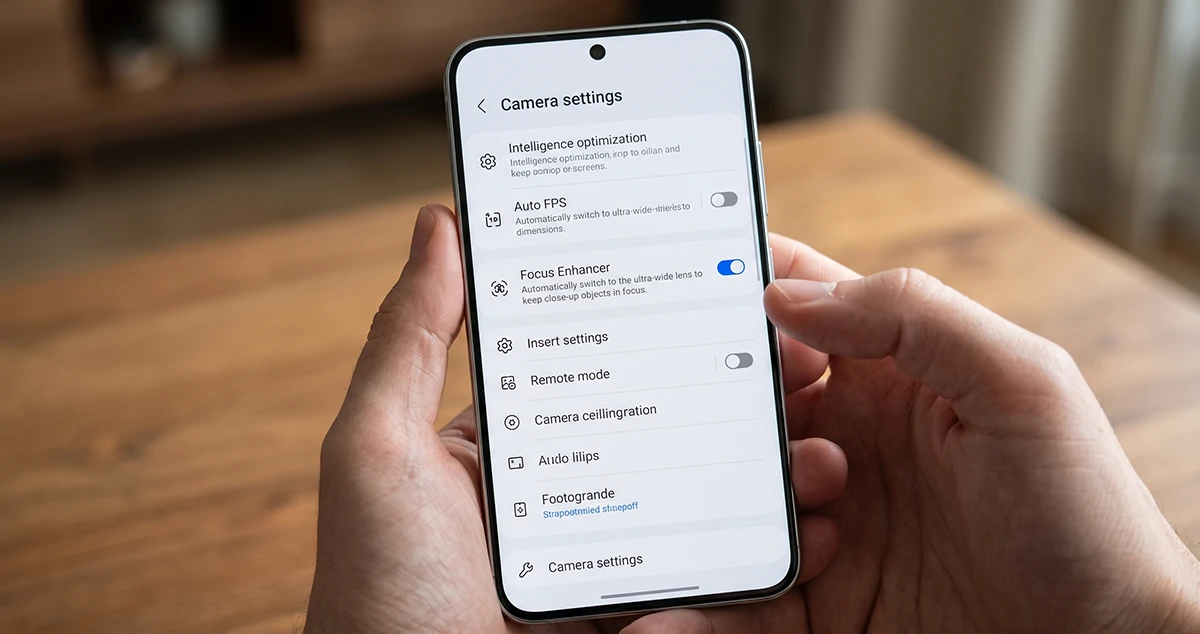
Until you’ve confirmed the update installed, avoid combining 24MP mode with Focus Enhancer on macro or close-up subjects — this exact combination is what triggers the crop bug.
- Open the Camera app
- Tap the settings gear icon
- Find Focus Enhancer and toggle it off
- Shoot your close-up shot again and compare
Fix 3: Avoid 24MP + 2x Zoom for Macro Shots Temporarily
If you still need Focus Enhancer on, switch your resolution down from 24MP or avoid 2x zoom specifically on close-range subjects. The bug is narrow — it’s tied to that specific combination, not general camera use.
Fix 4: Reset Camera App Settings
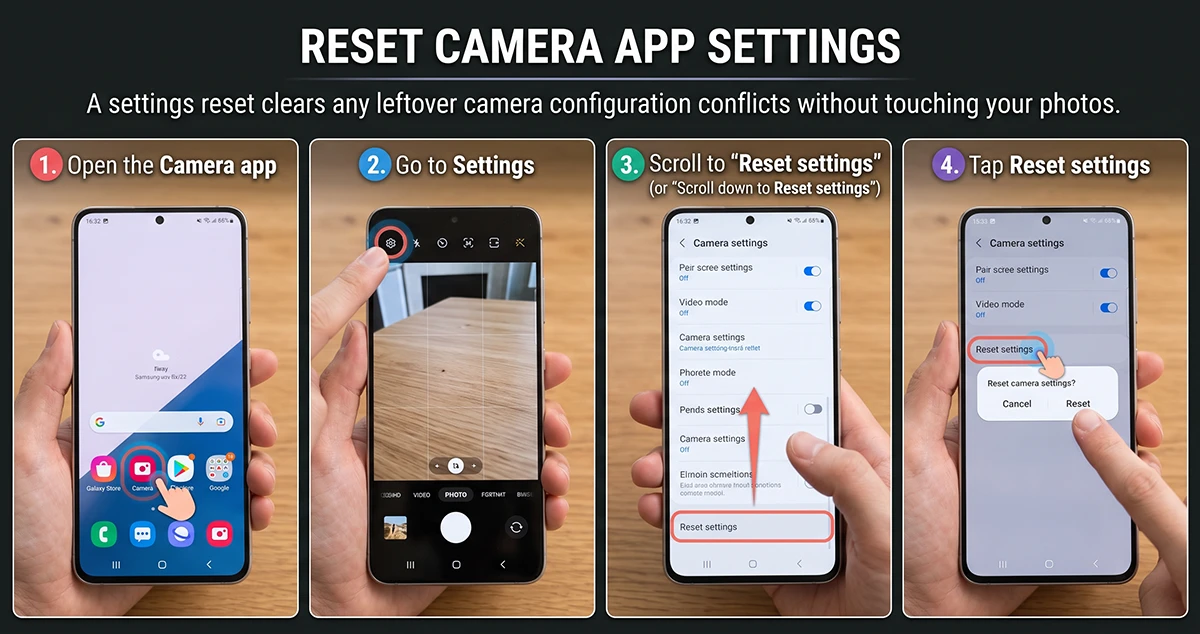
A settings reset clears any leftover camera configuration conflicts without touching your photos.
- Open the Camera app
- Go to Settings
- Scroll to Additional settings
- Tap Reset settings
This restores all camera options to default — your saved photos are not affected.
Fix 5: Clear the Camera App Cache
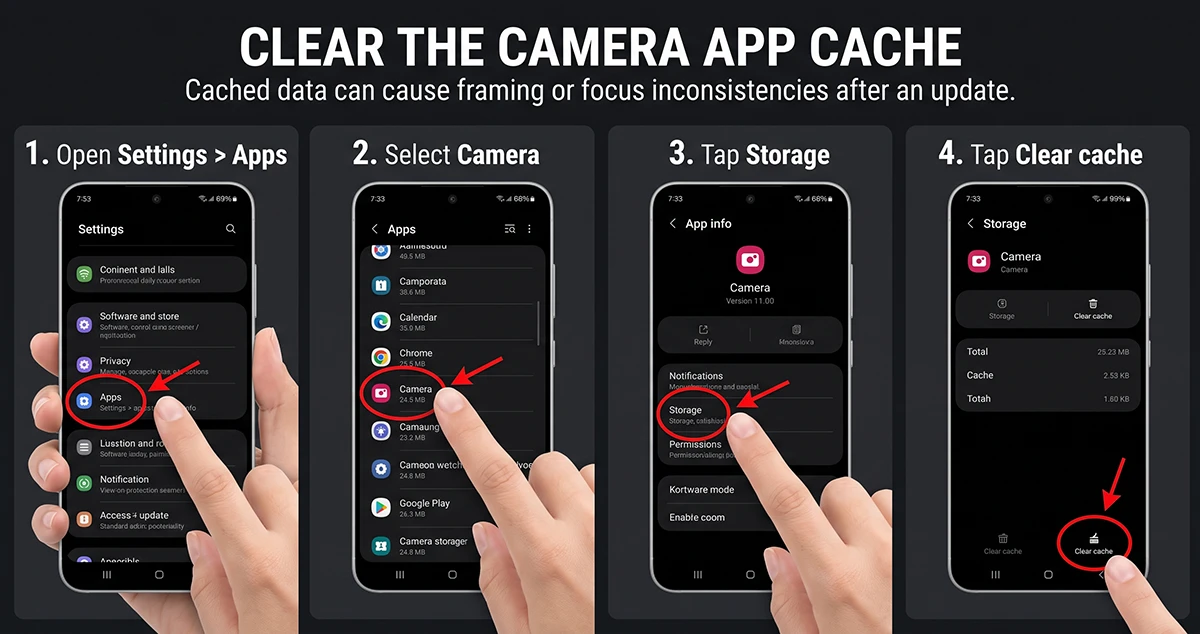
Cached data can cause framing or focus inconsistencies after an update.
- Open Settings > Apps
- Select Camera
- Tap Storage
- Tap Clear cache
If the problem continues, clear data too (this resets the camera app completely, not your photo gallery), then reconfigure your preferred settings.
Fix 6: Force Restart Your Phone
A simple reboot resolves many post-update glitches, including temporary framing or focus issues left over from an incomplete update install.
Hold the Power and Volume down buttons until the phone restarts.
Fix 7: Test in Safe Mode
If the camera still seems off after the steps above, boot into Safe Mode to rule out a third-party app conflict (camera filters, utility apps, or lens-add-on software can interfere with framing).
- Press and hold the Power button
- Tap and hold Power off until Safe Mode appears
- Open the Camera app and test
If it behaves correctly in Safe Mode, a third-party app is the cause — remove recently installed camera-related apps
When It’s Not a Bug
Not every “off” photo is the crop bug. Minor parallax — where the lens and what you visually frame differ slightly — is normal on close-up shots with any smartphone, and a sharp subject with a softly blurred background is expected behavior from portrait/depth effects, not a defect.
FAQ
Is this a hardware problem or a software bug?
Software. Samsung confirmed it’s tied to specific camera settings (24MP + Focus Enhancer + 2x zoom on close-up shots) and has released a patch to fix it.
Will resetting camera settings delete my photos?
No. Resetting camera settings only restores the app’s options to default — it does not touch your gallery or saved images.
Does this affect all Galaxy S26 models?
The confirmed reports are centered on the Galaxy S26 Ultra’s rear camera system. If your base Galaxy S26 or S26+ shows similar symptoms, the same update-and-reset steps apply.
What if the update doesn’t fix it for me?
Try Fixes 2–7 in order. If the problem persists after a full software update, cache clear, and Safe Mode test, contact Samsung Support or visit a service center — it may be an isolated hardware issue.
Final Thougt
A camera that doesn’t match what you see in the viewfinder is frustrating, especially on a flagship you’re relying on to get the shot right the first time. The good news is that this isn’t a hardware flaw you’re stuck with — Samsung identified the exact trigger (24MP mode with Focus Enhancer and 2x zoom on close-up shots) and already shipped a fix.
Install the latest update first, and if anything still looks off after that, the settings reset and cache-clear steps above will handle nearly every remaining case. Keep your Galaxy S26 updated going forward, since Samsung continues to refine camera performance through software even after launch.