Dealing with stubborn Wi-Fi drops, Bluetooth pairing failures, or failing cellular data on your new phone? You can instantly fix most connectivity glitches on your Samsung Galaxy S26 by performing a network settings reset. This built-in troubleshooting process wipes out corrupted cache and restores all cellular, Wi-Fi, and Bluetooth configurations back to factory defaults in under a minute.
Connection problems can completely interrupt your daily workflow, making quick fixes essential. While a standard device restart or toggling Airplane Mode solves minor bugs, deeper connection issues often require a clean slate. Resetting your network configurations clears out glitchy profiles and gives your hardware a fresh connection baseline without touching your personal files, photos, or installed apps.
Read on to learn the exact step-by-step process to wipe and restore your Galaxy S26’s network configurations safely.
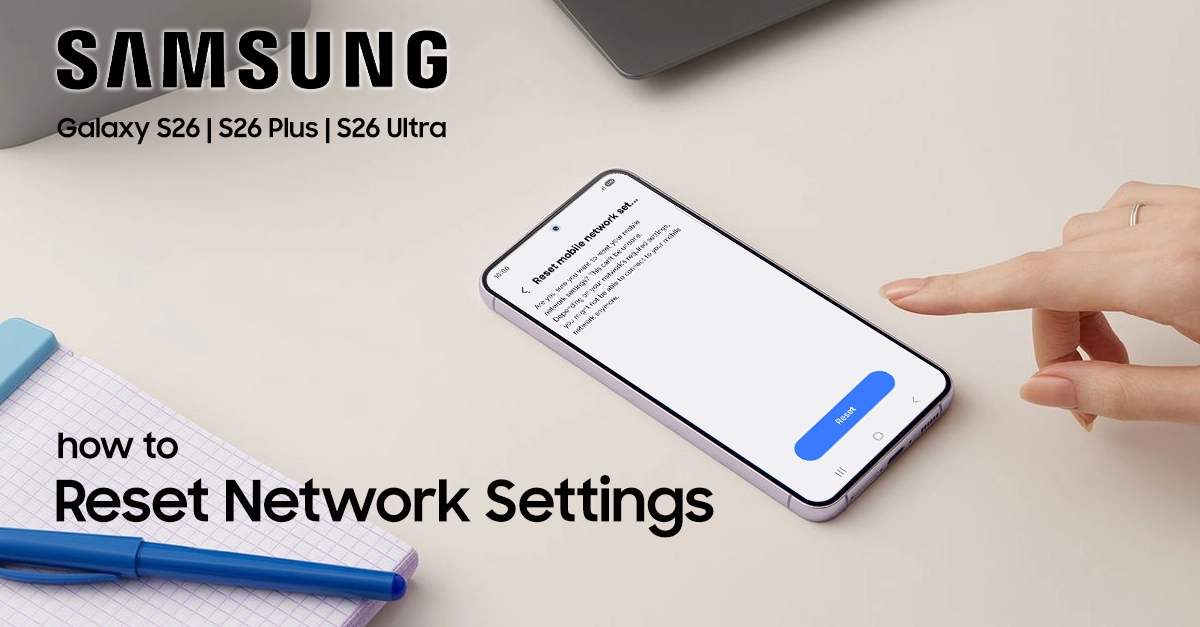
What Happens When You Reset Network Settings on Galaxy S26
Resetting network settings on your Galaxy S26 clears saved Wi-Fi networks, Bluetooth pairings, and mobile network configurations.
Your device returns these settings to factory defaults while preserving your photos, apps, and personal data.
After the reset, you will need to re-enter Wi-Fi passwords and reconnect Bluetooth devices like headphones or smartwatches.
When to Reset Network Settings on Galaxy S26
Consider resetting network settings when you encounter these common issues:
- Wi-Fi problems: Your Galaxy S26 fails to connect to known networks or drops connections frequently.
- Bluetooth issues: Devices refuse to pair or maintain stable connections.
- Mobile data failures: You cannot access the internet via cellular data despite having signal bars.
- Call or messaging problems: Resetting mobile network settings can resolve issues with voice calls and text messages.
Step-by-Step to Reset Network Settings on Galaxy S26
Follow these exact steps to reset network settings on your Galaxy S26:
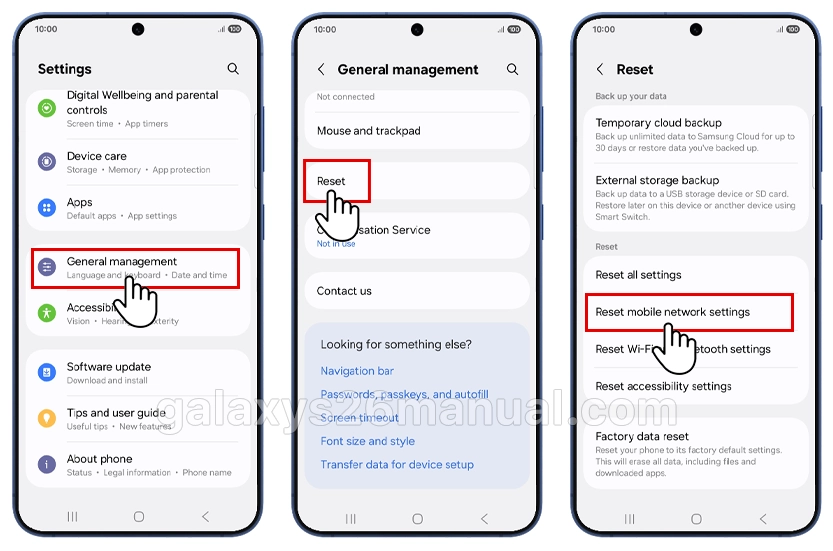
Step 1: Open Settings
Launch the Settings app from your home screen or app drawer.
Step 2: Navigate to General Management
Scroll down and tap General management.
Step 3: Select Reset Options
Tap Reset, then choose Reset mobile network settings.
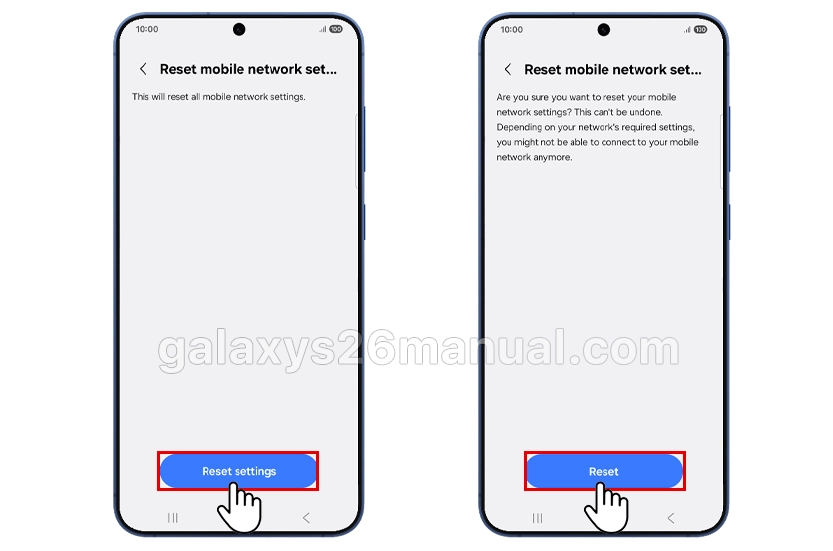
Step 4: Confirm Your Choice
Tap Reset settings. If you have device security enabled, enter your PIN, password, or pattern.
Step 5: Complete the Reset
Tap Reset once more to confirm. The process completes immediately.
Reset Options Explained
Your Galaxy S26 offers specific reset choices depending on your needs:
| Reset Option | What It Clears | Best For |
|---|---|---|
| Reset mobile network settings | Cellular data, APN, calling settings | Mobile data and call issues |
| Reset Wi-Fi and Bluetooth settings | Saved Wi-Fi networks, Bluetooth pairings | Wi-Fi and Bluetooth connectivity problems |
What to Do After Resetting Network Settings on Galaxy S26
After you reset network settings on Galaxy S26, take these steps to restore full functionality:
- Reconnect to Wi-Fi networks: Enter passwords for your home, work, and public Wi-Fi networks.
- Pair Bluetooth devices: Reconnect headphones, speakers, smartwatches, and car systems.
- Check mobile data: Verify your carrier settings and APN configurations if mobile data does not work automatically.
- Contact your carrier if needed: Some providers require specific settings after a network reset.
Troubleshooting Tips Before You Reset
Try these quick fixes before resetting network settings on your Galaxy S26:
- Restart your device: Turn your Galaxy S26 off and on again.
- Toggle Airplane Mode: Enable Airplane Mode for 30 seconds, then disable it.
- Restart your router: Power cycle your Wi-Fi router if only Wi-Fi is affected.
If these steps fail, proceed with the network settings reset.
Knowing how to reset network settings on Galaxy S26 gives you a powerful tool for solving connectivity problems quickly. This process takes less than a minute and restores your Wi-Fi, Bluetooth, and mobile data configurations without touching your personal files. Follow the steps in this guide whenever your Galaxy S26 experiences network issues, and enjoy restored connectivity with minimal effort.
10 thoughts on “How to Reset Network Settings on Samsung Galaxy S26”