Galaxy S26 battery problems, such as rapid battery drain, slow charging, overheating, or unexpected shutdowns, can affect daily use. Fortunately, you can often fix these issues by checking battery usage, adjusting power settings, updating One UI, and identifying apps that consume excessive power. Start by checking Settings > Battery to review battery usage and enable power-saving features if needed.
If your Samsung Galaxy S26 battery drains too quickly, the phone gets unusually hot, or charging takes longer than expected, you can often improve its performance by adjusting battery settings, checking background apps, updating software, and testing your charger.
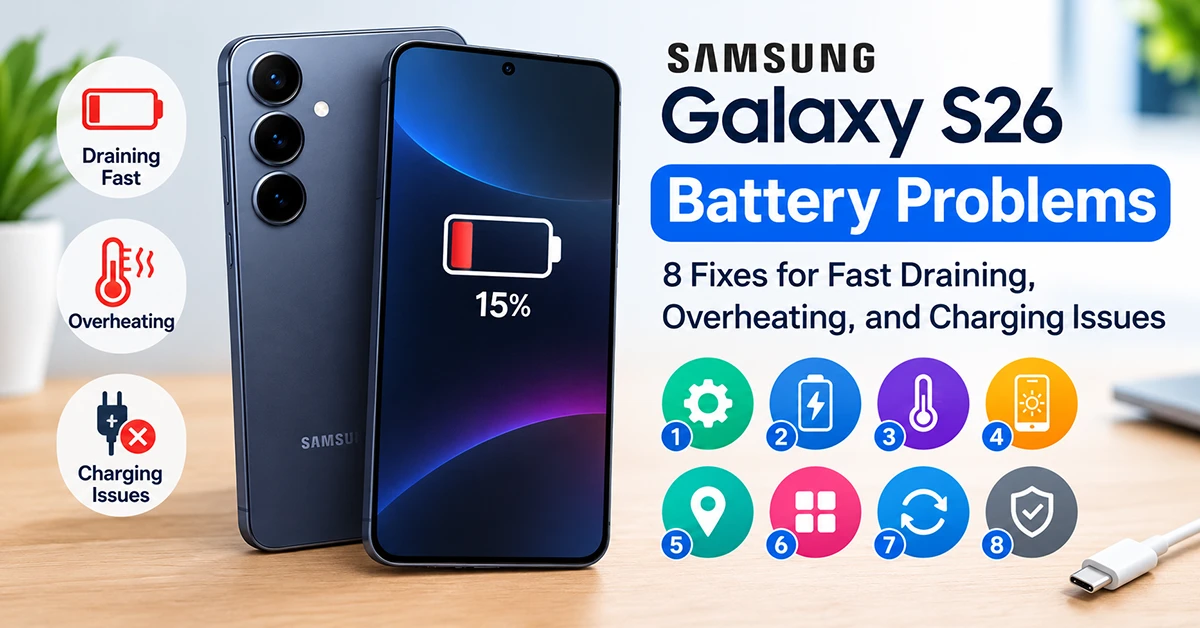
The standard Galaxy S26 has a 4,300 mAh battery and supports 25W wired charging. Real-world battery life depends on screen brightness, gaming, mobile signal strength, background activity, and other usage patterns. Heavy use may require a recharge before the end of the day.
This guide explains how to fix common Galaxy S26 battery problems, identify abnormal battery drain, and determine when your phone may need professional service.
Galaxy S26 Battery Problems: Quick Reference Table
| Battery problem | What to try first |
|---|---|
| Battery drains too fast | Check battery usage and restrict power-hungry apps |
| Battery drains overnight | Review background activity and mobile signal |
| Phone gets hot | Stop demanding tasks and let it cool |
| Battery drains after an update | Restart, update apps, and allow background tasks to settle |
| Phone charges slowly | Check the adapter, cable, and charging port |
| Charging stops at 80% | Review Battery protection settings |
| Battery percentage gets stuck | Restart and test with a compatible charger |
| Phone loses power during gaming | Reduce graphics settings and screen brightness |
| Battery drains with the screen off | Check background usage and network conditions |
| Battery life remains poor after troubleshooting | Run diagnostics and contact Samsung support |
1. Find Apps That Drain the Battery
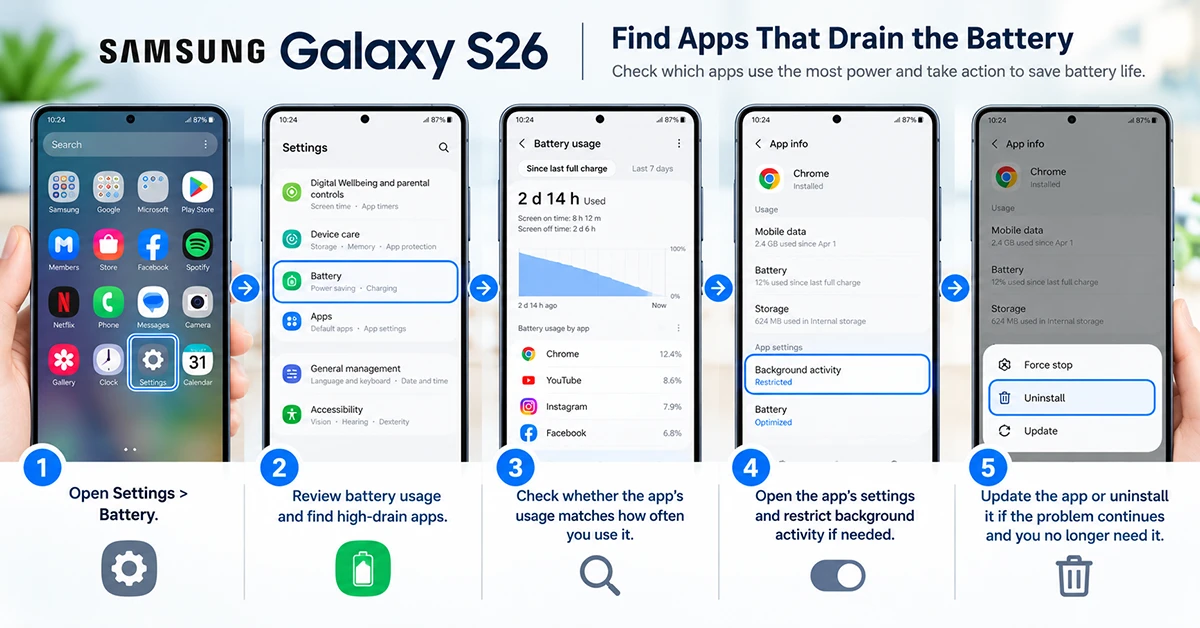
An app that runs continuously in the background can reduce battery life even when you rarely open it.
- Open Settings > Battery.
- Review the battery usage information and identify apps consuming the most power.
- Check whether the app’s usage matches how often you use it.
- Open the relevant app’s settings and restrict background activity if appropriate.
- Update the app or uninstall it if the problem continues and you no longer need it.
Menu labels may vary slightly by software version or region.
Do not automatically restrict every high-usage app. Navigation, video streaming, music playback, gaming, and fitness tracking can legitimately use substantial power. Focus on apps with unusually high background consumption.
2. Turn On Power Saving
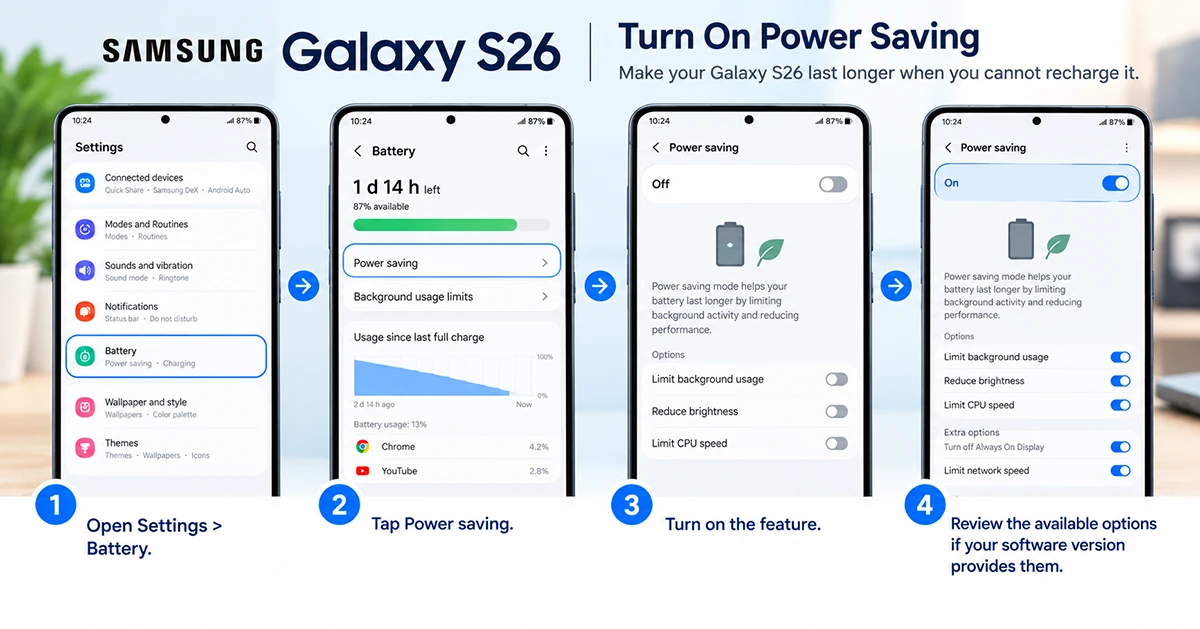
Power saving can help your Galaxy S26 last longer when you cannot recharge it.
- Open Settings > Battery.
- Tap Power saving.
- Turn on the feature.
- Review the available options if your software version provides them.
Depending on the selected settings, Power saving can limit background activity, reduce display brightness, restrict performance, and disable features such as Always On Display.
For everyday use, enable Power saving when your battery is running low or when you need additional runtime. You can turn it off when you need full performance.
3. Reduce Display Power Consumption
The screen can use considerable energy, especially at high brightness or during extended gaming and video playback.
Try these adjustments:
- Reduce screen brightness or enable adaptive brightness.
- Set Settings > Display > Screen timeout to a shorter interval.
- Reduce the refresh-rate setting if your software offers a suitable lower-power option.
- Disable Always On Display if you do not need it.
- Use Dark mode if you prefer it; it can reduce power consumption on the Galaxy S26’s AMOLED display.
You do not need to disable every display feature. Change one or two settings at a time and compare battery usage during similar daily routines.
4. Check Mobile Signal and Connectivity
A weak cellular signal can cause your Galaxy S26 to use more power while trying to maintain a connection. This is particularly noticeable in buildings, underground areas, remote locations, and places with inconsistent 5G coverage.
To troubleshoot:
- Check whether battery drain increases in areas with weak signal.
- Connect to reliable Wi-Fi when available.
- If 5G coverage is poor, test a supported LTE/4G network mode in your mobile network settings.
- Turn off mobile hotspot, Bluetooth, or location access when you do not need them.
- If the drain occurs only with one carrier or in one location, investigate network coverage before assuming the battery is defective.
Do not disable all connectivity permanently. Instead, identify whether a particular connection is contributing to the problem.
5. Stop Your Galaxy S26 From Overheating
A Galaxy S26 can become warm during gaming, video recording, navigation, large downloads, initial setup, and fast charging. Warmth alone does not necessarily mean the battery has a problem.
If the phone gets unusually hot:
- Stop gaming, recording, or other demanding tasks.
- Disconnect the charger if charging contributes to the heat.
- Close demanding apps and let the phone cool naturally in a shaded, ventilated place.
- Remove a thick case temporarily if it traps heat.
- Avoid direct sunlight and do not use a refrigerator, freezer, or ice to cool the phone.
Samsung’s device guidance notes that charging can slow or stop when a battery becomes too hot. Samsung device guidance
Safety warning: If the phone becomes painfully hot, shows signs of battery swelling, emits an unusual odor, or has a damaged battery, stop using and charging it. Do not press, puncture, or attempt to replace a swollen battery yourself. Contact an authorized service provider.
6. Fix Slow Charging or a Phone That Will Not Charge
If your Galaxy S26 charges slowly, first check the accessories and charging conditions before assuming the battery has failed.
- Try a compatible, reputable USB-C power adapter and cable.
- Inspect the cable and connector for visible damage.
- Check the phone’s charging port for debris without inserting metal objects or forcing anything inside.
- Disconnect demanding apps and let the phone cool if it is warm.
- Test another compatible charger and wall outlet.
- Check the charging settings and the battery percentage again.
The standard Galaxy S26 supports up to 25W wired charging, but actual speed depends on the charger, cable, temperature, battery level, and device activity. A charger with a higher advertised wattage does not guarantee faster charging.
If charging repeatedly disconnects, the port appears damaged, or multiple known-good accessories fail, arrange a service inspection.
7. Check Battery Protection Settings
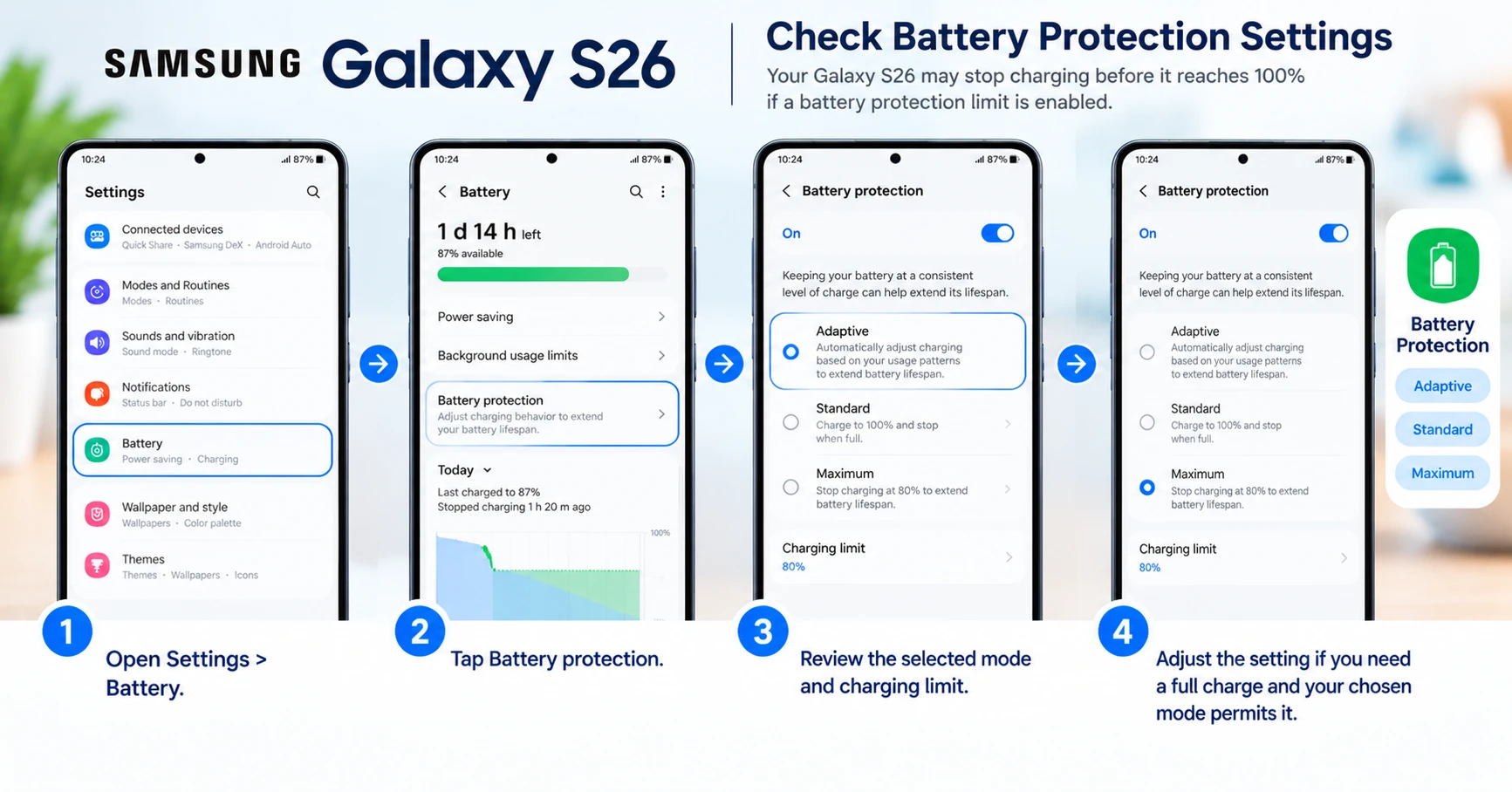
Your Galaxy S26 may stop charging before it reaches 100% if a battery protection limit is enabled. This behavior does not automatically indicate a faulty battery.
- Open Settings > Battery.
- Tap Battery protection.
- Review the selected mode and charging limit.
- Adjust the setting if you need a full charge and your chosen mode permits it.
Battery protection options can vary with software version. A charging limit can help reduce long-term battery wear, particularly when the phone stays plugged in for extended periods. Samsung battery protection guidance
If the phone stops at a different percentage than the configured limit, or charging stops unexpectedly even when the battery is low, test another charger and check for temperature warnings.
8. Run Diagnostics and Contact Samsung Support
If the battery still drains quickly after you try the fixes above, use Samsung’s diagnostic tools.
- Open the Samsung Members app.
- Find Support or the diagnostics section; the layout may vary by version.
- Select the battery diagnostic if available.
- Follow the instructions and review the result.
- If the problem persists, contact Samsung support or an authorized service center.
Before requesting service, note how quickly the battery drains, whether the phone overheats, when the problem started, and whether it followed an update or physical damage.
Back up important data before any repair or factory reset. A factory reset should be a later troubleshooting step, not the first response to battery drain.
Why Does the Galaxy S26 Battery Drain So Fast?
Common causes include:
- High screen usage: Brightness, long screen-on time, and demanding display settings increase power consumption.
- Background apps: Poorly behaved or heavily active apps can continue using power while the screen is off.
- Weak cellular reception: The phone may use more energy to maintain a mobile connection.
- Heavy workloads: Gaming, video recording, navigation, and hotspot use increase power demand.
- Charging conditions: Heat, incompatible accessories, or a configured charging limit can affect charging behavior.
- Battery wear or hardware problems: Persistent abnormal drain may require professional diagnosis.
How to Improve Galaxy S26 Battery Life
For better battery life every day, use this quick checklist:
- Check Battery usage for unusually active apps.
- Enable Power saving when necessary.
- Reduce screen brightness and timeout.
- Use reliable Wi-Fi where appropriate.
- Avoid prolonged gaming while charging.
- Keep apps and system software updated.
- Use compatible charging accessories.
- Enable Battery protection according to your charging habits.
- Investigate persistent heat or abnormal standby drain.
You do not need to apply every recommendation. Start with the change that matches your symptoms, then compare results over a similar period of use.
Final Thoughts
Most Galaxy S26 battery problems are worth investigating through battery usage, app activity, connectivity, display settings, software updates, and charging accessories before considering a repair. Start with the simplest fix that matches your symptoms, then monitor whether battery life improves.
1 thought on “Galaxy S26 Battery Problems: 8 Fixes for Fast Draining, Overheating, and Charging Issues”