If your Samsung Galaxy S26 Wi-Fi is not working, restart your phone and router, reconnect to the network, and check whether other devices can access the internet. If the problem continues, update your phone, reset Wi-Fi and Bluetooth settings, or test Wi-Fi in Safe Mode. These nine fixes can help resolve common connection problems without a factory reset.
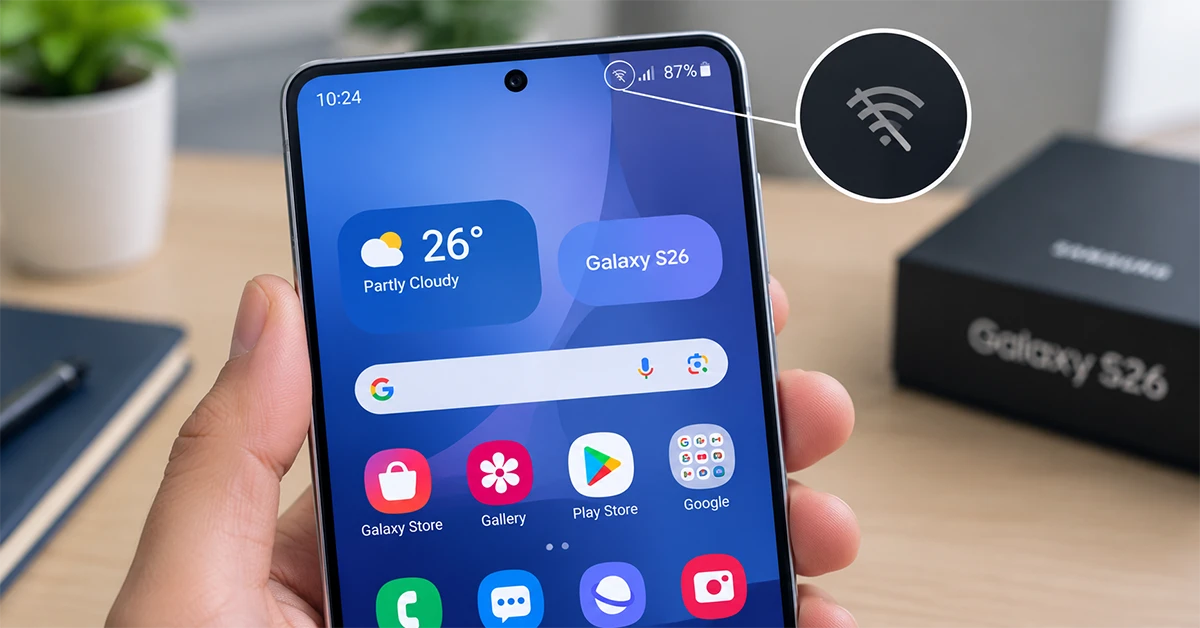
Why is my Samsung Galaxy S26 Wi-Fi not working?
Your Galaxy S26 may fail to connect to Wi-Fi because of an incorrect password, a router problem, a temporary software glitch, corrupted network settings, or interference from a recently installed app. A Wi-Fi connection can also appear active while the router has no internet access.
First, identify the symptom:
- Wi-Fi won’t turn on: Restart your phone and check for software issues.
- Wi-Fi cannot find networks: Check your router, distance, and network availability.
- Wi-Fi won’t connect: Verify the password and forget and rejoin the network.
- Wi-Fi connects but has no internet: Check the router and internet service.
- Wi-Fi keeps disconnecting: Test another network and investigate software or router issues.
Follow the fixes below in order, starting with the simplest solutions.
1. Restart your Galaxy S26 and Wi-Fi router
Restarting both devices can clear temporary software errors and router connection problems. Try this before changing advanced settings.
Restart your Galaxy S26:
- Swipe down from the top of the screen to open the Quick panel.
- Tap the Power icon.
- Select Restart.
- Wait for the phone to reboot.
- Open Settings and tap Connections, then Wi-Fi.
If the phone freezes or the power menu does not respond, press and hold the Side button and Volume Down button together for more than seven seconds until the device restarts.
Restart your router:
- Disconnect the router’s power supply.
- Wait approximately 30 seconds.
- Reconnect the power.
- Allow the router a few minutes to restore its connection.
- Try connecting your Galaxy S26 again.
Check the Wi-Fi connection on another phone or computer. If every device has the same problem, investigate the router or contact your internet provider.
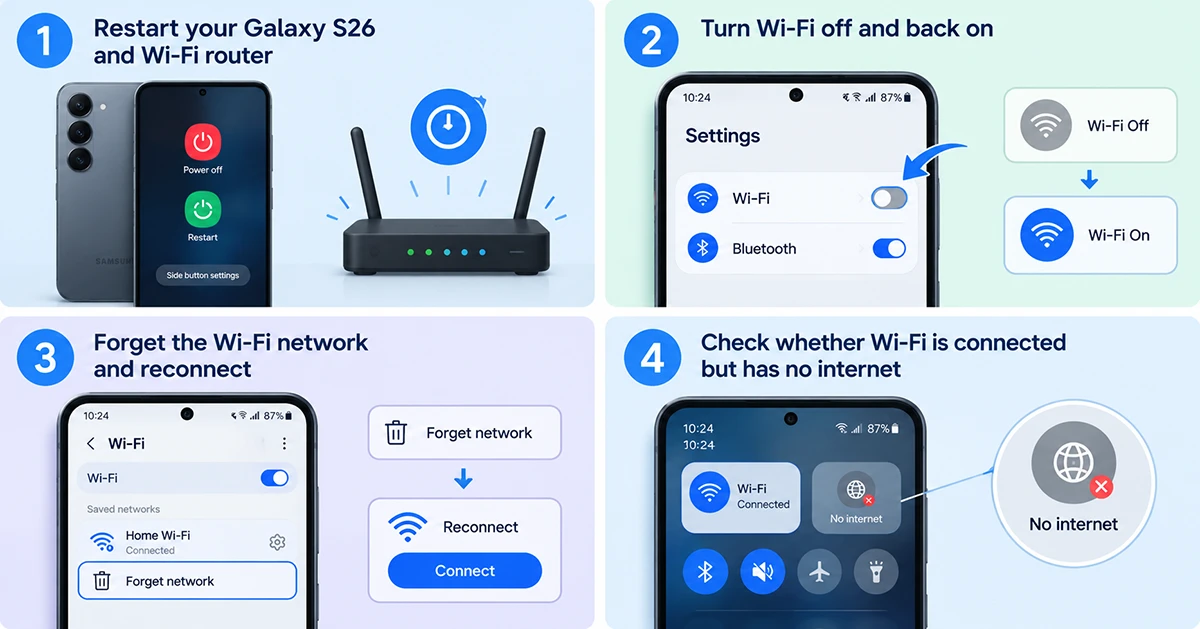
2. Turn Wi-Fi off and back on
Your phone may have trouble establishing a connection even when Wi-Fi appears enabled. Toggling the setting can force it to reconnect.
- Open Settings on your Galaxy S26.
- Tap Connections.
- Select Wi-Fi.
- Turn Wi-Fi off.
- Wait about 10 seconds.
- Turn Wi-Fi back on.
- Select your network and check the connection.
- You can also toggle Wi-Fi from the Quick panel.
If the Wi-Fi switch is greyed out, refuses to turn on, or turns itself off immediately, skip to the restart, software update, and Safe Mode fixes below.
3. Forget the Wi-Fi network and reconnect
A saved network profile may contain outdated credentials or connection settings. Forgetting the network lets your Galaxy S26 establish a fresh connection.
Follow these steps:
- Open Settings > Connections > Wi-Fi.
- Select your connected network or press and hold the network name, depending on the available menu.
- Tap Forget or Forget network.
- Return to the Wi-Fi network list.
- Select the same network.
- Enter the correct password.
- Tap Connect.
Remember that Wi-Fi passwords are case-sensitive. Check for typing errors, extra spaces, and changes to the router password.
If the phone displays an authentication error, verify the password and confirm that the router has not reached its device limit or blocked your device.
4. Check whether Wi-Fi is connected but has no internet
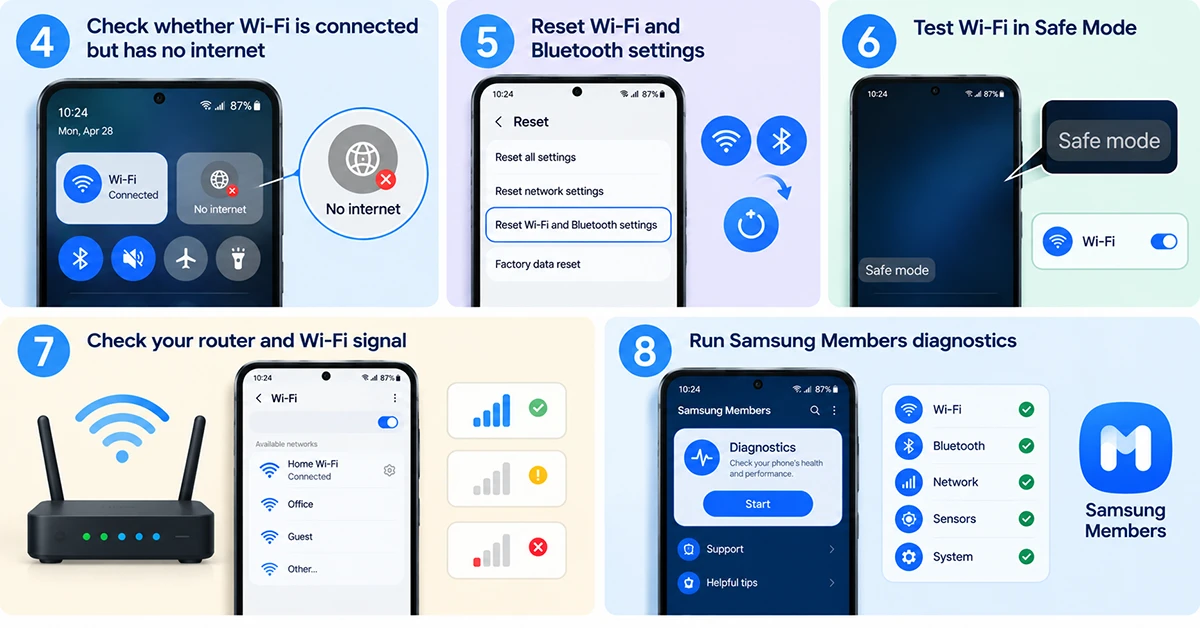
Sometimes your Galaxy S26 connects to the router successfully, but websites and apps still cannot access the internet. In this situation, the issue may involve the router, internet provider, or network configuration rather than the phone’s Wi-Fi radio.
Try these checks:
- Open a website in your browser.
- Connect another device to the same Wi-Fi network.
- Check whether that device can load websites.
- Restart the router and modem, if they are separate.
- Temporarily turn off Wi-Fi on your Galaxy S26 and test mobile data, if available.
- If other devices also cannot access the internet, contact your internet provider or network administrator.
If only the Galaxy S26 has trouble, forget the network and reconnect. You can also test a different trusted Wi-Fi network to determine whether the problem follows the phone.
5. Reset Wi-Fi and Bluetooth settings
If your Galaxy S26 still will not connect, reset its Wi-Fi and Bluetooth settings. This can resolve persistent configuration problems without erasing your photos, apps, or other personal files.
Use this menu path:
- Open Settings.
- Tap General management.
- Select Reset.
- Tap Reset Wi-Fi and Bluetooth settings.
- Review the confirmation message.
- Tap Reset settings and confirm if prompted.
- The Galaxy S26-specific procedure is documented in carrier device guides.
Important: This reset removes saved Wi-Fi networks and passwords and resets Bluetooth connections. You will need to reconnect to your Wi-Fi network and pair Bluetooth accessories again. Menu labels may vary by software version or region.
After the reset, open Wi-Fi settings, select your network, and enter the password.
6. Test Wi-Fi in Safe Mode
A third-party app can sometimes interfere with network connectivity. Safe Mode temporarily disables downloaded apps, helping you determine whether an installed app is causing the problem.
To enter Safe Mode:
- Swipe down from the top of the screen to open the Quick panel.
- Tap the Power icon.
- Press and hold Power off until the Safe Mode option appears.
- Tap Safe mode.
- Unlock your phone if necessary.
- Open Wi-Fi settings and test your connection.
- Samsung recommends testing Wi-Fi in Safe Mode when downloaded apps may be responsible for connection problems.
If Wi-Fi works in Safe Mode, restart the phone normally and uninstall recently installed or updated apps one at a time. Test Wi-Fi after each removal to identify the likely cause.
If Wi-Fi still fails in Safe Mode, investigate network settings, router compatibility, software updates, and potential hardware problems.
7. Check your router and Wi-Fi signal
A weak signal, router malfunction, or network configuration issue can prevent your Galaxy S26 from connecting reliably.
Try these checks:
- Move closer to the router and test the connection again.
- Make sure the router is powered on and connected to the internet.
- Check whether other devices can detect the network.
- Restart the router and install any available router firmware updates.
- Test both 2.4 GHz and 5 GHz networks if your router provides them.
- Check whether the router uses a supported security configuration.
If you use a public or workplace network, complete its sign-in page or ask the administrator about access restrictions.
If your Galaxy S26 cannot see a particular network but can connect to others, focus on that router’s settings. If it cannot detect any nearby networks, investigate the phone itself.
8. Run Samsung Members diagnostics
If none of the previous fixes works, run the Wi-Fi diagnostic test in Samsung Members. The test can help determine whether your phone reports a Wi-Fi problem.
- Open the Samsung Members app.
- Tap Support.
- Open Phone diagnostics or the diagnostics section available on your device.
- Select Wi-Fi.
- Follow the on-screen instructions.
- Review the results and follow any recommended action.
The exact labels may vary by app version and region. Samsung’s official troubleshooting guide describes using Samsung Members to test Wi-Fi connectivity.
If diagnostics indicate a problem or Wi-Fi remains unavailable across multiple networks, contact Samsung Support or an authorized service center.
Avoid a factory reset as your first response. If Samsung Support recommends one, back up your important data first because a factory reset erases personal data and settings.
Samsung Galaxy S26 Wi-Fi Not Working: Quick Reference Table
Use this table to identify the Wi-Fi problem on your Galaxy S26 and find the quickest fix.
|
Wi-Fi problem |
Quick fix |
|---|---|
| Wi-Fi won’t turn on | Restart your Galaxy S26 and check for software updates. |
| Can’t find a Wi-Fi network | Move closer to the router and check whether other devices detect it. |
| Won’t connect to Wi-Fi | Forget the network, then reconnect with the correct password. |
| Connected but no internet | Restart the router and check your internet connection on another device. |
| Wi-Fi keeps disconnecting | Test closer to the router and check for software or router issues. |
| Incorrect password or authentication error | Verify the password and reconnect to the network. |
| Wi-Fi stopped working after an update | Restart the phone and install any available follow-up update. |
| Wi-Fi is slow | Test another network and check signal strength and router performance. |
| Wi-Fi fails after trying other fixes | Reset Wi-Fi and Bluetooth settings. |
| Suspected app interference | Test the connection in Safe Mode. |
| Wi-Fi still doesn’t work | Run Wi-Fi diagnostics in Samsung Members or contact Samsung Support. |
Official reference: Samsung’s troubleshooting guide confirms these core fixes, including restarting the phone, updating software, reconnecting to Wi-Fi, resetting network settings, checking the router, and running Samsung Members diagnostics.
Conclusion
When your Samsung Galaxy S26 Wi-Fi is not working, start by restarting your phone and router, toggling Wi-Fi, and reconnecting to your network. If those quick fixes fail, update the software, reset Wi-Fi and Bluetooth settings, and test Safe Mode. Use Samsung Members diagnostics if the issue persists.
If the phone cannot detect any Wi-Fi networks or Wi-Fi refuses to turn on after these steps, contact Samsung Support to investigate a possible hardware or deeper software problem.