If Android Auto is not working on your Samsung Galaxy S26, the fastest fix is usually to restart both your phone and car, use a high-quality data USB cable, and update Android Auto, the Galaxy S26 software, and your vehicle’s infotainment system. In many cases, one of these basic steps restores the connection immediately.
Common causes include an incompatible or damaged USB cable, a dirty charging port, outdated software, Bluetooth or connection settings, or a temporary glitch after a recent update. Start with the simplest checks first, then move to app-specific fixes such as clearing the Android Auto cache or reviewing SmartThings connection settings if the problem continues.
This guide walks you through the most effective solutions in order, from quick connection checks to advanced troubleshooting, so you can get navigation, calls, music, and voice commands working again in your car.
Verifying Physical Connections and Hardware Compatibility
Before you start with software settings, check your hardware first. Many problems with galaxy s26 android auto come from simple connection issues. Make sure your setup is correct to avoid common problems.
Inspecting the USB Cable for Data Transfer Capabilities
Not all USB-C cables are the same. Using the wrong one can cause android auto not to connect. Basic cables are for charging only and don’t transfer data. You need a high-quality, data-capable cable for a reliable connection.
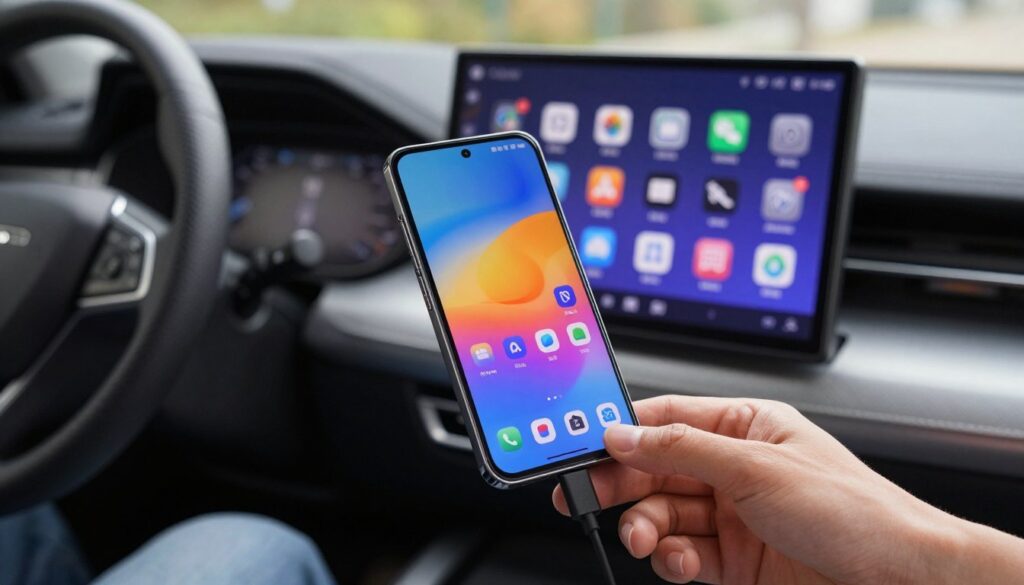
Try using the original Samsung cable if you have a third-party one. A certified USB 3.0 or 3.1 cable works best. Check the cable for damage like fraying or bent pins, as it can affect the connection.
Cleaning the USB-C Port on Your Galaxy S26
Debris like lint can build up in your phone’s charging port over time. This can cause connection issues. Look for any blockages in the port under a bright light.
To clean the port, use a non-conductive tool like a wooden toothpick. Gently remove any dust or lint. Don’t use metal tools to avoid damaging the pins.
Testing Alternative USB Ports in Your Vehicle
It’s possible the problem is with your car’s USB ports. Many cars have multiple ports, but only one works for data. Check your car’s manual to find the right port.
Try plugging your device into a different port to see if it works. This test can help you find out if your car supports galaxy s26 android auto. If it works in another port, the original port might need fixing.
Configuring Essential Android Auto Settings
Setting up your phone and car right is key for a good connection. By checking these settings, you make sure your Galaxy S26 works well with Android Auto every day.
Enabling Android Auto in Galaxy S26 Settings
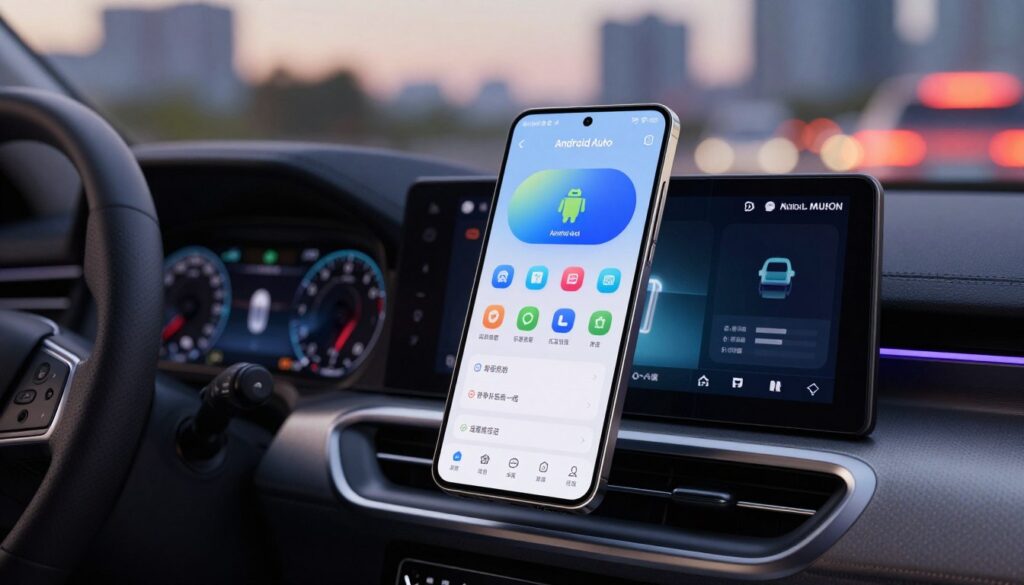
Start by going to your phone’s settings. Look for “Android Auto” in the search bar to find it fast.
Inside, make sure the “Add new cars to Android Auto” toggle is on. This lets your phone and car connect easily.
Checking for Pending Android System Updates
Old software can cause problems with Android Auto. Always check for updates to keep your device running well.
Go to settings and choose “Software update.” If there’s a new version, download and install it right away. This fixes bugs that might affect your car setup.
Managing Battery Optimization for Android Auto
Your phone might limit apps to save battery, causing Android Auto issues. You need to change these settings to keep the app running smoothly.
In settings, go to “Apps” and find Android Auto. Then, choose “Battery” and pick “Unrestricted.” This stops your phone from closing the app while you’re driving.
Troubleshooting Android Auto Not Working on Galaxy S26
When your connection fails, starting fresh is often the best solution. Sometimes, software glitches can mess up the link between your phone and car. By following these steps, you can clear out old data and get a stable connection back.
Removing and Re-pairing Your Device via Bluetooth
First, go to your phone’s Bluetooth settings. Find your vehicle in the list and choose to unpair or forget it.
Then, do the same on your car’s system. This removes any old settings that might cause problems with the new pairing.
Deleting Existing Car Profiles from the Android Auto App
Open the Android Auto app on your Galaxy S26. Look for “Previously connected cars” in the settings.
Tap to remove all cars from this list. This step is crucial. It makes your vehicle seem like a new device to the app.
Re-establishing the Initial Setup Process
After clearing old data, restart your phone and car’s head unit. Use a good USB cable to start the setup wizard again.
Follow the instructions on both screens to finish the setup. This fresh start often fixes software issues that block the connection.
Clearing App Cache and Managing Permissions
When your phone won’t connect to your car, it’s often because of corrupted cache files. These temporary files can block communication between your device and the car’s system. Doing some basic maintenance is crucial for fixing android auto issues.
Clearing Cache and Data for Android Auto
First, go to your phone’s Settings menu and choose Apps. Find Android Auto and tap on Storage. Then, select Clear Cache and Clear Data to get rid of damaged files.
This action resets the app to its original state without losing your personal files. If problems persist, you might need to fix software update issues on Galaxy to ensure compatibility.
Resetting Google Play Services Data
Google Play Services is key for many system functions on your device. If it has a problem, it can mess up your connection. To fix this, go to Settings, then Apps, and find Google Play Services.
Tap on Storage and then Manage Storage to clear data. This is a common step in advanced android auto troubleshooting. It makes the system re-authenticate your account and refresh its background processes.
Verifying Necessary App Permissions and Notifications
Next, make sure the app has the right permissions to work right. Go back to the Android Auto app info page and tap on Permissions. Check that Location, Phone, and Contacts are set to “Allow” so the app can talk to your vehicle.
Also, make sure notifications are turned on for the app. Without these permissions, the app might not work or show alerts on your dashboard. By following these steps, you ensure your software has what it needs for a smooth driving experience.
Addressing Vehicle-Side Connectivity Issues
Sometimes, the problem is not with your phone but with your car’s software. If you’re having trouble with galaxy s26 android auto, it might be because your car’s software is outdated.
Updating Your Car Infotainment System Firmware
Modern cars need updates to work with new phones. Check your car’s website for updates. You can update your car’s software using a USB drive or over the internet.
Resetting the Vehicle Infotainment Head Unit
If updates don’t fix the issue, try resetting the head unit. This clears out old files that might be causing problems. Look in your car’s manual to find out how to reset it.
Checking for Manufacturer-Specific Android Auto Restrictions
Some cars have special security settings that can block Android Auto. These settings can stop your galaxy s26 from connecting. Check your car’s settings to make sure mobile features are turned on and not blocked.
Advanced Network and System Resets
Standard troubleshooting might not solve all problems. Sometimes, you need to make deeper changes to fix your connection. If your phone still can’t connect to your car, try these advanced steps.
Resetting Network Settings on Your Galaxy S26
Your phone uses Bluetooth, Wi-Fi, and cellular data to connect with your car. Corrupted network settings can cause connection issues. You can reset these settings without losing your personal files.
Go to your settings menu and choose General Management. Then, tap Reset. Next, select Reset Network Settings. This will clear your Wi-Fi passwords and Bluetooth pairings, starting fresh connections.
Toggling Developer Options for USB Debugging
Stable connections might require adjusting data transfer settings. Enabling Developer Options lets you control USB debugging. Start by going to About Phone and tapping the Build Number seven times.
After enabling, go back to settings and find Developer Options. Turn on USB debugging. This can help bypass software issues that block your car’s system.
Performing a Factory Data Reset as a Last Resort
A factory data reset is a strong solution for system errors. It resets your Galaxy S26 to its original state. This means all data will be erased, so back up your important files first.
Try this only after trying all other troubleshooting steps. After the reset, your phone will be like new. This often fixes hidden bugs that were blocking your connection.
Conclusion
Learning how to fix Android Auto on your Galaxy S26 makes your daily drive better. You can now enjoy a smooth, tech-filled journey. No more worries about your phone and car not talking to each other.
Knowing how to fix Android Auto gives you control over your tech. You can listen to music, navigate, and talk hands-free. Say goodbye to the hassle of constant disconnections.
Most problems come from small software issues or old firmware. If your Galaxy S26 won’t connect to Android Auto, go back to the troubleshooting steps. Look for the one that fits your device.
Check your connection after each fix to find the real problem. This careful method means less time fixing and more time enjoying your Samsung’s cool features.
Every driver wants their infotainment system to work well. Keep your software up to date and your cables in good shape. By doing this, you’ll have a reliable system for all your trips.