If your Samsung Galaxy S26 has no sound during phone calls, you may be dealing with an incorrect audio setting, Bluetooth connection, blocked earpiece, software glitch, or cellular network problem. Sometimes you can hear the other person through speakerphone but not through the regular earpiece. In other cases, the caller cannot hear your voice.
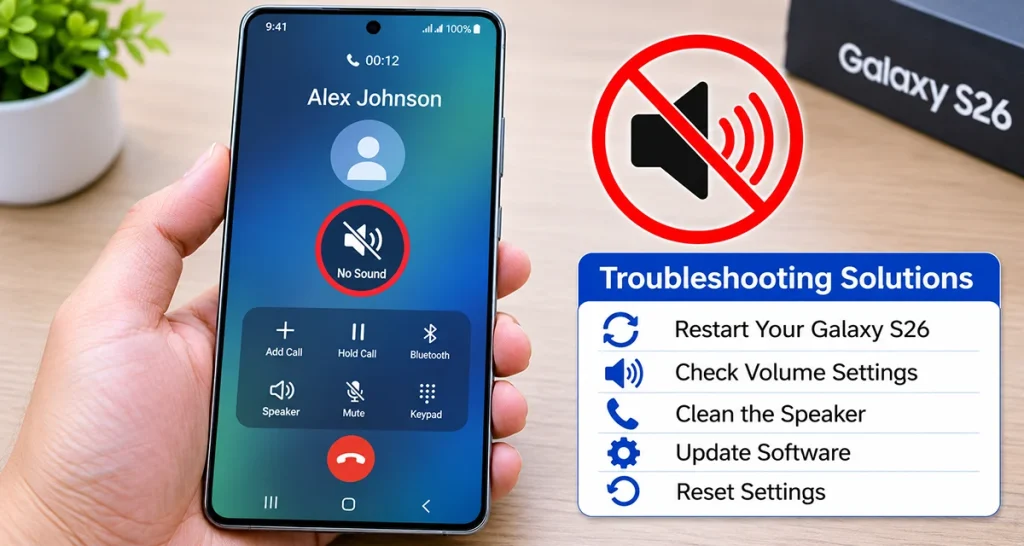
Fortunately, you can troubleshoot most call-audio problems without resetting your phone. Start by increasing the in-call volume, checking Bluetooth, and restarting your Galaxy S26. If those steps don’t work, inspect the microphone and speaker, check Wi-Fi Calling, and run a hardware diagnostic.
Why Is My Galaxy S26 Not Producing Sound During Calls?
Several issues can interrupt call audio on your Galaxy S26. Identifying the symptoms helps you choose the right solution.
| Problem | Possible cause |
|---|---|
| You cannot hear the caller | Low call volume or blocked earpiece |
| Caller cannot hear you | Blocked microphone or microphone malfunction |
| Speakerphone works, but earpiece doesn’t | Earpiece obstruction or hardware issue |
| Sound goes to Bluetooth headphones | Incorrect audio output selection |
| Calls have intermittent sound | Weak cellular signal or Wi-Fi Calling |
| No sound on any call | Software glitch or muted audio settings |
Ways to Fix Galaxy S26 No Sound During Calls
Here are 10 ways to fix the Galaxy S26 no sound during calls problem.
1. Increase the In-Call Volume
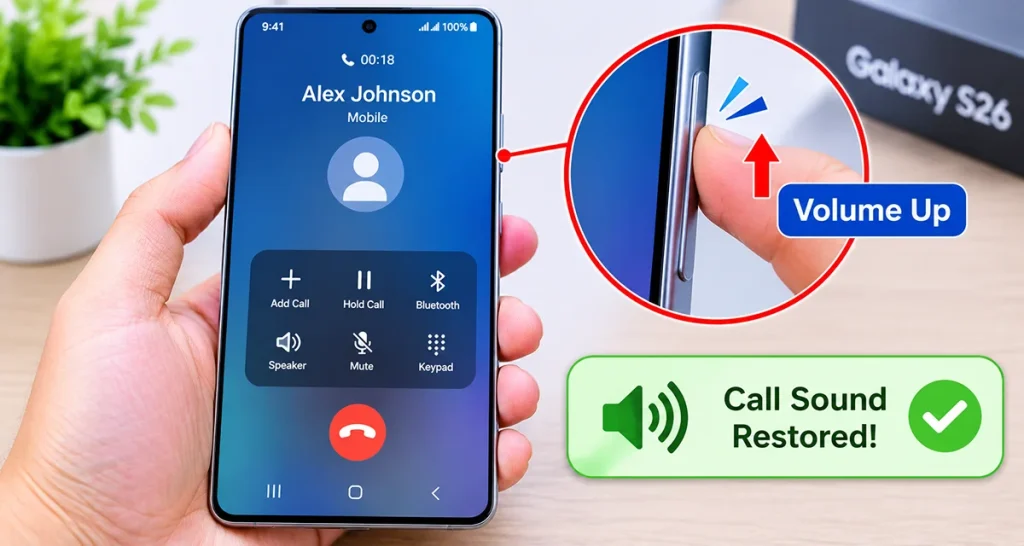
The first thing to check is your call volume. Your Galaxy S26 uses a separate volume level for active phone calls, so increasing media volume might not solve the problem.
Follow these steps:
- Make a phone call or answer an incoming call.
- Press the Volume Up button on the side of your Galaxy S26.
- Continue pressing until the call volume reaches a comfortable level.
- Ask the other person to speak again.
Important: Adjust the volume while the call is active. Otherwise, you might change the ringtone or media volume instead.
2. Check Bluetooth Audio Connections
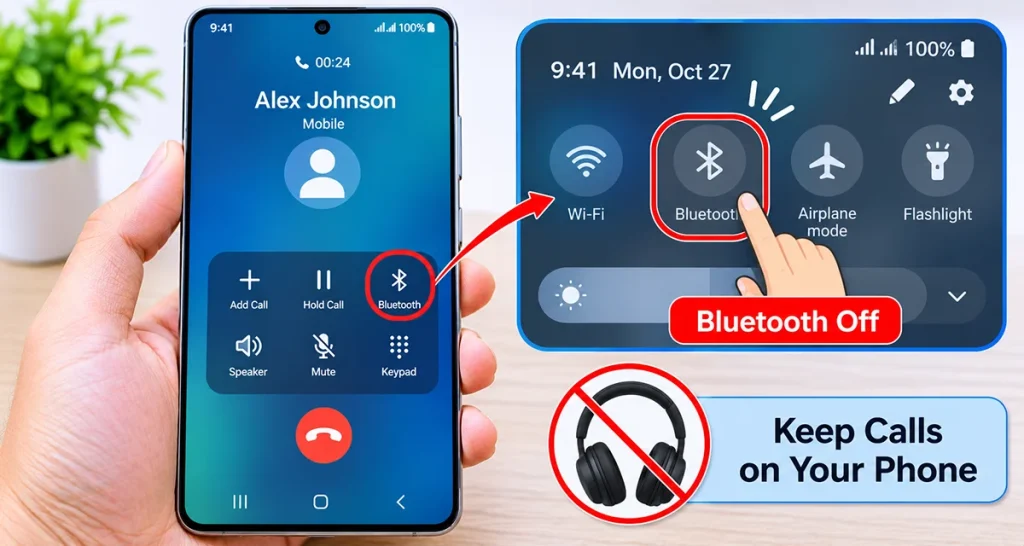
Your Galaxy S26 might send call audio to connected Bluetooth headphones, earbuds, a smartwatch, or your car instead of the phone’s earpiece.
To check the connection:
- Open the Quick Settings panel by swiping down from the top of the screen.
- Turn off Bluetooth temporarily.
- Return to your active call.
- Check whether sound comes through the phone’s earpiece.
You can also tap the Audio or Bluetooth option on the call screen and select Phone if available.
If call audio returns after disconnecting Bluetooth, check your connected devices for audio-routing problems.
3. Turn Off Mute All Sounds
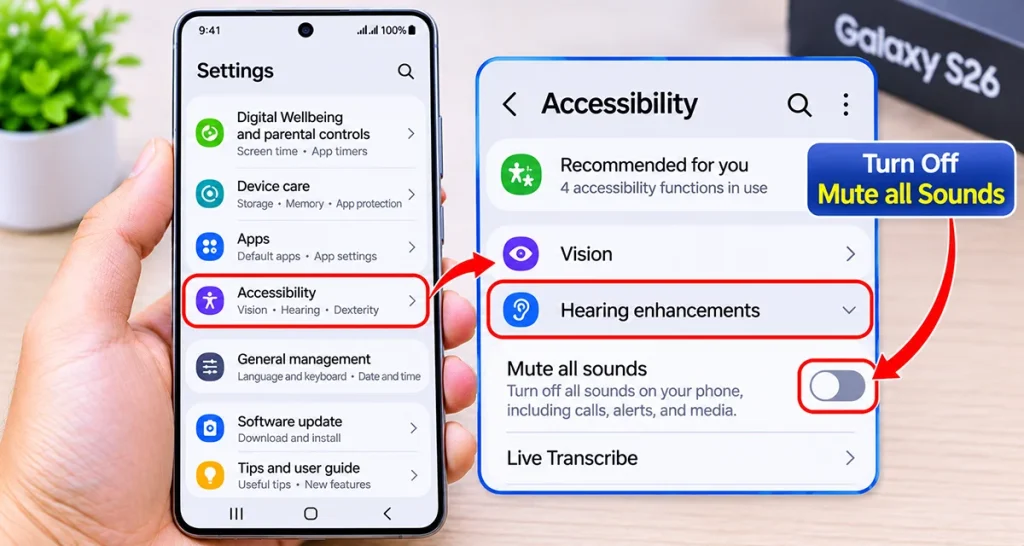
Samsung’s Mute all sounds accessibility feature can prevent audio from playing through your phone, including call audio.
To disable it:
- Open Settings.
- Select Accessibility.
- Tap Hearing enhancements.
- Find Mute all sounds.
- Make sure the setting is turned off.
Make another call to check whether the sound has returned.
4. Check the Earpiece and Microphone for Blockages
A screen protector, phone case, dust, or debris can interfere with your Galaxy S26’s audio components.
If you cannot hear the caller, inspect the receiver at the top of the screen. If the other person cannot hear you, check the microphone openings.
Try these steps:
- Remove your phone case temporarily.
- Check whether the screen protector covers the earpiece.
- Inspect the microphone openings for visible debris.
- Clean the exterior gently using a soft, dry brush.
- Make another call to test the sound.
Avoid inserting sharp objects into the openings or using liquids to clean them.
5. Switch Between Earpiece and Speakerphone
This simple test helps determine whether the problem affects one audio output or the entire phone.
During an active call:
- Tap Speaker on the call screen.
- Listen to the other person.
- Turn Speaker off.
- Listen through the regular earpiece again.
If speakerphone works but the earpiece remains silent, the receiver or its audio path may have a problem.
If neither option works, continue with the software and network troubleshooting steps below.
6. Restart Your Galaxy S26
Temporary software glitches can interfere with calling and audio functions. Restarting your phone can refresh these services.
To restart:
- Swipe down twice to open Quick Settings.
- Tap the Power icon.
- Select Restart.
- Wait for your Galaxy S26 to boot completely.
- Make a test call.
If the problem started after installing an application or changing a setting, restarting is a useful first step before attempting more advanced troubleshooting.
7. Turn Off Wi-Fi Calling Temporarily
Wi-Fi Calling allows your Galaxy S26 to make calls through a Wi-Fi connection. However, an unstable internet connection or carrier-related issue can affect call quality.
To test it:
- Open Settings.
- Tap Connections.
- Select Wi-Fi Calling.
- Turn the feature off temporarily.
- Make another call using your cellular network.
If call audio improves, the problem may involve your Wi-Fi connection or carrier’s Wi-Fi Calling service.
You can enable the feature again after testing.
8. Check Your Cellular Signal and SIM Card
Poor cellular reception can cause missing audio, interrupted conversations, or distorted voices.
Try the following:
- Move to an area with stronger cellular reception.
- Turn Airplane mode on for approximately 10 seconds, then turn it off.
- Check whether other people using the same carrier experience call problems.
- Restart your phone.
- If you use a physical SIM, power off the phone before inspecting it for visible damage.
If the problem continues, contact your mobile carrier to check for network outages, SIM problems, or account-related calling restrictions.
9. Update Your Galaxy S26 Software
An outdated software version can sometimes cause unexpected calling or audio problems. Samsung recommends checking for software updates when troubleshooting Galaxy sound issues.
Follow these steps:
- Open Settings.
- Scroll down and select Software update.
- Tap Download and install.
- Install an available update if one appears.
- Restart your phone and test another call.
Also check for updates to the Phone app through the Galaxy Store or Google Play Store.
10. Run a Speaker and Microphone Diagnostic
If your Galaxy S26 still has no sound during calls, check whether its hardware components are working correctly.
You can use Samsung Members to run available device diagnostics.
- Open the Samsung Members app.
- Select Support.
- Find Phone diagnostics.
- Choose the available Speaker and Microphone tests.
- Follow the on-screen instructions.
The available tests may vary depending on your software version and region.
If the microphone or speaker test fails, contact Samsung Support or visit an authorized service center for inspection.
When Should You Contact Samsung Support?
If none of these solutions restores call audio, your Galaxy S26 may have a hardware problem.
Consider professional inspection if:
- The earpiece remains silent during every call.
- Other people cannot hear you despite successful microphone tests.
- The speaker or microphone diagnostic fails.
- The phone recently suffered physical damage or liquid exposure.
- Call audio stopped working after a repair.
Avoid opening the phone yourself because this can cause additional damage and affect its water resistance.
Frequently Asked Questions
The earpiece may be blocked by a screen protector or have a hardware problem. Check the receiver opening and test the phone without its case.
Your call volume may be too low, Bluetooth may be redirecting audio, or the earpiece may be blocked. Increase the in-call volume and test speakerphone.
A blocked microphone, incorrect accessory connection, software issue, or network problem may prevent others from hearing your voice. Inspect the microphone and run a diagnostic test.
A factory reset might resolve certain software-related problems, but it should be your last resort. Back up your important data before resetting your phone.
Final Thoughts
When your Galaxy S26 has no sound during calls, start with the simplest solutions: increase the in-call volume, disconnect Bluetooth, disable Mute all sounds, and inspect the earpiece and microphone.
If the problem continues, restart your phone, check Wi-Fi Calling and cellular reception, install software updates, and run Samsung Members diagnostics.
If the earpiece or microphone still fails, contact Samsung Support to check for possible hardware damage.
Refference: Samsung’s official low or no call sound troubleshooting guide and microphone and speaker troubleshooting guide.
