If Bixby wake up is not responding on your Samsung S26, you can usually fix the problem by enabling Voice wake-up, re-registering your voice, adjusting wake-up sensitivity, or checking microphone access. When you say “Hi, Bixby” and nothing happens, the problem may be related to disabled voice activation, inaccurate voice recognition, microphone restrictions, or a temporary software issue.
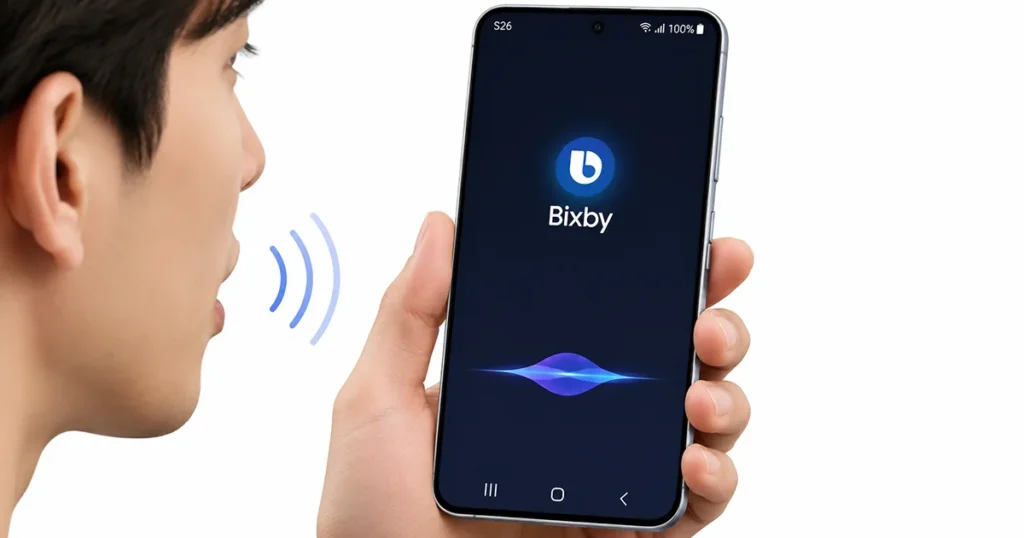
Before resetting your phone, try the troubleshooting methods below. They can help restore Bixby’s hands-free functionality without deleting your personal data.
Why Is Bixby Wake Up Not Responding on Samsung S26?
Several things can prevent Bixby from recognizing its wake-up phrase on your Samsung Galaxy S26.
Common causes include:
- Voice wake-up is disabled: Bixby cannot respond to its wake-up phrase when voice activation is turned off.
- Incorrect voice registration: Bixby may have difficulty recognizing your voice if the original recording is inaccurate.
- Low wake-up sensitivity: A low sensitivity setting can make it harder for Bixby to detect your voice.
- Microphone restrictions: Microphone permissions or the system-wide microphone access setting may prevent Bixby from listening.
- Temporary software problems: Outdated software, corrupted app data, or background glitches can interfere with Bixby.
7 Fixes for Bixby Wake Up Not Responding on Samsung S26
Try the following solutions in order, testing Bixby after each major change.
1. Make Sure Bixby Voice Wake-up Is Enabled
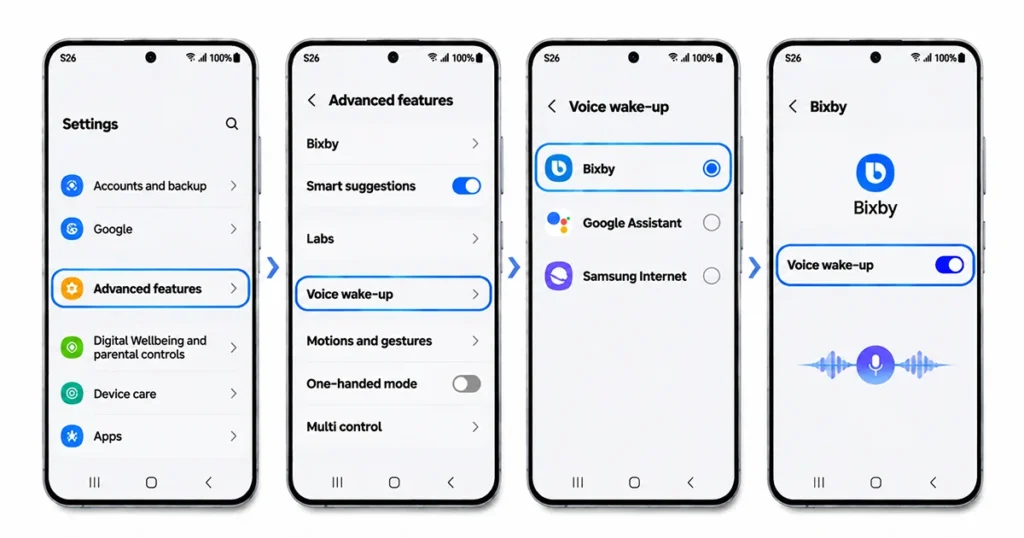
The first thing to check is whether Voice wake-up is enabled on your Samsung S26. If this feature is disabled, Bixby will not activate when you say its wake-up phrase.
Follow these steps:
- Open Settings on your Samsung Galaxy S26.
- Tap Advanced features.
- Select Voice wake-up, if available.
- Find Bixby in the available assistant options.
- Select Bixby and enable its voice wake-up feature.
- Follow the on-screen instructions to complete the setup.
Depending on your One UI version, you may also find the setting by opening the Bixby app, selecting Menu, tapping Settings, and choosing Voice wake-up or Voice registration.
Make sure the option to wake Bixby with “Hi, Bixby” is enabled. If you prefer using just “Bixby,” select that wake-up phrase if your device offers it.
After enabling the feature, lock your screen and say “Hi, Bixby” to see whether the assistant responds.
2. Delete and Re-register Your Voice
If Bixby is enabled but does not recognize your voice, its existing voice recording may need to be replaced.
Re-registering your voice allows Bixby to learn your pronunciation again and can improve wake-up accuracy.
Here’s how:
- Open the Bixby app.
- Tap Menu and open Settings.
- Select Voice wake-up or Voice registration.
- Find the option to delete your existing voice recordings.
- Confirm the deletion.
- Select the wake-up phrase you want to use.
- Follow the instructions to record your voice again.
- Complete the registration process.
For better results, perform voice registration in a quiet room. Speak naturally and clearly, without shouting or moving too far away from the phone.
Once registration is complete, test the wake-up phrase several times.
3. Increase Bixby Wake-up Sensitivity
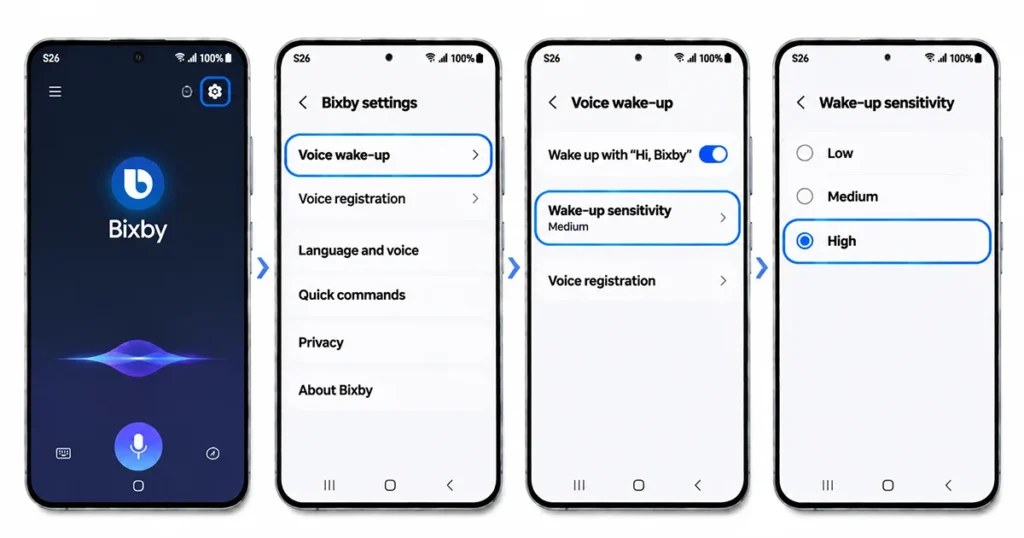
Bixby may not respond because its wake-up sensitivity is too low. This setting determines how easily the assistant detects its activation phrase.
To adjust it:
- Open the Bixby app.
- Go to Settings.
- Select Voice wake-up or Voice registration.
- Tap Wake-up sensitivity.
- Select High, if the option is available.
- Return to the home screen and test Bixby.
A higher sensitivity setting can help Bixby detect your voice when you speak softly or from a little farther away.
However, it may also increase accidental activations when people nearby use similar words. If Bixby wakes up too frequently, try Medium instead.
4. Check Microphone Permissions
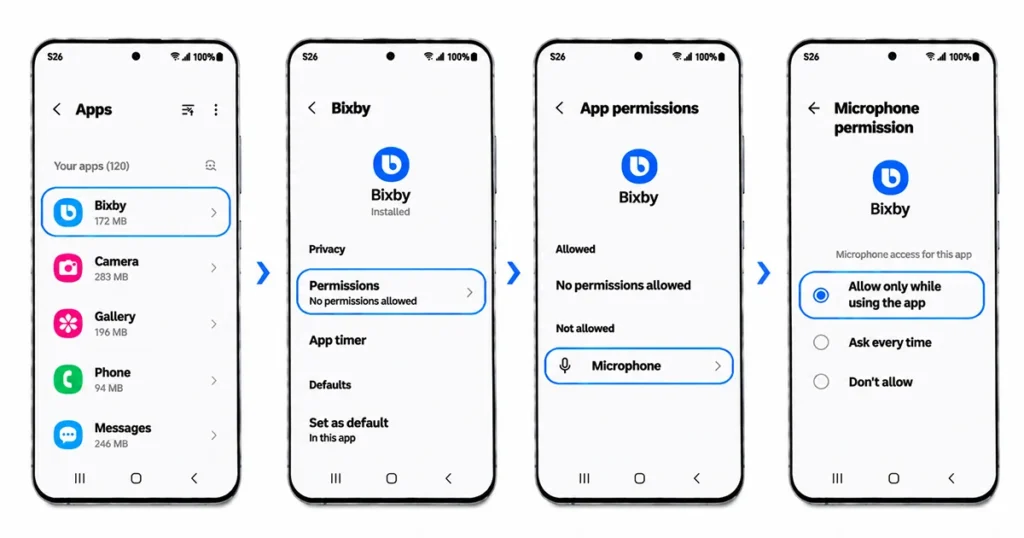
Bixby needs microphone access to recognize your voice. If microphone access is restricted, voice commands may not work correctly.
Check the permission settings on your Samsung S26:
- Open Settings.
- Tap Apps.
- Find and select Bixby, if listed.
- Tap Permissions.
- Select Microphone.
- Allow microphone access when the app is in use, if that option is available.
Also, check whether your phone’s system-wide microphone access is enabled. Swipe down from the top of the screen to open Quick Settings and look for the Microphone access control, if available.
Make sure the microphone is not covered by a phone case, dirt, or other objects. You can also test it using the Voice Recorder app.
If the microphone works in other applications but Bixby still does not respond, continue with the next solutions.
5. Check the Default Voice Assistant and Software Settings
Your Samsung S26 may offer several AI assistant options. If another assistant is selected for voice activation, Bixby may not respond to the expected wake-up phrase.
To check the available settings:
- Open Settings.
- Tap Advanced features.
- Select Voice wake-up.
- Review the available AI assistant options.
- Choose Bixby if you want to use Bixby for voice activation.
- Follow any additional setup instructions.
Menu names and available options can vary depending on the software version and region.
You should also check for software updates:
- Open Settings.
- Select Software update.
- Tap Download and install.
- Install an available update.
- Restart your phone and test Bixby again.
Updates can resolve software-related problems and improve compatibility with Samsung applications.
6. Clear Bixby Cache and Data
Temporary files or corrupted application data can sometimes cause Bixby to behave unexpectedly. Clearing the cache is a useful next troubleshooting step.
Start by clearing the cache:
- Open Settings.
- Tap Apps.
- Find and select Bixby.
- Choose Storage.
- Tap Clear cache.
If the problem continues, consider clearing Bixby data.
Follow the same steps, but select Clear data instead.
Be aware that clearing data resets Bixby’s application settings and may require you to complete its initial setup and voice registration again. Your Bixby preferences may also need to be configured again.
Do not clear data for unrelated system applications.
7. Restart Your Samsung Galaxy S26
A temporary system glitch may prevent Bixby from responding correctly. Restarting your phone can refresh background services and resolve minor software issues.
To restart your Samsung S26:
- Swipe down from the top of the screen to open Quick Settings.
- Swipe down again if necessary.
- Tap the Power icon.
- Select Restart.
- Wait for the phone to boot completely.
- Say “Hi, Bixby” to test voice activation.
If Bixby starts responding again, the issue may have been caused by a temporary software problem.
What to Do If Bixby Still Does Not Respond
If none of these solutions works, open Samsung Members and use its support or error-reporting options to submit a report. You can also contact Samsung Support for further assistance.
A factory data reset should be considered only as a last resort. It erases personal information and settings, so back up your important data before proceeding. A factory reset is not guaranteed to fix a hardware or microphone problem.
Bixby, “Hey Plex” and “Hey Google”: Are You Using the Right Wake Word?
The S26 supports more than one assistant. Samsung has added Perplexity to the Galaxy S26 experience with its own “Hey Plex” wake phrase, and Perplexity also powers real-time web answers inside the new Bixby. Google’s “Hey Google” may also be set up.
If you say one phrase and expect another assistant to answer, it looks like Bixby is not responding. Check which assistants are enabled, and note that features can vary by market and software version.
Frequently Asked Questions
Why does my Samsung S26 not respond when I say “Hi, Bixby”?
The most common reasons are disabled Voice wake-up, inaccurate voice registration, low wake-up sensitivity, microphone restrictions, or temporary software issues. Check the Voice wake-up settings first.
How do I turn on “Hi, Bixby” on Samsung S26?
Open Settings, go to Advanced features, and select Voice wake-up if available. Choose Bixby and enable the wake-up phrase. Alternatively, open the Bixby app and look under its Settings menu.
Can I use Bixby without saying “Hi, Bixby”?
Yes. You can activate Bixby using the Side button, depending on your device configuration. You can also use supported options such as typing requests into Bixby.
Does clearing Bixby data delete my phone’s photos and files?
No. Clearing Bixby data resets the application’s stored settings and information. It does not normally delete photos, videos, or other personal files stored elsewhere on your phone.
Why does Bixby work when I press the Side button but not when I say “Hi, Bixby”?
This usually indicates that Bixby itself can open, but its hands-free voice activation is not working correctly. Check Voice wake-up, microphone access, voice registration, and wake-up sensitivity.
Conclusion
When Bixby wake up is not responding on your Samsung S26, start by checking Voice wake-up and confirming that Bixby is selected for voice activation. Then re-register your voice, increase wake-up sensitivity, and check microphone permissions.
If the problem persists, clear Bixby’s cache, consider resetting its application data, and install available software updates. These troubleshooting steps can help restore hands-free Bixby activation without immediately resorting to a factory reset.
External Reference:
- Samsung – How to Fix Bixby Voice Command Issues.
- Samsung – Talk to Bixby Using Voice Wake-up.
- Samsung – Reset Bixby.
