To use Perplexity on Samsung S26, go to Settings > Advanced features > Side button > Long press, tap the Settings icon, and choose Perplexity as your default digital assistant. Then press and hold the side button to launch it. For hands-free use, turn on voice wake-up under Settings > Advanced features > Voice wake-up, which also works when the screen is off.
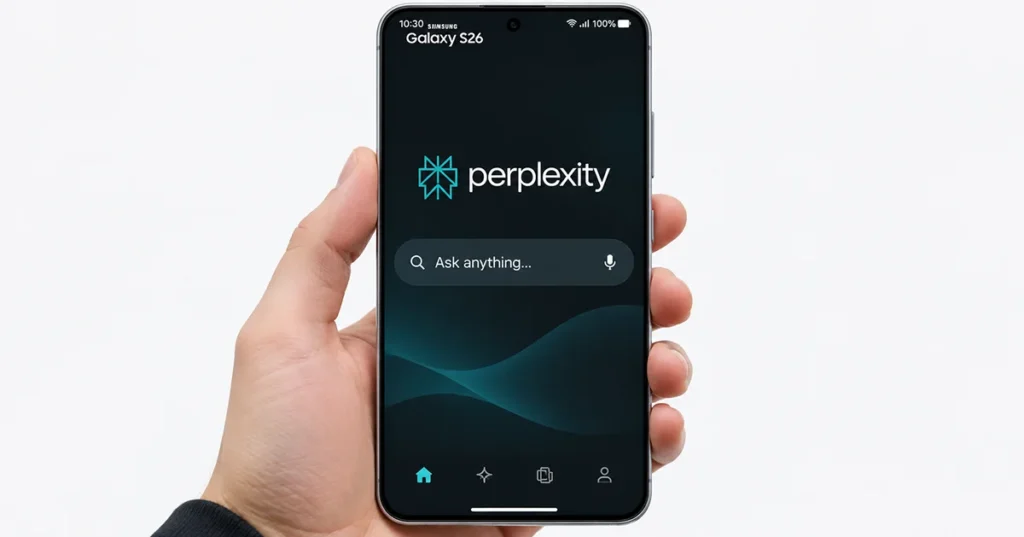
That is the whole setup. The rest of this guide shows each step in detail, compares every way to launch Perplexity, and lists the best things to try once it is running.
What Is Perplexity on Samsung S26?
Perplexity is an AI-powered answer engine that combines conversational search with information from online sources. Instead of displaying only a traditional list of search results, it generates answers with supporting references that users can explore.
On the Samsung Galaxy S26 series, Perplexity is available as an AI assistant option. Its integration makes it easier to access AI-powered search without manually opening a browser or navigating through multiple applications.
Depending on software version, region, and supported app integrations, you can use Perplexity to:
- Search for information and receive AI-generated answers.
- Summarize online content and extract important details.
- Ask follow-up questions within the same conversation.
- Use voice commands to interact with the assistant.
- Perform supported actions involving Galaxy applications.
- Analyze information displayed on your screen, where supported.
The Perplexity experience complements Samsung’s existing AI ecosystem, giving Galaxy S26 owners another option for accessing intelligent assistance.
How to Set Up Perplexity on Samsung S26
Before using Perplexity, make sure the application is installed and updated. Some Galaxy S26 configurations include Perplexity as a preinstalled application. If you cannot find it, check the Galaxy Store or Google Play Store.
1. Install and Open Perplexity
Follow these steps to get started:
- Open the Galaxy Store or Google Play Store.
- Search for Perplexity.
- Select the official Perplexity application.
- Tap Install if the application is not already installed.
- Open Perplexity after installation.
- Sign in using your existing account or create a new account.
Once you sign in, you can start asking questions using text or voice input.
2. Set Perplexity as the Default Digital Assistant
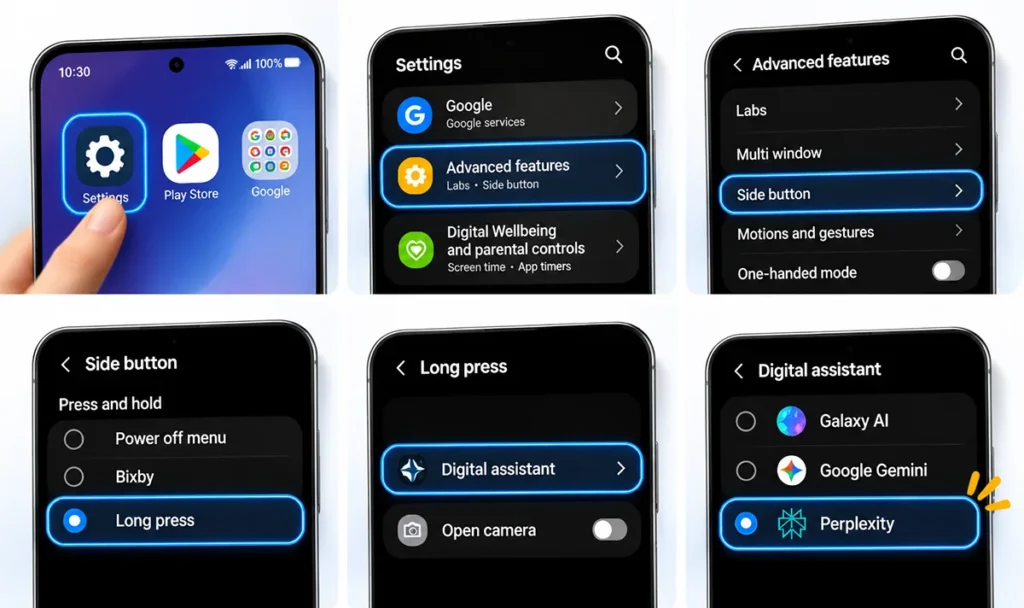
To launch Perplexity using the physical Side button, configure it as your default digital assistant.
- Open Settings on your Samsung Galaxy S26.
- Select Advanced features.
- Tap Side button.
- Select Long press.
- Open the digital assistant selection option.
- Choose Perplexity from the available applications.
After completing this configuration, press and hold the Side button to launch Perplexity.
If Bixby or another assistant is currently assigned to the Side button, changing this setting will replace that shortcut with Perplexity.
How to Enable Perplexity Voice Activation
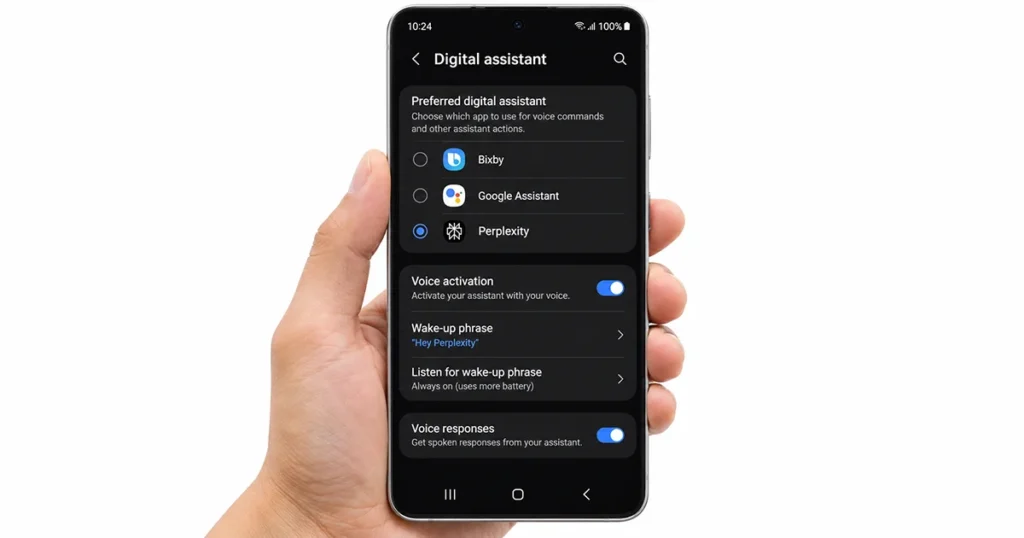
Voice activation makes it possible to launch Perplexity without manually opening the application. Depending on your software version and regional availability, Samsung provides a voice wake-up option for supported assistants.
To configure it:
- Open Settings.
- Select Advanced features.
- Tap Voice wake-up.
- Look for Perplexity in the available assistant list.
- Enable the available Perplexity voice detection option.
- Follow the instructions to register your voice if prompted.
- Tap Finish to complete the setup.
When supported and enabled, use the displayed activation phrase, such as “Hey, Perplexity,” to launch the assistant.
Some software versions or configurations may display a different activation phrase, such as “Hey Plex.” If Perplexity does not appear in the Voice wake-up menu, update the application and relevant Samsung software before trying again.
How to Activate Perplexity on Samsung S26
After completing the initial configuration, you can access Perplexity using several methods.
| Activation method | How to use it |
|---|---|
| Side button | Press and hold the Side button |
| Voice activation | Use the supported wake-up phrase |
| App icon | Open Perplexity from the Apps screen |
| Search and interaction | Open the app and enter a question |
The Side button is particularly convenient when you want to access Perplexity quickly without navigating through the Home screen.
Voice activation is useful when your hands are occupied, provided the feature is available and enabled on your device.
What Can You Do with Perplexity on Samsung S26?
Perplexity offers several useful capabilities for everyday smartphone activities.
1. Search the Web with AI
You can ask Perplexity questions in natural language and receive conversational answers supported by references.
For example, enter:
“Explain the differences between Wi-Fi 6 and Wi-Fi 7.”
Perplexity can organize the information into an understandable response and provide sources for further reading.
2. Summarize Information
If you find a lengthy article or complicated topic, use Perplexity to identify the most important information.
For example, ask:
“Summarize this topic into five important points.”
Where screen-context analysis is supported and enabled, Perplexity can also help interpret on-screen content.
3. Use Voice Commands
Instead of typing every question, use voice input to communicate with Perplexity.
You can ask questions, request explanations, and continue conversations naturally.
This is particularly helpful when multitasking or when typing is inconvenient.
4. Interact with Supported Galaxy Apps
Samsung’s Galaxy S26 integration expands the assistant experience beyond ordinary web searches.
Depending on the available software and application integrations, Perplexity can help with supported tasks involving Galaxy applications, including productivity and device-management activities.
For example, you can try a command such as:
“Set an alarm for 7 AM.”
Always review the result on your phone to confirm that the requested action was completed successfully.
5. Ask Follow-Up Questions
One useful feature of Perplexity is its ability to maintain conversational context.
After receiving an answer, you can ask additional questions without repeating the entire original request.
For example:
- What are the main advantages?
- Can you explain that in simpler terms?
- Show me a practical example.
This makes researching complicated subjects easier.
Recommended Tips:
- Galaxy S26 Now Brief – How to Set Now Brief on Galaxy S26.
- Galaxy S26 Now Nudge – How to Enable Now Nudge on Galaxy S26.
Perplexity vs. Bixby and Gemini on Samsung S26
The Galaxy S26 supports multiple AI assistant experiences. Although they may overlap in some areas, each offers a different approach.
| Feature | Perplexity | Bixby | Gemini |
|---|---|---|---|
| AI-powered search | Yes | Supported through integration | Yes |
| Conversational questions | Yes | Yes | Yes |
| Source-based answers | Core strength | Depends on query | Depends on feature |
| Samsung device controls | Supported actions vary | Strong device integration | Supported integrations |
| Follow-up questions | Yes | Yes | Yes |
| Main purpose | Research and answers | Samsung device assistance | General AI assistance |
Perplexity is particularly useful for research and finding answers with supporting sources. Bixby focuses on Samsung device interactions, while Gemini offers broader conversational AI capabilities.
The best choice depends on whether you want to research information, control your smartphone, or complete broader AI-assisted tasks.
How to Fix Perplexity Not Working on Samsung S26
If Perplexity does not launch or certain features are unavailable, try these troubleshooting steps.
1. Update Perplexity: Open the Galaxy Store or Google Play Store and check whether an update is available.
2. Restart your phone: Restarting the Galaxy S26 can resolve temporary application or system issues.
3. Check the default assistant: Navigate to Settings > Advanced features > Side button > Long press and confirm that Perplexity is selected.
4. Check voice wake-up: Open Settings > Advanced features > Voice wake-up and verify whether Perplexity is listed and enabled.
5. Review app permissions: Go to Settings > Apps > Perplexity > Permissions and check whether the required permissions are available.
6. Clear the application cache: Open Settings > Apps > Perplexity > Storage and tap Clear cache.
7. Reinstall Perplexity: If the application continues to malfunction, reinstall it through the appropriate app store.
If the voice activation option is missing, remember that feature availability can depend on your country, language, software version, and application updates.
Frequently Asked Questions
Yes. Perplexity is supported on the Samsung Galaxy S26 series as an AI assistant option. Availability of individual features may vary depending on region and software version.
You can open Perplexity by pressing and holding the Side button after selecting it as your default digital assistant. Alternatively, open the Perplexity app from the Apps screen.
Yes. Supported configurations offer voice interaction and voice wake-up. Check Settings > Advanced features > Voice wake-up to see whether the option is available on your device.
Perplexity offers a free application, with additional capabilities available through paid subscription plans. Available features and usage limits depend on your account plan.
You can select Perplexity instead of Bixby for the Side button’s long-press shortcut. However, this does not remove Bixby from your phone or replace every Samsung system assistant function.
Final Thoughts
Using Perplexity on Samsung Galaxy S26 makes AI-powered search and conversational assistance easier to access. By installing the application, signing in, and configuring the Side button, you can launch Perplexity whenever you need help researching information or answering questions.
Voice activation and supported Galaxy app integrations can make the experience even more convenient. Keep your applications and device software updated to access the latest available features.
External references:
- Samsung Galaxy S26 Perplexity guide – How to use Perplexity on the Samsung Galaxy S26 series.
- Samsung Perplexity support – Enable Perplexity on your Samsung Galaxy phone.
- Perplexity official announcement – Perplexity on Samsung Galaxy S26.

1 thought on “How to Use Perplexity on Samsung S26: Setup and AI Assistant Guide”