If fast charging is not working on your Galaxy S26, the problem may be an incompatible charger, a disabled charging setting, excessive heat, or a dirty USB-C port. Fortunately, you can check these common causes before paying for a repair.
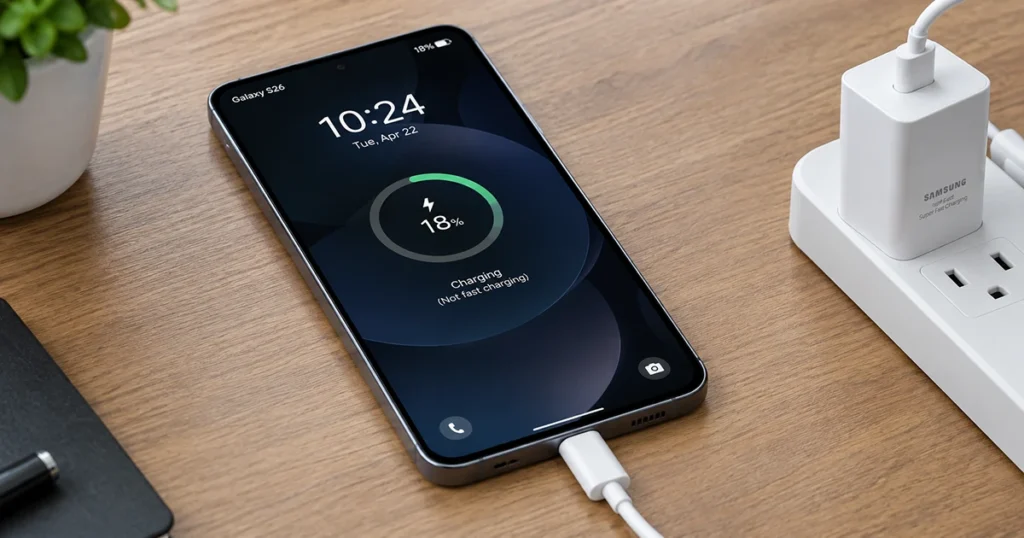
Start by using a compatible USB-C power adapter and cable, enabling Fast charging, and letting your phone cool down. If the battery still charges slowly, follow the troubleshooting steps below to identify the cause.
1. Check Your Galaxy S26 Charger and Cable
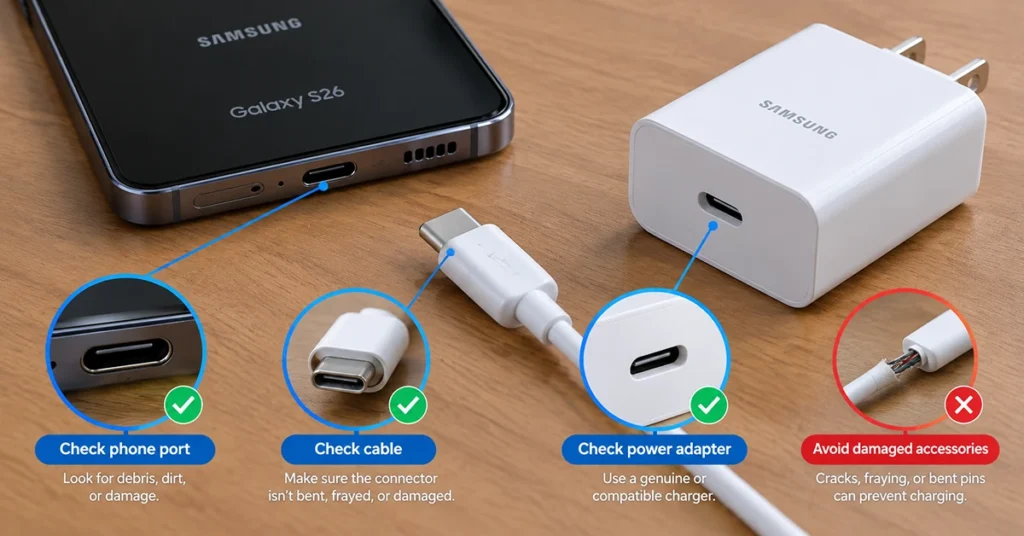
An incompatible power adapter or damaged USB-C cable is one of the first things to investigate when your Samsung S26 is not fast charging.
The standard Galaxy S26 supports wired charging up to 25W, while the Galaxy S26+ supports up to 45W. The Galaxy S26 Ultra supports up to 60W wired charging. Using a higher-wattage adapter does not automatically make every model charge faster; the phone must support the charging standard and power level.
Try these steps:
- Use a reputable, compatible USB-C power adapter that supports your model’s fast-charging requirements.
- Check the cable for fraying, bent connectors, or other damage.
- Connect the charger directly to a wall outlet rather than a computer USB port.
- Test with another compatible adapter and cable if available.
For the standard Galaxy S26, Samsung specifies up to 55% charge in around 30 minutes under its test conditions when using a 25W adapter and a 3A USB-C cable. Actual results vary with battery level, temperature, and phone usage.
2. Turn On Fast Charging in Settings
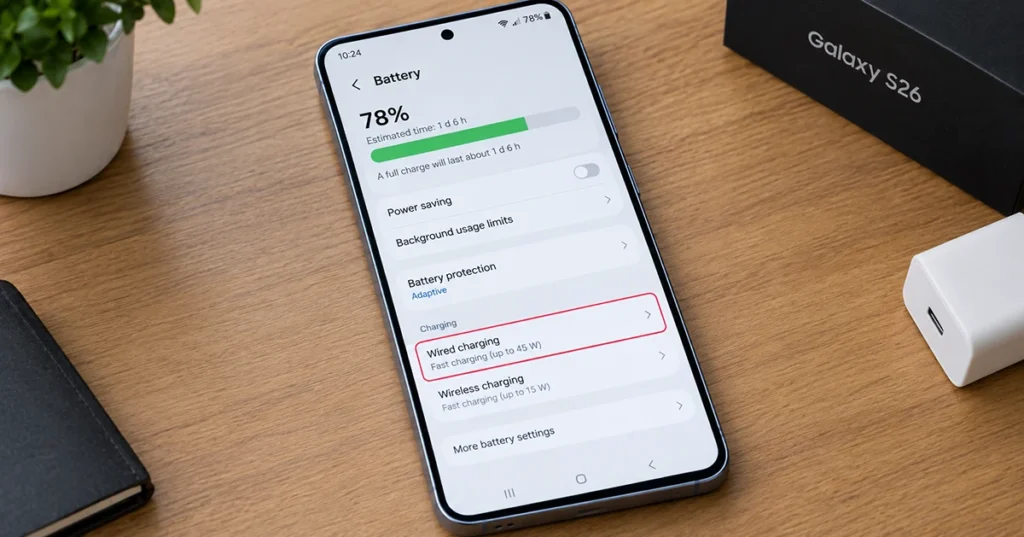
If your Galaxy S26 fast charging is not working, check whether the feature is enabled.
- Open Settings on your phone.
- Tap Battery.
- Find Charging settings, if shown.
- Enable Fast charging.
On newer Galaxy devices, wired Fast charging and Super Fast Charging may be controlled by a single toggle. Menu names can vary by software version.
If you use a wireless charger, check the corresponding fast wireless charging option where available. Enabling the setting alone will not increase charging speed if your adapter, cable, or wireless charging pad is incompatible.
3. Check Battery Protection Settings
Battery protection features can limit the maximum charge level or control when charging pauses. This behavior may be mistaken for a fast-charging problem.
Open Settings > Battery > Battery protection and review the selected mode.
If your phone stops charging at a particular percentage, check whether the selected protection mode explains the limit. If it charges slowly at lower battery levels, investigate the charger, cable, and temperature as well.
You do not need to disable battery protection permanently. These features are designed to help manage battery health.
4. Let Your Galaxy S26 Cool Down
Your phone may reduce charging speed when its temperature becomes too high. Gaming, video streaming, navigation, direct sunlight, and charging in a warm room can contribute to overheating.
To restore normal charging conditions:
- Disconnect the charger if the phone is unusually hot.
- Stop demanding apps and avoid gaming while charging.
- Remove the phone from direct sunlight.
- Let it cool naturally before charging again.
Avoid placing the phone in a refrigerator or using ice, as rapid temperature changes and condensation can damage electronics.
If the phone repeatedly overheats during ordinary charging, even in a cool environment, contact Samsung support for further assessment.
5. Inspect the USB-C Charging Port
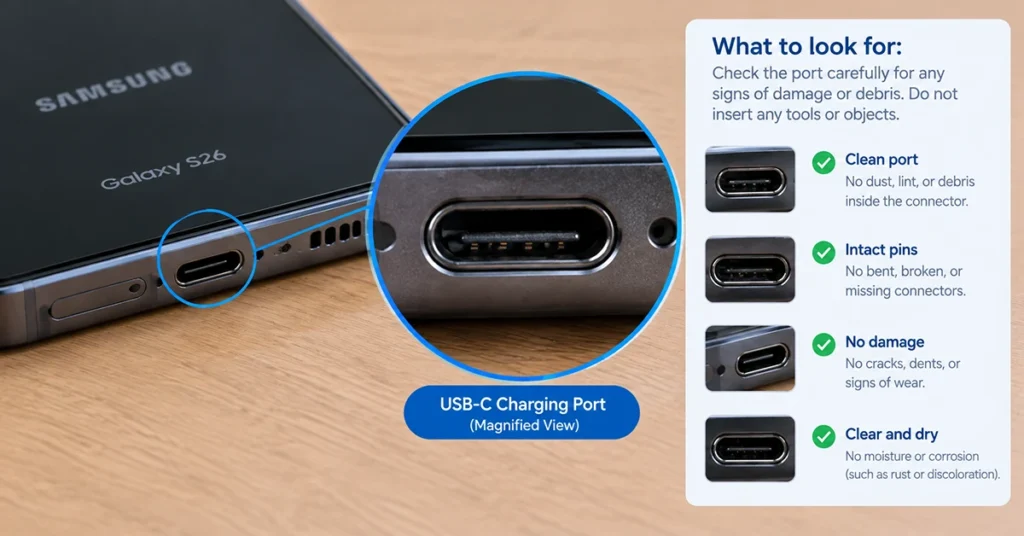
Dust, lint, moisture, or physical damage inside the charging port can interfere with the connection between your Galaxy S26 and its cable.
Disconnect the charger and inspect the port under good lighting. Look for visible debris, corrosion, or signs that the connector is damaged.
If the port is wet or your phone displays a moisture warning, disconnect the cable and let the port dry naturally in a well-ventilated area. Do not insert metal objects, pour liquids into the port, or use a hair dryer.
If the cable feels loose, repeatedly disconnects, or only works at a particular angle, the port may need professional inspection.
6. Restart Your Phone
A temporary software problem can interfere with charging detection or the charging indicator.
Restart your Galaxy S26, reconnect the compatible charger, and check whether charging improves.
For a more useful test, leave the screen off and avoid running demanding apps for several minutes. This reduces power consumption and makes it easier to judge whether the phone is charging normally.
If restarting fixes the issue only temporarily, continue with the software and diagnostic checks below.
7. Check Whether the Charging Indicator Is Misleading
Does your Galaxy S26 briefly display “Super Fast Charging” and then switch to a simpler charging message?
That change does not automatically mean fast charging has stopped. The on-screen notification may change while the phone continues charging at an accelerated rate.
Open Settings > Battery and review the available charging information. Compare the battery percentage over a reasonable period while the screen is off.
If the battery percentage increases at a reasonable rate, the issue may be the indicator rather than the charging system. If charging is consistently much slower than expected, test another compatible adapter and cable.
8. Update Your Galaxy S26 Software
If fast charging stopped working after a software update, a software-related issue is possible. However, timing alone does not prove that an update caused the problem.
To check for updates:
- Open Settings.
- Select Software update.
- Tap Download and install, if available.
- Follow the instructions to install any applicable update.
Restart the phone afterward and test charging again. You can also check Samsung’s support information or community discussions for reports involving the same model and software version.
Avoid installing unofficial firmware or changing hidden system settings to fix a charging issue.
9. Run Samsung Members Diagnostics
Samsung Members includes diagnostic tools that can help identify charging-related problems on supported Galaxy devices.
Open the Samsung Members app, navigate to Support, and look for Phone diagnostics. Run the available cable-charging or battery-related tests.
The exact tests and menu names may vary by device and app version.
If diagnostics report a problem, save the result for your support appointment. A successful test does not rule out every intermittent cable, port, or hardware fault.
10. Contact Samsung Support if Nothing Works
If your Galaxy S26 still charges slowly after you have tested a compatible charger, enabled Fast charging, cooled the phone, inspected the port, and updated the software, professional inspection may be necessary.
Contact Samsung support or an authorized service center if:
- Multiple compatible chargers and cables produce the same problem.
- The charging connection repeatedly cuts out.
- The USB-C port appears damaged.
- The phone overheats unusually during charging.
- Charging stops unexpectedly or fails altogether.
Stop using the charger if you notice burning smells, visible damage, or unusual electrical behavior. Do not attempt to repair the battery or charging port yourself.
Frequently Asked Questions
The adapter may not support the correct charging standard, the cable may limit power delivery, or the phone may be warm. Charging speed can also decrease as the battery approaches full. Test with a compatible adapter and cable while the screen is off.
The standard Galaxy S26 supports up to 25W wired charging. The Galaxy S26+ supports up to 45W, and the Galaxy S26 Ultra supports up to 60W. Check your exact model before buying a charger.
The charging message may change without indicating that fast charging has stopped. Check the charging information in Settings > Battery and monitor whether the battery percentage increases normally.
Software-related issues are possible, but charging accessories, temperature, and port conditions should also be checked. Install available official updates and contact Samsung if the problem persists.
Final Thoughts
When fast charging is not working on your Galaxy S26, begin with the simplest checks: verify your charger and cable, enable Fast charging, and let the phone cool down. Next, inspect the USB-C port, restart the device, and run Samsung Members diagnostics.
If none of these solutions restores normal charging, Samsung support can help determine whether the problem involves the charging port, battery, or another hardware component.

2 thoughts on “How to Fix Fast Charging Not Working on Samsung Galaxy S26”