Unwanted calls and messages can disrupt your day on the Samsung Galaxy S26. Blocking a contact is simple using built-in Phone and Contacts apps. This guide provides clear steps to block contact on Galaxy S26, manage your block list, and use advanced features like Smart Call—all tailored for Galaxy S26 users seeking practical tricks.

Why Block Contacts on Galaxy S26?
The Galaxy S26 runs One UI 8 with powerful call management tools. Blocking stops calls, SMS, and notifications from specific numbers without deleting them. It helps avoid spam, ex-contacts, or harassers while keeping your Contacts list intact. Samsung’s official method ensures privacy and works across S26, S26+, and S26 Ultra.
Key benefits include:
- Instant silence for blocked calls (they go to voicemail unheard).
- No notifications for texts from blocked numbers.
- Easy unblock if needed.
- Integration with AI-powered spam detection on S26.
Methods to Block Contact on Your Galaxy S26
Blocking a contact on your new Samsung Galaxy S26 is very similar to previous Galaxy models. You can do it directly from your contacts list, the phone app, or your call history. Here are the three easiest ways to block a contact on your Galaxy S26:
Method 1: Block from Contacts App
Saved contacts are easiest to block directly.
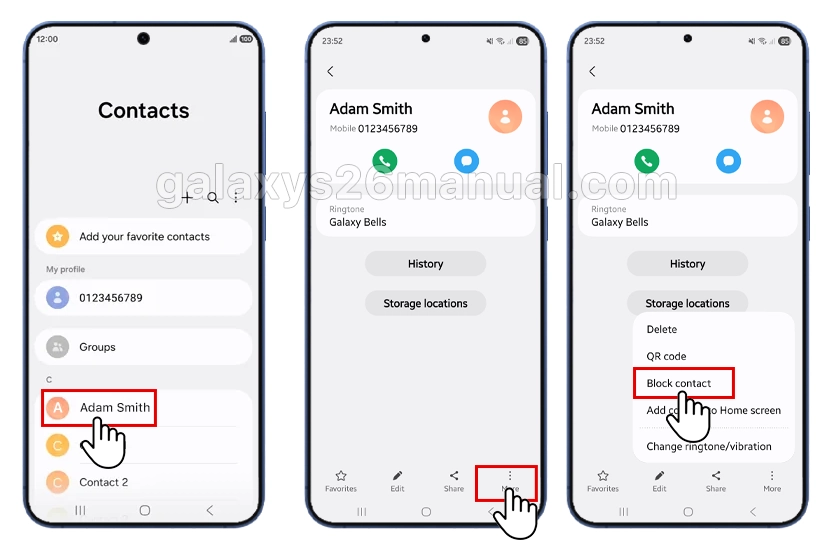
- Open the Contacts app on your Galaxy S26 home screen or app drawer.
- Find and tap the contact you want to block.
- Tap More (three dots) at the top right.
- Select Block contact.
- Confirm by tapping Block.
The contact stays in your list but shows a blocked icon. No calls or texts will come through. To unblock: Repeat steps 1-3, then tap Unblock contact.
Method 2: Block from Phone App
For numbers in your Recents tab:
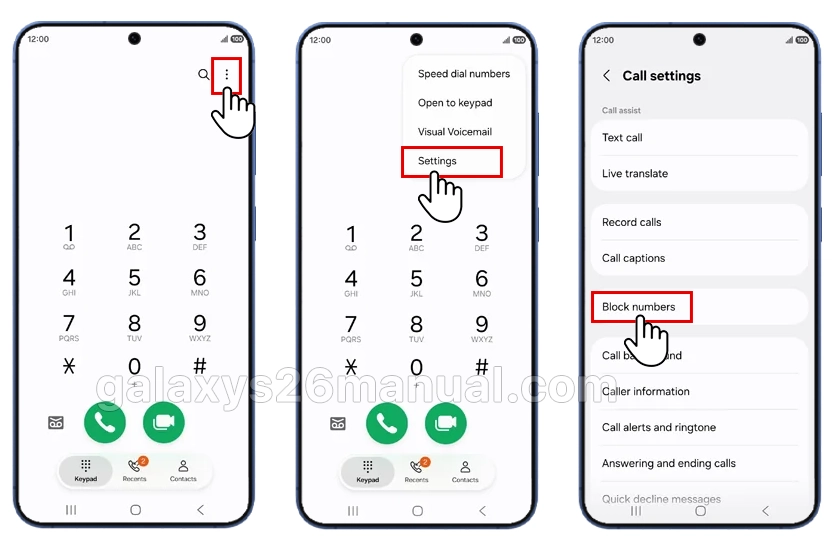
- Open the Phone app.
- Go to Settings.
- Tap Block numbers.
- Choose Add phone number and enter a phone number or, in this case, choose Recents.
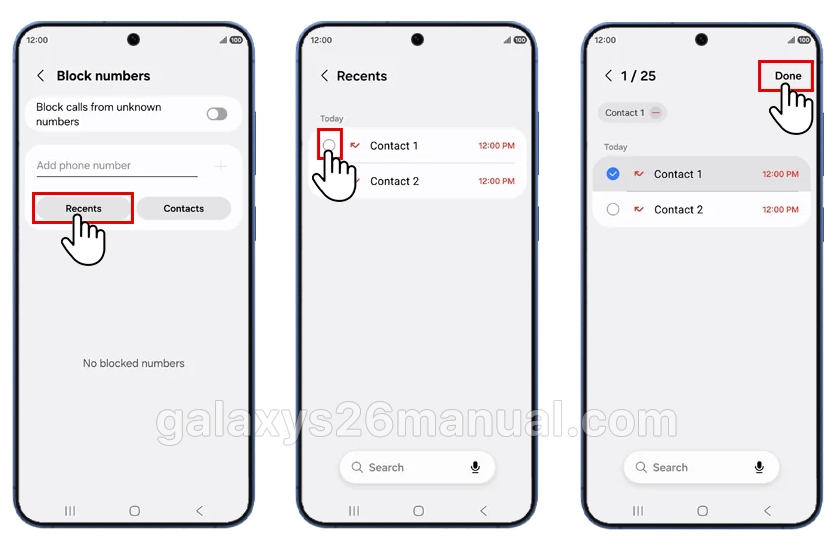
- Check contact.
- Choose Done.
This works for unsaved numbers too. Blocked calls vanish from notifications.
Method 3: Block Unknown Numbers via Settings
Block all unsaved or private callers automatically—a top trick for S26 users.
- Open Phone app.
- Tap More options (three dots) > Settings.
- Tap Block numbers.
- Toggle Block unknown callers or Block private numbers.
- To add manually: Tap Add phone number, enter digits, tap +.
You can import from Recents, Contacts, or Messages. View/manage list anytime here.
Advanced: Block in Messages App
For SMS/MMS spam:
- Open Samsung Messages app.
- Long-press the conversation.
- Tap Block > Block.
- Or go to Settings > Block numbers and spam > Add number.
This syncs with Phone blocks.
A New Way to Manage Unwanted Calls: AI Call Screening
Beyond just blocking, your Galaxy S26 introduces a smarter feature called AI Call Screening (part of One UI 8.5’s Galaxy AI). Instead of immediately blocking unknown numbers, this feature lets you see who’s calling and why without picking up.
A digital assistant asks the caller to state their name and purpose, transcribing it in real-time for you to read. You can then decide to join the call or decline it. This is excellent for filtering out spam without missing important calls from unknown numbers .
To set this up:
- Go to Settings.
- Tap on Galaxy AI.
- Select Call Assist and look for the Call Screening option to configure it.
| Feature | Steps Location | Blocks Calls/Texts | S26 AI Boost |
|---|---|---|---|
| Contacts App | Contact > More | Yes | No |
| Phone Recents | Details > Block | Yes | Yes (Smart Call) |
| Settings Manual | Block numbers > Add | Yes | Yes (Auto Blocker) |
| Messages | Long-press chat | Texts only | Partial |
Troubleshooting Common Issues
- Block not working? Restart Phone app or check Do Not Disturb mode.
- Missed voicemails? Carrier-level block needed (contact provider).
- S26 Ultra variant? Same steps; S Pen works for quick navigation.
- Update One UI via Settings > Software update for latest fixes.
Test by calling from a second phone.
Blocking a contact on Galaxy S26 takes seconds and restores control over your calls. Use Phone app for speed, Contacts for saves, and Settings for bulk tricks. Master these for a spam-free S26 experience while building your Samsung skills.
1 thought on “How to Block Contact on Galaxy S26: Complete Guide”