Spam calls aren’t just annoying anymore — they’re the front line of phone scams, phishing attempts, and robocall harassment. The good news: the Samsung Galaxy S26 ships with one of the strongest anti-spam toolboxes Samsung has ever built, from the upgraded Smart Call feature to Galaxy AI-powered Call Screening that answers suspicious calls for you.
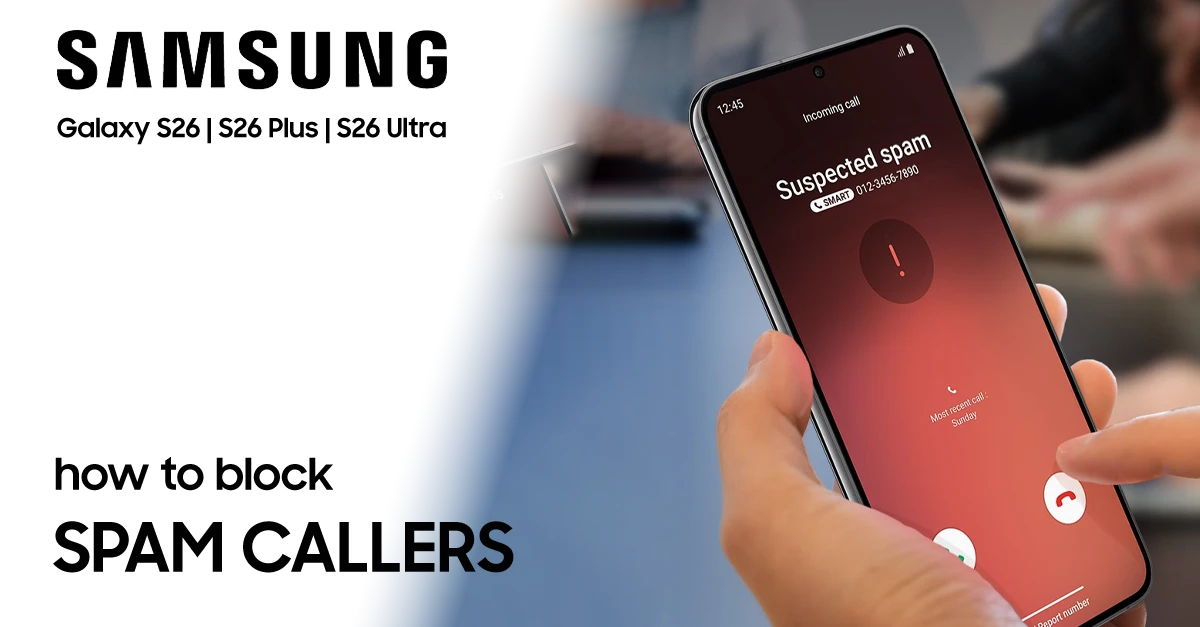
In this guide, we’ll walk you through five ways to block spam callers on your Galaxy S26, starting with the fastest fixes and ending with the nuclear option for anyone drowning in robocalls.
Quick note before you start: Most of these features live in the Phone app. Open it, tap the ⋮ (three dots) in the top-right corner, and select Settings — that’s your control center for everything below.
5 Methods to Block Spam Calls on Samsung Galaxy S26
Spam calls can be annoying, disruptive, and potentially dangerous. This guide explains how to block Spam Calls on Galaxy S26, enable Samsung’s spam protection, block unknown callers, and manage your blocked-number list.
Method 1: Turn On Smart Call (Caller ID and Spam Protection)
Smart Call is Samsung’s built-in spam identification engine and your first line of defense. When enabled, it flags suspected spam and fraud calls before you answer — and can block them entirely.
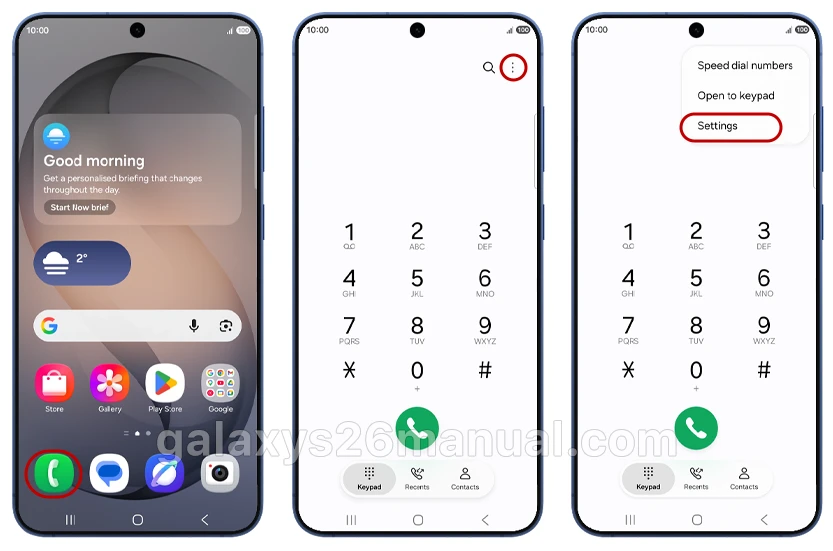
- Open the Phone app and tap ⋮ (three dots) → Settings.
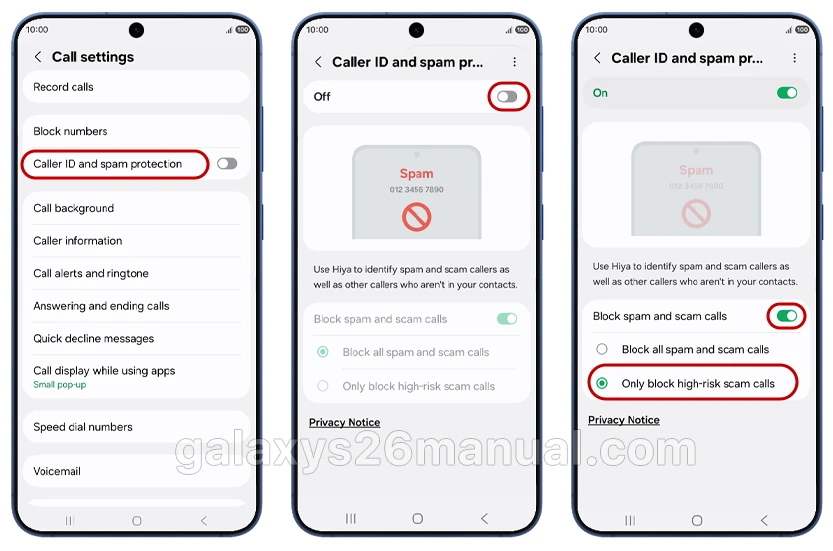
- Tap Caller ID and spam protection and turn on the switch at the top.
- Review the terms of service, then tap Agree.
- Toggle on Block spam and scam calls, then choose your preferred option:
- Block all spam and scam calls — blocks every call identified as spam, regardless of risk level.
- Only block high-risk scam calls — blocks only calls flagged as dangerous or fraudulent; less severe spam still comes through (choose this if you’re worried about missing legitimate calls).
Pro tip: When your phone rings, a Block/Report number button appears at the bottom of the screen. Use it during or after any suspicious call to block the number instantly or report it to help improve spam detection for everyone.
Smart Call may not be available on all carriers or models, and its effectiveness can vary by region.
Method 2: Use Galaxy AI Call Screening (S26 Exclusive)
New to the Galaxy S26 series, Call Screening uses Galaxy AI to actually answer suspicious calls for you, ask who’s calling and why, and show you a real-time transcript — so you can decide whether the call is worth your time without ever picking up.
- Go to Settings → Apps → Samsung Apps → Call settings. (Or open the Phone app, tap ⋮ → Settings.)
- Tap Call Screening and toggle it ON at the top.
- Select your language — if you choose anything other than U.S. English, tap Download to install that language pack.
- Toggle on Auto Screen. You’ll be prompted to also enable Caller ID and spam protection — tap Turn On.
- Choose what gets screened automatically:
- Suspected spam and scams — recommended for most users.
- All unknown callers — the strictest option; every unknown number gets screened before ringing through.
Manual screening: If you leave Auto Screen off, you can screen any call as it arrives by tapping Call Assist → Call screening while the phone is ringing.
Call Screening works great paired with Method 1 — one screens the calls that get through, the other stops the obvious junk at the door.
Method 3: Block a Specific Number Manually
Already know the number harassing you? Block it directly — it takes about ten seconds.
From your recent calls:
- Open the Phone app and tap the Recents tab.
- Tap the number you want to block.
- Tap Menu (the icon below the number), then tap Block.
- Confirm by tapping Block again.
From the block list:
- Open the Phone app → ⋮ → Settings → Block numbers.
- Type the number you want to block and tap Add (+).
- You can also tap the Recents, Messages, or Contacts tabs to pick a number from those lists instead of typing it.
To unblock a number: Go to Phone → ⋮ → Settings → Block numbers, then tap the red minus (–) icon next to the number you want to restore.
Note: Blocking a number stops calls and texts, but if the caller leaves a voicemail, blocking that may require contacting your carrier directly.
Method 4: Block All Unknown Callers
If your phone only rings for people you actually know, this is the setting for you. It blocks every call from a number not saved in your contacts and not identified by Smart Call.
- Open the Phone app → ⋮ → Settings → Block numbers.
- Toggle on Block calls from unknown numbers.
Use this with caution: you’ll also miss calls from delivery drivers, doctors’ offices, recruiters, or anyone calling from a new number until you save them. If you go this route, make sure important contacts (doctor, kids’ school, workplace) are saved in your contacts list first.
Method 5: Enable AI Scam Detection + Do Not Disturb
AI Scam Detection
Available on Galaxy phones running Android 16 with One UI 8.5 or higher (including the S26), this feature uses on-device AI to analyze calls in real time and alerts you with a tone or vibration if it detects scam patterns during a conversation — even calls you chose to answer. Enable it from the Phone app settings under Scam detection.
Do Not Disturb with call exceptions
For nights, meetings, or focus time, Do Not Disturb can silence everything except the calls you actually want:
- Go to Settings → Notifications → Do Not Disturb and turn it on.
- Tap Calls and messages under “Allowed during Do not disturb.”
- Under Calls, choose Contacts only or Favorite contacts only.
- Turn on Repeat callers — if the same number calls twice within 15 minutes, it gets through (handy for genuine emergencies from unsaved numbers).
You can also Add schedule to activate Do Not Disturb automatically during set hours.
Troubleshooting: What If Spam Blocking Isn’t Working?
- Check for software updates: Go to Settings → Software update → Download and install (on some carriers: System updates → Check for system updates).
- Clear the Phone app’s data: Settings → Apps → Phone → Storage → Clear data → Delete, then re-enable your blocking settings.
- Verify carrier support: Some features are disabled or modified on certain carriers. If Smart Call is missing entirely, your carrier’s own spam-blocking app (e.g., AT&T ActiveArmor, T-Mobile Scam Shield, Verizon Call Filter) is a solid backup.
- Feature missing on your S26? Call Screening and AI Scam Detection require One UI 8.5 / Android 16 — make sure your device is fully updated.
Frequently Asked Questions
How do I block spam calls automatically on the Galaxy S26? Open the Phone app → ⋮ → Settings → Caller ID and spam protection, enable it, then toggle on “Block spam and scam calls” and choose “Block all spam and scam calls.” For fully automated screening, also enable Call Screening with Auto Screen.
What’s the difference between Smart Call and Call Screening? Smart Call identifies and blocks known spam numbers using Samsung’s database. Call Screening (new on S26) uses Galaxy AI to answer suspicious calls, ask the caller questions, and show you a transcript before you decide to pick up.
Will blocked callers know I blocked them? No — blocked calls typically ring once or go straight to voicemail, and the caller isn’t notified.
Can I block calls but keep the voicemails? Yes, by default. Blocking prevents the call from ringing through, but the caller can often still leave a voicemail. To block voicemails from specific numbers, contact your carrier.
Does blocking unknown numbers block texts too? “Block calls from unknown numbers” affects calls only. To block unknown texts, use Block numbers and spam in the Samsung Messages app settings.
The Bottom Line
The Galaxy S26 gives you a layered defense: Smart Call for automatic identification and blocking, Call Screening to let Galaxy AI handle suspicious calls, manual blocking for repeat offenders, unknown-number blocking for maximum peace and quiet, and Do Not Disturb for total control over when your phone rings.
Our recommendation? Turn on Smart Call and Call Screening today, block persistent offenders as they appear, and schedule Do Not Disturb for your nights. Your sanity — and your voicemail inbox — will thank you.
1 thought on “How to Block Spam Calls on Samsung Galaxy S26: 5 Methods That Actually Work”