New to your Samsung Galaxy S26 and can’t figure out how to turn it off? You’re not alone, many owners search for quick ways to power down, restart, or handle glitches. This guide covers all methods, from button combos to voice commands, optimized for Galaxy S26 running One UI 8.5. Save battery, fix freezes, or just shut down safely with these friendly steps.
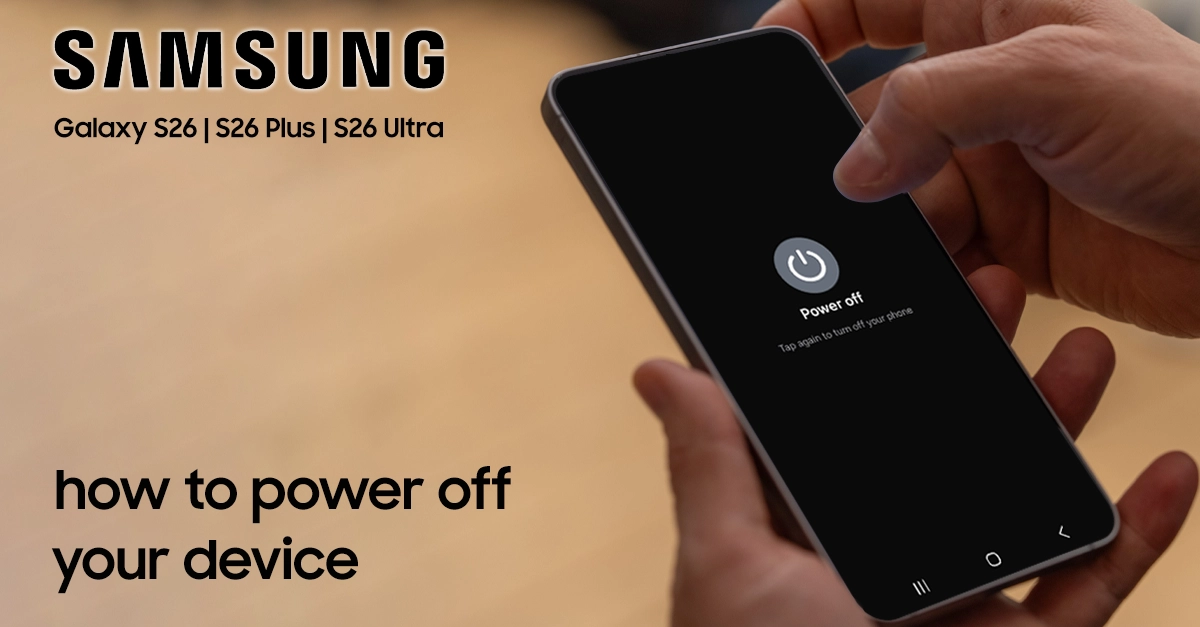
Standard Way to Turn Off Galaxy S26
Press and hold the Side (Power) button and Volume Down button together for a few seconds. Your Galaxy S26 screen flashes, vibrates, and shows the power menu—tap “Power off.”

The side button sits on the right edge above the volume rocker. This works on all Galaxy S26 models, including Ultra variants, even after software updates.
If the power menu pops up too fast from accidental presses, Samsung added safeguards in One UI—no worries about pocket dials.
Using Quick Settings to Power Off Your Galaxy S26
Swipe down twice from the top screen for full Quick Settings, then tap the Power icon (looks like a circle with a line). Select “Power off.”
This hands-free method shines if your buttons feel sticky or unresponsive. Customize the panel in Settings > Notifications > Quick panel for faster access.
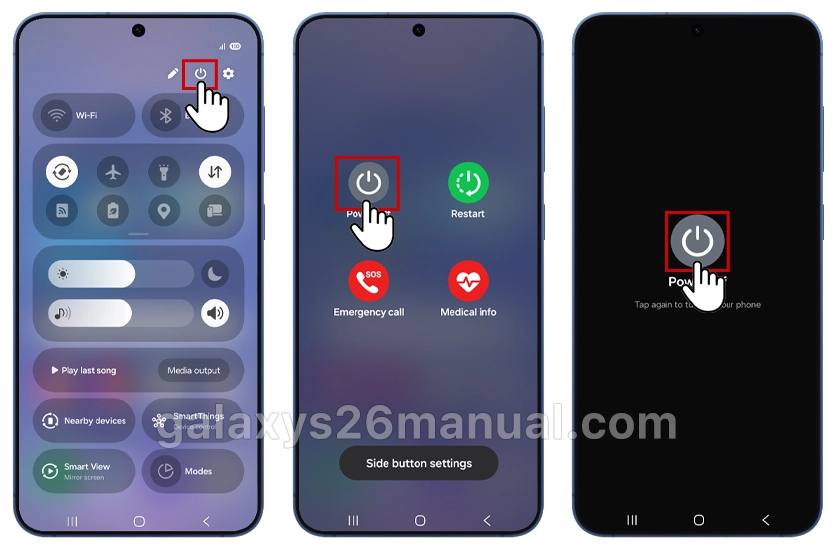
Pro tip: Drag the Power icon to your main Quick Settings row for one-swipe shutdowns on Galaxy S26.
Shutdown your S26 Without Power Button
Lost your button functionality? Use Bixby or Google Assistant: Say, “Hey Bixby, turn off my phone” or “Hey Google, power off.”

Enable Bixby via Settings > Apps > Choose default apps > Digital assistant app. For Google, it’s pre-set on the Samsung S26.
Another option: Go to Settings > Advanced features > Side button > and remap or disable for side button, then rely on Settings > General management > Reset, but that’s for emergencies.
Force Restart Galaxy S26 (When Stuck)
If your Galaxy S26 freezes and won’t turn off, force restart: Press and hold Side + Volume Down for 10-20 seconds until it vibrates and reboots.
This doesn’t erase data—it’s like a hard reset for glitches post-update. For Ultra with S Pen, avoid Air Command interference during the hold.
Battery fully drained? Plug it in and wait 30 minutes; it auto-powers on.
Advanced Tips for Galaxy S26 Owners
Schedule auto-power off in Settings > Battery, but manual is king for quick tips. Developers can remap via the Good Lock app from the Galaxy Store for custom gestures.
Common issues: After the One UI 8.5 update, some report a delayed power menu—clear the cache partition via recovery mode (power off first, then hold Volume Up + Side).
| Method | Steps | Best For | Time |
|---|---|---|---|
| Button Combo | Side + Vol Down > Power off | Everyday use | 2 sec |
| Quick Settings | Swipe down x2 > Power icon | Button issues | 3 sec |
| Voice | “Hey Bixby, power off” | Hands-free | Instant |
| Force Restart | Side + Vol Down (20s) | Frozen screen | 20 sec |
Troubleshooting Common Turn-Off Problems
Button not responding? Check Settings > Advanced Features > Side button accessibility—toggle if needed. Stuck in a loop? Safe mode: Hold Vol Down during reboot.
For seniors or beginners, enable Easy mode in Settings for bigger icons, including power options.
If nothing works, do a factory reset via Settings > General management—but back up first via Samsung Cloud.
Why Turning Off Matters on Galaxy S26
Regular shutdowns clear RAM, save battery (up to 10% overnight), and fix minor bugs without apps. With Galaxy S26’s Snapdragon 8 Gen 4, quick restarts boost AI features like Circle to Search. Owners report smoother performance post-daily power cycles.
In summary, turning off your Galaxy S26 is simple with buttons, swipes, or voice—pick your favorite from these quick tips. Master this, and you’re set for all S26 basics. Build your Galaxy know-how one step at a time!
1 thought on “How to Turn Off Galaxy S26: Quick and Easy Step-by-Step Guide”