Taking screenshots on the Samsung Galaxy S26 is simple and convenient. Whether you want to capture a funny message, save important info, or share your screen, the S26 offers several easy-to-use methods. This guide covers all the practical ways to take a screenshot on your Samsung S26 with clear steps and handy tips.

Several methods to take screenshot on Samsung S26
There are several methods to take a screenshot on the Samsung Galaxy S26. You can practice them as needed
Quickest way: button combination
The fastest way to snap a screenshot on the Samsung S26 is by pressing the Side (Power) button and the Volume Down button simultaneously.
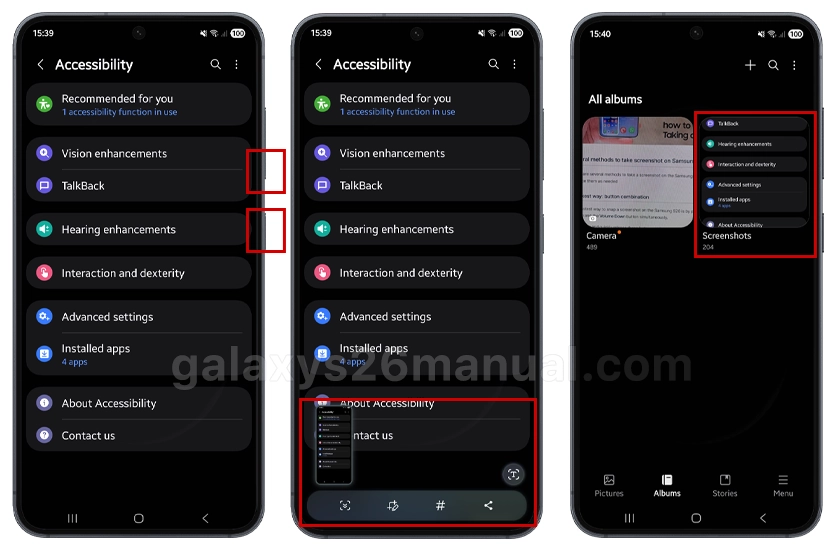
Just press and quickly release these buttons at the same time; don’t hold them down, or you might open the power menu instead.
When done correctly, your screen will flash, and you’ll hear a shutter sound confirming the capture. The image will be saved directly to your phone’s gallery for easy access.
Palm Swipe Gesture: a hands-free option
Prefer a hands-free method or want to capture a screenshot with one hand? The Samsung S26 supports a palm swipe gesture.
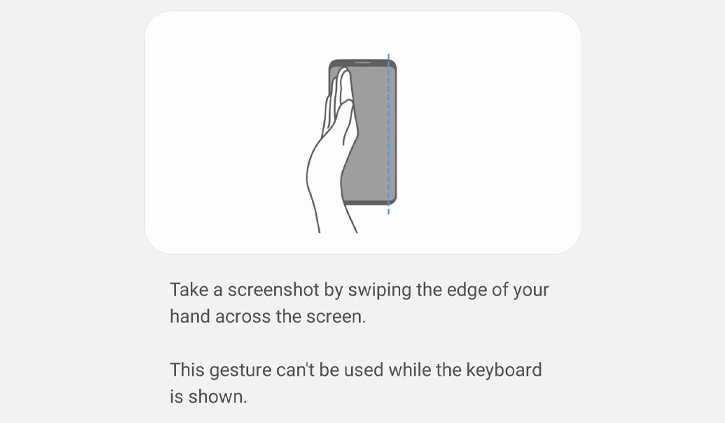
Simply swipe the edge of your hand across the screen from left to right or right to left. This gesture will instantly capture whatever is on your screen.
Make sure the palm swipe feature is enabled in your settings under “Advanced Features” > “Motions and Gestures.” Some practice might be needed to perfect the motion.
Use the S-Pen for Ultra models
If you own the Samsung Galaxy S26 Ultra model with the S-Pen, taking screenshots is even more flexible. Hover the S-Pen over the screen and open the Air Command menu, then select “Screen Write.”
This not only takes the screenshot but also lets you draw or write notes directly on the image before saving or sharing it. This feature is perfect for quick edits or annotations.
Screenshot from Edge Panel
The Samsung S26 includes an Edge Panel with a screenshot feature for quick access.
Swipe to open the Edge Panel and navigate to the “Tasks” panel.

Tap “Take screenshot” when you’re ready to capture the current screen.
This method is convenient for users who frequently access the Edge Panels for multitasking.
Scrolling screenshots: capture more than just one screen
Sometimes a single screenshot isn’t enough, especially for long web pages or chat threads.
After taking a usual screenshot by any method, a toolbar will appear at the bottom of the screen with an option called “Scroll Capture.”
Tap it to keep capturing vertically, and the phone will stitch the screenshots into one long image. Keep tapping until you’ve captured all the content you like.
Tips to keep in mind
- Screenshots are saved in the Gallery app under the Screenshots folder.
- You can immediately edit, crop, or share your screenshot from the preview toolbar.
- Ensure your screen isn’t locked or in a protected app that restricts screenshots.
- Try different methods to find what feels easiest and fastest for you.
Conclusion
Capturing screenshots on your Samsung Galaxy S26 is straightforward with multiple methods designed for convenience and versatility. Whether you prefer quick button combos, gestures, or the precision of the S Pen, the S26 covers all your screenshot needs. Use these tips to save and share your screen effortlessly, making your smartphone experience even better.