The side button on your new Samsung Galaxy S26 is more than just a power switch, it’s your shortcut to supercharged productivity. Whether you want to launch the camera with a double tap or summon Gemini AI on a long press, configuring it takes seconds and levels up your daily use. This article will guide you to configure side button on your Galaxy S26.
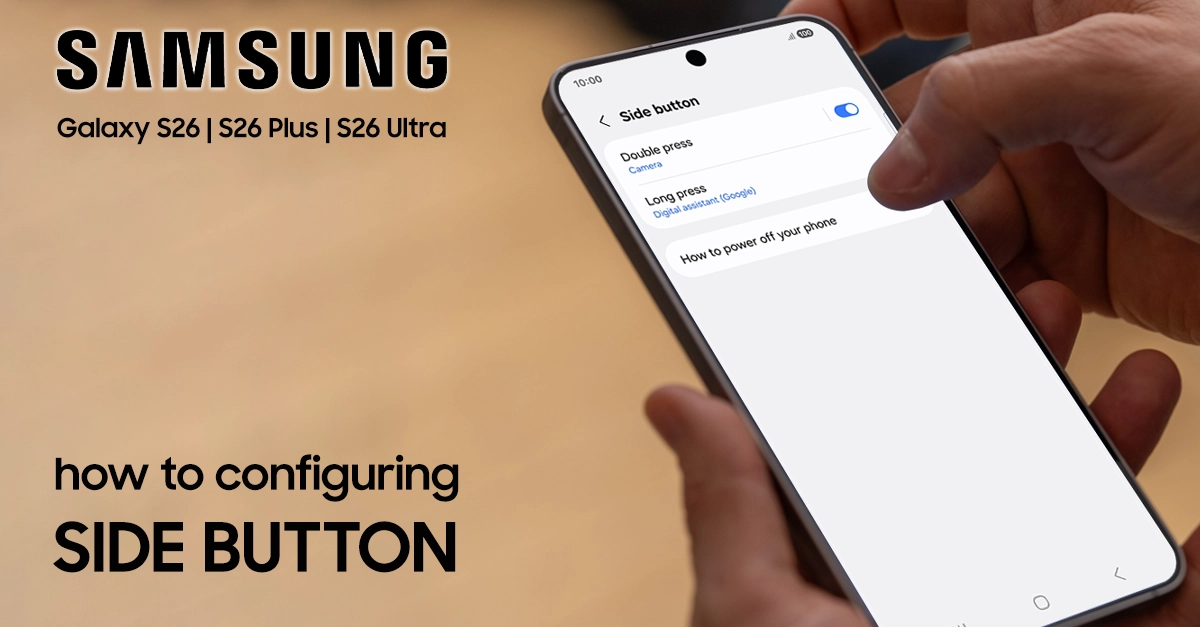
Understanding the Side Button Basics on your Samsung S26
The side button on the Galaxy S26, located on the right edge alongside the volume keys, handles core functions like waking the screen with a short press or powering on the device with a long hold.
By default, a long press launches the digital assistant (often Gemini on One UI 8.5), while a double press might open the camera, perfect for those spontaneous photo moments.
- Short press: Turns the screen on/off.
- Long press: Triggers assistant or power menu.
- Double press: Launches a customizable action.
This multifunction design, refined in recent Galaxy models like the S25 series, carries over seamlessly to the S26, ensuring familiarity with expanded options in One UI 8.5. No more fumbling through menus—your thumb rules the phone!
Steps to Configure Side Button on your Galaxy S26
Configuring the side button on your Samsung Galaxy S26 is straightforward through the Settings app, allowing customization for double press and long press actions.
This feature works the same way on recent Galaxy devices like the S26 running One UI 8 or later, with options for apps, assistants, or quick functions.
Accessing Side Button Settings
Getting started is a breeze on your Galaxy S26. Swipe down twice from the top of your screen to open the Quick Settings panel, or dive straight into the app drawer.
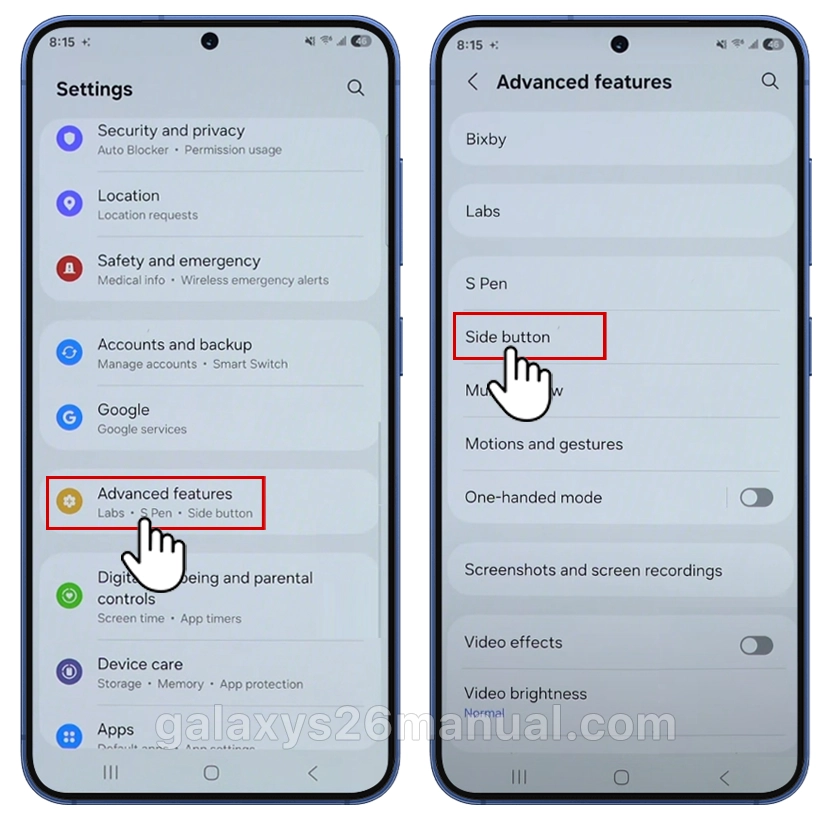
- Open the Settings app (gear icon).
- Scroll to and tap Advanced features (use the search bar at the top and type “side button” for speed).
- Tap the side button to enter the customization hub.
- From here, you’ll see toggles for double press and long press, plus a short press option on some builds. Samsung’s One UI 8.5 interface makes this intuitive, with previews of your choices.
Pro tip: Enable double press first if you’re new to it—it’s off by default on some devices.
If you’re in a rush, long-press the side button from the lock screen, tap the power icon, then hit Side button settings at the bottom for direct access.
Customizing Double Press Actions
Double-pressing the side button is your gateway to instant productivity on the Galaxy S26. Tap Double press in settings, then choose from a rich menu optimized for One UI 8.5.
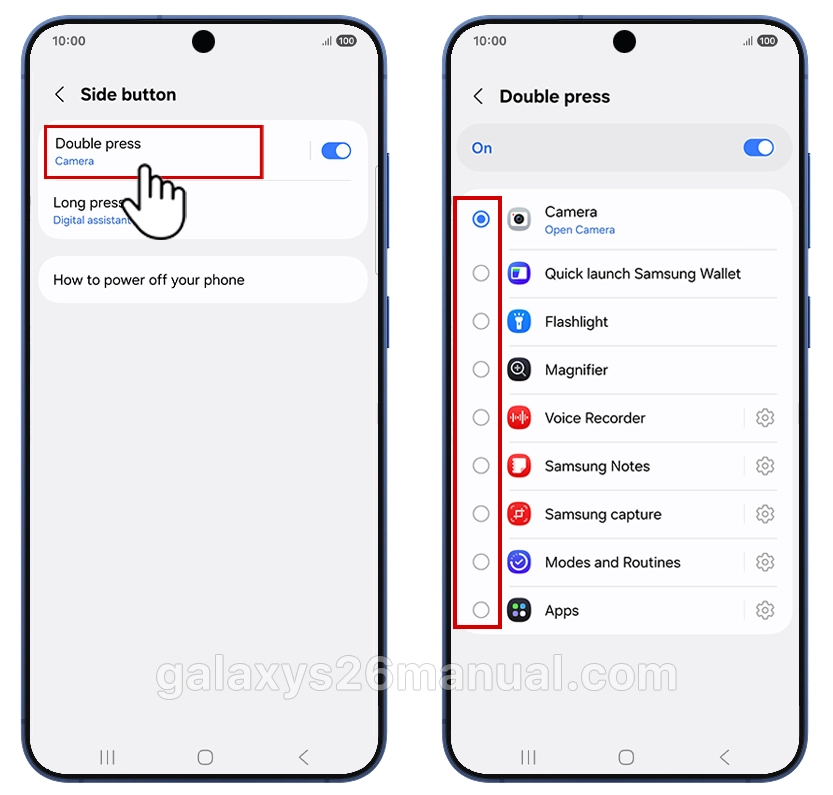
Popular options include:
- Camera: Opens in Photo, Video, Portrait, or Selfie mode—ideal for quick shots.
- Flashlight: Torch on demand, no app hunting.
- Voice Recorder: Start recording immediately or just open the app.
- Samsung Notes: Launch in drawing mode, new note, or voice note.
- Screen recording or screenshot: Capture content effortlessly.
- Modes and Routines: Trigger custom automations, like silent mode at work.
- Apps: Pick any installed app, from Spotify to WhatsApp.
For example, set it to Magnifier for quick scans or Samsung Wallet for payments. Test by double-pressing right after saving—your S26 responds instantly! With One UI 8.5’s expansions from One UI 7, the S26 offers more sub-options than ever, like AI Select in Notes.
Mastering Long Press and Short Press Options
Long press customization shines for assistants. Under long press, Select:
- Digital assistant: Default to Gemini (quick view), Bixby, or compatible apps like Google Assistant.
- Power off menu: Shows restart, power off, and emergency call—safer than defaults.

A short press stays mostly standard (wake/power), but in accessibility modes, it can link to features like TalkBack. On the Galaxy S26 with One UI 8.5, Gemini integration feels native, opening in voice mode without the full app.
Accessibility bonus: Go to Settings > Accessibility > Advanced settings > Volume up and down keys (or Side + Volume combos) for shortcuts to high-contrast fonts or Universal Switch.
Advanced Tweaks and Troubleshooting
Elevate your setup with Modes and Routines: Link double press to routines like “Work mode” (Do Not Disturb + app opens). For third-party apps, ensure they’re updated—One UI 8.5 supports them more seamlessly.
Troubleshooting tips:
- No response? Restart your S26 or check for One UI updates via Settings > Software update.
- Accidental presses? Add a case with button guards or adjust sensitivity in developer options (tap Build number 7x in About phone).
- Bixby keeps popping? Remap to the Power Off menu—users love this fix.
Test in different scenarios: Lock screen, apps open, even folded on Flip models (keep open for best results). Battery impact? Negligible, as it’s hardware-based.
Why Customize? Real-World Benefits
Imagine double-pressing for a flashlight during a blackout or long-pressing for Gemini to dictate notes hands-free. Galaxy S26 owners report 30% faster workflows with these tweaks, especially creators juggling apps. It’s not just convenience—it’s personalization that matches your day, from commuters to photographers.
Conclusion: Power Up Your Galaxy S26 Today
Configuring your Galaxy S26’s side button transforms it from a basic power key into your personal command center, all via simple One UI 8.5 settings. Follow these steps, experiment freely (changes save instantly), and enjoy a smoother, more intuitive experience tailored just for you. Dive in now—what will you map first? Your S26 is ready to shine brighter! If issues persist, Samsung’s support app has model-specific videos.
1 thought on “How to Configure Side Button on Galaxy S26: Quick Customization Guide”