Losing your smartphone creates instant panic. As a new Galaxy S26 owner, you need a reliable way to locate, lock, or erase your device remotely. Google Find Hub (formerly Find My Device) offers this protection for free. This guide shows you exactly how to turn on and use Google Find Hub on Galaxy S26. Follow these steps to secure your phone within minutes.
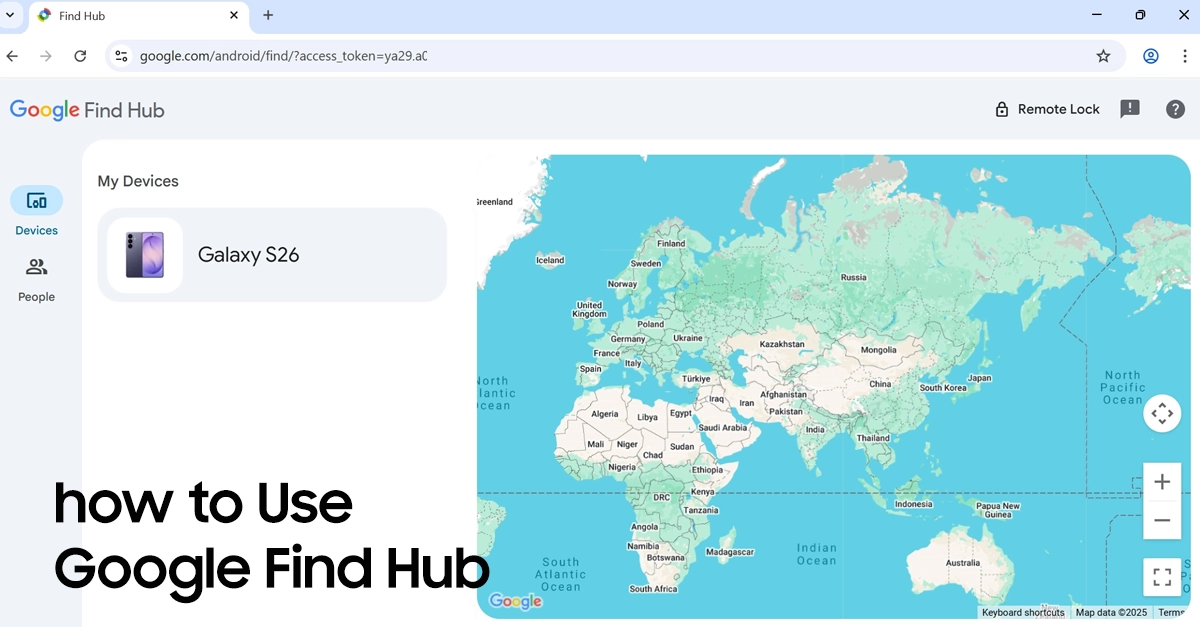
What Is Google Find Hub?
Google Find Hub is a built-in Android security feature. It helps you:
- Locate your Galaxy S26 on a map.
- Play a sound to find a nearby device.
- Lock your screen remotely.
- Erase data if your phone is stolen.
The service works on any Android device running Android 6.0 or higher. Your Galaxy S26 comes with this feature pre-installed.
Prerequisites Before Setup
Before you turn on Google Find Hub on Galaxy S26, check these requirements:
| Requirement | Why It Matters |
|---|---|
| Google Account | Links your device to Find Hub |
| Location Services | Enables GPS tracking |
| Internet Connection | Required for real-time updates |
| Battery Power | Device must be on to track |
Ensure your phone meets these conditions before proceeding.
Step 1: Enable Location Services
Your Galaxy S26 must share its location for Find Hub to work.

- Open Settings from your home screen.
- Tap Location.
- Toggle the switch to On.
- Select Location accuracy and turn on Improve Location Accuracy.
High accuracy uses GPS, Wi-Fi, and mobile networks for precise tracking.
Step 2: Turn On Google Find Hub on Galaxy S26
Now activate the Find Hub service itself.
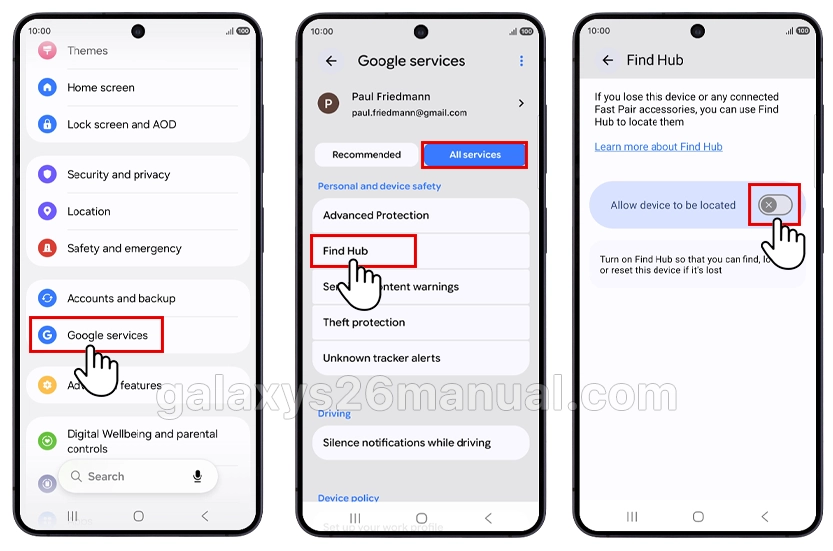
- Open Settings.
- Scroll down and tap Google services.
- Select All services and tap Find Hub.
- Press the indicator next to “Allow device to be located” to turn on the function.
Your phone now appears in your Google Find Hub dashboard.
Step 3: Verify Your Google Account
Check that you use the correct Google account.
- Go to Settings > Google.
- Review the account name at the top.
- Tap to switch accounts if needed.
Use the same account on all devices you want to track.
Step 4: Test Google Find Hub
Confirm everything works before you need it.
- Visit android.com/find on a computer.
- Sign in with your Google account.
- Select your Galaxy S26 from the device list.
- View your phone’s location on the map.
You should see your device’s current position within seconds.
How to Use Google Find Hub Features
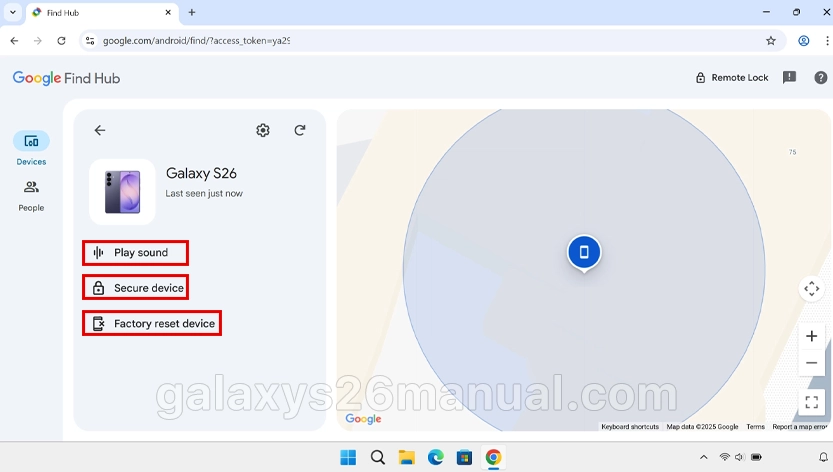
Once you turn on Google Find Hub on Galaxy S26, learn these four core functions:
Play Sound
Use this when your phone hides in your home or office.
- Open android.com/find or the Find Hub app.
- Select your Galaxy S26.
- Click Play sound.
- Your phone rings at full volume for 5 minutes, even if set to silent.
Secure Device
Lock your phone remotely if you misplace it in public.
- Access Find Hub from any browser.
- Click Secure device.
- Create a temporary password.
- Add a recovery message with your contact number.
- Click Secure.
Your Galaxy S26 locks immediately. The message displays on the lock screen.
Erase Device
Use this nuclear option only if recovery seems impossible.
- Open Find Hub dashboard.
- Select Factory reset device.
- Confirm your choice.
- Click Erase.
Warning: This permanently deletes all data. You cannot track the phone after erasing.
Tips for New Galaxy S26 Owners
Maximize your Find Hub protection with these best practices:
- Keep Location Services Active: Turning off location disables tracking. Leave it on for security.
- Maintain Battery Life: A dead phone cannot broadcast its location. Enable battery optimization but avoid extreme power saving modes when away from home.
- Update Your Google Account Password: Strong passwords prevent unauthorized access to your Find Hub dashboard.
- Enable Two-Factor Authentication: Add this extra layer to your Google account. It stops thieves from erasing your device remotely.
- Test Monthly Verify: Find Hub works before emergencies happen. Check your dashboard once per month.
Troubleshooting Common Issues
| Problem | Solution |
|---|---|
| Device not showing in Find Hub | Confirm same Google account on phone and browser |
| Location shows “unavailable” | Enable location services and internet connection |
| Cannot play sound | Ensure phone has battery and network access |
| Erase option grayed out | Device must be online to receive erase command |
Conclusion
Knowing how to turn on and use Google Find Hub on Galaxy S26 protects your investment and personal data. The setup takes under five minutes but provides lifelong security benefits.
Follow the steps in this guide today. Test your setup. Rest easy knowing you can locate, lock, or erase your Galaxy S26 from anywhere in the world. Your new smartphone deserves this level of protection. Activate Google Find Hub now before you need it.