If you want to keep personal photos, documents, applications, and other sensitive information private, learning the Galaxy S26 Secure Folder setup process is a useful way to improve your phone’s privacy. Samsung Secure Folder creates a separate protected space on your Galaxy S26, Galaxy S26+, or Galaxy S26 Ultra. It uses Samsung Knox security technology and supports an additional PIN, password, pattern, or fingerprint lock.
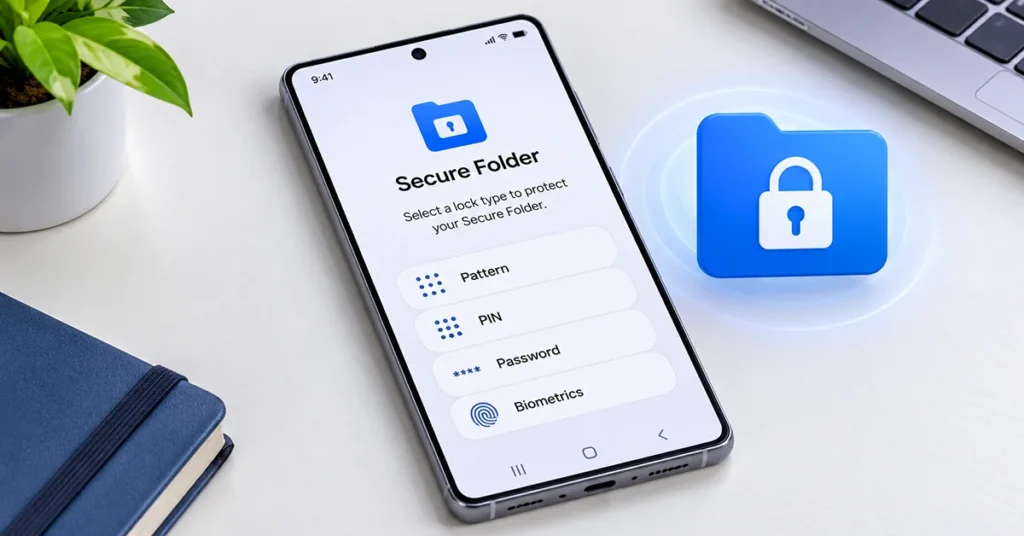
Setting it up takes only a few minutes. Once configured, you can add applications, move private photos, store documents, and control when your Secure Folder is accessible.
What Is Samsung Secure Folder?
Samsung Secure Folder is a protected storage area that separates selected applications and personal information from the regular phone environment.
It is designed for users who want additional privacy without installing a separate third-party application. Secure Folder uses Samsung Knox security technology to protect its contents and provides an independent authentication method.
Here are some things you can keep inside Secure Folder:
- Photos and videos: Store personal pictures separately from your regular Gallery.
- Documents: Keep private PDFs and other files in a protected location.
- Applications: Add supported applications and use separate accounts.
- Personal information: Keep selected app data and content inside the protected environment.
Secure Folder is particularly useful when sharing your phone with someone, keeping personal documents organized, or separating private applications from everyday apps.
How to Set Up Secure Folder on Galaxy S26
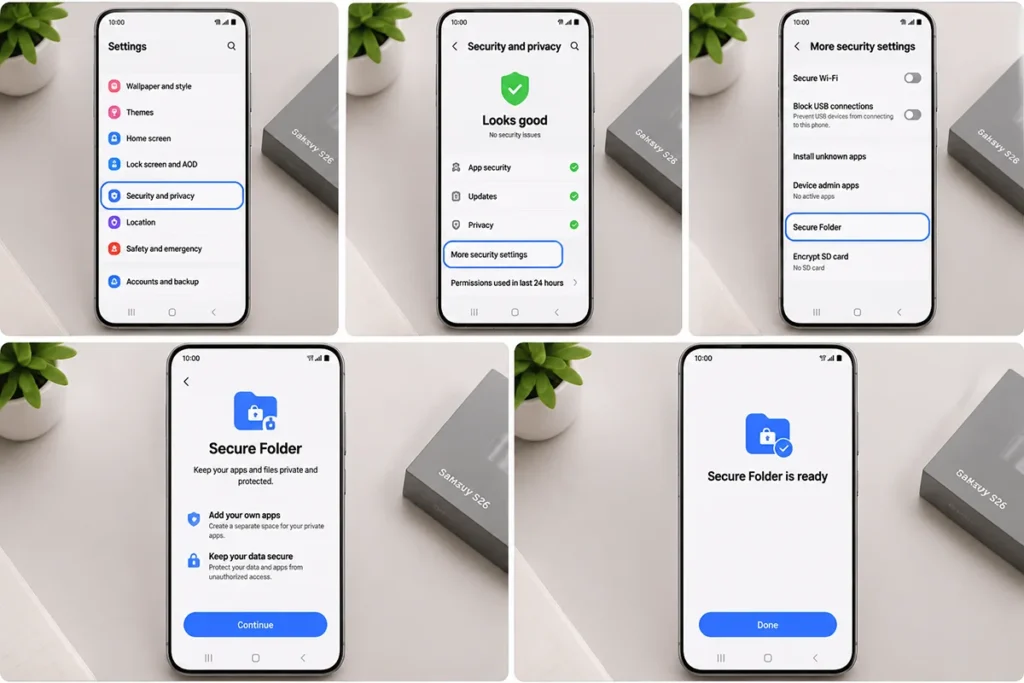
You need a Samsung account to configure Secure Folder. Make sure your Galaxy S26 has an internet connection and that you can access your Samsung account credentials.
Follow these steps:
- Open the Settings application on your Galaxy S26.
- Tap Security and privacy.
- Select More security settings.
- Tap Secure Folder.
- Sign in to your Samsung account if prompted.
- Review the information and permissions displayed on the screen.
- Tap Continue and follow the setup instructions.
- Choose a preferred security method.
- Create and confirm your PIN, password, or pattern.
- Select Done to complete the setup.
After setup, Secure Folder should appear in your Apps screen.
The exact appearance of the menus may vary depending on your Galaxy S26 software version, carrier, and region.
Choose a Secure Folder Lock Method
Selecting an appropriate lock method is important because Secure Folder has its own authentication settings.
| Lock method | How it works | Recommended use |
|---|---|---|
| PIN | Unlocks using a numeric code | Simple everyday access |
| Password | Uses a combination of characters | Additional password protection |
| Pattern | Uses a connected pattern | Convenient unlocking |
| Fingerprint | Uses registered fingerprint authentication | Convenient biometric access |
You can also enable the Samsung account recovery option during setup if it is available. This can help you reset your Secure Folder lock if you forget your credentials.
For better privacy, avoid using the same easily guessed PIN that you use to unlock your regular phone.
How to Add Apps to Galaxy S26 Secure Folder
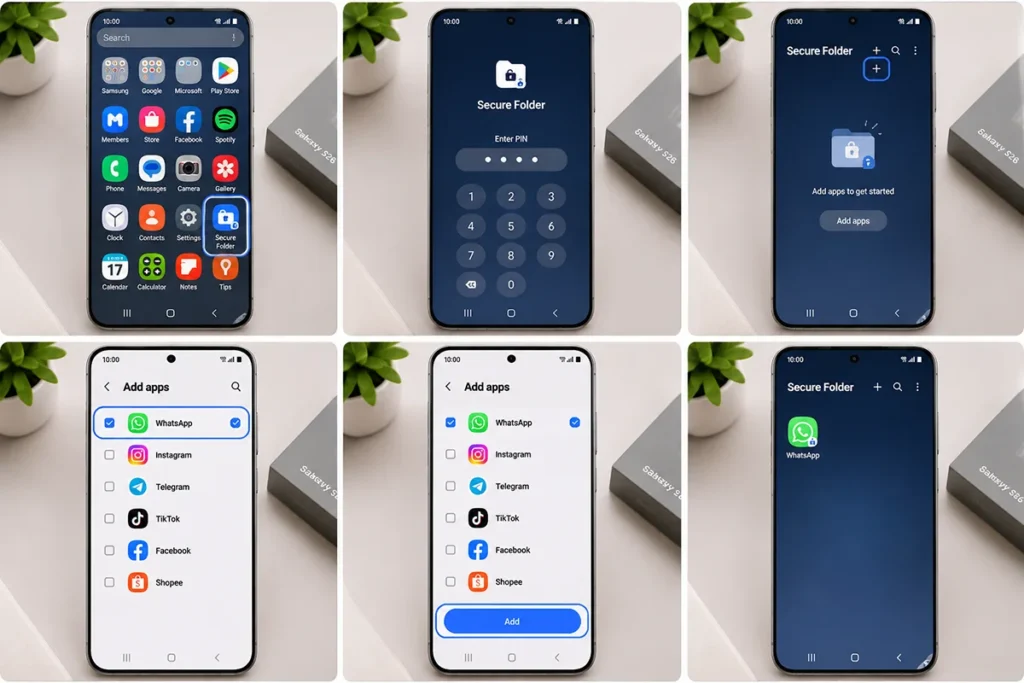
One useful feature of Secure Folder is its ability to keep a separate copy of supported applications.
For example, you can add another supported messaging or social media application and sign in with a different account.
To add an application:
- Open Secure Folder from your Apps screen.
- Unlock it using your selected security method.
- Tap the Add apps (+) icon.
- Select the application you want to add.
- Tap Add.
- Wait for the application to appear inside Secure Folder.
You can also download supported applications directly through the available Play Store or Galaxy Store options inside Secure Folder.
Important: Adding an existing application creates a separate copy inside Secure Folder. The original application outside the folder generally remains installed independently. Its accounts and application data are managed separately.
How to Move Photos and Files to Secure Folder
Secure Folder is also useful for keeping selected photos, videos, and documents separate from your regular storage.
You can move existing files or create copies inside the protected environment.
Follow these steps:
- Open Secure Folder.
- Tap More options (three vertical dots).
- Select Add files.
- Choose the file category, such as Images, Videos, or Documents.
- Select the files you want to add.
- Tap Done.
- Choose Move or Copy.
The difference between these options is important:
| Option | What happens |
|---|---|
| Move | Transfers the selected original file into Secure Folder |
| Copy | Creates another version inside Secure Folder |
| Cancel | Stops the operation |
If you select Move, the original file is removed from its previous location. If you select Copy, the original remains where it was.
You can access supported images through Gallery and other documents through My Files inside Secure Folder.
How to Lock and Hide Secure Folder
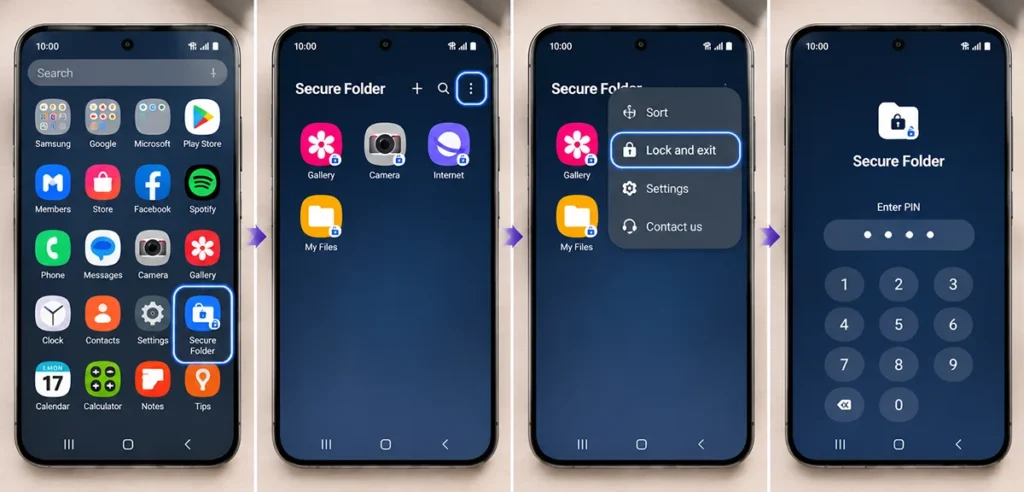
If you want additional privacy, you can manually lock Secure Folder or hide its shortcut from the Apps screen.
To lock Secure Folder:
- Open Secure Folder.
- Tap the three-dot menu.
- Select Lock and exit.
- Secure Folder will close and require authentication the next time you access it.
To hide Secure Folder:
- Swipe down from the top of your screen to open the Quick Settings panel.
- Expand the panel if necessary.
- Find the Secure Folder quick setting.
- Tap it to hide or show Secure Folder, following the displayed instructions.
You can also manage its visibility through Settings → Security and privacy → More security settings → Secure Folder.
Hiding the shortcut does not replace the folder’s security lock. Use the authentication settings to protect its contents.
How to Manage Secure Folder Settings
You can customize Secure Folder after completing the initial setup.
Open Secure Folder, authenticate, and tap the three-dot menu to access its settings.
Depending on your software version, available options may include:
- Lock type: Change your PIN, password, or pattern.
- Biometric settings: Manage fingerprint unlocking.
- Accounts: Add or manage accounts used by applications inside Secure Folder.
- Notifications: Review available notification privacy settings.
- Customization: Change the folder’s displayed name, color, or icon.
- Backup and restore: Check the available data-management options for your device and account.
Remember that removing an application from Secure Folder and uninstalling the original application outside it are separate actions.
How to Fix Galaxy S26 Secure Folder Problems
If Secure Folder does not appear or work correctly, try the following checks.
| Problem | Possible solution |
|---|---|
| Secure Folder is missing | Check More security settings in Settings |
| Setup will not complete | Check your internet connection and Samsung account |
| Secure Folder will not open | Verify your PIN, password, or pattern |
| Fingerprint unlocking fails | Check fingerprint settings and try your alternative lock method |
| Files are not appearing | Check whether the files were moved or copied successfully |
| Applications are missing | Open Secure Folder and check its Add apps section |
| Secure Folder is hidden | Check its Quick Settings shortcut and visibility settings |
If you forget your Secure Folder PIN, look for the Forgot PIN or Reset option on the authentication screen. Recovery through your Samsung account may be available if you enabled the recovery feature during setup.
If the feature is missing entirely, check for available software updates and confirm that your device supports Secure Folder in your region.
For persistent problems, consult Samsung Support rather than removing Secure Folder before checking what will happen to its stored files.
Frequently Asked Questions
Yes. The Galaxy S26 series user manual lists Secure Folder under Settings → Security and privacy → More security settings. Availability can vary by market and software configuration.
Secure Folder is a built-in Samsung feature on supported Galaxy devices. You do not normally need to purchase a separate application to use it.
You can add supported applications through the Add apps option. If WhatsApp is available for installation or addition, you can configure a separate account inside Secure Folder.
You may be able to reset your PIN, password, or pattern using your Samsung account if the recovery option was enabled during setup.
No. Hiding Secure Folder removes its visible shortcut but does not itself delete the protected content.
Yes. Open Gallery inside Secure Folder, select the desired photos, open More options, and choose Move out of Secure Folder.
Final Thoughts
Completing the Galaxy S26 Secure Folder setup is a practical way to organize private applications, photos, videos, and documents in a separate protected environment.
Start by opening Settings → Security and privacy → More security settings → Secure Folder. Sign in to your Samsung account, choose a suitable lock method, and complete the setup.
Afterward, you can add supported applications, move personal files, customize the folder, and manage its visibility. For the best experience, keep your phone software updated and use a strong, memorable authentication method.
Reference:
- Samsung UK – What is the Secure Folder and how do I use it?
- Samsung US – Use the Secure Folder on your Galaxy phone or tablet.
- Samsung Australia – Setup Secure Folder on my Galaxy device.
