The Galaxy S26 Always On Display (AOD) shows the time, date, battery level and notification icons while your phone is locked. You enable it at Settings > Lock screen and AOD > Always On Display, and you can tap the screen to wake it without unlocking. To protect battery life, set it to “Tap to show” instead of leaving it on all day.
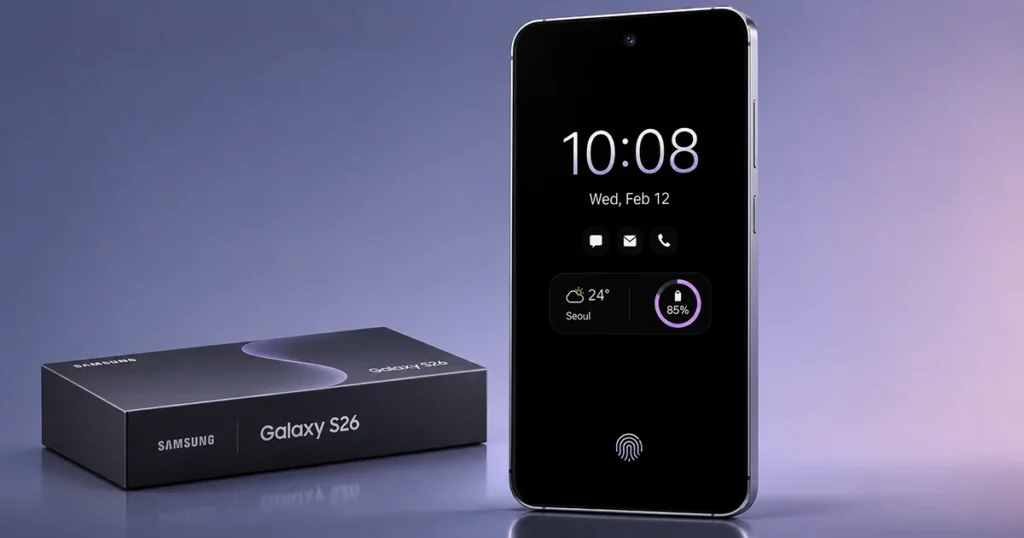
Quick answer: how to enable Galaxy S26 Always On Display
- Open Settings.
- Go to Lock screen and AOD (on some builds it’s under Display).
- Tap Always On Display and switch it on.
- Pick an activation mode and customize the clock.
Samsung’s support page confirms AOD is available on most Galaxy devices, including the S26, though availability can vary by model number and software version. One source notes it can be off by default on the S26 Ultra, so check the toggle after setup.
What Is Always On Display on Galaxy S26?
Always On Display (AOD) is a Samsung feature that shows selected information while your Galaxy S26 screen is otherwise turned off. Instead of waking the entire display, your phone presents essential details such as the clock, date, notification icons, and supported information.
Depending on your software version and settings, you may also see lock screen widgets, music information, and the Now bar.
AOD is useful when your phone is resting on a desk or bedside table because you can quickly check important information without repeatedly pressing the Power button.
How to Enable Always On Display on Galaxy S26
You can activate Galaxy S26 Always On Display through the Settings application. Follow these steps:
- Open Settings on your Galaxy S26.
- Tap Lock screen and AOD.
- Select Always On Display.
- Turn on the Always On Display switch.
- Tap the feature name to access its available settings.
- Choose your preferred display behavior under When to show.
Your phone should now display the selected AOD information whenever the screen is locked and the chosen conditions are met.
If you cannot find the setting, open Settings and use the search bar to search for Always On Display. Menu names and locations can vary with One UI updates and regional software versions.
How to Customize Galaxy S26 Always On Display Settings
After enabling AOD, you can adjust when the screen appears and which information is displayed. These options help balance convenience, personalization, and battery consumption.
1. Choose When to Show Always On Display
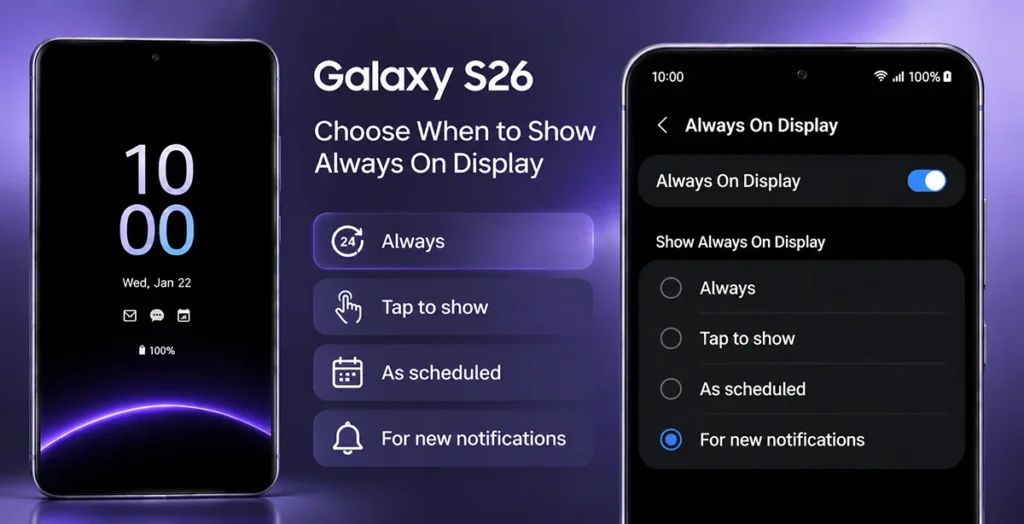
The When to show setting controls how your Galaxy S26 displays AOD.
Common options include:
- Always: Keeps the AOD visible whenever the phone is locked.
- Tap to show: Displays AOD temporarily after you tap the screen.
- As scheduled: Shows AOD during specific hours.
- For new notifications: Displays AOD briefly when a new notification arrives.
- Auto: Adjusts AOD behavior according to conditions such as lighting or whether the phone is covered, if supported by your software.
For everyday use, Always provides the most convenient experience. However, Tap to show or As scheduled can help reduce unnecessary screen activity.
2. Change the Always On Display Clock Style
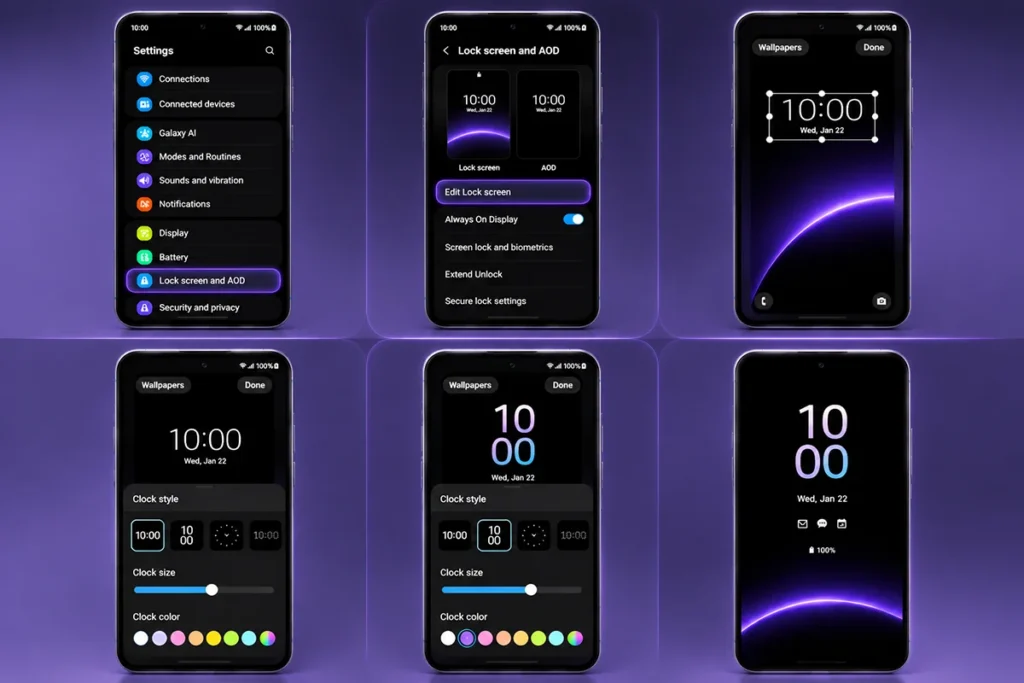
You can personalize the clock by changing its appearance on the lock screen.
On recent One UI versions, Always On Display generally follows the clock style configured on the lock screen.
To change it:
- Open Settings.
- Go to Lock screen and AOD.
- Select Edit Lock screen.
- Tap the clock in the preview.
- Choose your preferred clock style, size, and available color options.
- Tap Done to save your changes.
Your selected clock design can then appear on the Always On Display screen.
3. Display Wallpaper on Always On Display
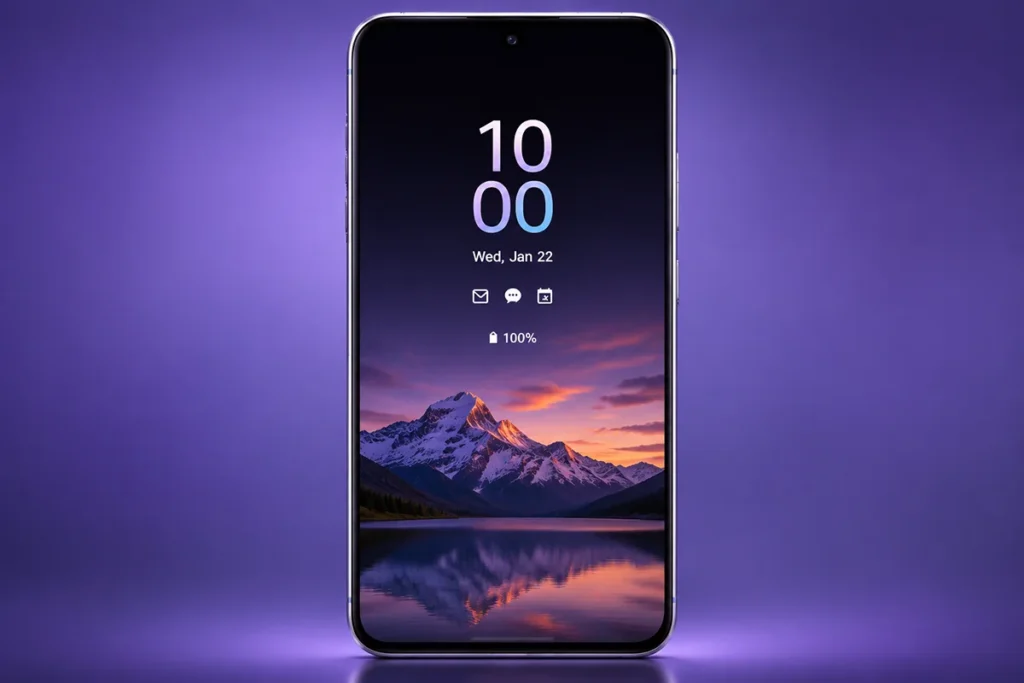
If you prefer a more personalized appearance, you may be able to display your lock screen wallpaper on AOD.
Open Settings > Lock screen and AOD > Always On Display and look for the Show Lock screen wallpaper option.
On supported software versions, you may also find an Erase background option. This can isolate the main subject of a supported wallpaper image while removing its background.
Keep in mind that wallpaper-related options may differ depending on your Galaxy S26 software version.
4. Show Widgets and Now Bar Information
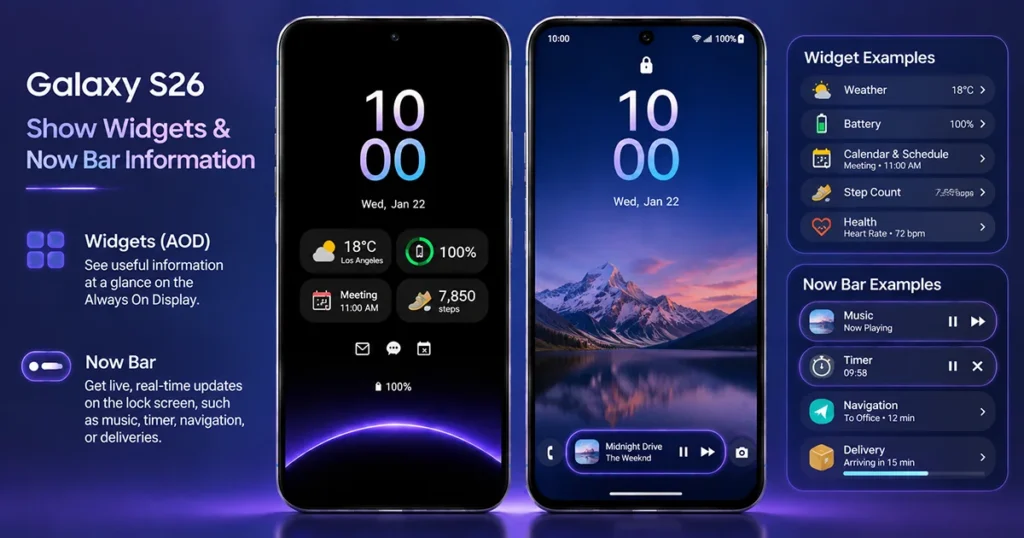
Galaxy S26 users can also make AOD more informative by using supported lock screen widgets.
First, customize the lock screen:
- Touch and hold the lock screen.
- Tap Widgets.
- Browse the available widget categories.
- Select the widgets you want to display.
- Arrange their positions and tap Done.
When Always On Display is enabled, supported lock screen widgets can also appear on AOD.
You can also look for the Show Now bar option in the AOD settings. When supported and enabled, it displays relevant ongoing activities, such as music playback or timers, without requiring you to unlock the phone.
Galaxy S26 Always On Display Settings Explained
The following table summarizes the main AOD options and their purposes.
| AOD setting | What it does |
|---|---|
| Always | Keeps AOD visible while the phone is locked |
| Tap to show | Displays AOD temporarily after tapping |
| As scheduled | Activates AOD during selected hours |
| For new notifications | Shows AOD when new notifications arrive |
| Show Lock screen wallpaper | Displays supported lock screen wallpaper |
| Erase background | Removes the background from supported images |
| Show Now bar | Displays supported ongoing activities |
| Lock screen widgets | Shows supported widgets on AOD |
Some options may not appear on every software version. Check the settings available on your own device.
Does Always On Display Drain Galaxy S26 Battery?
Yes. Always On Display uses battery power because the screen remains partially active while displaying information. However, the actual battery consumption depends on your display settings, usage habits, and software configuration.
If you want to keep AOD enabled while improving battery life, consider these tips:
- Use Tap to show: Avoid keeping the display active continuously.
- Set a schedule: Enable AOD only during the hours you need it.
- Limit unnecessary information: Display only useful widgets and notifications.
- Disable wallpaper display: Use a simpler AOD appearance if you do not need a full wallpaper.
- Turn off AOD when unnecessary: Disable it overnight or during extended periods when you do not need it.
You can also use your phone’s battery settings to monitor overall battery consumption.
How to Fix Galaxy S26 Always On Display Not Working
If Always On Display does not appear when your Galaxy S26 screen turns off, check the following solutions.
1. Check whether AOD is enabled.
Open Settings > Lock screen and AOD > Always On Display and confirm that the feature is switched on.
2. Check the display schedule.
If you selected As scheduled, make sure the current time falls within your configured schedule.
3. Disable Power Saving Mode.
Samsung notes that Always On Display may be unavailable when Power Saving Mode is active. Turn off Power Saving Mode and test AOD again.
4. Check for software updates.
Open Settings > Software update > Download and install. Install available updates if necessary.
5. Restart your Galaxy S26.
Restarting your phone can help resolve temporary software problems affecting the display.
If the feature still does not work, use Samsung Members diagnostics or contact Samsung Support for additional assistance.
Frequently Asked Questions
Yes. Galaxy S26 supports Always On Display, allowing users to view selected information, including the clock and notifications, while the screen is locked.
Go to Settings > Lock screen and AOD > Always On Display and switch the feature off.
Yes. You can customize the lock screen clock through the lock screen editor. On recent One UI versions, AOD generally uses the same clock design.
Yes. Supported lock screen widgets can appear on AOD when the feature is enabled. Available widgets depend on your software version and installed apps.
Samsung uses protective measures, including shifting AOD elements over time, to help prevent screen burn-in. This reduces the risk, although no display technology should be considered completely immune to long-term wear.
Final Thoughts
The Galaxy S26 Always On Display feature makes it easier to check the time, notifications, and other useful information without unlocking your phone. You can customize its display schedule, clock appearance, wallpaper, and supported widgets to create a more convenient experience.
If battery life is your priority, consider using Tap to show or scheduling AOD for specific hours. With the right settings, you can enjoy the convenience of Always On Display while keeping unnecessary screen activity to a minimum.
Reference:
- Samsung – Always On Display on Galaxy phones.
- Samsung – Add and customize Galaxy widgets.

1 thought on “Galaxy S26 Always On Display: How to Enable and Customize AOD”