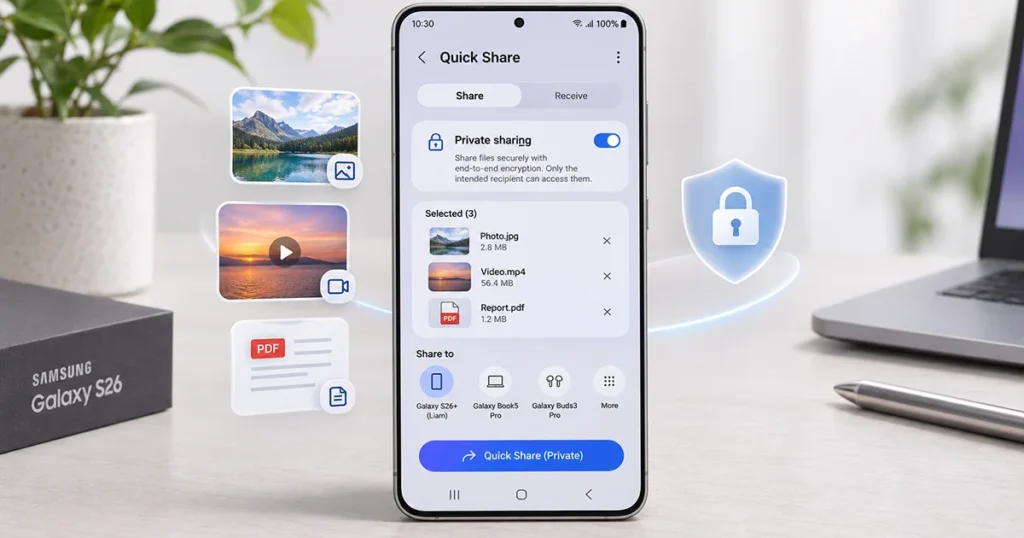
Galaxy S26 Private Sharing lets you share photos, videos, and documents with greater privacy using Samsung Quick Share. Unlike regular file sharing, this feature helps prevent recipients from saving, copying, forwarding, or taking screenshots of shared content. You can also set an expiration time so recipients lose access after a specified period. This makes Private Sharing useful when sending confidential documents, personal photos, or other sensitive files from your Galaxy S26.
What Is Private Sharing on Galaxy S26?
Private Sharing is a security feature built into Samsung Quick Share. It provides additional control over files you send to other people by restricting how recipients can interact with the shared content.
When you activate Private Sharing, recipients can view the files within the permitted access period, but they cannot use the normal options to save, copy, or resend them. Samsung also provides screenshot restrictions to help protect shared information.
Another useful feature is the expiration setting. You can decide how long recipients can access a shared file. Once the expiration period ends, the recipient can no longer open it.
Private Sharing is particularly useful for:
- Sharing personal photographs without allowing ordinary downloads.
- Sending confidential documents to colleagues.
- Sharing identification-related images or sensitive information.
- Sending private videos to trusted recipients.
- Controlling access to files that should not remain available indefinitely.
Unlike regular Quick Share, Private Sharing focuses on controlling access after a file has been sent.
How to Enable Private Sharing on Galaxy S26
You can enable Private Sharing directly from the Quick Share menu when selecting files. You do not need to install a separate file-sharing application if the feature is already available on your device.
Follow these steps:
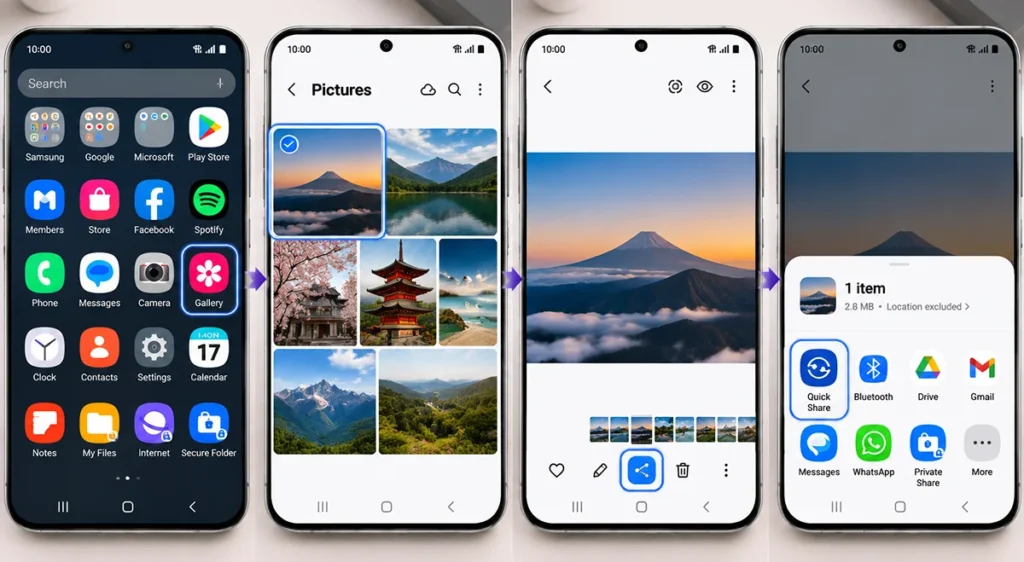
- Open the Gallery app or another application containing the file you want to share.
- Select the photo, video, or document.
- Tap the Share icon.
- Select Quick Share.
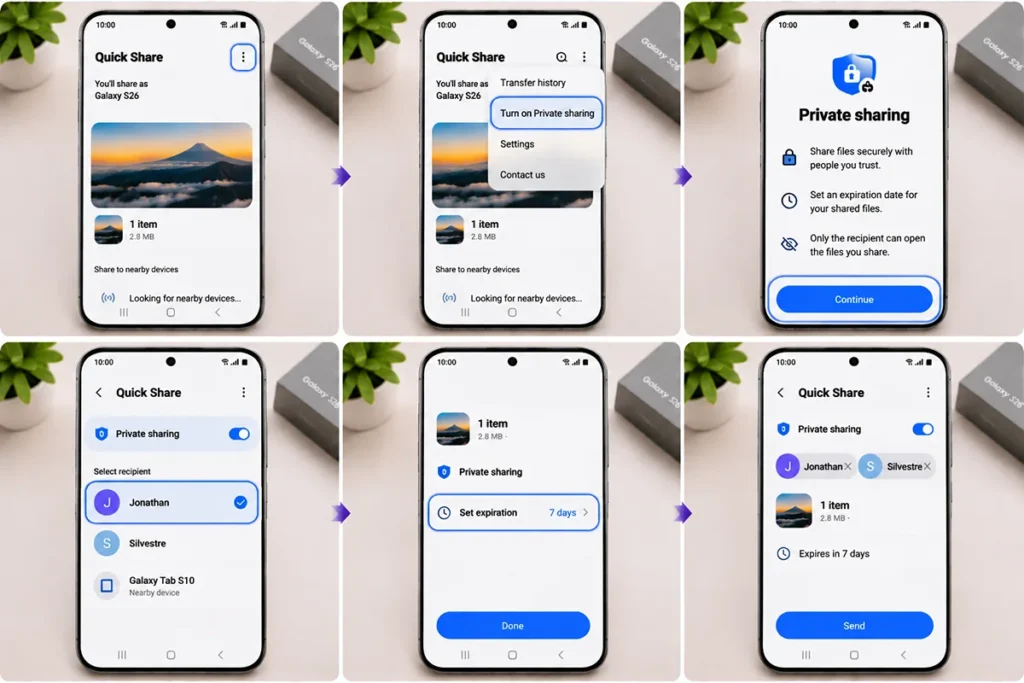
- Tap the More options menu (three vertical dots).
- Select Turn on Private sharing.
- Tap Continue and sign in to your Samsung account if prompted.
- Choose a recipient from your contacts or available nearby devices.
- Tap Set expiration to choose how long the file remains accessible.
- Tap Done, then select Send.
The recipient must accept the shared file and have the required Private Sharing feature or app installed on a compatible device.
Once the transfer is complete, the recipient can view the file according to the permissions and expiration settings you selected.
Tip: Double-check the recipient’s name before sending confidential files. Private Sharing provides additional protection, but choosing the correct recipient is still important.
How to Set an Expiration Date for Private Sharing
One of the most useful features of Galaxy S26 Private Sharing is the ability to control how long someone can access a shared file.
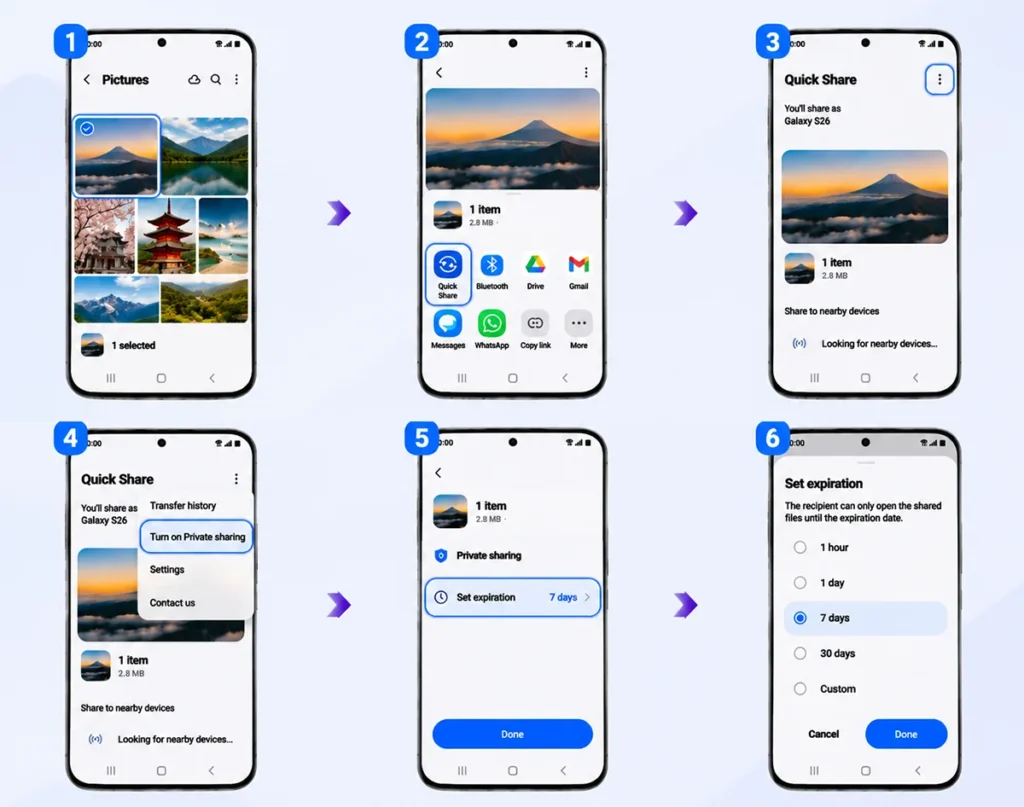
For example, if you send a confidential document that only needs to be viewed for a short period, you can set an expiration time rather than allowing indefinite access.
To configure the expiration period:
- Select the file you want to share.
- Tap Share and choose Quick Share.
- Open the More options menu.
- Select Turn on Private sharing.
- Tap Set expiration.
- Choose your preferred expiration period.
- Tap Done.
- Select the recipient and send the file.
Samsung’s Quick Share documentation lists a default expiration period of two days and a maximum of seven days for the documented Private Sharing experience. Available settings can vary by software version and region.
After the expiration period ends, recipients can no longer access the shared content.
How to Manage or Revoke Private Sharing Access
Sometimes you may send a file and later decide that the recipient should no longer have access to it. Samsung provides options to manage previously shared files and revoke permissions.
To manage shared files:
- Open Settings on your Galaxy S26.
- Tap Apps.
- Select Quick Share.
- Open Private sharing history.
- Choose the recipient whose shared files you want to manage.
- Select the file.
- Tap the More options menu.
- Choose Change expiry date to adjust the expiration period, or select Revoke shared files to remove access.
Revoking access is useful when you accidentally share the wrong document or no longer want someone to view previously shared content.
The available menu labels may differ depending on your One UI version.
What Files Can You Share Using Private Sharing?
Private Sharing supports several common file formats, making it suitable for everyday personal and professional file transfers.
| File category | Supported formats |
|---|---|
| Images | JPG, JPEG, PNG, GIF, BMP, WebP, HEIC, DNG |
| Videos | MP4, WebM, 3GP, 3G2, MKV |
| Audio | MP3, WAV, OGG, M4A |
| Documents | TXT, PDF |
Samsung’s published Quick Share specifications also list a maximum transfer limit of 20 files and 200MB per Private Sharing session.
If you need to send larger files or unsupported formats, regular Quick Share or another suitable transfer method may be more appropriate.
Is Private Sharing Secure on Galaxy S26?
Yes. Private Sharing adds several privacy controls that make it more suitable for sensitive file transfers than standard Quick Share.
Its main protections include:
- Restricted access: Files are shared with selected recipients.
- Screenshot protection: The feature restricts normal screenshot capture.
- Copy protection: Recipients cannot use the regular copy function.
- Download restrictions: Shared files cannot be saved through the normal recipient interface.
- Forwarding restrictions: Recipients cannot simply resend the shared content.
- Expiration control: Access ends when the configured expiration period passes.
- Revocation: You can revoke access to files after sending them.
However, these protections should not be treated as an absolute guarantee against information leakage. For example, someone could photograph the screen using another device. Always share sensitive information only with people you trust.
Private Sharing vs. Regular Quick Share
Both features let you transfer files between compatible devices, but they serve different purposes.
| Feature | Regular Quick Share | Private Sharing |
|---|---|---|
| File transfer | Yes | Yes |
| Share photos and videos | Yes | Yes |
| Restrict saving | No equivalent restriction | Yes |
| Restrict copying | No equivalent restriction | Yes |
| Restrict forwarding | No equivalent restriction | Yes |
| Screenshot protection | No equivalent restriction | Yes |
| Expiration date | Depends on sharing method | Yes |
| Revoke shared access | Depends on sharing method | Yes |
| Best for | Everyday file transfers | Sensitive files |
Choose regular Quick Share when convenience and compatibility are your priorities. Use Private Sharing when you need additional control over who can access your files and for how long.
How to Fix Private Sharing Not Working on Galaxy S26
If Private Sharing does not appear or you cannot send files, try these troubleshooting steps:
1. Update your software
Open Settings > Software update > Download and install. Install available updates to ensure your phone has the latest supported features.
2. Check Quick Share availability
Open Settings > Connected devices > Quick Share and check whether the service is available and working properly.
3. Check recipient compatibility
Private Sharing is designed for supported Galaxy devices. It is not available on iOS devices, and recipients may need to install or update the required feature.
4. Check the file format and size
Make sure the selected file uses a supported format. Also, check that your transfer does not exceed the 20-file or 200MB limit.
5. Check your Samsung account
If prompted, sign in to your Samsung account and try enabling Private Sharing again.
6. Restart your phone
Restarting your Galaxy S26 can resolve temporary software issues affecting Quick Share.
If the feature is still unavailable, check Samsung’s regional support documentation because availability and menu options can vary by device, software version, and country.
Frequently Asked Questions
Yes. The Galaxy S26 supports encrypted content sharing through the Private Sharing option in Quick Share. You can use it to share files with additional access restrictions.
Private Sharing prevents normal screenshot capture through supported devices. However, it cannot prevent someone from photographing the screen using another device.
Yes. You can select an expiration period before sending a file. After the expiration period ends, the recipient can no longer access the shared content.
Yes. Open Settings > Apps > Quick Share > Private sharing history, select the recipient and file, and choose Revoke shared files if the option is available.
No. Samsung’s Private Sharing feature is designed for compatible Galaxy devices and is not available on iOS. Regular Quick Share supports certain sharing options with compatible Apple devices, but that is different from Private Sharing.
Samsung lists a limit of up to 20 files and 200MB per Private Sharing transfer.
Final Thoughts
Galaxy S26 Private Sharing is a useful Quick Share feature for people who want more control over files they send to others. Its screenshot, copying, forwarding, and expiration restrictions provide additional privacy when sharing personal photos, confidential documents, and other sensitive information.
To use it, select a file, open Quick Share, choose More options, and enable Turn on Private sharing. Set an expiration period and select your recipient before sending.
For everyday transfers, regular Quick Share is convenient. For files that require additional privacy and access control, Private Sharing is the better option.
Reference:
- Samsung support – Private Share secure file sharing guide.
- Samsung support – Quick Share send/receive guide.
- Samsung Mobile Press – Quick Share & Private Share.

1 thought on “Galaxy S26 Private Sharing: How to Share Files Securely with Quick Share”