Getting the most out of your smartphone camera starts with choosing the right settings. The Samsung Galaxy S26 camera settings let you customize photo quality, video resolution, image processing, stabilization, and shooting methods to capture better pictures and videos in different situations. Whether you’re photographing landscapes, taking portraits, recording videos, or shooting in low light, adjusting a few important options can make your camera experience more enjoyable.
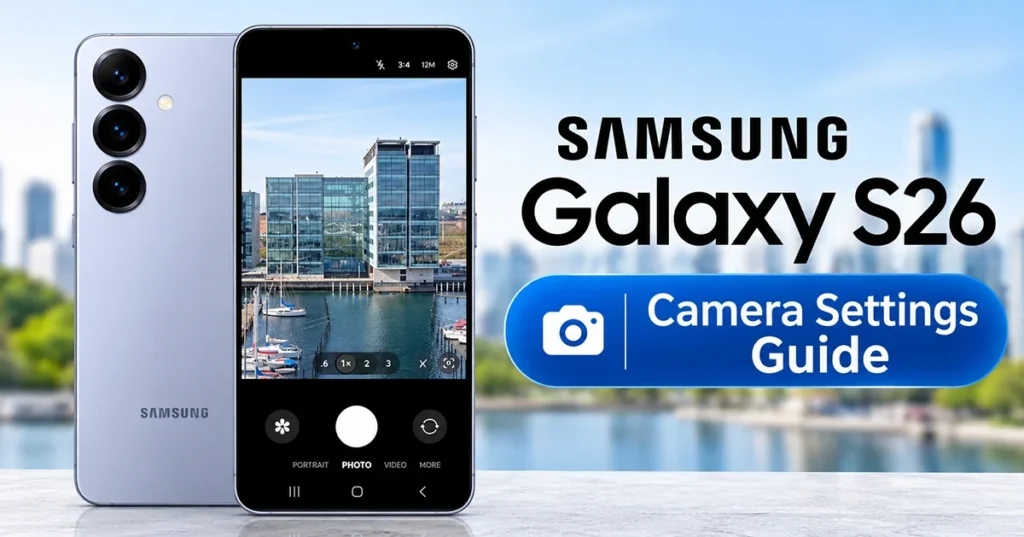
The Galaxy S26 includes several useful camera tools, such as Photo enhancer, Night mode, Motion photos, composition guides, tracking autofocus, and advanced video options. Here’s how to configure these features and choose practical settings for everyday photography.
How to Access Samsung Galaxy S26 Camera Settings
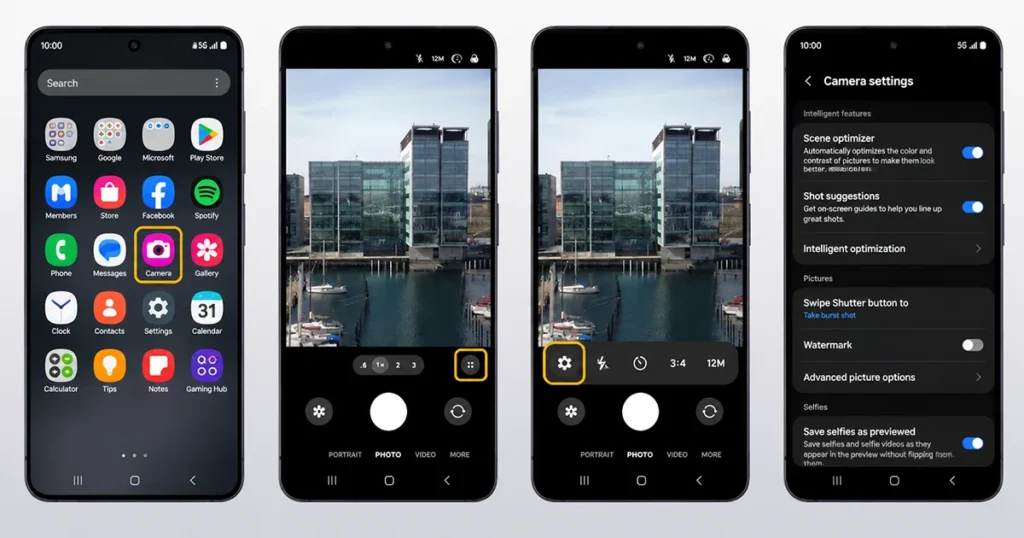
Before changing your camera preferences, you need to know where the settings are located.
Follow these steps:
- Open the Camera app on your Galaxy S26.
- Tap the Quick controls icon (four dots) near the viewfinder.
- Select the Settings (gear) icon.
- Browse the available camera options.
- Enable or disable features according to your preferences.
You can also access frequently used options directly from the camera viewfinder. Depending on the selected mode, these include flash, timer, aspect ratio, resolution, exposure, filters, and Motion photos.
Remember that some settings are available only in specific camera modes.
Best Samsung Galaxy S26 Camera Settings
The following settings are a good starting point for improving everyday photos and videos.
1. Enable Composition Guide
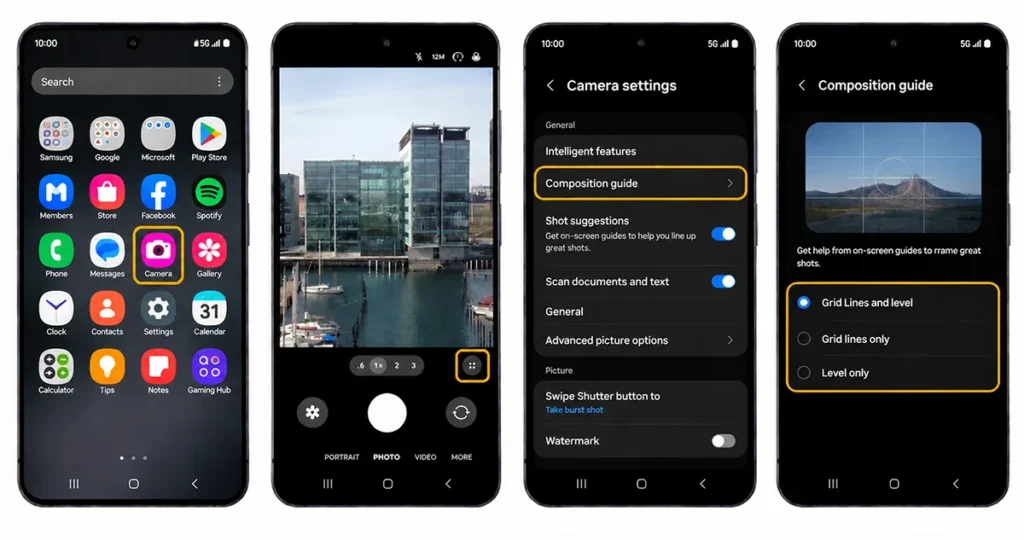
Composition plays an important role in photography. The Composition guide displays grid lines and a level indicator to help you position subjects and keep the horizon straight.
To enable it:
- Open Camera.
- Enter Camera Settings.
- Find Composition guide under General.
- Turn on the grid and level options.
The grid helps you apply the rule of thirds, while the level indicator makes landscape photography easier.
Recommendation: Keep Composition guide enabled for everyday photography.
2. Adjust Photo Enhancer Settings
Photo enhancer controls how the Galaxy S26 processes pictures. It helps balance image quality and capture speed.
Open Camera Settings and look under Intelligent features for Photo enhancer.
Depending on the available software version, you may find options that prioritize quality, balance processing, or prioritize speed. Scene optimization can also automatically adjust image characteristics based on the subject.
- Prioritize quality: Choose this when image detail is your main concern.
- Balanced: A practical choice for everyday photography.
- Prioritize speed: Useful when capturing quick-moving subjects.
Recommendation: Start with Balanced and experiment with Prioritize quality when photographing landscapes or stationary subjects.
3. Choose the Right Photo Resolution
The resolution setting determines the amount of image detail captured and affects file size.
For everyday pictures, the standard Photo mode is a convenient starting point. If your device and installed Camera Assistant version offer a higher-resolution option, consider using it for detailed landscapes and well-lit scenes.
To change the available resolution:
- Open Camera.
- Select Photo mode.
- Tap Quick controls.
- Choose Resolution.
- Select your preferred option.
Higher resolution does not automatically guarantee better pictures. Lighting, focus, and image processing also matter.
4. Enable Tracking Autofocus
Tracking autofocus helps maintain focus on moving subjects.
This feature is particularly useful when photographing children, pets, vehicles, or people moving through a scene.
To enable it:
- Open Camera Settings.
- Navigate to General.
- Find Tracking auto focus.
- Turn it on.
Tap your subject in the viewfinder when necessary to help the camera maintain focus.
5. Configure Motion Photos
Motion photos capture a short sequence around the moment you press the shutter. This gives you additional frames to review when capturing spontaneous moments.
You can enable or disable Motion photos through Quick controls.
Recommendation: Enable Motion photos for family gatherings, pets, and action moments. Turn it off when taking ordinary still photographs to avoid unnecessary storage use.
6. Adjust Photo Format
The Galaxy S26 provides photo-format options that help balance image quality and storage requirements.
Look under Camera Settings > Photos > Photo format.
HEIF is a high-efficiency format that can save storage space compared with conventional JPEG images. Check compatibility with your editing applications and sharing services before changing formats.
For advanced editing, explore the available Pro mode picture-format options.
7. Customize Shooting Methods
You don’t always need to tap the shutter button to take a picture.
Open Camera Settings > Shooting methods to explore available controls.
Depending on your software version, options include:
- Volume buttons: Use the physical buttons to take pictures or record videos.
- Voice commands: Capture photos or videos using supported spoken commands.
- Floating Shutter button: Add another shutter button that can be moved around the screen.
- Show palm: Trigger a selfie using a palm gesture.
These features make taking selfies and group photographs more convenient.
Best Galaxy S26 Camera Settings for Different Situations
The ideal camera configuration depends on the subject, lighting, and shooting environment. Use this table as a practical starting point.
| Photography situation | Recommended settings | Main benefit |
|---|---|---|
| Everyday photography | Photo mode, Balanced enhancement | Natural-looking pictures |
| Landscapes | Main camera, composition guide, higher resolution when available | More image detail |
| Portrait photography | Portrait mode, suitable background distance | Background separation |
| Night photography | Night mode, stable phone position | Improved low-light results |
| Moving subjects | Tracking autofocus, Motion photos | Better action capture |
| Group selfies | Front camera, Show palm | Easier group photographs |
| Document scanning | Scanning enabled | Clearer document captures |
| Food photography | Photo mode, tap to focus | Better subject emphasis |
Best Settings for Night Photography
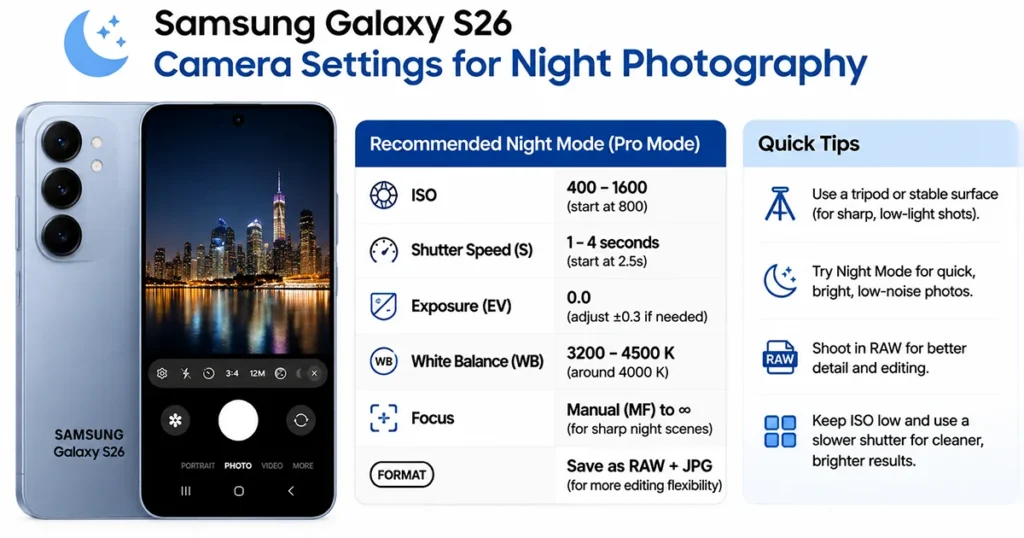
The Galaxy S26 includes Nightography features designed to improve low-light photography.
To take night pictures:
- Open Camera.
- Select Photo mode.
- Look for the Moon icon to access Night mode.
- Position your phone steadily.
- Capture the image.
Avoid unnecessary camera movement during exposure. For particularly dark scenes, using a stable surface can help reduce blur.
Best Settings for Portrait Photography
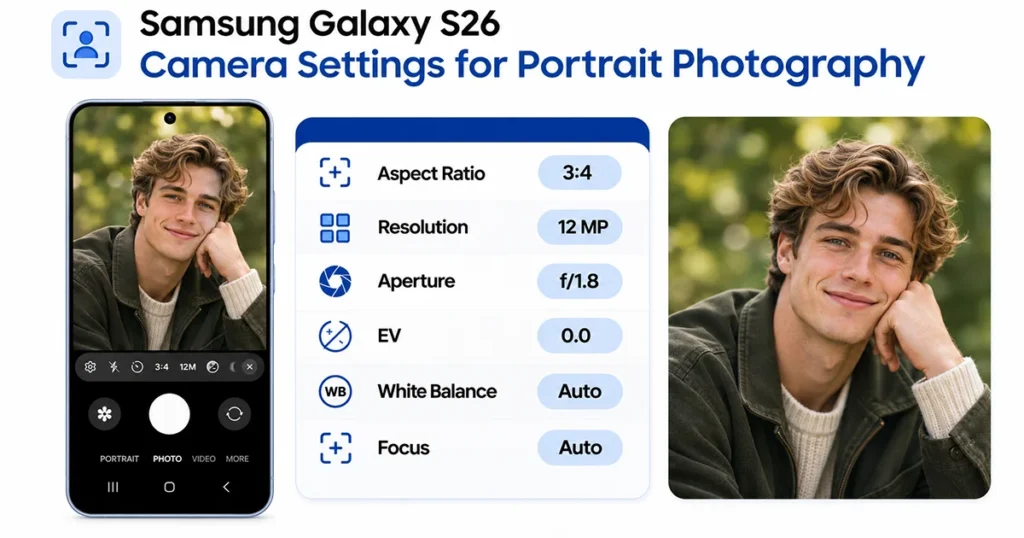
Portrait mode is useful when photographing people because it separates the subject from the background.
For better results, keep your subject comfortably separated from the background, ensure sufficient lighting, and check that the camera focuses correctly on the face.
Avoid excessive background blur if you want a more natural-looking portrait.
Best Samsung Galaxy S26 Video Settings
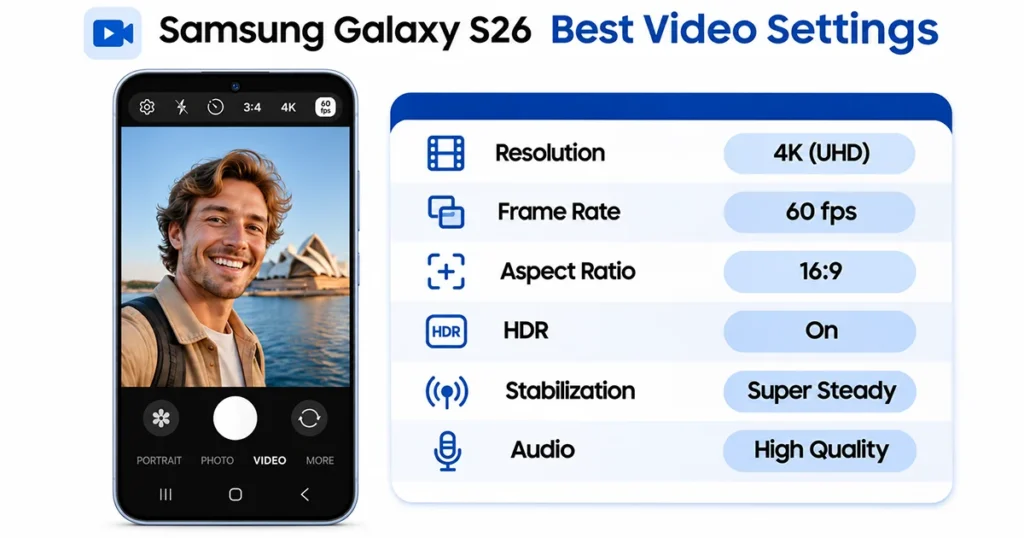
The Galaxy S26 provides several video options for controlling recording quality and stabilization.
Open Camera, switch to Video mode, and explore the available resolution and frame-rate options.
Consider these starting points:
- 4K recording: A good choice when you want detailed videos and have sufficient storage.
- 30fps: Suitable for everyday recordings and general video content.
- 60fps: Useful for smoother footage of sports, movement, and action when supported.
- Video stabilization: Helps reduce unwanted camera movement.
- Auto FPS: Can improve brightness in low-light recording conditions by automatically adjusting the frame rate.
You can also explore advanced video formats, including HDR, Log, high-bitrate video, and other formats where supported.
For action recording, Super steady provides additional stabilization. Some stabilization options crop the frame or limit available recording resolutions.
Additional Samsung Galaxy S26 Camera Features Worth Using
Beyond the basic camera controls, several additional features deserve attention.
- Document Scanning: Enable Scanning in Camera Settings to detect documents and provide scanning controls. This is useful for capturing receipts, printed pages, and other documents.
- Shot Suggestions: On-screen guidance can help you align your subject and improve composition.
- Zoom-in Mic: When enabled under Audio options, this feature enhances audio associated with the subject as you zoom while recording.
- Dual Recording: Record using the front and rear cameras simultaneously for compatible video modes.
- Camera Assistant: This optional application provides additional camera customization. Available features depend on the Galaxy model and software version.
How to Improve Samsung Galaxy S26 Camera Quality
If your pictures don’t look as good as expected, try these simple adjustments:
- Clean the camera lenses before taking pictures.
- Use sufficient natural lighting whenever possible.
- Tap your subject to improve focus.
- Avoid excessive digital zoom.
- Keep the phone steady when photographing at night.
- Experiment with Photo enhancer settings.
- Use Composition guide to improve framing.
- Select an appropriate video resolution for your recording needs.
Also, install available camera and software updates to benefit from supported improvements and bug fixes.
Frequently Asked Questions
For everyday photography, start with Photo mode, Balanced Photo enhancer, Composition guide enabled, and Tracking autofocus enabled. Adjust resolution and exposure according to the subject and lighting.
Clean the lenses, use good lighting, select the correct camera mode, and avoid excessive digital zoom. Experiment with Photo enhancer and available resolution options.
Yes. The Galaxy S26 supports Night mode for capturing photographs in low-light environments. Access it through the Camera app’s available Night controls.
Open Camera Settings, find Composition guide under General, and enable the grid option.
4K is a useful choice when you want detailed recordings. For everyday videos, choose a suitable frame rate based on your subject, lighting, and storage requirements.
Conclusion
Choosing the right Samsung Galaxy S26 camera settings can help you capture better photographs and videos without relying on complicated manual adjustments. Start with Composition guide, Photo enhancer, Tracking autofocus, and the appropriate resolution. Then explore Night mode, Motion photos, video stabilization, and Camera Assistant as your photography needs develop.
The best configuration ultimately depends on what you’re photographing. Experiment with these settings to discover which combinations produce the results you prefer.
Reference:
- Samsung – Official Galaxy S26 camera guide.
- Samsung – Galaxy S26 Night mode features.

1 thought on “Samsung Galaxy S26 Camera Settings: Best Settings for Better Photos and Videos”