If your Galaxy S26 fingerprint is not working, you can often fix the problem by cleaning the screen, checking your screen protector, improving fingerprint accuracy, or registering your fingerprint again. A temporary software glitch or wireless charging interference may also affect fingerprint recognition.
Start by wiping your finger and the fingerprint sensor area with a soft, clean cloth. If you recently installed a screen protector, try Samsung’s fingerprint accuracy feature before changing other settings.
If these quick fixes do not help, follow the eight troubleshooting methods below. They cover common fingerprint recognition errors, failed fingerprint registration, and situations where the sensor appears unresponsive.
Quick Fixes for Galaxy S26 Fingerprint Problems
Try these solutions before moving on to more advanced troubleshooting.
| Problem | What to try first |
|---|---|
| Fingerprint not recognized | Clean your finger and the screen |
| Fingerprint stopped working after installing a screen protector | Use Improve accuracy or check protector compatibility |
| Fingerprint setup fails | Clean the screen and register your finger again |
| Fingerprint recognition is inconsistent | Scan your registered finger from different angles |
| Fingerprint fails during wireless charging | Remove the phone from the wireless charger |
| Fingerprint stopped working after an update | Restart the phone and check for another update |
| Fingerprint sensor does not respond | Run Samsung Members diagnostics |
| Fingerprint still fails after troubleshooting | Contact Samsung Support |
Why Is My Galaxy S26 Fingerprint Not Working?
Several factors can prevent your Galaxy S26 from recognizing your fingerprint. A thick or damaged screen protector may interfere with the under-display sensor. Dirt, moisture, very dry skin, or incorrect finger placement can also cause recognition failures.
Other possible causes include temporary software problems, changes to the screen protector, wireless charging interference, or physical damage to the display or sensor.
If the problem started immediately after installing a new screen protector, investigate that first. If fingerprint registration fails completely or the sensor stops responding even after a restart, software or hardware troubleshooting may be necessary.
How to Fix Galaxy S26 Fingerprint Not Working
If your Galaxy S26 fingerprint scanner isn’t working, unlocking your phone can quickly become frustrating. You can try these simple fixes to restore fingerprint recognition.
1. Clean the Screen and Your Finger
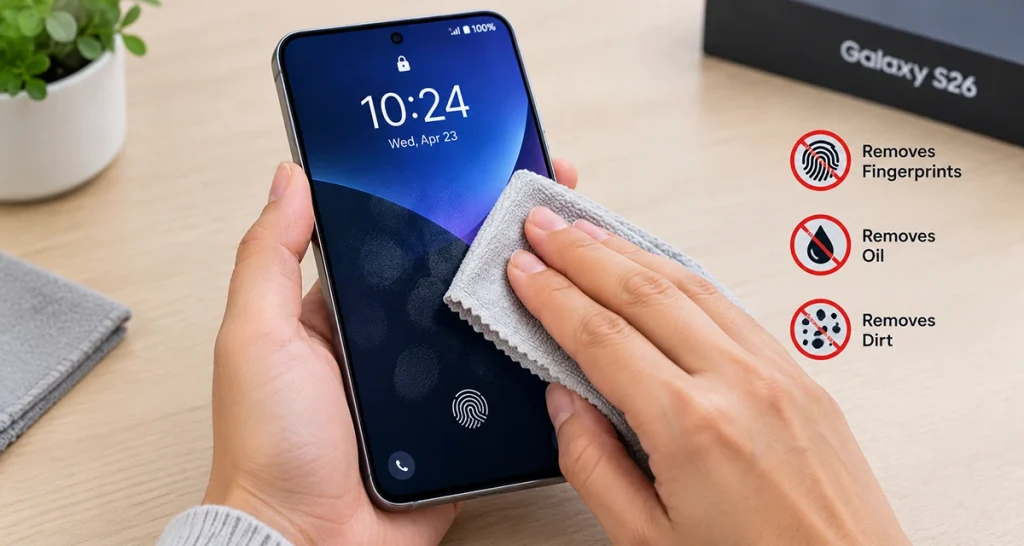
Start with the simplest solution. Oil, sweat, dust, and moisture can interfere with fingerprint recognition.
- Remove your finger from the screen and wipe it clean.
- Use a soft, clean cloth to remove fingerprints and dirt from the display.
- Make sure your finger and the sensor area are dry.
- Place your fingertip over the fingerprint icon and hold it steadily until the phone responds.
Avoid pressing only the tip of your finger or lifting it too quickly. If your skin is unusually dry, try again when your fingertip feels normal. Extremely wet fingers can also cause recognition problems.
2. Check Your Screen Protector
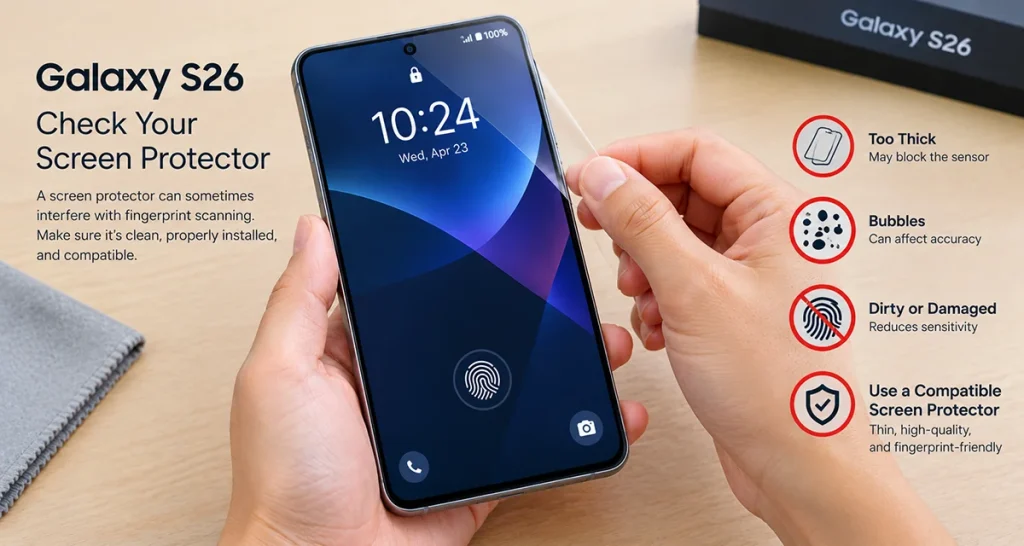
A screen protector is a common cause of fingerprint problems on Galaxy phones. Thick tempered glass, textured films, scratches, and poorly fitted protectors may reduce recognition accuracy.
Samsung provides a dedicated Galaxy S26 troubleshooting procedure for fingerprint errors that occur after installing a screen protector.
Try the following:
- Check for bubbles, scratches, dust, or damage around the fingerprint sensor area.
- Confirm that the protector is compatible with your Galaxy S26.
- If you recently replaced the protector, register your fingerprints again.
- If the problem continues, test without the protector if you can remove it safely.
Do not forcefully remove a protector that is cracked or difficult to lift. Choose a compatible replacement if necessary.
3. Improve Fingerprint Accuracy
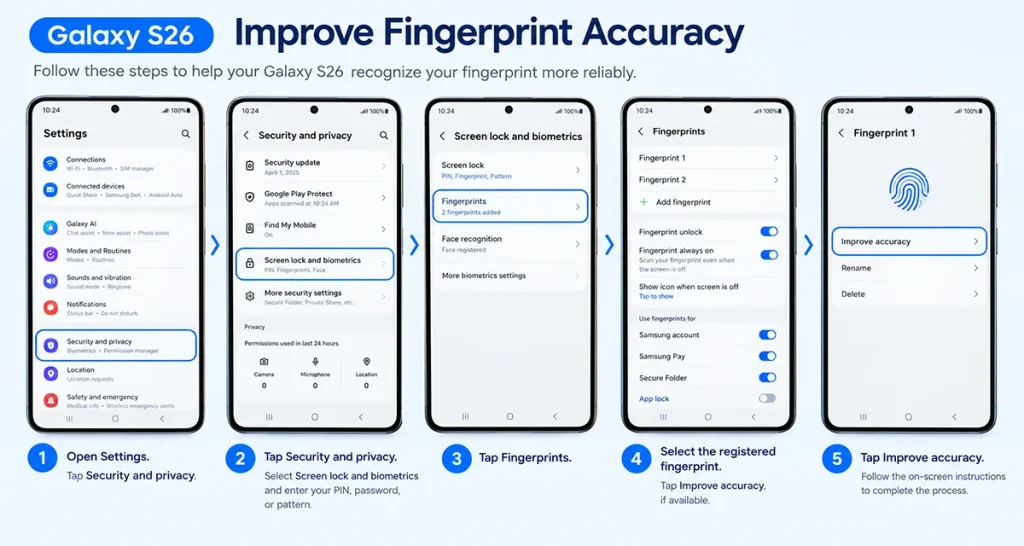
If your Galaxy S26 recognizes your fingerprint inconsistently, use the built-in Improve accuracy option.
- Open Settings.
- Tap Security and privacy.
- Select Screen lock and biometrics and enter your PIN, password, or pattern.
- Tap Fingerprints.
- Select the registered fingerprint and choose Improve accuracy, if available.
- Scan the same finger 10 times, following the on-screen instructions.
This process helps the phone capture additional details about your registered fingerprint. It is particularly useful after changing a screen protector.
Menu names may vary slightly with your software version or region. See Samsung’s Galaxy S26 fingerprint troubleshooting guide for the model-specific procedure.
4. Delete and Register Your Fingerprint Again
If the Galaxy S26 still rejects your finger, remove the old fingerprint and create a new registration.
- Open Settings > Security and privacy > Screen lock and biometrics.
- Enter your existing screen lock credentials.
- Tap Fingerprints.
- Select the fingerprint you want to remove and delete it.
- Choose Add fingerprint and follow the instructions.
- Move your finger as directed so the phone captures different parts of your fingertip.
Register your finger when it is clean and dry. If you frequently unlock your phone with both hands, consider registering a finger from each hand.
Keep your PIN, password, or pattern available throughout this process. You need an alternative unlock method to manage fingerprint settings.
5. Restart Your Galaxy S26
A temporary system glitch can sometimes prevent the fingerprint feature from responding normally.
To restart your phone, open the power menu and select Restart. If the menu does not appear, press and hold the Side button and Volume Down button together until the device restarts.
After restarting, unlock the phone with your PIN or password if prompted, then test fingerprint recognition again.
A restart will not erase your personal data. If the fingerprint sensor still fails, continue to the next step.
6. Install the Latest Software Update
If fingerprint recognition stopped working after a system update, or the issue began without an obvious physical cause, check for available software updates.
- Open Settings.
- Tap Software update.
- Select Download and install.
- Follow the on-screen instructions if an update is available.
Install updates over a reliable connection and keep sufficient battery power available. After the update, restart the phone if required and test the fingerprint sensor.
An update may correct a software problem, but it will not fix a physically damaged sensor.
7. Test Fingerprint Recognition Without Wireless Charging
Samsung notes that fingerprint recognition may become less reliable while a compatible Galaxy device is charging wirelessly.
If your Galaxy S26 is on a wireless charging pad, lift it off the charger and try unlocking it again.
If fingerprint recognition works normally when the phone is off the charger, repeat the test to confirm whether charging is associated with the problem. This can help you identify an intermittent issue without changing your security settings.
If the sensor continues to fail when the phone is not charging, move on to diagnostics.
8. Run Samsung Members Diagnostics
Samsung Members can help you check whether the phone reports a fingerprint recognition problem.
- Open the Samsung Members app.
- Navigate to Diagnostics.
- Open Phone diagnostics.
- Select Fingerprint recognition, if available.
- Follow the test instructions and review the result.
The available diagnostic options may vary by device, software version, and region. If the test fails repeatedly, or fingerprint registration remains unavailable, contact Samsung Support for further assessment.
You can also consult Samsung’s official fingerprint troubleshooting instructions for additional checks.
When Should You Contact Samsung Support?
Contact Samsung Support or an authorized service center if none of these fixes restores fingerprint recognition. Professional assessment is especially important if the problem began after a drop, display replacement, or liquid exposure.
Seek assistance if:
- The fingerprint sensor remains completely unresponsive.
- You cannot register a new fingerprint.
- The screen has cracks or visible damage near the sensor area.
- Samsung Members diagnostics repeatedly report a problem.
- Fingerprint recognition continues to fail after software and screen protector checks.
Do not factory-reset your phone as your first troubleshooting step. A reset erases data unless you have a suitable backup, and it cannot repair damaged hardware.
Frequently Asked Questions
The most common possibilities include a dirty screen, dry or wet fingers, incorrect finger placement, or an incompatible screen protector. Clean the screen, try again, and re-register your fingerprint if needed.
The new protector may affect the sensor’s ability to read your fingerprint. Use Improve accuracy and scan the same registered finger 10 times. If recognition remains poor, check compatibility or try a suitable replacement.
Yes, if a software issue contributes to the problem. Restart the phone and check for available updates. However, software updates cannot repair physical sensor or display damage.
No. Try the basic fixes, fingerprint re-registration, software updates, and diagnostics first. A factory reset should be a last resort because it can erase personal data and may not solve a hardware problem.
Final Thoughts
When your Galaxy S26 fingerprint is not working, start with the screen, your finger, and the screen protector. Next, improve fingerprint accuracy, register your fingerprint again, restart the phone, and check for software updates.
If those steps fail, test without wireless charging and run Samsung Members diagnostics. Persistent failures or signs of physical damage warrant professional support. These steps can help you identify the cause without immediately resorting to a factory reset.
