If your Samsung Galaxy S26 won’t transfer files to a computer or only charges when connected via USB, changing the default USB configuration may solve the problem. This setting lets you choose how your phone connects to other devices, including file transfer, photo transfer, USB tethering, MIDI, and charging only. To change it, enable Developer Options by tapping Build number seven times, then open Settings > Developer options > Default USB configuration and select your preferred mode.
Follow this step-by-step guide to configure your USB connection and troubleshoot common connection issues.
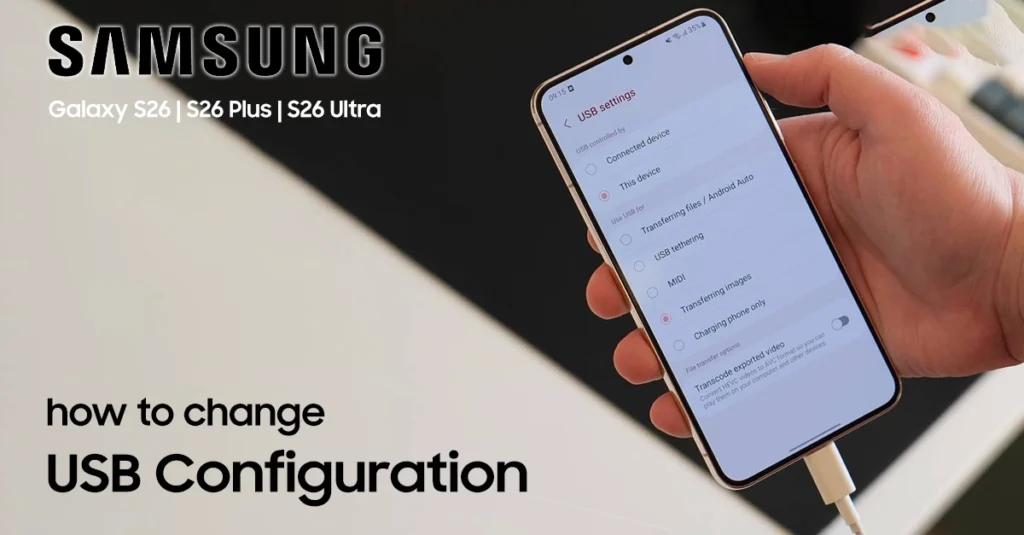
What Is USB Configuration on Galaxy S26?
USB Configuration on the Samsung Galaxy S26 determines how your phone communicates with a connected computer or other USB device. It lets you choose what happens when you connect your phone using a USB cable.
Common USB modes include File Transfer (MTP) for moving photos and files, USB tethering for sharing your mobile internet connection, MIDI for music devices, and Charging only for charging your phone without transferring files.
Why Change Your Default USB Configuration?
Changing your default USB configuration on the Samsung Galaxy S26 lets you control how your phone connects to computers and other USB devices. It can save time by automatically selecting your preferred connection mode instead of choosing it every time you plug in a cable.
For example, select File Transfer to move photos and documents, USB tethering to share mobile data, or Charging only to charge without transferring files. You can also use other modes for compatible accessories and music equipment. Choose the mode that matches your needs, and use trusted devices to help protect your data.
- File transfer issues: Your computer doesn’t detect the phone.
- USB debugging: You need to enable developer options for troubleshooting.
- Tethering: You want to share your phone’s internet connection.
- Faster charging: Optimize power delivery from specific chargers.
- Media transfer: Transfer photos, videos, or music between devices.
Knowing how to change default USB configuration on Galaxy S26 saves time and eliminates frustration when connecting to computers, cars, or other accessories.
Steps to Change Default USB Configuration on Galaxy S26
Follow these simple steps to access and modify your USB settings:
Step 1: Access Developer Options
Before you can change the default USB configuration, you need to enable Developer Options [ full guide here ]:
- Open Settings on your Galaxy S26.
- Scroll down and tap About phone.
- Tap Software information.
- Tap Build number seven times until you see “Developer mode has been turned on“.
- Enter your PIN or password when prompted.
Step 2: Change the Default USB Configuration
Now that Developer Options are enabled:
- Go back to Settings.
- Scroll down and tap Developer options.
- Scroll to the Networking section.
- Tap Default USB configuration.

Select your preferred mode from the options:
- Transferring file – For transferring files to your computer.
- USB tethering – Share your phone’s internet connection.
- MIDI – For musical instrument connections.
- Transferring images – Transfer photos only.
- Charging phone only – Charge only with no connection.
Step 3: Test Your Connection
After changing the setting:
- Connect your Galaxy S26 to your computer using a USB cable.
- Check if your computer recognizes the device.
- If prompted on your phone, tap Allow to grant access.
Troubleshooting USB Connection Issues
If you’re still experiencing problems after you change default USB configuration on Galaxy S26, try these fixes:
- Use a different USB cable – Some cables are charge-only and don’t support data transfer.
- Try another USB port – Some ports may have connection issues.
- Restart both devices – A simple reboot often resolves connection problems.
- Update your software – Ensure your Galaxy S26 has the latest updates.
- Check your computer’s drivers – Windows may need Samsung USB drivers installed.
Conclusion
Learning to change default USB configuration on Galaxy S26 gives you full control over how your device connects to computers and accessories. Whether you need to transfer files, enable debugging, or simply charge your phone, the right USB setting makes all the difference. Follow the steps above, and you’ll resolve connection issues quickly and confidently.
If you found this guide helpful, explore our other Galaxy S26 tutorials to master every feature of your device.

7 thoughts on “How to Change Default USB Configuration on Your Samsung Galaxy S26”