The best apps for Samsung Galaxy S26 can make your phone more productive, improve your photos, strengthen your privacy, and give you greater control over One UI. Start with Good Lock for customization, Google Photos for photo management, Snapseed for editing, Bitwarden for password security, and Google Drive for productivity.
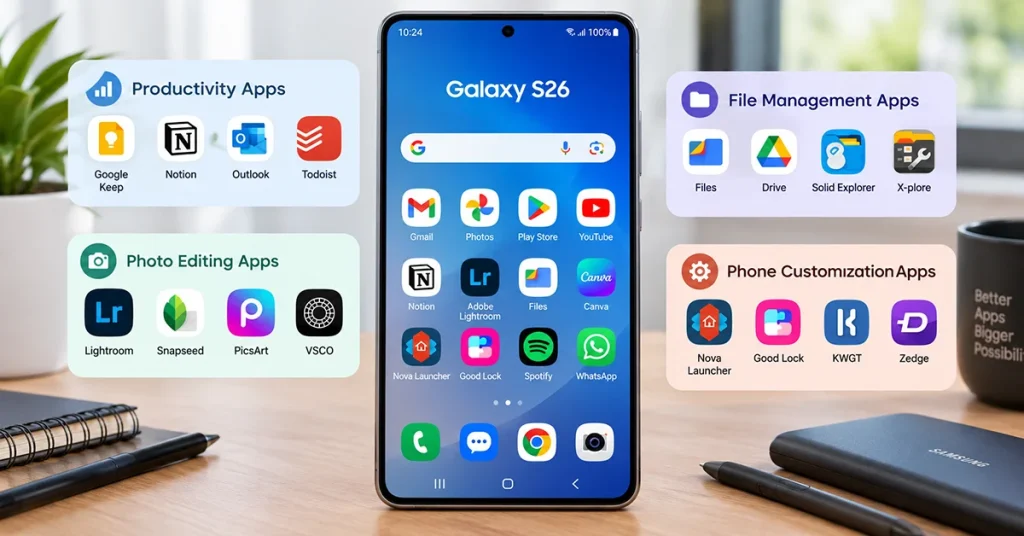
You don’t need dozens of downloads to get the most out of your Galaxy S26. The following 10 apps offer practical benefits for everyday use, whether you want to personalize your home screen, organize files, edit pictures, or work more efficiently.
Best Apps for Samsung Galaxy S26 at a Glance
| App | Best For | Cost |
|---|---|---|
| Good Lock | Samsung customization | Free |
| Google Photos | Photo backup and organization | Free tier; paid storage options |
| Snapseed | Photo editing | Free |
| Bitwarden | Password management | Free tier; paid plans |
| Google Drive | Cloud storage and documents | Free tier; paid storage options |
| Microsoft SwiftKey | Customizable typing | Free |
| LocalSend | Local file sharing | Free |
| ChatGPT | AI assistance and writing | Free tier; paid plans |
| Open Camera | Manual camera controls | Free |
| Solid Explorer | Advanced file management | Free trial; paid unlock |
Prices and features can change, and some apps or features may vary by country. Check the relevant app store before installing.
1. Good Lock: Best App for Galaxy S26 Customization
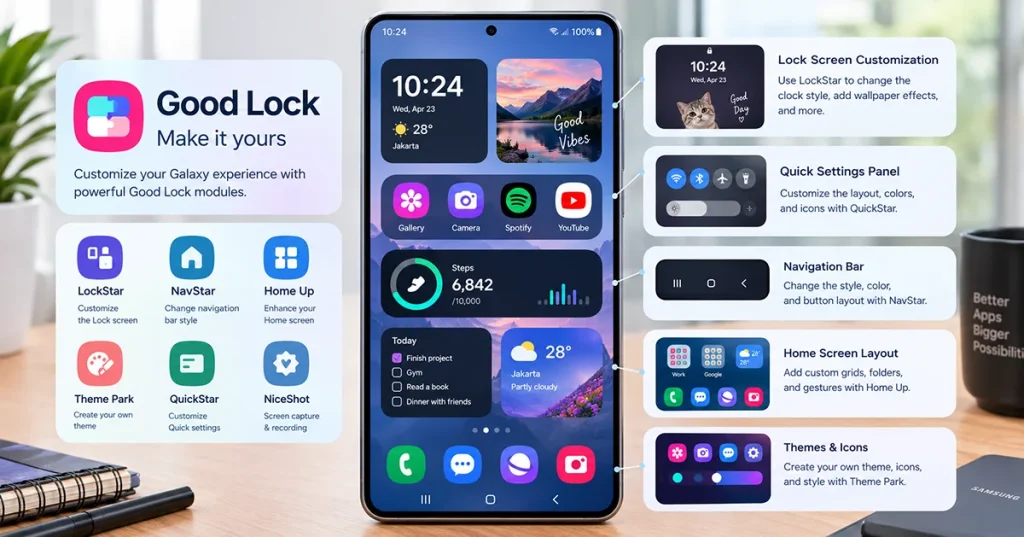
Good Lock is one of the most useful apps for Samsung Galaxy S26 owners who want more control over their phone’s interface. Instead of replacing the entire Samsung experience, it adds customization tools for compatible parts of One UI.
Depending on device, software version, and regional availability, its modules can help you customize the lock screen, Quick Settings panel, keyboard, navigation gestures, and recent-apps layout.
Why install it?
- Personalize your lock screen and home screen.
- Adjust compatible Quick Settings and navigation options.
- Customize keyboard appearance and effects.
- Add shortcuts and refine supported interface elements.
To get started, open the Galaxy Store, search for Good Lock, and install it if it is available for your device and region. Then explore its modules and enable only the features you need.
Good Lock is the best starting point if you want your Galaxy S26 to feel more personal without installing a completely different launcher.
2. Google Photos: Best for Managing Photos and Videos
Google Photos helps you organize pictures, search your library, create albums, and back up photos and videos to your Google Account.
It is especially useful if you take lots of pictures with the Galaxy S26 and want access to them across multiple devices. You can search for subjects, people, and places using supported features, rather than scrolling through your entire gallery.
Key benefits:
- Back up photos and videos.
- Create albums and share selected memories.
- Search your photo library.
- Access backed-up media on compatible devices.
Google Photos offers a free storage allowance shared with other Google services, while additional storage requires a paid Google One plan. Review the backup settings before uploading large videos, particularly if you have limited mobile data.
Samsung Gallery remains useful for local photo browsing and device-specific editing. Use Google Photos when cloud backup and cross-device access matter most.
3. Snapseed: Best Free Photo Editor
The Galaxy S26’s built-in camera and Gallery editor are good starting points, but Snapseed offers additional editing controls for users who want more creative flexibility.
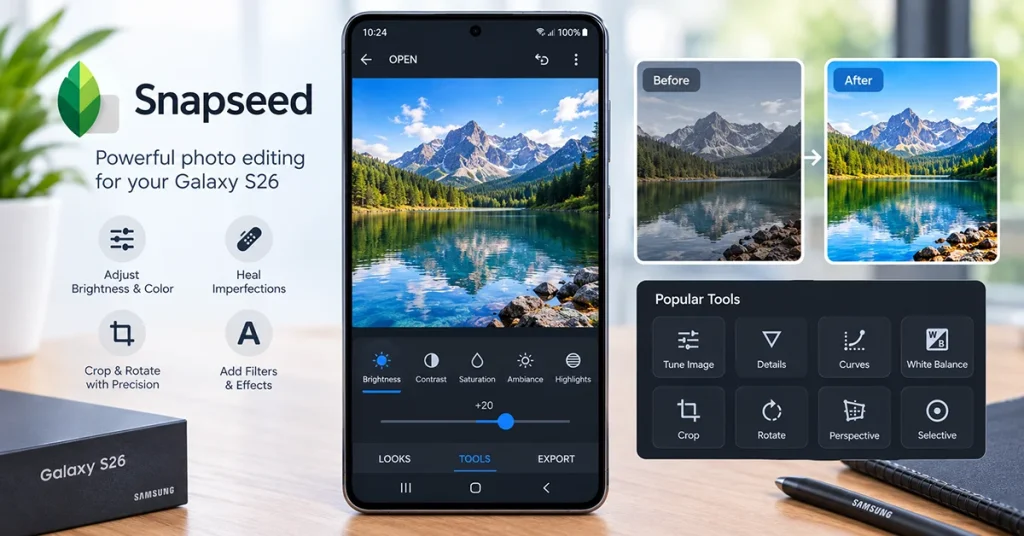
You can adjust brightness, contrast, color, white balance, and perspective. Selective editing tools also help you improve specific parts of an image without changing the entire photograph.
Why Galaxy S26 users should try it:
- Fine-tune exposure and colors.
- Correct perspective and straighten images.
- Apply filters and creative effects.
- Prepare photographs for social media.
Snapseed is particularly useful for travel photography, portraits, food pictures, and landscapes. Start with small adjustments rather than applying several strong filters at once.
The stock Samsung Camera app should remain your first choice for most everyday shooting because it integrates directly with Samsung’s camera processing. Snapseed complements it after you capture a photo.
4. Bitwarden: Best for Password Security
Bitwarden helps you store passwords in an encrypted vault and generate stronger passwords for your online accounts. Its autofill features can make signing in easier on supported websites and apps.
This is a useful addition if you manage multiple email accounts, social media profiles, shopping accounts, and other online services.
Main features include:
- Store and organize login credentials.
- Generate unique passwords.
- Autofill supported login forms.
- Sync your vault across supported devices.
Bitwarden has a free plan, with additional features available through paid plans. Set a strong master password and enable available account-protection options.
A password manager is more useful than reusing one password across multiple services. Before choosing an autofill provider, review Android’s password and autofill settings to ensure it works as expected.
5. Google Drive: Best for Productivity and Cloud Storage
Google Drive is a practical choice for Galaxy S26 users who work with documents, spreadsheets, PDFs, and shared files.
You can upload files, organize folders, share documents, and access your work from a computer or another compatible device. It also works with Google Docs, Sheets, and Slides.
Use Drive to keep important work files accessible when you switch between your phone and computer. You can also mark supported files for offline access when you expect to lose your internet connection.
The free Google storage allowance is shared across services such as Drive, Gmail, and Google Photos. Check your available storage before backing up large files.
If you already use Microsoft 365 for work, OneDrive may be a better fit for your existing documents and collaboration workflow.
6. Microsoft SwiftKey: Best Alternative Keyboard
Samsung Keyboard already offers useful typing and customization features. However, Microsoft SwiftKey is worth trying if you prefer its prediction tools, multilingual typing, or keyboard personalization options.
The app learns from your typing patterns to offer word suggestions and can support multiple languages, depending on the installed language packs and current version.
Useful features include:
- Predictive text and autocorrection.
- Multilingual typing.
- Keyboard themes and layout options.
- Clipboard and typing tools.
After installation, open your phone’s keyboard settings to enable and select SwiftKey. Test it with the languages you use most often.
Because a keyboard can process everything you type into many apps, review its privacy settings and permissions before making it your default.
7. LocalSend: Best for Transferring Files
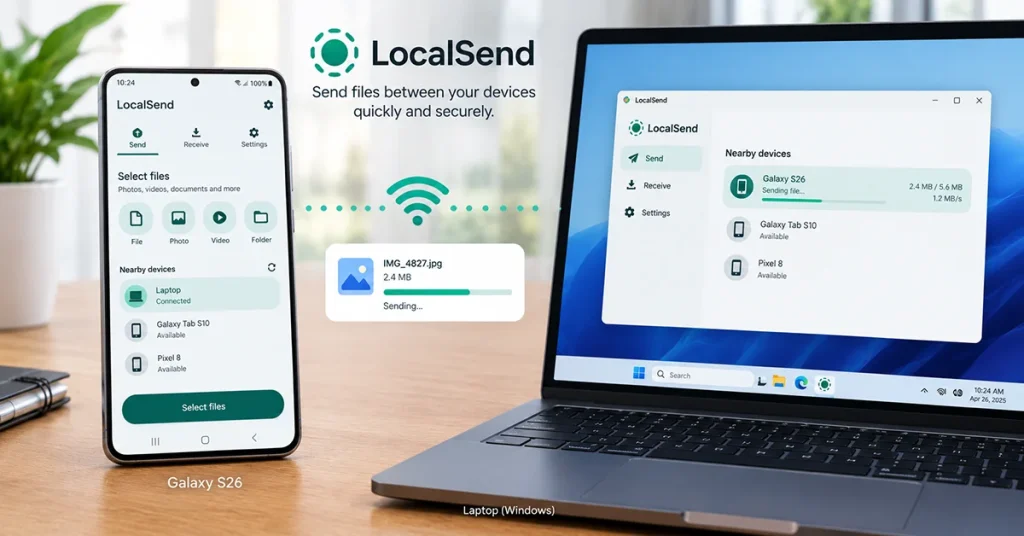
LocalSend makes it easier to transfer files between compatible devices on the same local network without relying on a cloud-storage account.
It is useful when you need to move photographs, videos, PDFs, or other files between your Galaxy S26 and a computer or another phone.
Why it is worth installing:
- Transfer files over a local network.
- Avoid uploading every file to cloud storage.
- Share files across supported operating systems.
- Keep the transfer process simple.
Install LocalSend on both devices, connect them to the same local network, and follow the app’s instructions to discover the receiving device and send files.
The receiving device may need to approve a transfer. Only accept requests from devices you recognize, especially when using an unfamiliar network.
8. ChatGPT: Best AI Assistant
ChatGPT can help Galaxy S26 owners brainstorm ideas, summarize text, draft emails, explain unfamiliar topics, and work through everyday questions.
For example, you can ask it to summarize meeting notes, create a travel checklist, explain a phone setting, or suggest ways to organize your schedule.
The Android app provides access to supported ChatGPT features, which can vary by plan and availability.
Practical uses include:
- Drafting and rewriting messages.
- Explaining technical problems.
- Brainstorming content and creative ideas.
- Summarizing text you provide.
- Planning tasks and trips.
ChatGPT complements Samsung’s built-in Galaxy AI features rather than replacing them. Use Samsung’s integrated tools when you want an available device-level feature, and ChatGPT when you need a flexible conversational assistant.
Avoid sharing passwords, financial credentials, or other sensitive information in prompts.
9. Open Camera: Best Alternative Camera App
Open Camera is worth considering if you want more manual control over photography. It offers camera settings and shooting options that can appeal to users who prefer adjusting capture parameters themselves.
Depending on the phone’s hardware and Android compatibility, available controls can include exposure compensation, focus options, white balance, and other manual settings.
Use it when experimenting with creative shots or when the standard camera interface does not offer the control you want.
However, a third-party camera app does not automatically produce better photographs. Some Samsung-specific processing, camera modes, and lens features may work best in the native Camera app.
For most users, keep Samsung Camera as the default and install Open Camera only if you need its additional controls.
10. Solid Explorer: Best Advanced File Manager
Samsung’s My Files app already handles everyday file management. Solid Explorer is an alternative for users who need more advanced folder navigation and file organization.
Depending on the version and enabled features, it can help you manage local files, browse archives, and work with supported network or cloud storage locations.
It is useful for people who frequently move large files, organize downloads, or manage folders across different storage locations.
Try the available trial before purchasing an unlock. Most casual users can continue using My Files without installing another file manager.
How to Install Apps on Samsung Galaxy S26
Follow these steps to install an app safely:
- Open the Google Play Store or Galaxy Store.
- Search for the app by its exact name.
- Check the developer and app details.
- Review permissions, ratings, and recent updates.
- Tap Install and wait for the download to finish.
- Open the app and configure its settings.
Prefer official app stores and trusted developers. Avoid downloading APK files from unfamiliar websites, and do not grant accessibility or other powerful permissions unless the app genuinely needs them.
Frequently Asked Questions
Final Verdict
The best apps for Samsung Galaxy S26 depend on how you use your phone. Good Lock, Google Photos, Snapseed, Bitwarden, and Google Drive are strong starting choices for customization, photography, security, and productivity.
Keep Samsung’s built-in apps when they already meet your needs, and add third-party tools only when they offer a clear advantage. This approach helps you build a more useful Galaxy S26 experience without unnecessary downloads.
